[8 Methods in 2026] How to Fix Windows Pink Screen of Death?

5 mins read

Updated on 2026-01-19 16:46:13 to Windows Fix

Seeing a sudden pink screen instead of the Windows interface can be alarming, especially when it appears without warning and freezes the system. The Windows pink screen of death is less common than a blue screen, but it often signals serious underlying issues related to hardware, drivers, or system corruption.

Understanding what triggers this error and how to fix it correctly can prevent data loss and repeated crashes. This guide walks you through causes, data recovery options, and proven solutions step by step.

windows pink screen of death

What Is a Pink Screen of Death on Windows?

The Pink Screen of Death (PSOD) is a critical system error where Windows displays a solid pink or magenta-colored screen, often followed by system freezing, forced restarts, or complete unresponsiveness. Unlike standard error messages, the pink screen usually provides no error code or explanation, making it confusing for users.

When the pink screen appears, Windows typically fails to load the graphical interface properly. In many cases, the system becomes stuck, keyboard and mouse input stop responding, and users are forced to restart the computer.

On repeated occurrences, this error may prevent Windows from booting normally, indicating deeper system or hardware problems.

What Causes the Pink Screen of Death on Windows 10/11?

Before applying fixes, it is essential to understand the root cause of the problem. The pink screen of death error on Windows is usually caused by conflicts between hardware, drivers, and system settings rather than a single isolated fault.

Common causes include:

  • Faulty or outdated graphics drivers
  • GPU overheating or hardware failure
  • Incompatible third-party software or display utilities
  • Corrupted Windows system files
  • Incorrect overclocking settings
  • Fast Startup conflicts
  • Recent Windows updates that failed or were installed incorrectly
  • Loose or damaged display cables
  • Power supply instability

Identifying which of these factors applies to your system helps determine the most effective solution.

⚡ How to Recover Data When Windows Has a Pink Screen?

When Windows repeatedly crashes with a pink screen, protecting your data becomes the top priority. If the system cannot boot normally, files stored on the internal drive may still be intact and recoverable.

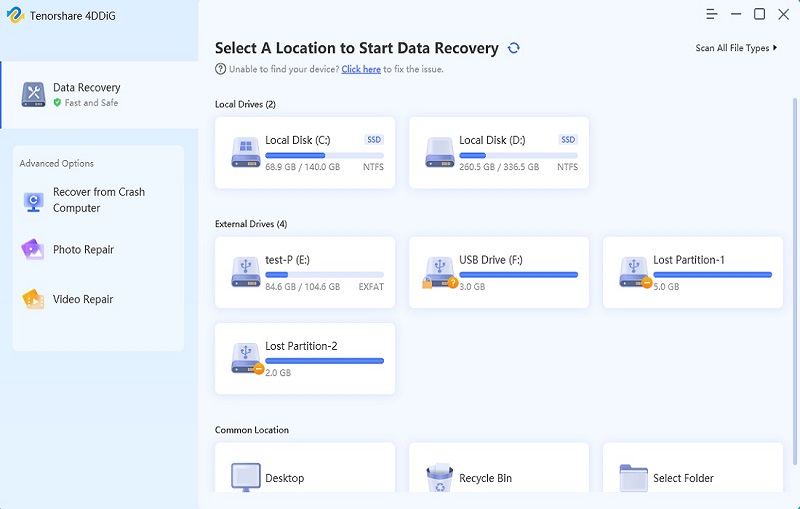
4DDiG Windows Data Recovery is designed to retrieve files from unbootable or crashed Windows systems. It supports recovering documents, photos, videos, and other data even when Windows cannot load.

FREE DOWNLOAD

Secure Download

FREE DOWNLOAD

Secure Download

Steps to recover data from a PC affected by the pink screen:

  • Get yourself a working computer and a blank USB drive with more than 1.5GB of storage. Install and launch 4DDiG on the working computer and connect your USB to it, then choose the "Crashed PC" option from the left side and click "Get Started”.

    choose crashed pc from 4ddig
  • Choose your USB to make it bootable and click "Create" to begin. Once it is done, click "Completed”.

    create a bootable drive 4ddig
  • Insert your USB into the computer with the pink screen of death and restart it. Once it begins restarting, press the BIOS key to open BIOS settings and boot from the USB by using the "Arrow Keys" in the Boot Settings.

  • Now, choose the data to back up and choose your desired location to save it, then click "Save Now."

    save the recovered files from windows

Recovering data first ensures that you can proceed with system repairs without risking permanent data loss.

How to Fix the Pink Screen of Death on Windows 10/11?

Before attempting advanced fixes, try basic troubleshooting such as restarting the computer, checking cable connections, and allowing the system to cool down if overheating is suspected. If these steps do not resolve the issue, move on to the advanced methods below.

1Boot in Safe Mode

Safe Mode loads Windows with minimal drivers and services, making it easier to diagnose system issues. If the pink screen does not appear in Safe Mode, the issue is likely driver or software-related.

  • Force restart the PC three times by holding the power button to trigger Windows Recovery.

  • Select “Troubleshoot” to pick “Advanced options”.

    enter safe mode on windows
  • Click “Startup Settings” and select “Restart” and press “4 or F4” to enter Safe Mode.

2Roll Back or Update Graphics Drivers

Graphics driver issues are one of the most common causes of the pink screen of death in Windows 10/11. First, boot your system in Safe Mode, then follow the steps below.

  • Press “Win + X” then go to Device Manager and choose your GPU.

  • Click "Update Driver" or click "Properties," then go to the "Driver" tab and choose the “Roll Back Driver” option.

    click to update drivers on windows

Restart the system after making changes to see if the problem is resolved.

3Disable Fast Startup

Fast Startup can cause driver conflicts that lead to display issues. Disabling Fast Startup often stabilizes boot-related display problems, but it must be done in Safe Mode.

  • Open the Control Panel and select Power Options.

  • Click “Choose what the power buttons do”. Click “Change advanced power settings” then select “Change settings that are currently unavailable”.

    change advanced power settings
  • Uncheck “Turn on fast startup” then save changes and restart.

4Check for Windows Updates

Pending or failed updates may contribute to system instability. Keeping Windows fully updated helps eliminate compatibility issues. Doing this in Safe Mode ensures that you do not make any wrong changes to your system.

  • Open Settings and go to “Windows Update”.

    update windows via settings
  • Click “Check for updates” and install available updates, and restart.

5Scan for Corrupted System Files (SFC / DISM)

Corrupted system files can trigger severe display errors. These scans repair corrupted system components in Safe Mode that may cause the pink screen.

  • Search for Command Prompt in Windows Search and right-click, then select "Run as Administrator”.

  • Run the following commands one by one:

  • sfc /scannow

  • DISM /Online /Cleanup-Image /RestoreHealth

    run the sfc command

6Uninstall Problematic Apps or Recent Updates

If the error started after installing a program or update, removing it may solve the issue. You can also uninstall suspicious recent third-party apps once Windows becomes accessible.

  • Access the Windows Recovery Environment and select “Troubleshoot”.

  • Go to “Advanced Options” and pick the “Uninstall Updates” option.

    uninstall updates via recovery environment

7Perform a System Restore

System Restore rolls Windows back to a stable point before the error appeared. This method preserves personal files while reversing problematic system changes.

  • Force your system into Recovery Environment by restarting it, holding the "Power Button" 3 times.

  • Choose “Troubleshoot” and then go to “Advanced Options” to select “System Restore”.

  • Enter your Windows credentials and click "Continue," then follow the on-screen instructions to complete the process.

    enter credentials to perform system restore

8Reset or Reinstall Windows

If all else fails, resetting or reinstalling Windows may be necessary to fix the pink screen of death error. A clean reinstall ensures a fresh system, but should be done only after data recovery.

  • Go into the Windows Recovery Environment and choose “Troubleshoot”.

  • Choose “Reset this PC” and follow the on-screen steps. Do not forget to personalize your settings when it asks to "Keep Files" or "Remove Everything."

    reset this pc via recovery environment

FAQs

Q1: Is there a pink screen of death?

Yes, while less common than the blue screen, the pink screen of death is a real Windows error typically related to graphics or system failures.

Q2: Can a pink screen be fixed?

In most cases, yes. Updating drivers, repairing system files, or restoring Windows usually resolves the issue.

Q3: How to get rid of the pink screen of death?

Booting into Safe Mode and addressing driver or system conflicts is the most effective approach.

Conclusion

The Windows pink screen of death is a serious but fixable problem when addressed correctly. By identifying the root cause, securing your data, and applying the appropriate repair methods, most systems can be restored without permanent damage.

Before making major changes, recovering important files with 4DDiG for Windows ensures data safety and peace of mind during the repair process.

FREE DOWNLOAD

Secure Download

FREE DOWNLOAD

Secure Download

William Bollson (senior editor)

William Bollson, the editor-in-chief of 4DDiG, devotes to providing the best solutions for Windows and Mac related issues, including data recovery, repair, error fixes.

(Click to rate this post)

You rated 4.5 ( participated)