How to Fix Windows 11 KB5132061 Install Errors (0x800f0993, 0x80070306, 0x800f0989)

5 mins read

Updated on 2026-11-17 18:52:37 to Windows Fix

KB5132061 is the November 2026 security update for Windows 11 versions 24H2, 25H2, and 26H2. It brings important security fixes and quality improvements. Many users, however, run into a KB5132061 install error that stops the update from completing. Amid this, Microsoft has confirmed the install error and released an automatic repair for it.

If the installation also keeps failing on your PC, you are not alone. This guide explains why KB5132061 failed to install and walks you through three practical ways to complete the installation successfully.

kb5132061 install error fix

Part 1. Common KB5132061 Install Errors: Why Is KB5132061 Failing to Install?

Before trying a fix, it's helpful to identify the common KB5132061 issues or symptoms and understand what the main culprits behind them are.

📝 Common KB5132061 Install Errors & Codes

Users who face a KB5132061 install error usually see one of these messages or codes in Windows Update or Update history:

  • Install error – 0x800f0993 (most frequently reported)
  • Install error – 0x800f0989
  • Windows failed to install the following update with error 0x80070306
  • The update stuck at 99% (or sometimes lower like 20%) and then rolls back
  • The same update keeps retrying after every restart without success

Microsoft lists the three main error codes above as a known issue. It mainly affects a limited number of devices that previously installed the October 2026 non-security preview update (KB5127936).

☞ Why Is KB5132061 Failing to Install

Prior KB5127926 installation is the most common source. Microsoft confirmed that devices previously installed the October 2026 optional preview update (KB5127936) are more likely to hit the problem

In certain cases, Windows Sandbox is enabled and creates a conflict during the servicing process. Other possible causes include insufficient free space on the system drive, corrupted Windows Update cache, or damaged system files.

Part 2. Has Microsoft Fixed the KB5132061 Installation Issue

Yes. Microsoft has acknowledged the problem and started rolling out an automatic repair. The repair began on November 11, 2026, at 10 AM PT. Affected devices connected to the internet were expected to receive it automatically within 24 to 48 hours through Windows Update.

You don't need to download a separate repair tool. Simply open Settings > Windows Update, select Check for updates, and allow Windows to retry.

If installation still fails after receiving the repair, the following methods may help you identify and resolve other possible causes.

Part 3. How to Fix KB5132061 Install Error (Step-by-Step Solutions)

If you are still seeing a KB5132061 install error after waiting for Microsoft's automatic repair, the three practical methods below can help most users complete the installation. Start with the first one if your system drive is running low on space, then move to the next options if needed.

Method 1. Extend Drive to Get Enough Free Space for KB5132061 Update

Windows needs free space on your system drive (usually C:) to download, unpack, and install updates. If your C drive is almost full, you may encounter a KB5132061 update installation failure.

One way to address this is to extend your system partition using 4DDiG Partition Manager. This tool makes it easier to resize partitions, move available space between them, and expand your C drive without reinstalling Windows.

What Features of 4DDiG Partition Manager Can Help You

  • Resize and move partitions without data loss
  • Merge adjacent partitions or create new ones from unallocated space
  • Extend or shrink system and data drives easily
  • Convert between MBR and GPT if required
  • Scan and clear various types of junk files to free up space via System Cleanup
FREE DOWNLOAD

Secure Download

Steps to free up space for the KB5132061 update:

  • Get and start the 4DDiG Partition Manager. Select Partition Management, choose the partition having free space you can borrow (for example, a large D: drive). Click it and tap on Resize/Move.

    4ddig resize move patition feature
  • Drag the left border to the right shrink the partition (such as D:) and create unallocated space next to your system drive (C: drive).

    shrink d drive to get unallocated space
  • Next, proceed with directly picking the C: drive, dragging the right slider to the right to extend the C: drive.

    extend c drive
  • Then click "OK" to kick off the C drive extending. Once done, hit "Finish".

    start c drive extension

Afterward, you can try to install the KB5132061 via Windows Update.

Method 2. Temporarily Disable Windows Sandbox

If storage isn't the issue, Windows Sandbox could be interfering with the update. Some Windows 11 users have reported that KB5132061 failed to install while Windows Sandbox was enabled. Temporarily turning off this feature allowed the installation to complete on certain devices.

How to disable Windows Sandbox:

  • Press the Windows key, type Turn Windows features on or off, and open the result.

  • In the list, find Windows Sandbox and clear the checkbox next to it.

    disable windows sandbox to fix kb5132061 install error
  • Click OK. Windows will remove the feature components.

  • Restart your computer when prompted.

  • After the restart, open Settings > Windows Update and try installing the update once more.

If the update installs successfully, you can return to Windows Features and enable Windows Sandbox again.

book icon Note

This is a user-reported workaround, not a universal fix confirmed by Microsoft. If Windows Sandbox is already disabled or unavailable on your PC, skip the next method.

Method 3. Manual Installation from Microsoft Update Catalog

If the update continues to fail through Windows Update, you can try installing it manually. The Microsoft Update Catalog provides official update packages for supported Windows versions. You can download the appropriate package and install it without relying on the usual Windows Update download process.

The detailed download and installation steps, including which files to choose for your system, are covered in the next section.

Part 4. How to Download and Install KB5132061 Manually from Microsoft Update Catalog

When Windows Update keeps failing with a KB5132061 install error, manually downloading the update yourself from the Microsoft Update Catalog is one of the most reliable workarounds. This method lets you install the package offline and often succeeds where the automatic process does not.

book icon Note

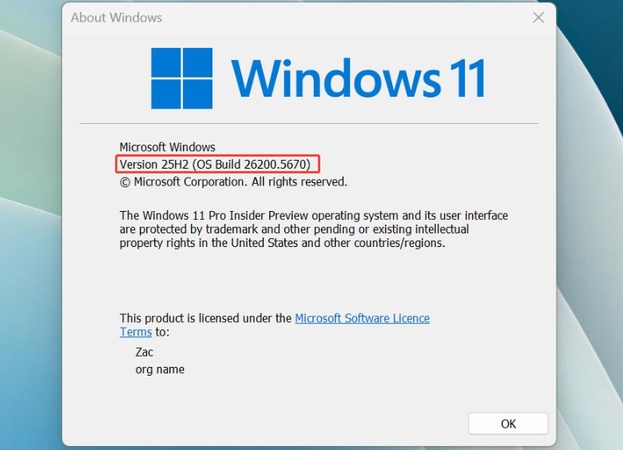
Before you begin, make sure you know your Windows 11 version (24H2, 25H2, or 26H2) and whether your PC is x64 or ARM64. You can check this quickly in Settings > System > About.

check about windows version

Steps to download and install KB5132061 from Microsoft Update Catalog:

  • Visit the Microsoft Update Catalog page for KB5132061.

  • Locate the package that matches your Windows version and processor architecture. For most users this will be the x64 version for 25H2 or 26H2. Then click Download.

    microsoft update catalog kb5132061 install
  • Download the main .msu file. In some cases Microsoft also provides a required checkpoint update (such as KB5043080). If it appears, download that file as well and install it first.

  • Once the download finishes, double-click the .msu file to start the installation. Follow the on-screen prompts.

  • Restart your computer when the process is complete. After the restart, open Settings > Windows Update to confirm that the KB5132061 update is listed as installed.

Part 5. How to Protect Your Data Before Installing KB5132061

Before you try any fix for a KB5132061 install error, it is wise to take a couple of simple precautions. These steps reduce the chance of problems and keep your important files safe.

1. Avoid Optional Preview Updates

The current installation issues are closely linked to the optional October 2026 preview update (KB5127936). If you have not already installed that preview, it is best to leave optional non-security updates turned off for now.

Go to Settings > Windows Update > Advanced options and make sure the option to get the latest updates as soon as they are available is switched off. Stick to the regular monthly security updates. This lowers the risk of running into similar conflicts with future patches.

2. Back Up Important Data Before Installation with 4DDiG Partition Manager

Even when an update is safe, unexpected issues can still occur. Creating a backup of your important files or a full system image gives you peace of mind.

4DDiG Partition Manager includes convenient backup tools that let you protect your data quickly. You can back up selected folders, important files, disk partitions, and even the entire system so you can restore everything if needed.

  • Open 4DDiG Partition Manager. Navigate to Backup > File Backup.

    4ddig partition manager file backup
  • Choose the files, folders, or entire partition you want to protect. Then click Next.

    select files for backup
  • Select a safe destination (external drive or another internal partition with enough free space) and tap on Start.

    start file backup
  • Once the backup is complete, you can safely proceed with installing the KB5132061 update.

FAQs About Windows 11 KB5132061

Q1: Is KB5132061 safe to install?

Yes. KB5132061 is an official Microsoft security update. It addresses important vulnerabilities and includes quality improvements. The temporary installation problems some users faced have been acknowledged by Microsoft, and an automatic repair has already been rolled out for affected devices.

Q2: How large is the KB5132061 update?

When you install it through Windows Update, the download is usually around 1–1.5 GB. The full standalone .msu packages available from the Microsoft Update Catalog are larger, roughly 4.8–5 GB depending on your Windows 11 version and architecture.

Q3: How long does the installation normally take?

On most computers the process takes between 10 and 30 minutes, including download, installation, and the required restart. The exact time depends on your internet speed, hardware performance, and how busy the system is. Some users report the entire process lasting around half an hour.

Conclusion

A KB5132061 install error can be frustrating, especially when Windows repeatedly fails to complete the update. Fortunately, checking available disk space, temporarily disabling Windows Sandbox, or installing the update manually may help resolve the problem.

If your system drive is running low on space, 4DDiG Partition Manager can help you resize partitions and back up important data before installation. Remember to check Microsoft's latest guidance and keep a reliable backup before updating Windows.

FREE DOWNLOAD

Secure Download

William Bollson (senior editor)

William Bollson, the editor-in-chief of 4DDiG, devotes to providing the best solutions for Windows and Mac related issues, including data recovery, repair, error fixes.

(Click to rate this post)

You rated 4.5 ( participated)