9 Ways to Fix Something Happened and Your PIN Isn't Available

5 mins read

Updated on 2026-08-27 11:51:28 to Windows Fix

If you see "Something happened and your PIN isn't available" on the Windows sign-in screen, Windows cannot currently use your Windows Hello PIN to verify your identity. This does not always mean you entered the wrong PIN or forgot it.

In most cases, you can regain access by resetting the PIN, signing in with your password, or fixing the system change that triggered the error. This guide explains which solution to use based on your situation and what to do if you still cannot access Windows.

something happened and your pin is not available

What Does "Something Happened and Your PIN Isn't Available" Mean?

The full message may appear as "Something happened and your PIN isn't available. Click to set up your PIN again." It means Windows cannot currently use your Windows Hello PIN to verify your identity, even if the PIN itself is correct.

This is different from simply forgetting your PIN. Since a Windows PIN is separate from your Microsoft account password, you may still be able to sign in with your password and then reset the PIN.

Why Is My PIN Not Available on Windows 10/11?

When a "Microsoft PIN is not available," the cause is often related to Windows Hello, startup settings, system files, or security configuration rather than the PIN itself.

Possible Cause What May Have Happened
Windows Hello/PIN data corruption Your PIN data may be damaged or corrupted.
Windows Update The error appeared after a recent Windows update.
Safe Mode PIN and biometric sign-in are unavailable in Safe Mode.
Diagnostic Startup Some services needed for PIN sign-in may not start.
BIOS/UEFI update Security settings may have changed after the update.
TPM issue TPM may not be working correctly with Windows Hello.
System file corruption Damaged Windows files may affect PIN sign-in.
Hardware or security changes Recent hardware or security changes may affect Windows Hello.

Microsoft specifically notes that PIN and biometric sign-in options are unavailable when signing in through Safe Mode, so a password is required there.

How to Fix Your PIN Isn't Available on Windows 11/10?

If you see the something went wrong and your PIN isn't available error, there is no single fix that works in every situation. Start with the method that best matches what happened before your PIN stopped working.

Method 1. Set Up Your PIN Again

Best for: The "Set up my PIN" option still works on the Windows sign-in screen.

The simplest solution is to set up the PIN again. This lets Windows verify your account and create new PIN sign-in information.

  • Select "Set up my PIN" on the Windows sign-in screen.

    choose set up my pin
  • Follow the prompts to verify your Microsoft account.

  • Enter a new PIN when prompted.

  • Confirm the new PIN and try signing in again.

Depending on your sign-in screen, you may see "I forgot my PIN" instead. Microsoft says this option can be used to reset a PIN from the sign-in screen for a Microsoft account. Local accounts may need to sign in with a password first.

If "Set up my PIN" does nothing, briefly opens and closes, or sends you back to the same screen, do not keep repeating the reset. Try another sign-in method next.

Method 2. Sign In with Your Password Instead

Best for: Your PIN is unavailable, but Password is still listed under Sign-in options.

A PIN problem does not necessarily prevent you from using your account password. If Windows offers another sign-in method, use it to reach the desktop and then reset Windows Hello.

  • Select "Sign-in options" on the sign-in screen.

  • Choose the Password option.

  • Enter the password for your Microsoft or local account.

  • After signing in, open "Settings > Accounts > Sign-in options."

    sign in with password under sign in option
  • Select "PIN (Windows Hello)" and reset or change the PIN.

Microsoft recommends password sign-in when the PIN reset option is unavailable from the sign-in screen.

If you do not see a password option, continue with the methods below to resolve this Windows Hello pin not available issue.

Method 3. Exit Safe Mode and Boot Windows Normally

Best for: Your PIN became unavailable after entering Safe Mode, especially after enabling "Safe boot" in System Configuration.

Safe Mode uses a limited set of Windows files, drivers, and services. Microsoft also states that PIN and biometric sign-in methods are unavailable for Safe Mode sign-in. You need an account password instead.

If you can sign in to Safe Mode with your password:

  • Press Windows + R.

  • Type msconfig and press Enter.

    open system configuration
  • Open the "Boot" tab.

  • Clear "Safe boot" under Boot options.

    uncheck safe boot
  • Click "Apply > OK."

  • Restart the PC.

Microsoft says a normal restart should usually exit Safe Mode. If Windows keeps returning to Safe Mode, clear the Safe boot option in msconfig. See Microsoft's Windows Startup Settings and Safe Mode guide.

If you cannot sign in and Windows keeps booting into Safe Mode, go to "Windows Recovery Environment > Troubleshoot > Advanced options > Command Prompt" and run:

bcdedit /deletevalue {default} safeboot

Restart the PC to return to normal mode. Use this command only if Windows is stuck booting into Safe Mode.

Method 4. Switch Diagnostic Startup Back to Normal Startup

Best for: The PIN problem started after you changed startup settings in msconfig, especially after selecting Diagnostic startup.

Diagnostic Startup loads only basic devices and services. If the PIN error started immediately after changing System Configuration, restore the normal startup configuration.

  • Press Windows + R and type msconfig.

  • Press Enter to open System Configuration.

  • Select the "General" tab.

  • Choose "Normal startup."

    choose normal startup under general tab
  • Click "Apply > OK."

  • Restart Windows.

If you cannot access the desktop to change this setting, you can use Windows Recovery Environment instead. Microsoft includes System Restore, Startup Settings, Command Prompt, and other recovery tools in Windows RE.

Method 5. Reset the Windows Hello Ngc Folder

Best for: Your PIN still does not work after a normal reset attempt, suggesting that the local Windows Hello PIN configuration may be corrupted.

Windows stores local Windows Hello configuration data in the Ngc folder. Resetting this folder can help Windows rebuild the PIN configuration.

  • On the sign-in screen, click "Sign-in options" and use your account password to sign in to Windows.

  • Open File Explorer and go to the following location:

    C:\Windows\ServiceProfiles\LocalService\AppData\Local\Microsoft

  • Find the "Ngc" folder. If Windows blocks access, take ownership or grant your administrator account permission to access it. Then rename or delete the folder.

    rename or delete the ngc folder
  • Restart your PC, then go to "Settings > Accounts > Sign-in options > PIN (Windows Hello)" and set up a new PIN.

Since the Ngc folder contains protected Windows Hello configuration data, try the simpler PIN reset and password sign-in methods first.

Method 6. Check or Enable TPM

Best for: Your PIN became unavailable after a BIOS/UEFI update, firmware update, hardware change, or TPM setting change.

Windows Hello can use the Trusted Platform Module (TPM) to protect authentication keys, so firmware or security changes may affect PIN sign-in. In some cases, Windows may report that "your PIN is no longer available" after such a change.

  • Press Windows + R, type tpm.msc, and press Enter to open TPM Management.

  • Check the TPM status. If it is detected and ready for use, TPM is already enabled and you can move on to another fix.

    check and update tpm
  • If TPM is disabled, restart your PC and enter BIOS/UEFI.

  • Find the TPM setting and enable it. The name and location may vary by manufacturer.

  • Save the changes, restart Windows, and check whether PIN sign-in works again.

Avoid clearing TPM as a first step. If BitLocker or Device Encryption is enabled, make sure you have your BitLocker recovery key before clearing TPM or making major security changes.

Method 7. Repair Corrupted Windows System Files

Best for: The PIN problem appears together with other Windows errors, crashes, or malfunctioning system components.

Corrupted Windows files can interfere with sign-in components. DISM and System File Checker can repair the Windows image and damaged protected system files.

  • If you can access Windows, open "Command Prompt" or "Terminal" as administrator and run:

    DISM.exe /Online /Cleanup-image /Restorehealth

  • Wait for DISM to finish, then run System File Checker:

    sfc /scannow

    use system file checker
  • When the scan reaches 100%, restart your PC and check whether PIN sign-in works again.

If you cannot access Windows, use "Windows RE > Advanced options > Command Prompt" for recovery-environment troubleshooting instead of using the online commands above unchanged.

Method 8. Uninstall Recent Windows Updates

Best for: The PIN became unavailable immediately or shortly after installing a Windows update.

If you encounter something happened and your PIN isn't available on Windows 10/11 soon after an update, removing the recent update can help determine whether the system change is related to the sign-in problem.

If you can access Windows:

  • Open "Settings > Windows Update > Update history" and select "Uninstall updates."

  • Find the recently installed update and select "Uninstall."

    click the uninstall updates from settings
  • Follow the prompts to remove the update, then restart Windows.

If you cannot sign in:

  • Enter Windows Recovery Environment and select "Troubleshoot > Advanced options > Uninstall Updates."

    uninstall updates via recovery environment
  • Choose the recent update you want to remove and follow the prompts.

  • Restart the PC and check whether you can sign in again.

Keep in mind that not every PIN problem after an update is caused by Windows Update, and removing security updates may reduce system protection.

Method 9. Use System Restore

Best for: Your PIN worked before a recent driver, software, update, or system configuration change, and the earlier fixes did not solve the problem.

System Restore rolls back Windows system files, settings, drivers, and installed programs to an earlier restore point without deleting your personal files. However, apps and drivers installed after that restore point may be removed.

  • Enter Windows Recovery Environment and select "Troubleshoot > Advanced options > System Restore."

    restore system to fix missing taskbar
  • Select your Windows account if prompted, then choose a restore point created before the PIN problem started.

  • Confirm the restore point and follow the prompts to complete System Restore.

  • Restart Windows and try signing in again.

How to Recover Data If You Still Can't Access Windows 10/11?

If none of the fixes above restores access to Windows, you may need to reset or reinstall the system. Before doing so, it is suggested to recover important files if you do not have a recent backup.

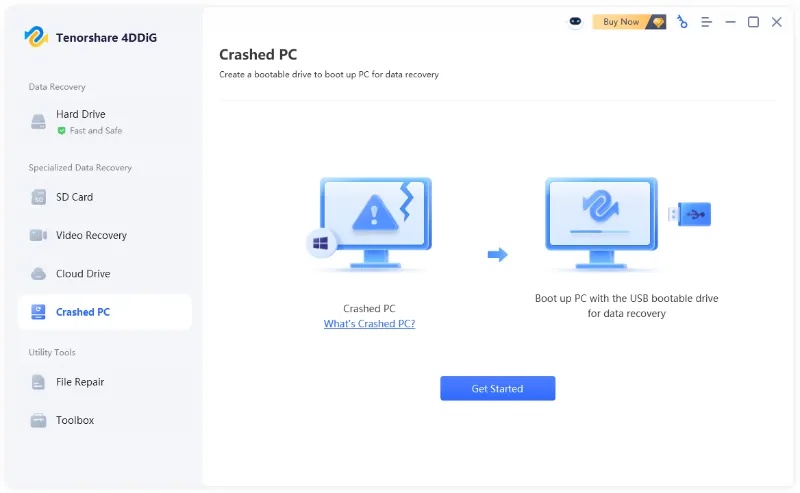
4DDiG Data Recovery includes a "Crashed PC" recovery feature for a Windows computer that cannot be accessed normally.

It lets you create a bootable USB drive on another working PC, start the inaccessible computer from that drive, and then scan the internal drive for recoverable files without logging in to Windows.

FREE DOWNLOAD

Secure Download

FREE DOWNLOAD

Secure Download

Follow these steps to recover your data before resetting or reinstalling Windows:

  • Install and launch 4DDiG on another working Windows PC. Select "Crashed PC" from the left menu and click "Get Started."

    choose crashed pc feature in 4ddig
  • Connect a USB drive, select it, and click "Create Now." Make sure the USB drive does not contain important files because it will be formatted.

    select usb drive to create a bootable drive
  • Wait while 4DDiG downloads the required firmware and creates the bootable drive. Keep the internet connection stable and do not disconnect the USB drive.

    4ddig creating the bootable drive
  • Once done, connect the bootable USB drive to the inaccessible PC. Enter BIOS/UEFI, set the USB drive as the boot device, and boot the computer from it.

    4ddig bootable drive created successfully
  • After the PC boots from the USB drive, enter the 4DDiG recovery environment. Select the drive where your files were stored and start scanning for recoverable data.

    4ddig advanced scan
  • When the scan is complete, browse or preview the found files, select what you need, and click "Recover." Save the recovered files to a safe location rather than the original drive.

    4ddig recover files

This allows you to recover important files from an inaccessible Windows PC before moving on to a system reset or reinstallation.

FAQs

Can I sign in to Windows without a PIN?

Yes. You can sign in to Windows with your account password or another configured sign-in method if it is available. Select "Sign-in options" on the login screen and choose Password or another option.

In Safe Mode, PIN and biometric sign-in are unavailable, so you need to use your Microsoft account or local account password.

Will resetting my PIN delete my files?

No. Resetting or changing your Windows Hello PIN does not delete your personal files. It only changes the credential used to sign in to the device.

However, resetting your PIN is different from using "Reset this PC," which may remove apps, settings, and personal files depending on the recovery option you choose.

Why is my PIN unavailable in Safe Mode?

Your PIN is unavailable because Windows does not support PIN and biometric sign-in in Safe Mode. Safe Mode starts Windows with only a limited set of files, drivers, and services, so you need to sign in with your account password instead. If Windows keeps booting into Safe Mode, follow Method 3 to return to normal startup.

Conclusion

When you encounter "something happened and your PIN isn't available," start with the fix that matches your situation and work through the more advanced options only when needed. If you still cannot access Windows, 4DDiG File Recovery can help recover important files before you reset or reinstall the system.

FREE DOWNLOAD

Secure Download

FREE DOWNLOAD

Secure Download

William Bollson (senior editor)

William Bollson, the editor-in-chief of 4DDiG, devotes to providing the best solutions for Windows and Mac related issues, including data recovery, repair, error fixes.

(Click to rate this post)

You rated 4.5 ( participated)