KB5121794: Windows 11 26H2 Download, Installation & Fixes

5 mins read

Updated on 2026-11-17 18:52:37 to Windows Fix

Looking to upgrade to Windows 11 26H2 but unsure where to start? KB5121794 makes the process easier by enabling the latest Windows features without a full system reinstall. However, your PC must meet certain requirements before installation.

This guide explains what the update does, how to download and install this Windows 11 26H2 KB5121794 enablement package, how to fix common problems along the way, and importantly, better alternative to upgrade to 26H2 even on unsupported PCs.

windows 11 26h2 kb5121794 update

Part 1. What Is KB5121794 for Windows 11 26H2? (Windows 11 26H2 Enablement Package Explained)

KB5121794 is Microsoft's official enablement package for upgrading Windows 11 version 24H2 or 25H2 to version 26H2. Unlike a full operating system upgrade, this update activates new features already delivered through previous Windows updates, and lets you access new features without reinstalling the operating system.

The package is small (around 173 KB) and requires only one restart. This makes upgrading to Windows 11 26H2 faster and easier while keeping your files, apps, and settings intact.

How Does the Windows 11 26H2 Enablement Package Work?

Think of the enablement package as a switch that turns on new Windows features. Many of the features introduced in 26H2 are already included in recent cumulative updates for Windows 11 24H2 and 25H2. However, they remain inactive until the enablement package is installed.

Here is how it works:

  • Windows downloads the necessary system files through regular monthly updates.
  • The Windows 11 26H2 enablement package activates the features that are already on your PC.
  • After a restart, your Windows version changes to 26H2, with an OS build starting with 26300.

Wanring: However, before installing the update, you need to make sure your PC is running a supported Windows version and has the required updates installed.

Part 2. KB5121794 System Requirements and Prerequisites

Before installing the Windows 11 26H2 update, check your Windows version, making sure your PC meets the requirements by following the guide below.

Which Windows 11 Versions Support KB5121794?

According to Microsoft, the enablement package supports Windows 11 versions 24H2 and 25H2. Your PC must also have the September 22, 2026 preview update (KB5124010) or a later cumulative update installed. Here is a simple overview of the main requirements:

Requirement Details
Supported Windows Versions Windows 11 24H2 or 25H2
Required Cumulative Update KB5124010 or later
Supported Editions Home, Pro, Enterprise, Education, and eligible IoT Enterprise editions
Processor Compatible 64-bit CPU (x64 or ARM64)
RAM At least 4 GB
Storage 64 GB or larger storage device
TPM TPM 2.0
System Firmware UEFI with Secure Boot capability
Restart Required Yes
book icon Note

Windows 11 23H2, earlier versions, and 26H1 cannot upgrade using this enablement package.

How to Check Your Windows Version and Required Updates

Not sure which Windows version you have or whether the required update is installed? Follow these steps to check your system before installing the Windows 11 26H2 enablement package KB5121794.

  • Check Windows OS Build: Press Windows + R, type winver, and press Enter. In the About Windows window, check whether your current version is 24H2 or 25H2. You can also see your OS build number (25H2, 24H2, or others) here.

    check os build about windows
  • Check KB5124010 Installation: Open Settings and go to Windows Update > Update history. Under Quality Updates, check whether KB5124010 or a later cumulative update has been installed.

    check windows update history
  • Install KB5124010: If you haven't installed the required update, return to Windows Update and click Check for updates. Install the available cumulative updates and restart your PC if prompted.

    install kb5124010 update

Part 3. How to Download and Install KB5121794 on Windows 11

Once your PC meets the requirements, you can proceed with the Windows 11 26H2 enablement package KB5121794 download. You can either install KB5121794 through Windows Update or download the small .msu file manually. Both methods take just a few minutes and require only one restart.

Method 1. Install KB5121794 via Windows Update

Windows Update is the easiest and safest way to install KB5121794. If your PC is running Windows 11 24H2 or 25H2 and has the required cumulative update installed, you can upgrade to 26H2 in just a few clicks.

  • Open Settings and tap on the left Windows Update.

  • Turn on "Get the latest updates as soon as they're available" and click Check for updates.

  • When Windows 11, version 26H2 appears (it may appear as the feature update linked to KB5121794), click Download & install.

    26h2 enablement package kb5121794 windows update
  • Wait for the installation to finish, then click Restart now to complete the upgrade. Once done, your PC should run 26H2.

Method 2. Manually Download and Install KB5121794 MSU (x64/ARM64)

If KB5121794 isn't showing up in Windows Update, you may want to download the update manually. However, Microsoft does not currently offer a standalone KB5121794 MSU file through its update catalog. Here's how to check its availability and install the update safely.

  • Confirm whether your PC is x64 or ARM64. Go to Settings > System > About and look under "Device specifications" > "System type".

    check windows system type
  • Download the matching KB5121794 MSU file from the official Microsoft download links.

  • Once downloaded, double-click the .msu file (for example, Windows11.0-KB5121794-x64.msu).

    open kb5121794 msu file
  • Follow the on-screen prompts to install the package.

  • Restart your computer when the installation finishes.

How to Check if KB5121794 Installed Successfully

After restarting your PC, you can quickly confirm whether the upgrade was successful using the following steps.

  • Go to System > About. Look at the "Windows specifications" section for the 26H2 version and OS build.

    check windows specifications
  • You can also go to Settings > Windows Update > Update history and look for KB5121794 under successfully installed updates.

If version 26H2 appears, the installation was successful and the new features are now enabled.

⚡ Part 4. Alternative: Upgrade to Windows 11 26H2 on an Unsupported PC

What if KB5121794 isn't available for your PC because of hardware restrictions? If your computer fails the TPM 2.0, Secure Boot, or CPU checks, 4DDiG Partition Manager offers an alternative way to upgrade to Windows 11 26H2 on unsupported PCs.

Its built-in Windows upgrade tool helps you bypass compatibility checks and upgrade restrictions without manually editing the registry or using complicated commands. It empowers you to upgrade to 26H2 while keeping your files and programs intact.

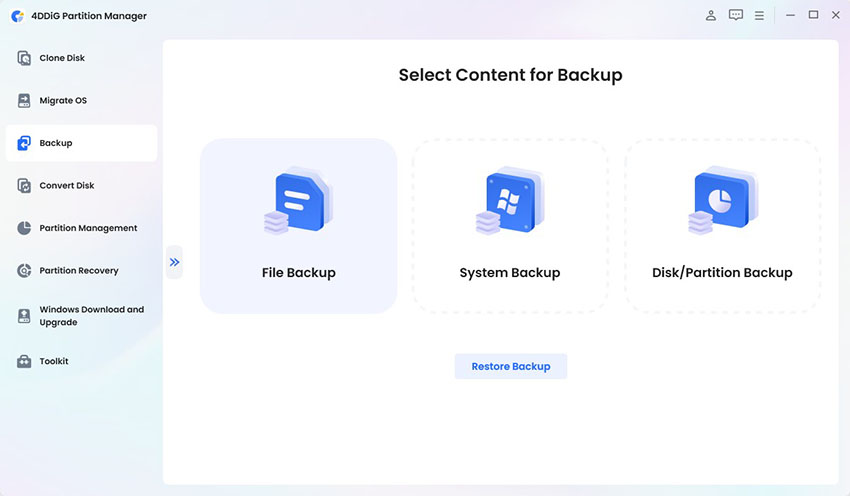
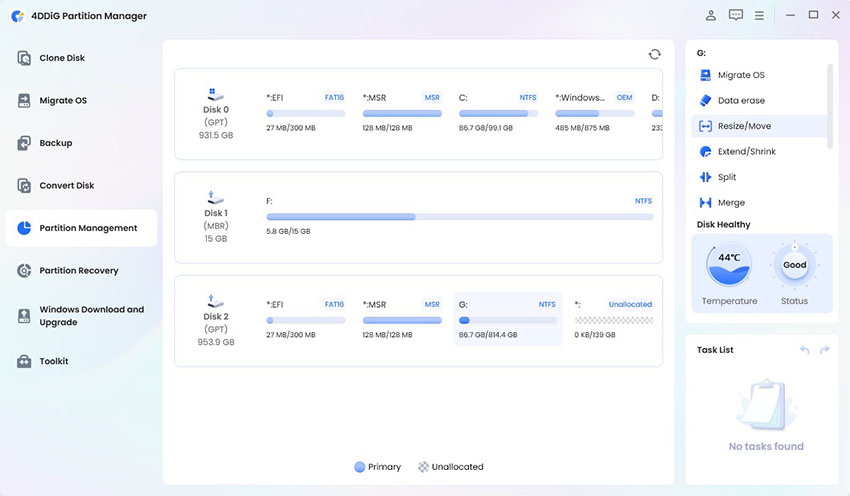
Also, with this all-in-one software, you can prepare your PC for the upgrade by freeing up disk space or backing up your system.

What Related Features of 4DDiG Partition Manager Can Help You

FREE DOWNLOAD

Secure Download

Steps to Upgrade 24H2 / 25H2 to 26H2 without Restrictions Using 4DDiG

  • Download and launch 4DDiG Partition Manager. Select Windows Download and Upgrade from the left menu, then click Windows 11 Upgrade.

    4ddig partition manager select windows 11 upgrade
  • The software will automatically check your PC's compatibility. If your computer doesn't meet the requirements, click Next and follow the instructions to bypass the restrictions.

    detect windows compatibility
  • Select Windows 11 26H2 and your preferred system language. Click Start to begin the upgrade and confirm your selection.

    select 26h2 versions and language
  • Click "Sure" when prompted. Wait for the software to prepare the upgrade. Follow the on-screen instructions to complete the installation.

    download 26h2 and bypass win11 upgrade requirements
  • When finished, proceed with "Next" to upgrade to Windows 11. Once done, your PC can run 26H2.

    upgrade to windows 11
book icon Note

Microsoft does not recommend installing Windows 11 on unsupported hardware. Back up your important files before upgrading, as unsupported PCs may experience compatibility issues or miss future updates.

Part 5. How to Fix KB5121794 Not Installing or Windows 11 26H2 Update Issues

Although KB5121794 is a small update, some users may experience installation errors or find that Windows 11 26H2 is unavailable. Here are four common KB5121794 issues and how to fix them.

1. KB5121794 Not Showing Up in Windows Update

If Windows 11 26H2 isn't available, your PC may be missing required updates (such as KB5124010), or Microsoft may be temporarily blocking the upgrade due to compatibility issues.

Fixes: Install the latest cumulative update (KB5124010) via Windows Update; Check whether your PC meet the Windows 11 system requirements

2. "The update is not applicable to your computer" Error

This usually means the PC is not on Windows 11 version 24H2 or 25H2, or the required prerequisite update is missing.

Fixes: Make sure you are running Windows 11 24H2 or 25H2 with winver; Install KB5124010 or a later cumulative update; Check whether your PC uses an x64 or ARM64 processor

3. KB5121794 Installation Fails, Gets Stuck, or Returns an Error

If the installation gets stuck or fails with an error, insufficient disk space, corrupted system files, or problems with Windows Update may be responsible.

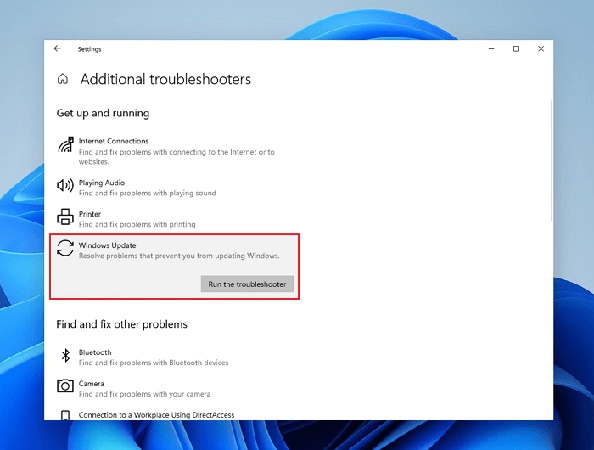
Fixes: Free up storage space, run Windows Update troubleshooter, or reinstall the MSU file

4. Windows 11 Still Shows 24H2 or 25H2 After Installing KB5121794

If your Windows version hasn't changed after installing the 26H2 enablement package, the upgrade may not have finished. The enablement package needs a full restart to activate the new version. Sometimes the change is not immediately reflected. Or, you may have installed a cumulative update instead of the actual feature update.

Fixes: Restart the computer again to complete the update; Check Windows Update history to confirm the package is listed as installed; Reinstall the 26H2 enablement package.

FAQs about Windows 11 KB5121794 Update

Q1: Is KB5121794 Available in the Microsoft Update Catalog?

No. According to Microsoft, KB5121794 is currently available through Windows Update and Windows Server Update Services (WSUS), but not through the Microsoft Update Catalog. Home users can install it directly through Windows Update.

Q2: Is KB5121794 the Same as a Windows 11 26H2 ISO?

No. KB5121794 is a small enablement package that upgrades Windows 11 24H2 or 25H2 to 26H2 by activating features already on your PC. A Windows 11 26H2 ISO contains the full Windows installation files and can be used for an in-place upgrade or a clean installation.

Conclusion

The Windows 11 26H2 enablement package KB5121794 makes it quick and easy to upgrade from 24H2 or 25H2 to 26H2 without reinstalling Windows. If the update is unavailable or fails due to hardware restrictions, 4DDiG Partition Manager offers an alternative upgrade method with bypassing PC's requirements. You can also use it to extend your C drive and back up your system for a smoother upgrade experience.

FREE DOWNLOAD

Secure Download

William Bollson (senior editor)

William Bollson, the editor-in-chief of 4DDiG, devotes to providing the best solutions for Windows and Mac related issues, including data recovery, repair, error fixes.

(Click to rate this post)

You rated 4.5 ( participated)