How to Fix Google Error 400?
One moment you’re using Google normally, and the next your screen displays a message saying "Google Error 400: The server cannot process the request because it is malformed." This error can appear in Google Search, Gmail, Google Drive, or any other Google service. Since the problem usually comes from your device or browser, not Google’s servers. The good news? Google Error 400 is easy to fix. This article explains why it happens and gives step by step solutions to get Google working again fast. Let’s go!
Part 1: What is Google Error 400?
The Google Error 400, formally known as the "Bad Request" error. It occurs when a user's browser sends a request that the Google server cannot interpret or process. This HTTP status code specifically shows that the request contains incorrect syntax or is somehow malformed, preventing the server from fulfilling it properly. Unlike server-side errors (500 series), Error 400 points to issues originating from the client side.
When users encounter this error while using Google services, they typically see a page displaying "Error 400" or "400. That is an error" followed by an explanation that "The server cannot process the request because it is malformed."
🧐 Common Causes of Google Error 400
Several things can trigger Google Error 400. Here are the most common reasons this error happens:
- Broken cookies or cache: Browsers store cookies and temporary files to speed up loading, but these can get old or corrupted. When that happens, your browser may send bad data to Google, so Google blocks the request.
- Incorrect or messy URLs: If a link contains typos, missing parts, or unusual symbols, Google may not be able to understand it. Copy-pasted URLs with extra tracking codes can also trigger Error 400.
- Browser extensions causing trouble: Some Chrome extensions modify page requests by blocking scripts, injecting code, or changing headers. This can make Google see your request as invalid.
- DNS cache issues: Your computer saves DNS records to load sites faster. If those records are outdated or corrupted, your browser may connect the wrong way and send a malformed request.
- Big or corrupted uploads: Uploading files that are too large, or uploads that break midway (like in Google Drive), can cause Google to return a 400 error.
- Login/authentication problems: Expired tokens, incorrect credentials, or corrupted sign-in data in Google Apps Script or APIs often result in “Expired login tokens, especially in Google APIs or Apps Script, can trigger 'bad request error 400”.
- Network or proxy misconfiguration: VPNs, proxies, firewalls, or network settings can interrupt or change your request before it reaches Google, making it look malformed.
Understanding the cause helps you choose the right fix. Let’s go through the best solutions now.
Part 2: How to Fix Google Error 400?
Fixing the Google Error 400 requires addressing the client-side issues that cause malformed requests. Below are six proven solutions to resolve this error quickly and effectively.
Fix 1: Restart Your PC
Sometimes the 400 error happens due to short-term system conflicts or stuck background connections. Restarting is quick, safe, and should always be tried before advanced fixes.
-
Save all work and close open apps. Click "Start Menu."
-
Select "Power" and then click "Restart."
Waiting for the system to reboot fully, then open Chrome and try Google again.
Fix 2: Verify Your Internet Connection
An unstable or weak connection can send incomplete requests to Google, which may trigger Error 400. If your device loses packets or switches networks mid-loading, Google may interpret the request as malformed. Checking your internet helps confirm whether the problem is network-related.
-
Open another website to test connectivity. If your connection is slow, switch networks (e.g., mobile hotspot, different Wi-Fi).
-
Restart your router by unplugging it for 30 seconds. Then reconnect to the network, and launch Google again.
Extra Tips: Keep Your Data Safe before Advance Fixing
Before attempting fixes for Google Error 400, safeguarding your data is crucial. Fixes like clearing cache, resetting settings, or troubleshooting system/network issues are usually safe, but if something goes wrong, you could lose saved browser data, downloads, or even system stability. That is why a reliable backup tool like 4DDiG Windows Backup is a worthwhile investment.
It helps you create a complete backup of your files, partitions, disks, or even the entire Windows system, allowing you to restore everything at any time without stress. Whether you’re protecting work documents, personal media, or your OS, this tool keeps your data safe with minimal effort.
📈 Key features of 4DDiG Windows Backup
- Full system backup for Windows, apps, and settings
- File backup for personal and work folders
- Disk/partition backup for specific drives
- Selective restore (recover only what you need)
- Easy dashboard for managing backups
- WinPE recovery support if Windows won’t boot
-
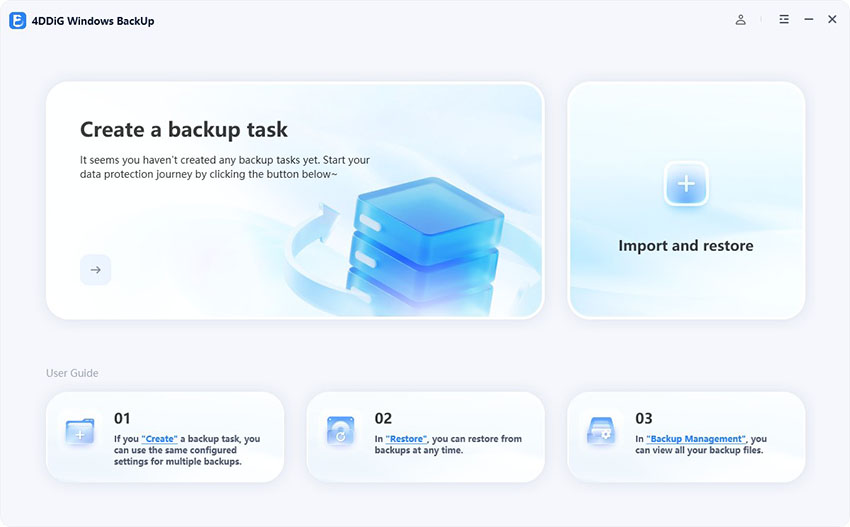
Download and install 4DDiG Windows Backup, then connect an external drive. Open the software and click “Create a backup task.”
FREE DOWNLOADSecure Download
-
Choose the partitions, disk, or files you want to protect. Then click the folder icon to select where the backup file should be saved.
-
Click “Start Backup.” Confirm your choice when prompted. The tool will begin copying your data to the selected destination.
-
Let the software complete the process. The duration depends on your data size and disk performance. You can also enable “Shut down after backup” for convenience.
Once completed, your data is fully secured and can be restored anytime. This proactive step ensures you won’t lose important files while fixing Google Error 400 or performing system adjustments.
Fix 3: Clear Google Cookies & Cache
Corrupted cookies and cached files are the most common cause of Google Error 400. Clearing cookies and cache resets saved site information, refreshes loading files, and usually fixes the error immediately.
-
Open Chrome and click the three dots (top-right). Next, choose "Settings" .
-
Then, navigate to "Privacy and security." And click “Delete browsing data”.
-
Set the time range to "All time." Click "Clear now," then reopen Google.
Fix 4: Disable Extensions
Some Chrome extensions interfere with Google requests by modifying headers, blocking scripts, or injecting extra code. If Google detects a broken or altered request, it may return a 400 error. Disabling extensions helps identify whether one of them is causing the issue.
-
Open Chrome and click the three dots. Go to "More tools" and then click "Extensions." (For some version of Chrome, “Extensions” can be found in main sections.
-
Next, turn off all extensions. After that, reload the Google page.
If fixed, re-enable extensions one by one to find the problematic one. This method can also be used to fix error code 101102.
Fix 5: Flush DNS Cache
DNS cache stores old routing data for websites. If these records become outdated or corrupted, your browser may connect incorrectly, causing Google to receive malformed requests. Flushing DNS removes stored entries and forces your system to fetch fresh routing data.
-
Press Windows + R, type cmd, and then hit “Enter.” In Command Prompt, type: ipconfig /flushdns and press Enter.
Then wait until you see the message “Successfully flushed the DNS Resolver Cache.” After that, restart your browser.
Fix 6: Correcting Malformed URLs
If the link you opened has typos, missing parts, or extra symbols, Google may not understand it and return Error 400. This often happens with copied links, tracking parameters, or manually typed URLs. Fixing the URL ensures Google receives a clean request.
Recheck the URL for spelling mistakes.
Remove extra symbols like %, //, or random characters.
Copy the correct link from a trusted source.
Paste it into the browser again.
Reload the page.
These solutions address the most common causes of Google Error 400. Start by clearing cache and cookies, as this resolves most instances of the error.
More FAQs about Google Error 400
1. How to solve Google account error?
Make sure your email/password are correct, then clear browser cookies/cache and try again. If it still fails, sign in using Incognito Mode or a different device to rule out extension or browser issues.
2. How do I bypass error 400?
You can’t truly bypass it, but you can work around it by switching browsers/devices, turning off VPN/proxy, and reloading the page after clearing cache. This helps confirm if the issue is browser- or network-based.
3. What is the error code 400 login failed?
This means Google rejected your login request because the authentication data was malformed or expired. Fix it by logging out/in, removing and re-adding the account, or updating your system/app
Conclusion
Google Error 400 is annoying, but it’s rarely a serious issue. It’s a client-side issue, most users fix it quickly by clearing cache and cookies. If that doesn’t work, flushing DNS, disabling extensions, or correcting a broken URL typically resolves the issue. Before making deep system changes, back up your files with 4DDiG Windows Backup to avoid data loss. With these steps, you’ll be back on Google in minutes.
Secure Download
ChatGPT
Perplexity
Grok