How to Fix Secure Boot Enabled but Not Active?

5 mins read

Updated on 2026-03-17 17:40:45 to Windows Fix

If you recently checked your BIOS or Windows settings and found that secure boot enabled but not active, you’re not alone. This can happen on both ASRock, Gigabyte and other motherboards. In this guide, we will explain why this happens, how to check your secure boot status, and provide step-by-step solutions to ensure your secure boot is properly active and functioning.

1. Why is Secure Boot Enabled but Not Active?

So many users ask “why does my secure boot say not active?” Well, sometimes secure boot is on but Windows says it’s off. This happens for a few reasons:

  • CSM (Compatibility Support Module) is enabled: Secure Boot only works in full UEFI mode. If CSM is on, Windows may see it as inactive.
  • Secure Boot keys are missing or wrong: The system needs correct cryptographic keys to work.
  • Windows was installed before Secure Boot: Older installations may not register Secure Boot properly.
  • Boot drive uses MBR instead of GPT: Secure Boot requires GPT format.
  • Outdated BIOS: Old BIOS may not fully support Secure Boot features.

✔Tip: How to See If Secure Boot is Enabled?

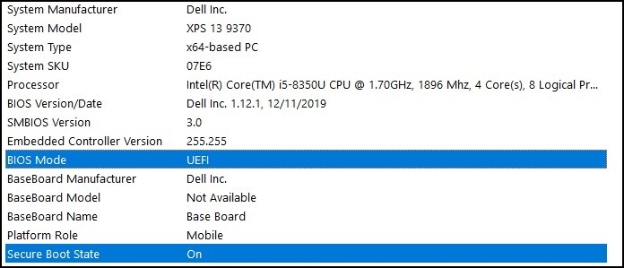
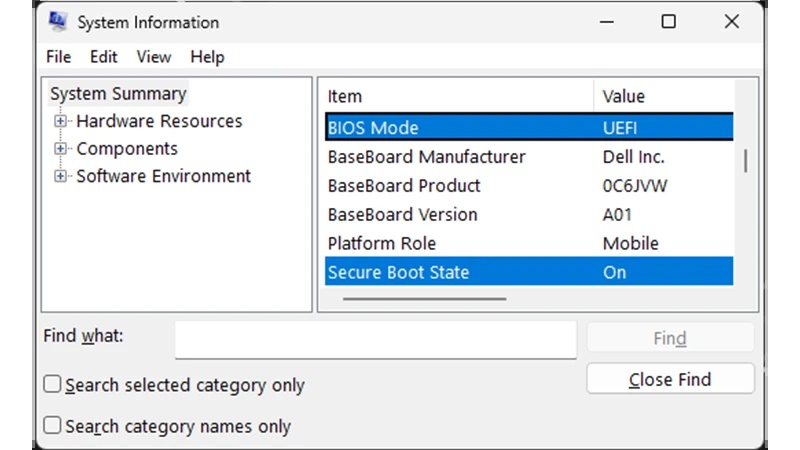
Now you must be wondering how to know if secure boot is enabled. Here are the steps you can follow:

  • Press Windows + R, type msinfo32, and press Enter.

  • Look for Secure Boot State.

    • On = enabled
    • Off = inactive
    secure boot state
  • You can also check in BIOS: restart PC > press Del/F2 > go to Boot > Secure Boot.

2. How to Solve Secure Boot Enabled but Not Active?
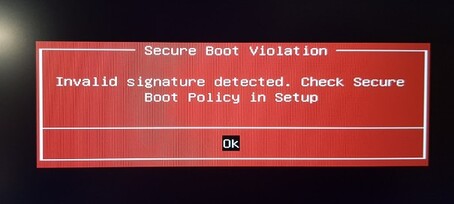
If your system shows secure boot is enabled but not active, it usually means Windows can’t actually enforce Secure Boot even though the BIOS shows it turned on. Follow the reliable ways below to fix it.

Fix 1: Disable Compatibility Support Module (CSM) Before Making Changes

Secure Boot only works when your firmware is in full UEFI mode. If CSM (Compatibility Support Module) is still enabled, Windows may report Secure Boot as enabled in BIOS but not really active.

  • Restart your PC and press Del, F2, or the key your motherboard uses to enter BIOS/UEFI.

  • Go to the Boot or Advanced tab.

  • Find CSM, Legacy Support, or similar and set it to Disabled.

    disable csm
  • Save the changes and exit BIOS (usually by pressing F10).

  • Let your PC restart into Windows.

Once CSM is disabled, your system is running in pure UEFI mode, which Secure Boot requires. After this, continue with the next steps if needed to fully activate it.

Fix 2: Adjust Secure Boot Mode and Restore Factory Keys

Sometimes the system firmware shows Secure Boot as enabled, but Secure Boot stays in “Setup” mode, meaning it isn’t truly enforcing security. Many Gigabyte users report that switching Secure Boot mode and restoring keys solves this.

  • Reboot your PC and enter BIOS/UEFI.

  • Go to the Security or Boot section where Secure Boot is located.

  • Change Secure Boot Mode from Standard to Custom.

    switch secure boot mode to custom
  • Find Key Management (sometimes labeled “Expert Key Management”).

  • Choose Restore Factory Keys or Install Default Secure Boot Keys.

    restore factory keys
  • Confirm and allow the firmware to re-enroll the keys.

  • Switch Secure Boot Mode back to Standard. Save changes and exit BIOS.

Many users have found that this causes the firmware to load valid platform keys so that Windows finally recognizes Secure Boot as active, instead of just saying it is enabled.

On some systems, you may need to disable Secure Boot, reboot, then follow the steps above, and re-enable it afterward.

Fix 3: Update Your BIOS

Outdated or buggy firmware can leave Secure Boot in a broken state where it’s “enabled” in BIOS but Windows still reports it’s not active. Several users have ended up fixing the issue by updating (or even downgrading) to a non-beta BIOS that includes proper Secure Boot support.

  • Find your exact motherboard model (e.g., Gigabyte B550M DS3H, ASRock X570, etc.).

  • Go to the ASRock or Gigabyte support page and download the latest official BIOS (avoid beta BIOS if it has Secure Boot issues reported).

  • Follow the manufacturer’s instructions to update BIOS via Q-Flash or similar tools built into the firmware.

    update bios
  • After updating, enter BIOS again, re-configure Secure Boot settings (CSM off, UEFI mode, install keys).

  • Save changes and reboot.

Updating BIOS often fixes hidden bugs that stop Secure Boot from fully activating.

⚡ Bonus: How to Prevent Data Loss before Any Changes?

Before you start fiddling with BIOS settings or Secure Boot, it’s smart to back up your system. Imagine making all the changes and suddenly losing your Windows setup or important files, that’s a nightmare no one wants. Luckily, 4DDiG Windows Backup makes protecting your PC quick and simple. With just a few clicks, you can safeguard your system, files, and settings so you can experiment safely. Here’s how to do it:

  • After installing 4DDiG Windows Backup, connect an external hard drive or USB drive to your PC. Open the software and click “Create a backup task” to begin.

    FREE DOWNLOAD

    Secure Download

    create a backup task
  • Select the partitions or drives you want to back up. Then click the folder icon below to pick where the backup file should be saved. Make sure the destination has enough free space.

    choose partitions to backup
  • Click “Start Backup”. A confirmation pop-up will appear, click Confirm to begin the backup process.

    confirm backup
  • The backup may take a few minutes depending on the size of your data and the speed of your drive. Once the process finishes, you’ll see a success message.

    backup successfully

More FAQs about Secure Boot

1. Is Secure Boot safe?

Yes! Secure Boot is a built-in security feature in UEFI firmware that prevents unauthorized software, malware, and rootkits from running during startup. It keeps your system protected before Windows even loads.

2. Should I enable Secure Boot?

Absolutely. Enabling Secure Boot improves overall system security, helps prevent malware attacks, and is required for Windows 11 and certain modern applications and games.

3. How to enable Secure Boot in BIOS?

Restart your PC and enter BIOS/UEFI settings by pressing Del, F2, or your motherboard key. Navigate to Boot > Secure Boot, set it to Enabled, then save changes.

4. How to enable Secure Boot in Windows 10 without BIOS?

Secure Boot must be enabled through BIOS. However, you can check its status in Windows by typing msinfo32 in the Run dialog and looking at Secure Boot State.

5. How do I enable Secure Boot for Battlefield 6?

Disable CSM in BIOS and enable Secure Boot. Once Windows recognizes Secure Boot as active, games like Battlefield 6 will launch properly without security or startup errors.

6. Why can't I activate Secure Boot in BIOS?

Secure Boot may not activate if CSM is enabled, the boot drive uses MBR instead of GPT, or BIOS is outdated. Fixing these usually resolves the issue.

Conclusion

If your system shows secure boot enabled but not active, it usually means Windows cannot enforce Secure Boot even though it’s turned on in BIOS. Most cases are caused by CSM being enabled, missing keys, or outdated BIOS. By following the fixes above, disabling CSM, adjusting Secure Boot mode, restoring factory keys, and updating BIOS, you can ensure Secure Boot becomes fully active and your system is protected.

Before making any changes, it’s always wise to back up your Windows system with 4DDiG Windows Backup. This way, you can restore your data safely if anything goes wrong.

FREE DOWNLOAD

Secure Download

William Bollson (senior editor)

William Bollson, the editor-in-chief of 4DDiG, devotes to providing the best solutions for Windows and Mac related issues, including data recovery, repair, error fixes.

(Click to rate this post)

You rated 4.5 ( participated)