How to Upgrade Windows 11 23H2 to 26H2: A Safe Two-Stage Path

5 mins read

Updated on 2026-09-04 10:10:40 to Windows Update

To upgrade Windows 11 23H2 to 26H2, use a two-stage path: move from 23H2 to 25H2 with a full feature upgrade, then install 26H2 after it becomes generally available. Windows 11 23H2 uses the older build 22631 baseline, while 24H2, 25H2, and 26H2 share the newer servicing branch.

That difference is why the small 26H2 enablement package is not intended for 23H2. This guide shows how to check the required security and disk settings, complete both upgrade stages.

upgrade 23h2 to 26h2

1. Can You Upgrade Directly from Windows 11 23H2 to 26H2?

No, you can’t. Microsoft has confirmed that Windows 11 26H2 is delivered as an enablement package for devices already on the shared 24H2/25H2/26H2 servicing branch. Since Windows 11 23H2 is based on an older servicing branch, it cannot use this small, switch-style package directly.

Version Build baseline Upgrade model
Windows 11 23H2 22631 Older servicing baseline
Windows 11 24H2 26100 Full move from 23H2; shared newer branch
Windows 11 25H2 26200 Enablement model from 24H2
Windows 11 26H2 26300 Enablement package from the 25H2 baseline

2. What is the Windows 11 23H2 to 26H2 Upgrade Path?

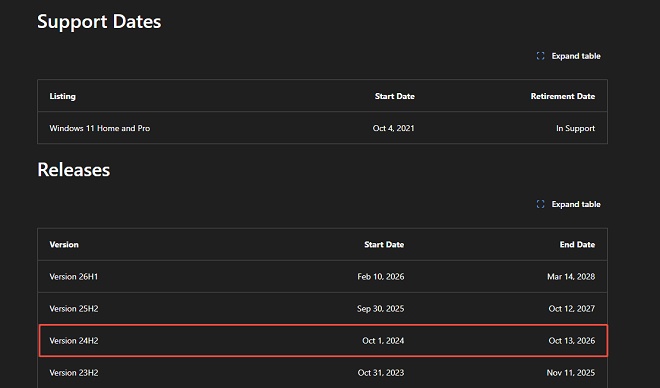
Use Windows 11 23H2 → 25H2 → 26H2 as the article’s primary path. You do not need to insert 24H2 as a compulsory step since Windows 11 24H2 will reach end of support in October this year, and Microsoft has confirmed that 24H2, 25H2, and 26H2 share the same servicing branch.

But to use the Enablement Package for upgrading to Windows 11 25H2, you must first upgrade to version 24H2. This small package only works on systems that are already running 24H2.

3. Before Upgrading to Windows 11 26 Check System Requirements

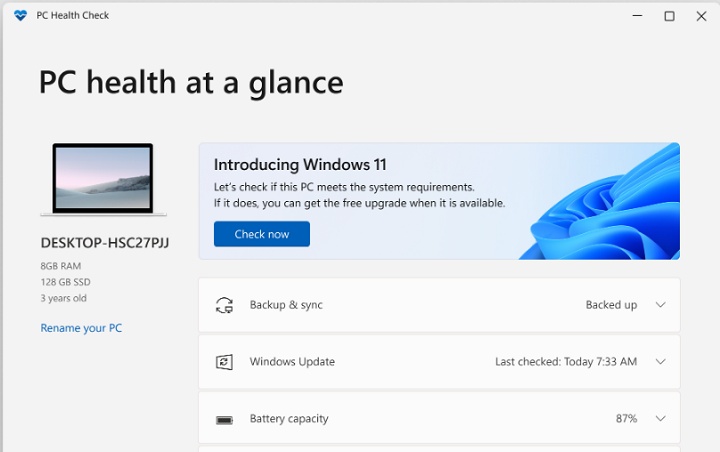
Check TPM 2.0

Press Windows + R, enter tpm.msc, and check Status and Specification Version. You want “The TPM is ready for use” and version 2.0. If TPM is present but disabled, enable Intel PTT or AMD fTPM in UEFI firmware. Record your BitLocker recovery key before changing firmware security settings.

Complete Guide: Windows 11 26H2 TPM 2.0 Requirement: Fix Compatibility Issues & Upgrade

Check UEFI and Secure Boot

Press Windows + R, enter msinfo32, and review BIOS Mode and Secure Boot State. BIOS Mode should read UEFI. Secure Boot may show Off even when the device is capable; enable it in firmware only after confirming that Windows boots in UEFI mode and the system disk uses GPT.

Complete Guide: Windows 11 26H2 Secure Boot Not Available? How to Fix It

Check Storage Space

Open Settings > System > Storage and make sure C: has enough working space for two upgrade stages, temporary files, and rollback data. Microsoft lists a 64 GB storage device as the minimum Windows 11 baseline, but the installer may need additional free space depending on optional features, languages, drivers, and updates. Remove temporary files or extend C drive before starting rather than risking a failure late in setup.

⚡ 4. How to Upgrade from Windows 11 23H2 to 26H2?

Step 1: Upgrade Windows 11 23H2 to 25H2

Because 23H2 Home and Pro are out of service, do not base this stage solely on the expectation that “Check for updates” will offer the corresponding upgrade. Use a current Microsoft installation tool and back up first.

Method 1: Use Windows 11 ISO File

  • Download the Windows 11 25H2 ISO from Microsoft’s site.

    Download Windows 11 Iso
  • Right-click the ISO file, select Mount. Open the mounted virtual drive and double-click setup.exe.

    Select Mount Option

    mount iso file

  • Follow the on-screen instructions. Choose Keep personal files and apps.

  • Restart when the process completes.

Method 2: Use 4DDiG Partition Manager

4DDiG Partition Manager combines compatibility checking, Windows image preparation, and disk tools in one interface. you can use this tool to perform the upgrade with verified Windows 11 25H2 installation media. Before proceeding, back up your important files.

  • Download and launch 4DDiG Partition Manager. Select Windows Download and Upgrade from the menu, and choose Windows 11 Upgrade.

    FREE DOWNLOAD

    Secure Download

    upgrade to win11
  • Wait while the program checks your TPM status, Secure Boot configuration, boot mode, and disk layout. Review the compatibility report carefully to see which items pass and which ones require attention.

    check compatibility
  • If the PC does not meet requirements, click Next and follow the recommended option. Depending on the detected problem, the program may guide you to prepare for Windows 11 installation.

    bypass win11 requirements
  • Then, select the required Windows version, edition, and system language.

    select language and 24h2 version
  • After the preparation process finishes, follow the on-screen instructions to complete the Windows upgrade.

    win11 setup

Step 2: Upgrade to Windows 11 26H2

After reaching 25H2, open Settings > Windows Update, install all available cumulative updates, restart, and check again. This prepares the shared servicing branch for 26H2.

Method 1: Upgrade to Windows 11 26H2 via Windows Update

  • Open Settings > Windows Update and optionally enable “Get the latest updates as soon as they’re available.”

  • Select Check for updates. When Windows 11, version 26H2 is offered, choose Download and install.

    check for updates
  • Restart when prompted, sign in, and run winver to confirm version 26H2 and the expected build.

If the offer does not appear, do not assume the PC is broken. The phased rollout may not have reached it. Install current drivers and monthly updates, then wait for Microsoft to clear the block.

Method 2: Upgrade Using the Windows 11 26H2 ISO

  • After general availability, download the official Windows 11 26H2 ISO from Microsoft and verify that it matches the installed language and architecture.

  • Right-click the ISO, select Mount, open the virtual drive, and run setup.exe from within Windows.

  • Choose Keep personal files and apps, review the summary, and start the in-place upgrade.

    keep personal files
  • Keep the device powered through all restarts, then check activation, Windows Update, Device Manager, and winver.

If disk layout, insufficient C: space, or installation-media creation is the blocker, 4DDiG Partition Manager can address that preparation step before you retry.

Method 3: Upgrade to Windows 11 26H2 via Windows 11 Installation Assistant

  • Go to the official Microsoft download page. Under Windows 11 Installation Assistant, click Download Now.

    download installation assistant
  • Run the downloaded file (Windows11InstallationAssistant.exe) as administrator.

  • Click Accept and install. Wait for the tool to download and install the update.

    accept and install win11
  • When prompted, click Restart now.

After the process finishes, go to Settings > System > About to confirm the Windows version.

Conclusion

The clearest way to upgrade Windows 11 23H2 to 26H2 is a two-stage process: complete the full move from 23H2 to 24H2, update 24H2, and then install 26H2 through Windows Update or an official ISO after general availability. Check TPM 2.0, UEFI, Secure Boot, GPT partitioning, free space, and backups before starting.

4DDiG Partition Manager is useful when MBR, a cramped system partition, or media preparation blocks the process, but it does not turn unsupported hardware into an officially supported configuration.

FREE DOWNLOAD

Secure Download

William Bollson (senior editor)

William Bollson, the editor-in-chief of 4DDiG, devotes to providing the best solutions for Windows and Mac related issues, including data recovery, repair, error fixes.

(Click to rate this post)

You rated 4.5 ( participated)