How to Install Tiny11 26H2 without Losing Data?

5 mins read

Updated on 2026-09-22 17:08:16 to Windows Update

Looking for a cleaner version of Windows 11 that runs well on older or lower-spec hardware? Tiny11 26H2 delivers exactly that. Built from the official Windows 11 26H2 image, this community-created edition strips away unnecessary apps and services while keeping core functionality intact.

In this guide you will learn what Tiny11 26H2 actually is, how it compares with the standard release, a safer alternative for unsupported PCs, and the exact steps to create and install your own lightweight ISO. Let’s get started.

1. What Is Tiny11 26H2?

Tiny11 26H2 is a streamlined, community-modified edition of Windows 11 version 26H2. It is produced with the open-source tiny11builder script (maintained by the ntdevlabs project). The script takes an official Microsoft Windows 11 26H2 ISO and removes a large number of pre-installed apps and optional components that most users never need.

Typical removals include Copilot, Microsoft Teams, OneDrive, Xbox apps, Clipchamp, News, Weather, and in many builds even Microsoft Edge. The result is a noticeably smaller installation footprint, lower idle resource usage, and the ability to run on hardware that does not meet Microsoft’s official requirements.

2. Tiny11 26H2 vs. Standard Windows 11 26H2

Before deciding which version to install, it helps to see the practical differences side by side:

Tiny11 26H2 Standard Windows 11 26H2
System Requirements Lower requirements; can run on 2 GB RAM and bypass TPM/Secure Boot Official specs (TPM 2.0, Secure Boot, 4 GB RAM)
Installation Footprint Significantly smaller (~8–15 GB clean) Larger (~20–36 GB after updates)
Updates & Support Receives updates, but no official Microsoft support Full official Windows Update and Microsoft support
Best For Older/low-spec PCs, VMs, clean minimal installs Everyday use, long-term reliability

In short, choose the official release when stability and full Microsoft support matter most. Choose Tiny11 26H2 when you need a lighter system that can run on limited hardware.

⚡ Bonus: A Simpler & Safer Way to Upgrade an Unsupported PC to Windows 11 26H2

Not everyone wants to build a custom ISO. If your main goal is simply to run Windows 11 26H2 on a unsupported PC, there is a more straightforward option: 4DDiG Partition Manager’s Windows 11 Upgrade function.

  • Download and install 4DDiG Partition Manager, then launch the program.

    FREE DOWNLOAD

    Secure Download

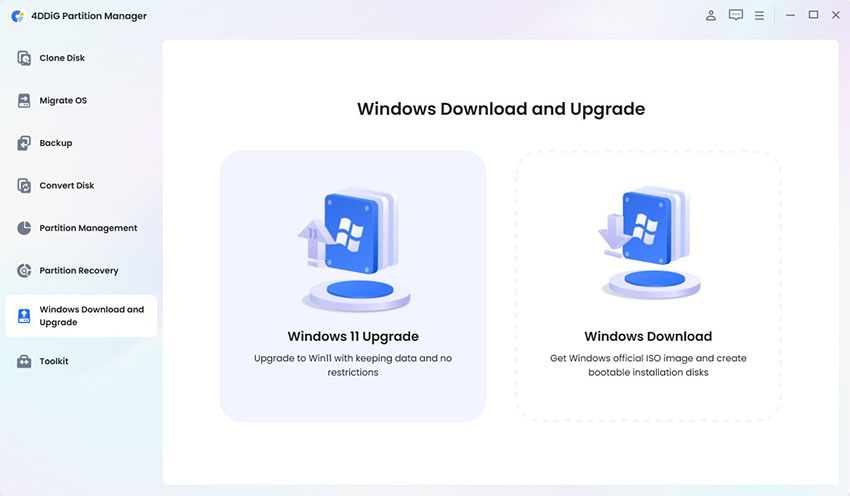
  • In the left sidebar, open the “Windows Download and Upgrade” section and select “Windows 11 Upgrade”.

    upgrade to win11
  • The tool will scan your system automatically. If requirements are not met, simply click “Next” to continue. Follow the recommended option to prepare for Windows 11 installation.

    follow the guide to bypass
  • Then, choose your preferred language and region, then click “Start” and confirm.

    select language and version
  • Wait for the process to finish. Once complete, follow the on-screen prompts to finish the upgrade to Windows 11 26H2.

    win11 setup

This method keeps your data intact and avoids the need to create a custom ISO or manually edit the registry.

3. How to Create and Download Tiny11 26H2 ISO?

If you prefer the fully custom route, follow these steps to build a clean Tiny11 26H2 ISO from an official Microsoft image.

Step 1: Download the Windows 11 26H2 ISO from Microsoft

  • Go to the official Microsoft Windows 11 download page or the Windows Insider Release Preview channel.

  • Download the Windows 11 ISO (64-bit).

    download 26h2 iso
  • Choose your preferred language and download the file.

  • Save the ISO to a location with enough free space (at least 10 GB recommended).

Step 2: Download and Extract Tiny11Builder

  • Visit the official tiny11builder repository on GitHub.

    tiny11 builder
  • Download the latest release of the PowerShell script (usually tiny11maker.ps1).

  • Extract the downloaded ZIP file to a dedicated folder.

    extract download zip
  • Make sure the folder has at least 50–70 GB of free space for temporary files during the build process.

Step 3: Run Tiny11Builder and Create the Tiny11 26H2 ISO

  • Mount the official Windows 11 26H2 ISO. Note the drive letter assigned (e.g., E:).

    mount 26h2 iso file
  • Open Windows PowerShell (Admin) or Terminal (Admin).

  • Navigate to the Tiny11Builder folder using the cd command.

  • Temporarily allow script execution: Set-ExecutionPolicy Bypass -Scope Process

  • Run the script: .\tiny11maker.ps1

  • (or .\tiny11maker.ps1 -ISO E if you want to specify the drive letter).

  • When prompted, enter the mounted ISO drive letter and the desired Windows edition index (Home, Pro, etc.).

  • Wait for a while, and the finished tiny11.iso will appear in the same folder as the script.

Step 4: Create a Bootable Tiny11 26H2 USB (Use Rufus)

  • Download the latest version of Rufus from the official website.

  • Insert a USB drive with at least 8 GB of capacity.

  • Launch Rufus and select your USB drive under “Device”.

  • Click “SELECT” and choose the Tiny11 26H2 ISO you just created.

    select usb drive
  • Keep the default partition scheme and target system settings (or adjust if needed).

  • Under Windows User Experience options, enable the bypass for TPM and Secure Boot if required.

    bypass secure boot and tpm
  • Click “START” and wait until Rufus finishes writing the ISO to the USB drive.

Step 5: Install Tiny11 26H2

  • Restart your computer and enter the BIOS/UEFI boot menu (usually by pressing F2, F12, Del, or Esc during startup).

  • Select the USB drive as the boot device and start the installation.

  • Follow the on-screen Windows Setup prompts to complete the installation and let Windows finish the initial setup.

If you need the previous release instead, see Tiny11 25H2 guide.

FAQs about Tiny11 26H2

1. Does Tiny11 receive updates?

Yes. The standard (non-Core) version of Tiny11 continues to receive Windows Update patches. Some previously removed components may reappear after major cumulative updates, but core security updates still arrive.

2. How to update Windows 11 25H2 to 26H2?

On a standard installation, Windows 11 26H2 is delivered as a small enablement package through Windows Update.

3. What does Tiny11 not have?

By default it removes many inbox apps (Copilot, Teams, OneDrive, Xbox, Edge in some builds, News, Weather, etc.). The Core variant goes further and removes the component store, making it unsuitable for regular updating.

4. Is Tiny Windows 11 free?

The tiny11builder script is free and open-source. You still need a legitimate Windows 11 license to activate the installed system.

5. What are the differences between Tiny11 and Windows 11?

Tiny11 is a reduced, community-edited image based on official Windows 11. It uses less disk space and RAM, bypasses certain hardware checks, and starts with far fewer pre-installed apps. Official Windows 11 offers complete Microsoft support and the full feature set.

Conclusion

Tiny11 26H2 offers a practical way to enjoy a lighter Windows 11 experience, especially on older or resource-constrained machines. Building the ISO yourself from an official Microsoft image keeps the process transparent and under your control. If you simply need to upgrade an unsupported PC without creating custom media, 4DDiG Partition Manager provides a faster, guided alternative that preserves your data.

Whether you choose the fully customized Tiny11 route or the one-click upgrade path, always back up important files first and verify that the tools you download come from trusted sources. With the right approach, you can run a modern, responsive Windows 11 system even when official hardware requirements stand in the way.

FREE DOWNLOAD

Secure Download

William Bollson (senior editor)

William Bollson, the editor-in-chief of 4DDiG, devotes to providing the best solutions for Windows and Mac related issues, including data recovery, repair, error fixes.

(Click to rate this post)

You rated 4.5 ( participated)