Should I Upgrade to macOS 27? Everything You Should Know

5 mins read

Updated on 2026-08-17 18:59:59 to Mac Update

macOS 27 is still in beta as of August 2026, so most people should wait before installing it on a primary Mac. A beta may provide early access to new features, but unfinished software, app incompatibility, and performance problems can disrupt everyday work.

Consider upgrading now only if you have a compatible secondary Mac, understand the risks, and can restore the previous system if necessary. The checks below will help you decide whether to upgrade to macOS 27 or wait for a stable release.

shoud i upgrade to macos 27

Should I Upgrade to macOS 27? Quick Answer

Most users should wait for the stable release of macOS 27. Installing the beta makes more sense for developers, testers, and experienced users with a secondary Mac. Even after the official release, check your essential apps, connected devices, available storage, and backup before upgrading.

User or situationRecommendation
You want the newest macOS featuresConsider upgrading after the stable release
You have a secondary Mac for testingYou can consider the beta
You use your Mac for basic everyday tasksWait for the stable release
You rely on Adobe, audio, video, or other professional appsWait until compatibility is confirmed
Your Mac is essential for work or schoolWait
You have an Intel MacmacOS 27 is not supported
You want to install the macOS 27 beta on your primary MacWait
You have no recent backupDo not upgrade yet
Your Mac has very little free storageFree space before upgrading

If you are still unsure, continue with the compatibility and risk checks below.

Why Should You Upgrade to macOS 27?

Upgrading to macOS 27 gives a compatible Mac access to new system features, updates to built-in apps, and the latest security improvements. The upgrade is most worthwhile when your Mac supports the features you want and your essential apps and devices are compatible.

New Apple Intelligence and Siri Features

macos 27 apple intellegence

New Apple Intelligence and Siri capabilities can make everyday tasks easier, especially when writing, organizing information, searching for content, or using Apple's built-in productivity tools.

Availability varies by Mac model, language, region, and feature requirements. If AI features are a major reason for upgrading, check whether the specific features you want are available on your Mac.

Improvements to Safari, Spotlight, and Everyday Apps

macos 27 safari new features

Updates to Safari, Spotlight, and other built-in apps can improve everyday browsing, search, communication, and organization. These changes are most useful if you regularly use Apple's default apps.

Performance, Security, and System Improvements

macOS 27 also brings system-level changes and security improvements for supported Macs. Upgrading keeps your Mac on Apple's latest major macOS release and gives you access to improvements introduced specifically for macOS 27.

A newer macOS version does not automatically guarantee better performance on every Mac. Actual performance and battery life can vary depending on your Mac model, installed apps, and connected devices.

More Benefits on Newer Apple Silicon Macs

Newer Apple silicon Macs are more likely to support the full range of features introduced with macOS 27, especially features that depend on newer chips or hardware capabilities. If you have a recent Mac, upgrading may give you access to more of what macOS 27 offers.

Better Support for Future Apps and Features

Moving to macOS 27 can also help keep your Mac ready for future app updates and features. As developers update their software, they may gradually prioritize newer macOS versions for new features and compatibility.

Why Should You Wait Before Upgrading to macOS 27?

Waiting may be the better choice if macOS 27 is still in beta, you rely on your Mac for important work, or your essential apps and devices have not confirmed compatibility. Waiting also gives Apple and third-party developers more time to address early bugs and compatibility issues.

macOS 27 Is Still in Beta

As of August 2026, macOS 27 is still in beta and is intended primarily for testing. Features may change before the final release, and individual beta builds can contain unresolved bugs or stability issues.

Installing the beta may be reasonable on a secondary Mac used for testing. If you rely on your Mac every day for work, school, or important files, waiting for the stable release is the safer choice.

Some Apps and Hardware May Not Be Compatible Yet

Compatibility is one of the main reasons to delay an upgrade. An app may open normally but still have problems with specific features, plug-ins, drivers, or background services.

Before upgrading, check macOS 27 compatibility for software and hardware you rely on. Besides, compatibility with macOS 26 does not automatically guarantee compatibility with macOS 27. Check whether the developer or manufacturer has tested the version of the app or device you currently use.

Early Versions May Have Bugs or Performance Issues

Beta builds and initial public releases can sometimes cause unexpected problems even on supported Macs. These may include app crashes, increased battery use, or unreliable connections with external devices.

These issues do not affect every Mac, but they matter more on a computer you depend on every day. Waiting for later updates gives Apple and app developers more time to identify and address commonly reported problems.

Your Mac May Not Support Every New Feature

Being able to install macOS 27 does not mean your Mac can use every new feature. Some Apple Intelligence and hardware-dependent features may require specific Mac models or Apple silicon generations.

Feature availability can also vary by language and region. If a particular feature is your main reason for upgrading, check its individual requirements first rather than relying only on the general macOS 27 compatibility list.

Can My Mac Upgrade to macOS 27?

macOS 27 is limited to supported Apple silicon Macs and does not support Intel-based Macs. However, having an Apple silicon chip does not automatically mean your Mac supports macOS 27. You still need to check your specific model against Apple's official compatibility list.

To identify your Mac model:

  • Open the "Apple menu".

  • Select "About This Mac".

    check mac version under about this mac
  • Check the model name and chip shown in the window.

  • Compare your model with Apple's macOS 27 compatibility list.

If your Mac shows an Apple M-series chip, it uses Apple silicon and may be eligible for macOS 27 depending on the model. If it shows an Intel processor, it cannot upgrade to macOS 27.

Keep in mind that macOS compatibility and feature compatibility are not always the same. Even if your Mac can install macOS 27, some Apple Intelligence or hardware-dependent features may require a newer chip or Mac model.

What Should I Do Before Upgrading to macOS 27?

Before upgrading to macOS 27, check your Mac, essential software, available storage, and backup. A few quick checks can help reduce compatibility problems, installation failures, and the risk of data loss.

macos 27 compatibility list

  • Check your Mac compatibility: Open "Apple menu > About This Mac" and confirm that your model supports macOS 27. Check the requirements separately if you want to use a specific new feature.
  • Check important apps and devices: Confirm that essential apps, plug-ins, printers, external drives, and other hardware you rely on are compatible with macOS 27.
  • Make sure you have enough free storage: Go to "System Settings > General > Storage" and check the available space. Remove unnecessary files or apps if your Mac is running low on storage.
  • Back up important files: Create a current Time Machine or other reliable backup before upgrading, and make sure the backup finishes successfully.
  • Be prepared to downgrade if necessary: If macOS 27 causes compatibility or performance problems, downgrading to macOS 26 may require reinstalling the previous system and restoring your data from a backup.

Once these checks are complete, you can proceed with the upgrade.

How to Recover Lost Files After Upgrading to macOS 27?

A normal macOS 27 upgrade should preserve your personal files. However, files may become missing or inaccessible if the upgrade fails, is interrupted, or encounters storage problems. If this happens, first check Time Machine, iCloud Drive, and other backups or synced locations.

If the files are actually lost and no usable backup is available, 4DDiG Mac Data Recovery can help scan the drive for missing data. It supports 2,000+ file types and lets you preview found files before recovery.

FREE DOWNLOAD

Secure Download

FREE DOWNLOAD

Secure Download

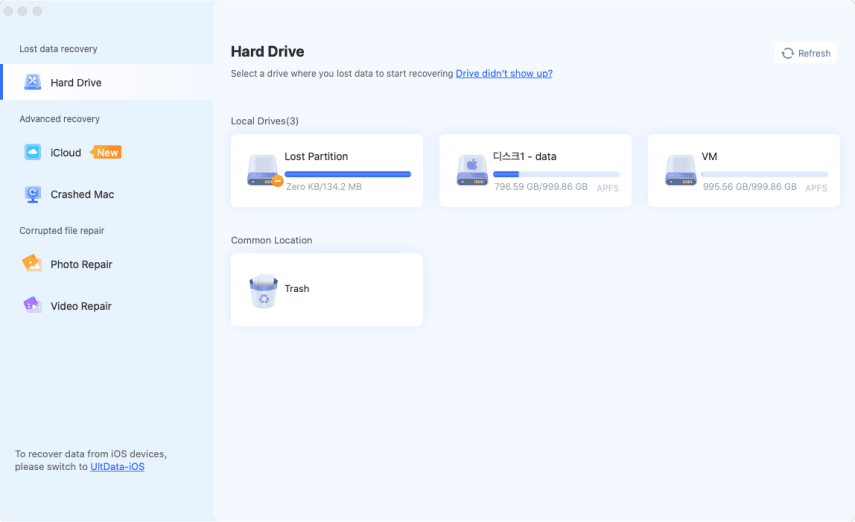
  • Download and open 4DDiG. Select the drive where the missing files were stored, then start the scan.

    4ddig mac main interface
  • Wait while 4DDiG scans for recoverable files. Use filters or search to quickly find missing photos, videos, documents, and other files.

    preview all recoverable files on mac 4ddig
  • Preview the found files, select the ones you want to restore, and click the "Recover" button.

    click to recover files on mac 4ddig
  • Save the recovered files to a different location to avoid overwriting other recoverable data.

    save recovered files on mac 4ddig

FAQs About Upgrading to macOS 27

Is macOS 27 worth upgrading to?

Yes, macOS 27 is worth upgrading to if your Mac supports it, your essential apps are compatible, and you want its new features. If macOS 27 is still in beta, most users should wait for the stable release before upgrading a primary Mac.

Is macOS 27 stable?

Not yet. As of August 2026, macOS 27 is still in beta and may have bugs, compatibility issues, or performance problems. For a primary Mac, waiting for the stable release is recommended.

Should I upgrade from macOS 26 to macOS 27?

Upgrade to macOS 27 if your Mac is supported, your essential apps and devices are compatible, and you need its new features. Otherwise, staying on macOS 26 until macOS 27 becomes stable is the safer choice.

Will upgrading to macOS 27 delete my files?

No. A normal macOS 27 upgrade should keep your personal files, apps, and settings. However, back up your Mac before upgrading in case the installation fails or another unexpected problem occurs.

Can I downgrade from macOS 27 to macOS 26?

Yes. You can downgrade from macOS 27 to macOS 26, but you may need to erase your Mac and reinstall macOS 26. Back up important files before upgrading so you can restore them if you decide to downgrade.

Conclusion

So, should I upgrade to macOS 27? If macOS 27 is still in beta, most users should wait for the stable release. Once it is available, upgrading makes sense if your Mac is supported, your essential apps and devices are compatible, and you want the new features.

Before upgrading, back up your Mac to protect important files. If files go missing after the upgrade and no usable backup is available, 4DDiG can help scan the affected drive and recover your important files in minutes!

FREE DOWNLOAD

Secure Download

FREE DOWNLOAD

Secure Download

William Bollson (senior editor)

William Bollson, the editor-in-chief of 4DDiG, devotes to providing the best solutions for Windows and Mac related issues, including data recovery, repair, error fixes.

(Click to rate this post)

You rated 4.5 ( participated)