How to Clean Install Windows 11 26H2 from USB

5 mins read

Updated on 2026-09-10 17:26:03 to Windows Update

Windows 11 26H2 has entered the Release Preview channel, with ISOs now downloadable for Insider users ahead of the broader fall 2026 rollout. If you prefer a clean slate over an in-place upgrade, or you’re building a new PC, swapping to a faster SSD, or troubleshooting persistent driver and update issuesThis guide covers preparation, USB creation, installation, and unsupported-PC options.

1. Should You Clean Install Windows 11 26H2?

A clean installation starts with a new copy of Windows instead of carrying the existing apps, settings, and system files into 26H2. It is more disruptive than an update, but it can produce a cleaner result.

Consider clean installing Windows 11 26H2 when replacing the system SSD, setting up a reused PC, removing persistent corruption, or fixing problems that survived an in-place repair. If Windows is healthy and you only want new features, Windows Update is faster and preserves more of your environment.

Keeps Personal Files Keeps Apps Best For
Windows Update Yes Yes Regular version upgrades
In-place Upgrade Optional Optional Repairing Windows or upgrading manually
Clean Install No No A new drive or complete reinstallation

⚡ 2. What to Do before Clean Installing Windows 11 26H2?

Before a clean installation, confirm compatibility, activation, backups, and the target disk.

Check Windows 11 26H2 System Requirements

Here are the key system requirements for Windows 11 26H2.

  • A compatible 64-bit processor
  • 4 GB of RAM, 64 GB of storage
  • UEFI with Secure Boot capability, TPM 2.0
  • DirectX 12-compatible graphics

Once you’ve verified your hardware against these requirements, you can proceed with confidence that your PC is ready for a smooth clean installation from USB.

Back Up Your Files and Current System

A clean install can delete personal data, installed applications, settings, and system partitions on the target drive, so back up your important files and create a copy of your current system whenever possible. 4DDiG Partition Manager’s Clone feature can create a complete copy of your current system, allowing you to restore it if needed.

  • Download and install 4DDiG Partition Manager, then connect an external drive to your computer. Launch the program and select Clone OS Disk.

    FREE DOWNLOAD

    Secure Download

    clone os disk
  • Choose the external drive as the target disk. The source disk is selected automatically as your Windows system disk. Click Next to continue.

    select target and source disks
  • Review the disk-cloning preview. By default, the cloned partitions will expand to use all available space on the target disk. If necessary, drag either side of a partition to adjust its size. Once the layout looks correct, click Start.

    set partition size
  • A warning will appear because the cloning process erases all existing data on the target disk. Make sure you have selected the correct external drive and backed up any files stored on it, then click Sure to confirm.

    click sure
  • Wait for the cloning process to finish. Do not disconnect the external drive, close the program, or perform other disk-related tasks while cloning is in progress.

    finish cloning

3. How to Clean Install Windows 11 26H2 from USB?

The following workflow performs a true fresh installation of Windows by booting the PC from external installation media. Use a blank USB drive with at least 8 GB of capacity; creating the media erases its contents.

Step 1. Download the Windows 11 26H2 ISO (Preview)

  • Visit the official Windows Insider Preview ISO download page. Sign in using the Microsoft account registered with the Windows Insider Program.

  • Scroll down to the Select edition section. Select the available Windows 11 26H2 Release Preview ISO and click Confirm.

    select 26h2 preview
  • Choose your preferred product language and click Confirm again.

  • Click 64-bit Download and save the ISO to your computer.

    click 64-bit download

Step 2. Create a Windows 11 26H2 Bootable USB

Connect the empty USB drive. Use Microsoft's installation-media workflow when it offers 26H2, or a reputable ISO-writing utility for the Insider ISO. Select the correct ISO and USB, choose GPT and UEFI for a standard Windows 11 PC, and begin writing. Eject the drive only after completion.

  • Connect an empty USB drive with at least 8 GB of capacity to the computer.

  • Download and open Rufus. Under Device, select the correct USB drive. Check its name and capacity carefully because all files on it will be erased.

    select usb device on rufus
  • Click Select, locate the downloaded Windows 11 26H2 ISO, and open it.

  • Set Image option to Standard Windows Installation. For a typical Windows 11 computer, select:

    • Partition scheme: GPT
    • Target system: UEFI
    • File system: Leave the recommended default option
  • Click Start and confirm that the USB drive can be erased.

Wait until the status changes to Ready, and then safely eject the USB drive.

Step 3. Boot the PC from the USB Drive

  • Connect the Windows 11 26H2 USB drive to the target computer.

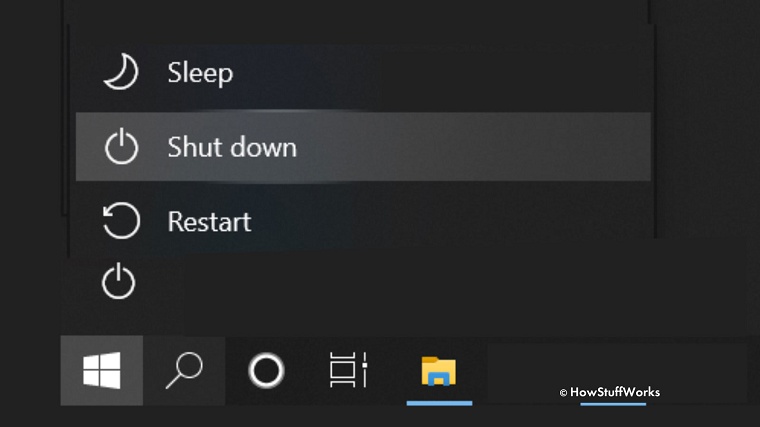
  • Shut down the computer completely. Turn it on and immediately press the boot-menu key repeatedly.

    Common Boot Menu Key
    Dell F12
    HP Esc or F9
    Lenovo F12
    ASUS Esc or F8
    Acer F12
    MSI F11
  • In the boot menu, select the entry labeled UEFI followed by the name of the USB drive. Press Enter and wait for Windows Setup to load.

If the USB drive does not appear, enter the BIOS or UEFI settings and confirm that USB boot is enabled. Avoid changing unrelated firmware settings. The exact boot key and menu design may differ by manufacturer and model.

Step 4. Install Windows 11 26H2

Once the computer boots from the USB drive, complete the installation through Windows Setup.

  • Choose the language, regional format, and keyboard layout, then select Install Windows 11.

    select language
  • Accept the warning that files, apps, and settings will be deleted. If asked for a key, enter it or select I don't have a product key when the device already has a matching digital license.

  • Select the Windows edition that matches the existing license and accept the license terms.

  • At Select location to install Windows 11, identify the intended system disk by its size. Delete its old partitions until that disk shows unallocated space. Do not change partitions on another disk.

    select location to install win11
  • Select the unallocated space and click Next. Setup creates the required partitions, copies Windows, and restarts the PC several times.

  • Complete the out-of-box setup, connect to the internet, install updates and drivers, and run winver to confirm that version 26H2 is installed.

If drives look similar, cancel Setup and verify them. Disconnecting non-target drives can reduce deletion and boot-file placement errors.

Tip: Install Windows 11 26H2 If Your PC Does Not Meet the Requirements

A Windows 11 26H2 clean installation may be blocked by an unsupported CPU, unavailable TPM 2.0, disabled Secure Boot, Legacy boot mode, or an MBR system disk. For users who still choose to proceed, the Windows 11 Upgrade feature in 4DDiG Partition Manager offers a guided way to check the computer and install Windows 11 without restrictions:

  • Install and open the 4DDiG Partition Manager. Select Windows Download and Upgrade, then choose Windows 11 Upgrade.

    FREE DOWNLOAD

    Secure Download

    upgrade to win11
  • Wait while the program checks your processor, TPM status, Secure Boot configuration, boot mode, and disk layout. Review the compatibility report carefully to see which items pass and which ones require attention.

    check compatibility
  • If the PC does not meet requirements, click Next and follow the recommended option. Depending on the detected problem, the program may guide you to prepare for Windows 11 installation.

    bypass win11 requirements
  • Then, select the required Windows version, edition, and system language.

    select language and version
  • After the preparation process finishes, follow the on-screen instructions to complete the Windows upgrade.

    win11 setup

This is an alternative when Setup is blocked, not the same USB-based clean install. Back up first and weigh the update, driver, and stability risks.

FAQ About Windows 11 26H2 Clean Installation

1. Will upgrading to Windows 11 delete my files?

A normal Windows Update or in-place upgrade usually retains personal files and apps. A clean installation, however, deletes the contents of the selected Windows drive. If your goal is to reinstall Windows without losing files, back up the data first or choose an in-place option that explicitly keeps personal files.

2. Does a Windows 11 26H2 clean install require a product key?

Not always. A PC that already has an activated copy of the same Windows edition can normally reactivate online through its digital license. Select I don't have a product key if Setup offers that option. A new PC, a different edition, or a major hardware change may require a valid product key or activation troubleshooting.

3. Can I clean install Windows 11 26H2 without a Microsoft account?

Account options vary by edition, network state, and the setup experience included with the current build. Microsoft expects users to connect and sign in so a linked digital license can be applied. If activation is important, link the license before erasing the old installation and use the same Microsoft account during setup.

Conclusion

To clean install Windows 11 26H2 safely, obtain the official ISO, create a UEFI bootable USB, clone or back up the current disk, and confirm the target drive before deleting partitions. The process is best for a new SSD or a genuinely fresh start; a normal update is less disruptive for a healthy PC. 4DDiG Partition Manager can add protection by cloning the old disk and can guide users whose hardware blocks a standard Windows 11 installation. Whichever route you choose, verify activation, drivers, updates, and the 26H2 version before removing your backup.

FREE DOWNLOAD

Secure Download

Ehtsham Ahmed (senior editor)

Ehtsham Ahmed, the content writer for 4DDiG, is dedicated to offering workarounds for Windows Data Recovery, Windows Troubleshooting, iDevices System Repair, etc.

(Click to rate this post)

You rated 4.5 ( participated)