How to Get Windows 11 26H2 with Installation Assistant

5 mins read

Updated on 2026-09-10 17:26:03 to Windows Update

The Windows Installation Assistant is Microsoft’s direct upgrade utility for the PC you are already using. When Microsoft makes Windows 11 26H2 the current public release, the assistant can download that release, check compatibility, and start an in-place upgrade. This guide explains what the tool does, how to prepare and run it, and what to do when storage or unsupported hardware blocks the upgrade.

1. What is Windows 11 Installation Assistant?

Windows 11 Installation Assistant is Microsoft’s official tool for upgrading an eligible PC to the latest version of Windows 11. It downloads and installs the feature update directly on your current computer, while normally keeping your personal files, installed apps, and most settings intact. It is designed for users whose PCs can already run Windows 11 but have not yet received the newest version through Windows Update.

This tool is not the same as Media Creation Tool. Installation Assistant cannot create a bootable USB, prepare media for another PC, or perform a clean installation. Microsoft also limits it to x64 processors.

Main purpose Upgrades current PC
Installation Assistant Guided in-place upgrade Yes
Media Creation Tool Create USB or ISO media Indirectly, through media

⚡ 2. Before Using Installation Assistant for Windows 11 26H2

A few checks prevent the most common download, compatibility, and rollback problems. Complete them before starting the Windows Installation Assistant, especially on a work PC or a device with limited storage.

Check Your System Requirements

Windows 11 26H2 requires a compatible 64-bit processor, at least 4 GB of RAM, 64 GB or more of storage, a DirectX 12 compatible graphics card with WDDM 2.0 driver, and a high-definition display (720p or higher). Two key security features are also mandatory:

  • TPM 2.0: a hardware security chip that stores encryption keys and helps protect the system from firmware-level attacks.

  • Secure Boot: a UEFI feature that ensures only trusted software loads during startup, blocking unauthorized bootloaders and rootkits.

For Secure Boot to work, the system disk must use the GPT partition style. If your disk currently uses the MBR partition style, convert it to GPT first.

✔ If you want to check more detailed information about Windows 11 26H2 system requirements, read our 26H2 System Requirements & Upgrade Guide.

Back Up Files

Copy irreplaceable documents and project files to OneDrive or an external disk. If possible, create a full disk backup so that both Windows and applications can be restored. Save open work, connect a laptop to power, and disconnect nonessential storage devices before restarting.

Free Up Your System Drive

Open Settings, select System > Storage > Temporary files, review the categories, and remove items you no longer need. Empty the Recycle Bin, uninstall unused applications, and move large personal files off C:.

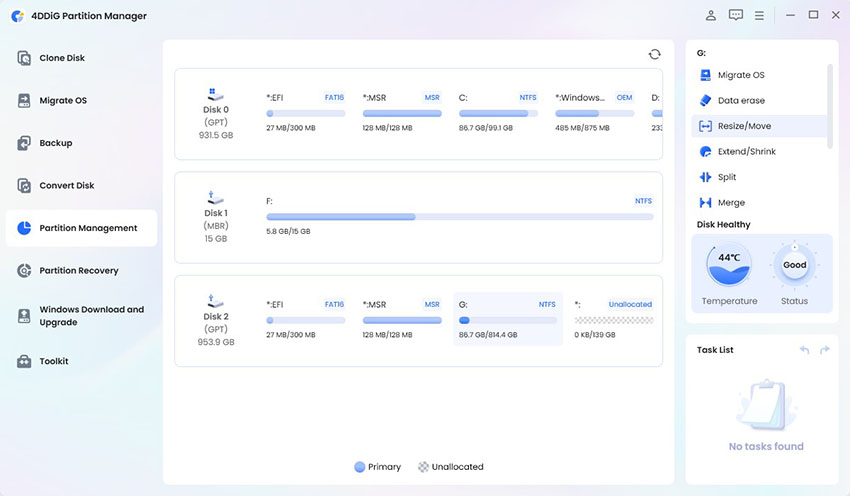
If free space is still insufficient and another partition on the same disk has unused capacity, you can use 4DDiG Partition Manager to extend the C drive. Unlike Windows Disk Management, which can only extend a partition when the unallocated space is immediately adjacent to it.

  • Install and open 4DDiG Partition Manager. In the left navigation pane, select Partition Management. Choose the partition you want to resize or move, then click Resize/Move at the bottom.

    FREE DOWNLOAD

    Secure Download

    resize partition
  • In the pop-up window, drag the borders of the selected partition to adjust its size, or enter the desired size in GB. You can preview the changes before confirming. When you’re satisfied, click OK.

    set partition size
  • Review the summary. If everything looks correct, click OK to begin.

    click ok to confirm
  • The resizing process will start right away and may take a few moments. Wait until the operation finishes successfully, then click Finish.

    resizing partition finished

3. How to Upgrade to Windows 11 26H2 with Installation Assistant?

Once Microsoft lists 26H2 as the public release and the computer is ready, follow these steps to perform the upgrade.

  • Open Microsoft’s official Download Windows 11 page. Download Windows 11 Installation Assistant.

    download installation assistant
  • If prompted, install and run PC Health Check. Return to the assistant after the compatibility result confirms that the device meets Windows 11 requirements.

  • Review the license terms, then select Accept and Install. The assistant downloads and verifies the installation files before staging the update.

    accept and install
  • Continue using the PC only for light tasks while files are prepared. Do not shut it down, disconnect the internet repeatedly, or let a laptop run out of power.

  • When Restart Now appears, save everything and select it. The computer will restart several times; leave it powered on until the sign-in screen returns.

    restart now

After signing in, press Win + R, enter winver, and verify that Version 26H2 is installed. Then check Settings > Windows Update for current drivers and cumulative updates.

Tip: Upgrade Unsupported PCs to Windows 11 26H2 with 4DDiG Partition Manager

Installation Assistant normally stops when TPM 2.0, Secure Boot, the CPU, or the disk configuration does not meet Microsoft’s requirements. For users who understand the support implications, 4DDiG Partition Manager provides a guided Windows 11 Upgrade function that checks compatibility and presents an alternative route for an unsupported PC.

  • Install and open the 4DDiG Partition Manager. Select Windows Download and Upgrade, then choose Windows 11 Upgrade.

FREE DOWNLOAD

Secure Download

upgrade to win11
  • Wait while the program checks your processor, TPM status, Secure Boot configuration, boot mode, and disk layout. Review the compatibility report carefully to see which items pass and which ones require attention.

    check compatibility
  • If the PC does not meet requirements, click Next and follow the recommended option. Depending on the detected problem, the program may guide you to prepare for Windows 11 installation.

    bypass win11 requirements
  • Then, select the required Windows version, edition, and system language.

    select language and version
  • After the preparation process finishes, follow the on-screen instructions to complete the Windows upgrade.

    win11 setup

Conclusion

The Windows Installation Assistant is the simplest Microsoft tool for upgrading the current supported x64 PC once Windows 11 26H2 becomes the public release. Confirm the release shown on Microsoft’s page, verify TPM 2.0 and Secure Boot, back up your files, and leave generous free space on C: before starting.

If storage layout is the problem, 4DDiG Partition Manager can resize the system partition; if the PC is unsupported, its guided Windows 11 Upgrade feature offers an alternative for users who accept Microsoft’s compatibility and update risks. Always verify the final version with winver after setup.

FREE DOWNLOAD

Secure Download

William Bollson (senior editor)

William Bollson, the editor-in-chief of 4DDiG, devotes to providing the best solutions for Windows and Mac related issues, including data recovery, repair, error fixes.

(Click to rate this post)

You rated 4.5 ( participated)