Install Windows 11 26H2 on Unsupported PCs: 3 Working Methods

5 mins read

Updated on 2026-09-21 16:23:54 to Windows Update

If you want to install Windows 11 26H2 on unsupported hardware, you do not have to buy a new machine. Three practical methods, using a dedicated partition tool, a customized Rufus USB, or a simple registry bypass, let you complete the upgrade or clean install while keeping your files and settings. This guide walks through the critical preparations you should finish first, then details each installation path, and ends with answers to the most common follow-up questions.

install windows 11 26h2 on unsupported hardware

1. Before Upgrading: Critical Preparations

Skipping preparation is the most common reason an unsupported install fails or leaves the system unstable. Complete these two steps before you begin any of the methods below.

Backup Your Data

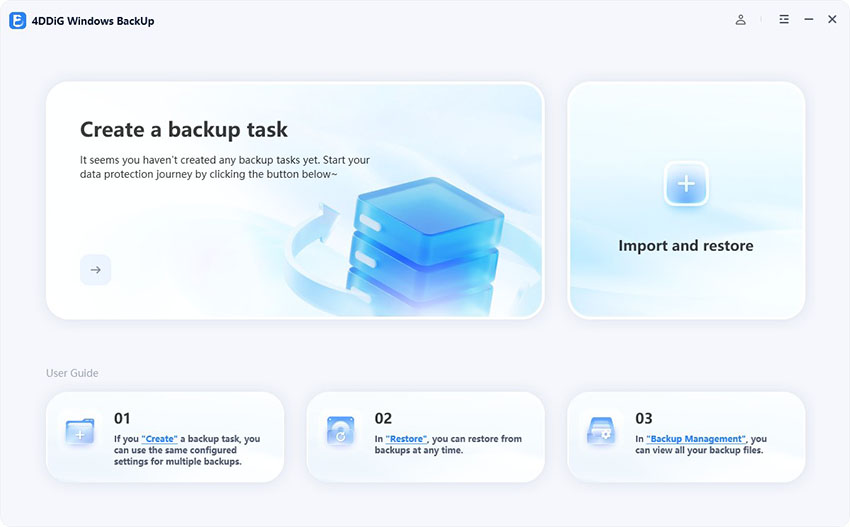
Create a full system image so you can roll back if anything goes wrong. Use a reliable computer backup tool or the built-in Windows system-image feature and store the image on an external drive. Also copy your most important personal folders (Documents, Desktop, Pictures, project files) to a second location.

✔ How to Backup Your PC Before Upgrading to Windows 11 26H2

Check Current Firmware Settings

Restart the PC and enter BIOS/UEFI (usually by pressing Del, F2, or F10 during startup). Look for the following options and enable them when they exist:

  • TPM / Security Device / fTPM / PTT: Many “unsupported” machines only have the feature disabled in firmware. Turning it on can satisfy the check without any bypass.
  • Secure Boot: Enable it whenever the option is available.
  • Boot Mode: Prefer UEFI over Legacy/CSM for modern installers.

Even if the hardware still fails Microsoft’s official list after these changes, enabling the available features improves stability, Secure Boot protection, and the chance that future cumulative updates will install cleanly.

⚡ 2. How to Install Windows 11 26H2 on Unsupported Hardware?

Choose the method that matches your situation. The registry route works best for in-place upgrades when only the TPM or CPU generation is the blocker. In every case, free disk space of at least 20–30 GB on the system drive is strongly recommended.

Method 1: Use 4DDiG Partition Manager

4DDiG Partition Manager includes a dedicated Windows 11 Upgrade feature that can bypass these hardware restrictions in one click, allowing you to upgrade while keeping your files, apps, and settings intact. It also helps free up the disk space the installer needs, making the process smoother on older machines.

  • Download and install 4DDiG Partition Manager, then launch the program with administrator rights.

    FREE DOWNLOAD

    Secure Download

  • In the left panel, go to Windows Download and Upgrade and select Upgrade to Windows 11.

    upgrade to win11
  • The tool will automatically check whether your PC meets the minimum requirements.

    check compatibility
  • If any requirements (TPM 2.0, Secure Boot, CPU, etc.) are not met, simply click Next to bypass them. The program will guide you to prepare for Windows 11 installation

    bypass win11 requirements
  • Then, choose your preferred language and region, then click Start Upgrade and confirm.

    select language and version
  • Wait while the tool prepares the upgrade environment. Once ready, the official Windows Setup will launch. Follow the on-screen instructions to complete the installation.

    run win11 setup

Method 2: Install Windows 11 26H2 Using a Rufus USB

Rufus remains the most popular free tool for creating a Windows 11 installer that skips TPM 2.0, Secure Boot, RAM, and Microsoft-account checks. It works for both clean installs and in-place upgrades on unsupported hardware and has been updated for the 26H2 servicing branch.

  • Download the official Windows 11 26H2 ISO from Microsoft and the newest Rufus release from the official site.

  • Insert a USB drive of at least 8 GB (16 GB recommended) and launch Rufus. Select the correct USB device from the Device list.

  • Click SELECT and choose the 26H2 ISO file. Leave the partition scheme as GPT for modern UEFI systems.

    click select
  • Click Start. In the Windows User Experience dialog that appears, check “Remove requirement for 4GB+ RAM, Secure Boot and TPM 2.0.”

    remove tpm and secure boot requirement

    Optionally also remove the online Microsoft account requirement so you can create a local account during setup.

  • Confirm the warning that the USB will be erased and wait for Rufus to finish writing the media.

  • Boot the target PC from the USB (use the one-time boot menu or change the boot order in firmware) and follow the normal Windows Setup screens.

Because the bypass is applied at the media level, no extra registry edits are required during setup. The resulting installation behaves like a standard Windows 11 system for everyday use.

Method 3: In-Place Upgrade with Registry Bypass

The registry bypass method lets you perform an in-place upgrade from your current Windows installation,preserving files, apps, and settings while skipping TPM and CPU checks.

  • Press Win + R, type regedit, and press Enter. Navigate to HKEY_LOCAL_MACHINE\SYSTEM\Setup.

    go to setup in hkey local machine
  • Right-click Setup, choose New > Key, and name it LabConfig.

  • Inside LabConfig create these DWORD (32-bit) values and set each to 1:

    BypassTPMCheck

    BypassSecureBootCheck

    BypassRAMCheck

    BypassCPUCheck

    bypass tpm check set value data to 1
  • Close Registry Editor and continue the installation.

  • Setup should now proceed past the hardware-check screen. Keep personal files and apps when the option is offered.

  • Restart when the process finishes and verify that Windows reports version 26H2.

More FAQs about Windows 11 26H2

1.Will Windows Update work after installing on unsupported hardware?

It depends on the specific device and the type of update. Some users receive cumulative updates normally; others are blocked from feature updates. Microsoft's policy on unsupported installs remains unclear.

2.Can I install Windows 11 26H2 without TPM 2.0?

Yes. Both the Rufus method and the registry bypass remove the TPM 2.0 requirement. Note that some very old processors lacking the POPCNT instruction may still fail to boot even after the checks are skipped. In those rare cases a different CPU or a virtual machine is the only practical option.

Conclusion

Installing Windows 11 26H2 on unsupported hardware is straightforward once you prepare a solid backup and verify firmware settings. Use 4DDiG Partition Manager to upgrade and free the space the installer needs, create a customized Rufus USB, or apply the simple registry tweak for an in-place upgrade.

Each route has been tested by thousands of users and continues to work with the 26H2 enablement package. Start with the backup, choose the method that fits your hardware, and you can run the latest Windows 11 release without buying a new computer.

FREE DOWNLOAD

Secure Download

William Bollson (senior editor)

William Bollson, the editor-in-chief of 4DDiG, devotes to providing the best solutions for Windows and Mac related issues, including data recovery, repair, error fixes.

(Click to rate this post)

You rated 4.5 ( participated)