How to Download Windows 11 26H2 ISO and Create a Bootable USB Easily

5 mins read

Updated on 2026-07-15 11:12:47 to Windows Fix

A Windows 11 26H2 ISO provides a flexible way to install or upgrade to the latest version of Windows 11. You can mount the ISO file to perform an in-place upgrade while keeping your personal files and apps, or use it to create a bootable USB drive for a clean installation on the same or another PC.

This guide explains how to download the Windows 11 26H2 ISO from reliable sources, create bootable installation media with Rufus, and install Windows 11 26H2 step by step.

1. What is Windows 11 26H2 ISO?

A Windows 11 version 26H2 ISO is a complete disk-image file containing all the installation files required to set up Windows 11 26H2. Unlike a standard Windows Update package, an ISO can be downloaded once, stored locally, and reused whenever needed. A Windows 11 26H2 ISO can be used to:

  • Perform an in-place upgrade: Mount the ISO in Windows and run the setup file to upgrade while keeping personal files, apps, and settings.
  • Create a bootable USB drive: Write the ISO to a USB drive, then use it for a clean installation, system repair, or installation on another PC.
  • Install Windows 11 in a virtual machine: Load the ISO into software such as VMware or VirtualBox to test Windows 11 26H2 without changing the existing operating system.
  • Reinstall or recover Windows: Use the ISO as installation media when Windows cannot start normally or when a fresh system installation is required.

Windows 11 26H2 is Microsoft’s annual feature update for the second half of 2026. It shares the same servicing branch as Windows 11 25H2, meaning that many of its core components may already be delivered through earlier cumulative updates.

⚡ 2. How to Free Download Windows 11 26H2 ISO?

Choose a method based on whether you value a guided interface, an official image, or access to the newest preview build.

Method 1: Download Windows 11 26H2 ISO via 4DDiG Partition Manager

4DDiG Partition Manager suits users who want a simple and visual workflow. Its Windows Download feature can save an ISO or create installation media. It is particularly useful when preparing another PC or when you also need Windows 11 compatibility and partition-management tools.

  • Install and open 4DDiG Partition Manager. Select Windows Download and Upgrade, followed by Windows Download.

    FREE DOWNLOAD

    Secure Download

    select windows download section
  • Switch to Download System Image Only. Select Windows 11 26H2. Choose your language and an output folder with enough free space.

    download system image only
  • After that, click Start button, confirm the task, and wait for the ISO to be saved.

    downloading iso file

Method 2: Download Windows 11 26H2 ISO from Microsoft

Microsoft is the preferred source because it provides an original multi-edition ISO and download verification.

  • Open Microsoft’s Windows 11 software download page. Find Download Windows 11 Disk Image (ISO) for x64 devices. Select the multi-edition ISO and confirm.

    select iso edition
  • Choose the product language. Download the 64-bit ISO and verify its integrity.

    select iso language

Method 3: Create a Windows 11 26H2 ISO Using UUP Dump

UUP dump is designed for enthusiasts, IT testers, and virtual-machine users who need a current preview before Microsoft posts a ready-made ISO. It creates a script package that downloads Unified Update Platform files from Windows Update servers and converts them locally.

  • Open UUP dump and select a 26H2 build. Choose amd64/x64 for most Intel or AMD PCs, or arm64 for an Arm device.

    download 26h2 in uup
  • Select the language and required edition.

  • Choose “Download and convert to ISO”. Keep update integration enabled if you want current fixes.

    convert to iso file
  • Download the ZIP package and extract it to a short path such as C:\UUP26H2.

  • Run uup_download_windows.cmd. Keep the window open while the files are downloaded and converted.

  • Find the completed ISO in the extracted folder.

3.How to Create a Bootable USB with a Windows 11 26H2 ISO?

Rufus supports creating bootable USB media from ISO images. It’s suitable when you already have the ISO and need an installer for a clean installation, recovery, or another computer. Back up the USB first because it will be erased.

  • Launch Rufus and connect an empty USB drive of at least 8GB. Select the USB under Device.

  • Set Boot selection to Disk or ISO image, click Select, and open the Windows 11 26H2 ISO.

  • Choose GPT for most modern UEFI PCs. Use MBR only for a device that requires legacy BIOS compatibility.

    set boot selection and partition scheme
  • Leave the recommended file-system settings unchanged. Click Start.

  • If the Windows User Experience dialog appears, select only the options needed for the target PC.

  • Confirm the erase warning and wait until Rufus displays Ready.

4.How to Install Windows 11 26H2 from an ISO File?

Mounting the ISO inside Windows performs an in-place upgrade and can retain applications and personal files.

  • Back up important data and connect the PC to power.

  • Right-click the ISO and choose Mount. Open the virtual DVD drive and run setup.exe.

  • Choose whether Setup should download updates. And accept the license terms.

  • Confirm that Keep personal files and apps is selected. If unavailable, verify that the ISO language, edition, and architecture match the installed system.

  • Click Install and allow the computer to restart.

    install windows 11 26h2
  • Open Settings > System > About, or run winver, to confirm version 26H2.

More FAQs About Windows 11 26H2 ISO

1. How Do I Get the Windows 11 26H2 Update?

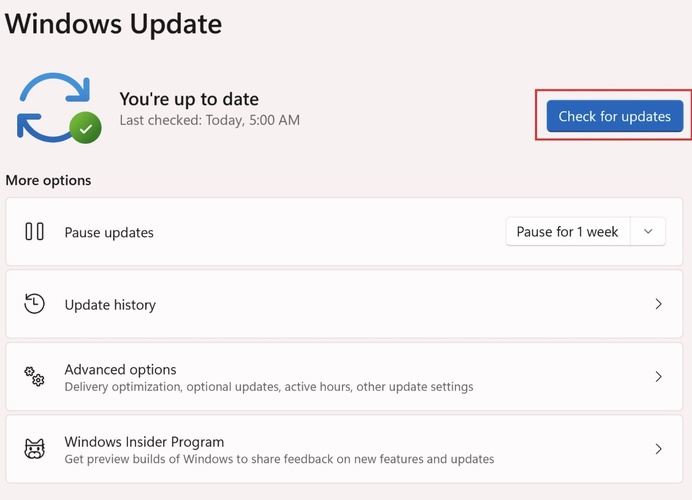
Go to Settings > Windows Update > Check for updates. During the preview period, users can join the Windows Insider Program and select the Experimental channel. On eligible 25H2-based systems, Microsoft delivers 26H2 through an enablement package that normally requires one restart.

2. What is New in Windows 11 26H2?

The final consumer feature list is not yet fixed. Current Experimental builds include Cloud rebuild in Windows Recovery Environment, system reliability and other Fixes.

Windows 11 26H2 Early Features: Preview Build 26220 Highlights

3. How Can I Download Windows 11 26H2 on an Unsupported PC?

Users can use 4DDiG Partition Manager to check compatibility and follow its guided upgrade workflow, or create a Rufus USB and review the available requirement-removal options.

Install Windows 11 25H2 on Unsupported Hardware [Complete Guide]

Conclusion

A Windows 11 26H2 ISO is useful for preview testing, virtual machines, in-place upgrades, and bootable installation media. Use Microsoft when the official public ISO becomes available, choose UUP dump when you specifically need an early Insider build.

Before installing, back up important files, confirm the language and architecture, and avoid deploying a preview build on a critical PC. For users who are unfamiliar with UUP conversion scripts or manual installation-media settings, 4DDiG Partition Manager provides the more accessible all-in-one workflow.

FREE DOWNLOAD

Secure Download

William Bollson (senior editor)

William Bollson, the editor-in-chief of 4DDiG, devotes to providing the best solutions for Windows and Mac related issues, including data recovery, repair, error fixes.

(Click to rate this post)

You rated 4.5 ( participated)