How to Fix the Taskbar Disappeared or Is Missing on Windows 10/11

5 mins read

Updated on 2026-06-11 09:38:15 to Windows Fix

Has your Windows taskbar disappeared suddenly and are unable to access the Start menu, pinned apps, or system tray? This issue can occur on both Windows 10 and Windows 11 due to system glitches, incorrect settings, problematic updates, or display configuration problems.

In this guide, you’ll learn why the taskbar disappears, how to restore it using proven solutions, and what to do if files seem to go missing during the troubleshooting process.

windows taskbar disappeared

Why Did My Taskbar Disappear on Windows 10/11?

When the Windows 11 taskbar disappears, it doesn't always mean a serious system problem exists. In many cases, a simple setting or temporary Windows process issue is responsible.

Understanding the cause can help you choose the most effective solution.

Full-Screen Applications Are Active

Many applications, especially games, media players, and browsers, automatically hide the taskbar when running in full-screen mode. Users often mistake this behavior for a system problem when the taskbar is simply being suppressed by the active application.

Auto-Hide Taskbar Is Enabled

Windows includes an Auto-hide feature that hides the taskbar until you move your cursor to the edge of the screen. If this setting is accidentally enabled, it may appear that the taskbar has disappeared completely.

Windows Explorer Has Crashed

Windows Explorer manages many desktop components, including the taskbar, Start menu, and desktop icons. If Explorer crashes or becomes unresponsive, the Windows taskbar goes missing.

Multiple Monitor Configuration Issues

If you recently connected or disconnected an external display, Windows may place the taskbar on another monitor. This often leads users to wonder why their taskbar disappear.

Corrupted System Files

Damaged or missing Windows system files can affect core interface elements. A corrupted file may prevent the taskbar from loading correctly during startup.

Problematic Windows Updates

Some users report that the new Windows update taskbar disappears after installing a cumulative update or feature release. Compatibility issues and update bugs can temporarily affect taskbar functionality.

User Profile Problems

A damaged user profile can cause taskbar settings, desktop configurations, and Start menu components to malfunction.

Graphics Driver Issues

Display driver conflicts may prevent desktop elements from rendering properly, including the taskbar and notification area.

How to Fix the Windows Taskbar Disappeared Error?

The solutions below, like checking monitor settings and uninstalling recent Windows updates, work for Windows 10 and Windows 11.

Start with the simplest methods first before moving to advanced troubleshooting steps when the Windows taskbar disappears.

Method 1: Exit Full-Screen Mode

Sometimes the taskbar is hidden because an application is running in full-screen mode. This is especially common with browsers, streaming apps, and games. Before changing any Windows settings, verify that a full-screen application isn’t hiding the taskbar.

  • Click inside the active application window and press "F11" on your keyboard to exit full-screen mode. If you’re in a game, press "Alt + Enter".

    exit full screen with f11
  • Move your cursor to the bottom of the screen to check whether the taskbar reappears.

Tip:

Try minimizing all open windows by pressing Windows + D.

Method 2: End and Restart Windows Explorer

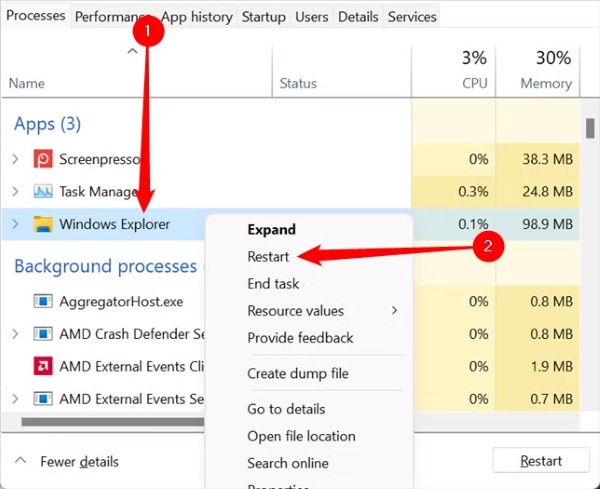
Windows Explorer controls the taskbar, desktop icons, and Start menu. Restarting it can often restore the taskbar immediately without requiring a system reboot. This is one of the most effective fixes when the taskbar suddenly disappears.

  • Press "Ctrl + Shift + Esc" to open Task Manager and under the "Processes" tab, locate "Windows Explorer"

  • Right click "Windows Explorer" and select "End Task".

    windows explorer end task
  • In Task Manager, click "File" then "Run new task" and type: "explorer.exe."

    run new task in task manager
  • Click "OK" then wait for Windows Explorer to reload.

Note:

Your desktop icons may briefly disappear during the restart process.

Method 3: Turn Off Taskbar Auto-Hide

If Auto-hide is enabled, the taskbar may seem missing even though it is functioning normally. Disabling this setting ensures the taskbar remains visible at all times. This method is particularly useful when the Windows 11 taskbar is not showing consistently.

  • Press "Windows + I" to open Settings.

  • Select "Personalization," then click "Taskbar" to expand "Taskbar behaviors".

  • Disable "Automatically hide the taskbar," then close Settings and verify that the taskbar remains visible.

    turn off taskbar auto hide

Method 4: Restart Your Computer

A simple restart can resolve temporary system glitches that affect the Windows interface. It reloads system services, Explorer processes, and taskbar components. If the issue appeared recently, restarting is worth trying before performing advanced repairs.

  • Press "Ctrl + Alt + Delete" and click the "Power" icon.

  • Select "Restart" then wait for Windows to boot completely, and check whether the taskbar is restored.

    restart your computer with ctrl alt delete

Method 5: Check Multiple Monitor Settings

The taskbar may appear on a secondary monitor rather than your primary display. This often happens after connecting to TVs, projectors, or external monitors. Checking display settings helps rule out monitor configuration issues.

  • Press "Windows + I" and go to "Taskbar" in the "Personalization" section.

  • Enable the "Show my taskbar on all displays" option and check if it is showing on all displays now.

    show my taskbar on all displays

Method 6: Run an SFC Scan

System File Checker (SFC) scans Windows for damaged system files and replaces them with healthy versions. This can repair taskbar problems caused by file corruption. The scan is built into Windows and requires no additional software.

  • Press "Windows + X" and select Command Prompt (Admin), then enter the command: "sfc /scannow".

    run the sfc command
  • Press "Enter" and wait for the scan to complete, and restart your computer.

The SFC tool checks protected Windows system files and automatically repairs corrupted versions.

Method 7: Install Windows Updates

Microsoft regularly releases patches that fix taskbar bugs and desktop interface problems. Installing available updates can resolve compatibility issues and known system defects.

  • Open Settings and click "Windows Update".

  • Select "Check for updates" and download available updates.

    check for windows update
  • Restart the computer when prompted, then verify whether the issue is resolved.

Method 8: Uninstall Recent Windows Updates

If the taskbar is missing after Windows 11 update, the problem began immediately after installing the update; removing the update may restore normal functionality. This is particularly helpful when update-related bugs are involved.

  • Open Settings and go to "Windows Update," then select "Update History".

    check update history under windows update
  • Click "Uninstall Updates" and select the most recent update, then click "Uninstall" and restart your computer afterwards.

    uninstall updates under update history

Method 9: Re-register the Taskbar Using PowerShell

The taskbar relies on several Windows app packages. Re-registering these packages can rebuild taskbar components and fix loading issues. This method is useful when other fixes fail.

  • Press "Ctrl + Shift + Esc" and open Taskbar, then click "File" to choose "Run new task" and type: "PowerShell."

  • Check "Create this task with administrative privileges" then click "OK".

  • Run: "Get-AppXPackage -AllUsers | Foreach {Add-AppxPackage -DisableDevelopmentMode -Register "$($_.InstallLocation)\AppXManifest.xml"}"

    reregister taskbar in powershell
  • Wait for the process to finish, then restart Windows.

Method 10: Restore Windows to an Earlier Point

System Restore allows you to roll Windows back to a previous working state. If the problem started after software installation, updates, or configuration changes, restoring can reverse those changes.

  • Press "Windows + R" and type: "rstrui" and press "Enter".

  • Click "Next" then select a restore point created before the taskbar issue started and click "Next" again, and follow the on-screen steps.

    restore system to fix missing taskbar
  • Confirm the restoration and allow Windows to restart and complete the process.

Tip:

Personal files are usually unaffected, but recently installed applications may be removed.

⚡ What to Do If Files Go Missing After Fixing the Taskbar

If your taskbar disappeared due to a system malfunction, some fixes may cause unexpected side effects. Methods like uninstalling updates, repairing system files, or performing a system restore can sometimes make files appear missing or inaccessible.

In many cases, files are simply moved, hidden, or affected by user profile changes. Instead of making further system changes that could overwrite data, it’s safer to use professional recovery software.

4DDiG data recovery can scan your system drive and other connected storage devices to help locate lost or missing files caused by Windows issues, crashes, updates, or accidental deletion. Here’re the steps:

FREE DOWNLOAD

Secure Download

FREE DOWNLOAD

Secure Download

  • Download and install 4DDiG, launch it to enter the interface. Select the drive where files were lost, and 4DDiG will automatically start scanning your drive for recoverable files.

    launch 4ddig and enter interface
  • Choose "File Type" and other features to quickly shortlist the results, making it more efficient to find the desired files.

    click type to see all files 4ddig
  • Preview important files by clicking them, and if you are satisfied with the contents, click "Recover".

    preview and recover the files
  • Save recovered files to a different drive location by clicking "Save Now" after choosing the location.

    save the recoverable files

How to Keep the Taskbar from Disappearing on Windows Again?

Taskbar issues are often preventable with a few maintenance habits. The following practices can reduce the chance of encountering similar problems in the future.

Turn Off Auto-hide Taskbar

Auto-hide can make it seem like the taskbar has disappeared when it is actually just hidden. Disabling this option ensures the taskbar stays visible at all times. You can adjust it in Taskbar settings under "Taskbar behaviors".

Keep Windows Updated

Installing the latest Windows updates can fix known bugs, security vulnerabilities, and taskbar stability issues. However, if a newly released update causes widespread problems, consider waiting for follow-up patches.

Maintain Healthy System Files

Running SFC scans periodically can help detect corruption before it affects important Windows components. Healthy system files contribute to overall system stability.

Monitor New Software Installations

Some third-party customization tools can interfere with the taskbar and Start menu. Install only trusted software and remove programs that modify Windows UI behavior.

Check Display Settings After Connecting Monitors

External displays can alter taskbar placement. Verify your display configuration whenever you connect or disconnect monitors.

Create Regular Restore Points

System Restore provides a safety net if future updates or software changes cause problems. Creating restore points regularly makes recovery much easier.

Keep Graphics Drivers Updated

Updated display drivers help ensure Windows interface elements render properly and reduce compatibility issues.

Conclusion

If the Windows taskbar disappeared, the problem is often caused by auto-hide settings, Explorer crashes, display configuration issues, corrupted system files, or recent updates. By following the fixes above, you can restore a missing taskbar and get Windows functioning normally again.

If troubleshooting results in missing files or data, Tenorshare 4DDiG can help recover important files safely. If you are looking to get your taskbar back on Windows, these solutions provide a complete path to recovery.

FREE DOWNLOAD

Secure Download

FREE DOWNLOAD

Secure Download

William Bollson (senior editor)

William Bollson, the editor-in-chief of 4DDiG, devotes to providing the best solutions for Windows and Mac related issues, including data recovery, repair, error fixes.

(Click to rate this post)

You rated 4.5 ( participated)