Taskbar Icons Not Showing on Windows 10/11 | 13 Real Fixes

5 mins read

Updated on 2026-06-11 09:38:15 to Windows Fix

If your taskbar icons are not showing on Windows 10 or Windows 11, you’re not alone. Missing icons can make it difficult to launch apps, switch between programs, or access system functions. In some cases, icons disappear after a Windows update, restart, sleep mode, or changes to display settings.

This guide explains the most common causes and walks you through 13 practical fixes to restore your taskbar icons and get everything working normally again.

taskbar icons not showing

Why Are Taskbar Icons Not Showing on Windows 11/10?

Before applying fixes, it helps to identify when the issue started. Different scenarios often point to different causes. Common situations include:

  • Taskbar icons disappear after waking the computer from Sleep mode.
  • Taskbar icons have disappeared following a Windows update.
  • Pinned applications are no longer visible.
  • Running apps appear open but do not show on the taskbar.
  • System tray icons are missing from the notification area.
  • Icons appear on one monitor but not another.
  • If your taskbar is not showing icons in Windows 11, it is probably because of one of the above-mentioned cases.

Basic Fixes for Icons Not Showing on the Taskbar Issue

Start with these simpler solutions, like restarting Windows Explorer or doing basic troubleshooting, before moving on to advanced repairs.

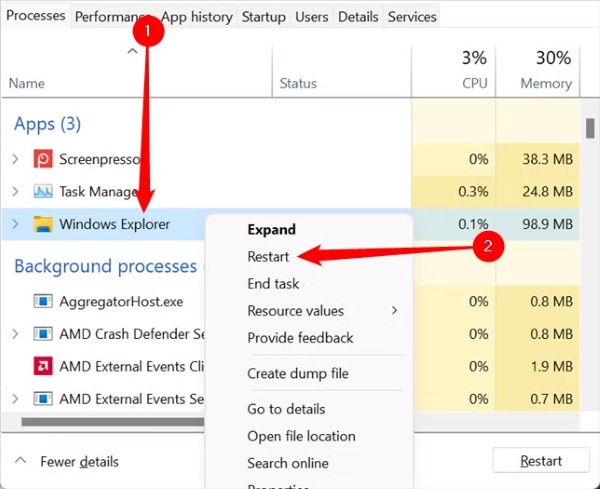
Method 1: Restart Windows Explorer

Windows Explorer manages the desktop, taskbar, Start menu, and File Explorer interface. If it stops responding or encounters a temporary glitch, taskbar icons may disappear or fail to load correctly.

Restarting the Explorer process refreshes the Windows shell without requiring a full system reboot. This simple fix often restores icons gone from the taskbar within seconds.

  • Press "Ctrl + Shift + Esc" to open Task Manager.

  • Locate "Windows Explorer" under the "Processes" tab.

  • Right-click it and select "Restart".

    restart windows explorer in task manager processes
  • Wait a few seconds for the desktop to refresh.

Method 2: Reboot Your PC

Temporary system glitches, background process conflicts, or incomplete updates can prevent taskbar icons from displaying properly. Restarting your computer clears temporary memory and reloads essential Windows components. It also helps apply pending system changes that may affect the taskbar. Before trying advanced solutions, a full reboot is worth attempting.

  • Press "Ctrl + Alt + Delete" and click the "Power" icon from the bottom right.

  • Select "Restart" then allow Windows to boot normally.

    restart your computer with ctrl alt delete
  • Check whether the icons return.

Method 3: Check Taskbar Settings

Incorrect taskbar settings can cause icons to become hidden, disabled, or unavailable. In some cases, changes made after a Windows update or user customization may affect icon visibility.

Reviewing your taskbar configuration helps ensure that important system and application icons are allowed to appear. This method is especially useful if only certain icons are missing.

  • Right-click an empty area on the taskbar and select "Taskbar Settings".

  • Scroll to "Taskbar behaviors" and verify that taskbar visibility settings are configured correctly.

    click taskbar behaviors
  • Click "Other system tray icons" and enable the icons you want displayed.

Method 4: Install Latest Windows Updates

Microsoft regularly releases updates that fix bugs affecting the taskbar, system tray, and user interface. If the issue is caused by a known Windows problem, installing the latest patches may resolve it automatically.

  • Open "Settings," then select "Windows Update".

  • Click "Check for updates" to download and install available updates.

    install latest windows update
  • Restart the computer.

Note:

Some users experience issues with taskbar icons that are disappearing after updates, while others fix them through newer patches.

Method 5: Disable Fast Startup

Fast Startup is designed to speed up boot times by saving part of the system state when Windows shuts down. However, this feature can occasionally cause taskbar-related issues by carrying over corrupted settings or processes. Disabling it forces Windows to perform a cleaner startup. This can help restore icons that fail to load after booting the system.

  • Open "Control Panel" and go to "Power Options".

  • Click "Choose what the power buttons do".

  • Select "Change settings that are currently unavailable".

  • Uncheck "Turn on fast startup" then save changes and restart the PC.

    uncheck turn on fast startup feature

Method 6: Adjust Power Settings

Certain power-saving features can interfere with how Windows loads system components after sleep or hibernation. If taskbar icons disappear after waking the computer, power management settings may be contributing to the problem.

Adjusting these options can improve system responsiveness and prevent interface glitches. This fix is particularly helpful for laptops and portable devices to regain lost icons on the taskbar.

  • Open the Control Panel and go to "Power Options".

  • Choose "Balanced" or "High Performance".

    adjust the power options under control panel
  • Save the settings and restart the computer.

Method 7: Update Graphics Driver

The Windows taskbar relies on the graphics subsystem to display icons and interface elements correctly. Outdated, corrupted, or incompatible graphics drivers can sometimes cause visual issues, including missing taskbar icons.

Updating the driver ensures proper communication between Windows and your display hardware. It may also resolve other graphical problems affecting the desktop environment.

  • Press "Windows + X" and open "Device Manager".

  • Expand "Display adapters," then right-click your graphics card and select "Update driver".

    update graphics driver
  • Choose "Search automatically for drivers," then complete the installation and restart the PC.

Advanced Solutions for the Taskbar Icons Disappeared Issue

If the basic fixes don’t work, try these deeper repairs, like system explorer process glitch repairs, re-registering Windows apps, etc., when you can’t see icons on the taskbar.

Method 1: Rebuild Icon Cache

Windows stores icon information in a cache database to improve performance and speed up loading times. If this cache becomes corrupted, icons may appear blank, disappear completely, or fail to update properly.

Rebuilding the icon cache forces Windows to generate a fresh database. This process often resolves persistent icon display issues that basic fixes cannot address.

  • Open Command Prompt as admin on your computer and run the commands one by one:

    • taskkill /IM explorer.exe /F
    • DEL /A /F /Q "%localappdata%\IconCache.db
    • DEL /A /F /Q "%localappdata%\Microsoft\Windows\Explorer\iconcache
    • DEL /F /S /Q "%localappdata%\Packages\Microsoft.Windows.Search_cw5n1h2txyewy\localstate\AppIconCache
  • Restart the computer and check if the icons are back.

Windows will automatically rebuild the icon cache.

Method 2: Run SFC and DISM Commands

Corrupted or missing system files can affect many Windows features, including the taskbar and icon display system. The System File Checker (SFC) and Deployment Image Servicing and Management (DISM) tools are designed to detect and repair these issues automatically.

Running both utilities can restore damaged components that prevent icons from loading. This method is recommended when the problem affects multiple system functions.

  • Open Command Prompt as Administrator.

  • Run: "sfc /scannow" and wait for the scan to finish.

    run the sfc command
  • Then run: "DISM /Online /Cleanup-Image /RestoreHealth" and restart the computer after completion.

    run the dism tool for fixing error

Method 3: Re-register Taskbar via PowerShell

Many taskbar features depend on built-in Windows applications and system packages. If these components become improperly registered, taskbar icons and Start menu functions may stop working correctly.

Re-registering Windows apps refreshes their configuration and restores missing connections. This can resolve issues caused by corrupted app registrations or incomplete updates.

  • Press "Win + X" and open Windows Terminal (Admin).

  • Enter: "Get-AppXPackage -AllUsers | Foreach {Add-AppxPackage -DisableDevelopmentMode -Register "$($_.InstallLocation)\AppXManifest.xml"}" and press "Enter".

    reregister taskbar in powershell
  • Wait for the process to complete, then restart Windows.

Method 4: Fix System Explorer Process Glitches

Sometimes Windows Explorer continues running but operates incorrectly due to background errors or resource conflicts. These glitches can cause icons to disappear even after a normal restart of the process.

Performing additional troubleshooting on Explorer-related services helps eliminate deeper shell issues. This method targets situations where taskbar problems repeatedly return.

  • Open Task Manager and end all active "Windows Explorer" processes.

  • Click "File" then "Run new task" and type: "explorer.exe" then press "Enter".

    run new task in task manager
  • Verify whether the taskbar loads normally.

Method 5: Adjust Display or Scaling Settings

Incorrect display resolution or scaling settings can make taskbar icons appear missing when they are actually being rendered improperly. This issue is more common on high-resolution monitors and multi-display setups.

Reviewing and correcting display settings can restore proper icon placement and visibility. It is also useful when icons disappear after connecting to a new monitor.

  • Open "Settings," then go to "System" and choose "Display".

  • Under "Scale", select the recommended value.

    adjust display or scaling settings
  • Verify screen resolution is set to the recommended option.

  • If using multiple monitors, ensure displays are configured correctly.

  • Sign out and back into Windows.

Method 6: Troubleshoot Third-Party Software Conflicts

Some third-party applications modify the Windows interface, taskbar behavior, or display settings. Security tools, customization utilities, and system optimization software can occasionally interfere with taskbar icon loading.

Identifying and disabling conflicting programs helps determine whether external software is causing the issue. This method is especially useful if the problem started after installing a new application.

  • Press "Windows + R" and type: "msconfig" and press "Enter".

  • Open the "Services" tab and check "Hide all Microsoft services," then click "Disable all".

    check hide all microsoft services
  • Open the Startup tab to click "Open Task Manager".

    click open task manager
  • Disable startup programs and restart the computer.

If the issue disappears, re-enable services gradually to identify the conflicting application.

⚡ How to Recover Lost Files When Fixing Windows Taskbar Issues?

Repairing Windows can sometimes make files, folders, or desktop shortcuts disappear, especially after rebuilding the icon cache, running repair commands, or rolling back updates.

When this happens, 4DDiG data recovery can help recover files that become missing after Windows updates, system repairs, or troubleshooting. It performs a deep scan to find deleted, hidden, or inaccessible files and lets you preview them before recovery.

FREE DOWNLOAD

Secure Download

FREE DOWNLOAD

Secure Download

Steps to Recover Missing Files after Fixing Taskbar icons Missing:

  • Launch 4DDiG after downloading and installing it on your PC, and then select the drive that was affected with data loss while trying to fix the Taskbar icons missing issue.

    launch 4ddig and enter interface
  • 4DDiG will scan your drive, and it may take some time. To quickly find the desired files, you can use the "Search" option or choose "File type" filters to shortlist the results efficiently.

    click type to see all files 4ddig
  • When the scan is complete, you can click on recoverable files to check their preview and click the "Recover" button for the file you want to recover.

    preview and recover the files
  • Finally, choose a different safe location to save those files and click the "Save Now" button.

    save the recoverable files

Conclusion

If your taskbar icons are not showing, the problem is usually caused by Windows Explorer glitches, corrupted icon caches, display settings, system file corruption, or update-related bugs. The solutions in this guide can help restore missing taskbar icons on both Windows 10/11.

When troubleshooting leads to missing files, 4DDiG for Windows can help recover important data quickly. By keeping Windows updated and maintaining healthy system settings, you can reduce the chances of taskbar issues returning in the future.

FREE DOWNLOAD

Secure Download

FREE DOWNLOAD

Secure Download

William Bollson (senior editor)

William Bollson, the editor-in-chief of 4DDiG, devotes to providing the best solutions for Windows and Mac related issues, including data recovery, repair, error fixes.

(Click to rate this post)

You rated 4.5 ( participated)