The Ultimate Guide: How to Safely Update Your Graphics Driver

5 mins read

Updated on 2026-06-09 17:18:38 to Windows Fix

Lagging games, flickering screen, and annoying display errors are often caused by outdated graphics drivers, and many users don't realize that a simple driver update can fix them.

Whether you're using an NVIDIA, AMD, or Intel graphics card, this guide will walk you through the safest and easiest methods step by step. By the end, you'll know exactly how to update graphics driver and keep your PC running smoothly. Let’s get started.

1. Why Should You Update Your Graphics Driver?

Graphics driver updates are not just about getting the latest features. They often include performance improvements, bug fixes, security patches, and compatibility updates that help your computer run more efficiently.

Improve Gaming Performance

One of the biggest reasons to update your graphics driver is to improve gaming performance. These updates can boost frame rates, reduce stuttering, and improve overall gameplay stability.

Fix Graphics and Display Issues

Outdated drivers can cause various visual problems, and updating your driver often resolves these issues by fixing bugs and improving communication between Windows and your graphics card.

Enhance Compatibility with New Games and Software

Modern software relies heavily on updated graphics technologies. Some applications and new games often require the latest drivers to function properly.

Receive Security and Stability Updates

Graphics drivers occasionally contain vulnerabilities that can affect system stability and security. Manufacturers release updates to patch these issues and improve overall reliability. Regular updates help keep your system secure while reducing crashes and unexpected errors.

2. How to Check Which Graphics Card You Have?

Before updating drivers, you need to identify your graphics card model.

  • Press Windows + X. Select Device Manager.

  • Expand the Display adapters category. You’ll see your graphics card listed.

    expand display adapters

Write down the exact model because you’ll need it if you choose to download drivers manually.

3. How to Upgrade Graphics Driver Step-by-step?

There are two common methods to update drivers on Windows computers.

Method 1: Using Windows Device Manager (Quickest)

This is the easiest method for most users and works well for basic driver updates.

  • Press Windows + X and open Device Manager. Expand Display adapters.

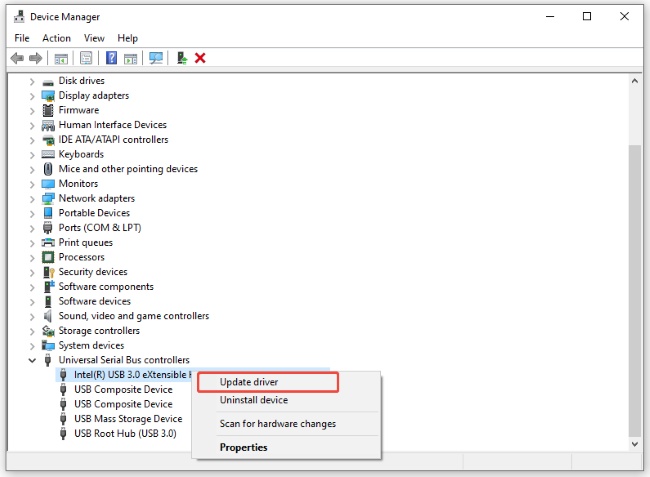
  • Right-click your graphics card. Select Update driver.

    update graphics driver
  • Choose Search automatically for drivers. Then, Windows will search for available updates.

    search automatically for drivers
  • Install any available driver updates. After that, restart your computer.

If you’ve been wondering how can I update my graphics driver quickly, Device Manager is usually the fastest solution.

Method 2: Download from Manufacturer’s Website

For the latest performance improvements, downloading drivers directly from the GPU manufacturer is often the better choice.

Update NVIDIA Graphics Driver

  • Visit the official NVIDIA Driver Download page. Select your GPU model and operating system.

  • Find and download the latest Game Ready Driver or Studio Driver.

    find latest nvidia driver
  • Run the installer and follow the installation wizard.

If you encounter the installation error for GeForce Game Ready Driver, this guide may help you to resolve it.

Update AMD Graphics Driver

  • Visit AMD’s official driver support page. Select your Radeon graphics card model.

  • Download the latest driver package. Launch the installer and complete the drivers installation process.

Using manufacturer drivers typically provides the newest features and performance enhancements for your hardware.

⚡ Extra Tip: Fix “Not Enough Disk Space” for Graphics Driver Updates Seamlessly

Sometimes users attempt to install a new graphics driver only to encounter a “Not Enough Disk Space” error. In such situations, a more efficient solution is using 4DDiG Partition Manager to resize partitions and allocate more storage to your system drive without data loss.

  • First, install and open 4DDiG Partition Manager on your computer. From the left panel, select Partition Management, then choose the partition you want to adjust. After that, click the Resize/Move option to continue.

    FREE DOWNLOAD

    Secure Download

    select resize partition
  • Now, adjust the partition size by dragging its boundary left or right. You can also simply enter the desired capacity manually. Check the preview and click OK to save the changes.

    click ok
  • Next, the pending operation will appear in the task list. Carefully review the changes, then click Execute Task and confirm by selecting OK.

    confirm by click ok
  • The software will now resize the partition. Once the partition has been successfully resized, click Finish to exit and continue with your graphics driver installation.

    click finish

More FAQs about Graphics Driver Updating

1. How do I check if my GPU needs to be updated?

Open Device Manager > Display adapters, right-click your graphics card, and check the Driver Date and Driver Version under the Driver tab. You can compare them with the latest version on the official NVIDIA, AMD, or Intel website.

2. How do I update my Dell graphics driver?

You can use Dell SupportAssist or visit Dell’s support website. Enter your computer’s service tag, download the recommended graphics driver, and install it following the provided instructions.

3. Does Windows 11 automatically update graphics drivers?

Yes. Windows 11 automatically installs many graphics driver updates through Windows Update.

But might not always behave exactly how you want it to, depending on how you use your PC. Gamers and power users often prefer downloading drivers directly from the manufacturer.

Conclusion

Learning how to update graphics driver is one of the easiest ways to improve your computer’s performance, stability, and compatibility with modern software. Keeping your GPU drivers current helps prevent display issues and ensures the best possible experience.

If you encounter storage-related problems during installation, 4DDiG Partition Manager provides a practical solution by helping you resize partitions and create additional space. With an updated graphics card driver, your Windows 10 or Windows 11 system can run more efficiently and reliably.

FREE DOWNLOAD

Secure Download

William Bollson (senior editor)

William Bollson, the editor-in-chief of 4DDiG, devotes to providing the best solutions for Windows and Mac related issues, including data recovery, repair, error fixes.

(Click to rate this post)

You rated 4.5 ( participated)