[2026 Full Guide] How to Update USB Drivers on Windows 11?

5 mins read

Updated on 2026-04-21 15:08:17 to USB Recovery

Many users face USB issues on their computers without knowing the real cause. In most cases, outdated drivers are the problem. Learning how to update USB drivers on Windows 11 can help fix these issues quickly. It also improves device performance and stability. In this guide, you will learn simple methods to update, reinstall, and manage USB drivers in an easy way.

how to update usb drivers on windows 11

Why You Need to Update USB Drivers in Windows 11?

USB drivers allow your Windows 11 system to communicate with external devices. These include flash drives, keyboards, mice, and external hard drives. Without proper drivers, your system cannot detect or use these devices correctly.

Keeping USB drivers up to date is important. Updated drivers improve compatibility and fix bugs. They also help your system run smoothly with new devices.

If your drivers are outdated, you may face common problems such as:

  • USB device not recognized
  • Devices disconnecting randomly
  • Slow data transfer speed
  • USB ports are not working properly

In these cases, updating USB drivers is often the first and best solution.

How to Check If Your USB Drivers Are Outdated

You can check driver status using Device Manager from the Start menu. Expand the section that contains your USB device and look for any warning signs. If you see warnings or old versions, your drivers may need an update.

How to Update USB Drivers in Windows 11?

There are several ways to update USB drivers. You can choose the method that is easiest for you.

Method 1: Update USB Drivers via Device Manager

Device Manager is the most common tool used to manage hardware and drivers in Windows 11. It allows you to quickly check and update USB drivers without needing extra software. This method is simple and works well for most users. It is usually the first option to try when facing USB issues.

  • Right-click the “Start” button, then click “Device Manager."

  • Expand “Universal Serial Bus controllers” and right-click the USB device you want to update.

  • Select “Update driver”.

    update universal serial bus controllers
  • Click “Search automatically for drivers."

    search automatically for drivers in device manager
  • Wait for Windows to find and install updates, then restart your computer if needed

This method is quick and works for most users.

Method 2: Update USB Drivers via Windows Update

Windows Update is another reliable way to install driver updates. It not only updates the system but also provides driver improvements released by Microsoft. This method to update USB drivers in Windows 11 ensures better compatibility with your operating system. It is especially useful if you want a more automatic approach.

  • Open “Settings” and go to “Update & Security > Windows Update."

  • Click “Check for updates” and install available updates.

    windows-check-for-updates-usb-drivers

This method ensures your drivers stay aligned with system updates.

Method 3: Download USB Drivers from Manufacturer Website

In some cases, Windows may not find the latest or correct driver. This is where the manufacturer’s website becomes important. Device makers often release updated drivers before they appear in Windows Update. Downloading drivers directly ensures you get the most accurate version for your hardware.

In this example, we will use an HP printer as a USB device, but the exact steps may vary depending on your device and the manufacturer's website.

  • Identify your device or motherboard model and visit the official manufacturer's website by searching for device drivers in a search engine.

  • Go to the "Software and Drivers” section and select your "OS" and its "Version."

  • Click “Submit” and on the next page click “Install from MS Store” to download and install the driver.

    download usb drivers from manufacturer website
  • Follow the on-screen instructions and restart your computer when the process is complete.

This method is useful when Windows cannot find the correct driver.

How to Reinstall USB Drivers in Windows 11 If the Update Doesn’t Work?

If updating the driver does not solve the problem, reinstalling it can be a better solution. Sometimes, drivers become corrupted or do not install properly. Reinstalling removes the faulty version and replaces it with a fresh one. This method can fix deeper issues that simple updates cannot resolve.

  • Open “Device Manager" by right-clicking the "Start" menu, then expand “Universal Serial Bus controllers” and right-click the USB device.

  • Select “Uninstall device” then confirm the action.

    uninstall device universal serial bus controllers
  • Restart your computer, and Windows will automatically reinstall the driver

This method often fixes deeper issues with USB devices.

Alternative Fixes If USB Drivers Still Don’t Work

Updating drivers is important, but sometimes the issue may be elsewhere. If the problem continues, try these solutions.

1Try Different USB Ports

Not all USB ports work the same way, and some may stop functioning over time. Testing different ports helps you quickly identify if the issue is hardware-related. This is a simple step but often overlooked. It can save time before trying more complex solutions.

2Run Windows Troubleshooter

If you are unable to work on how to update USB drivers on Windows 11, troubleshooters might help you out. Windows includes built-in troubleshooting tools that can detect common hardware issues. These tools are easy to use and do not require technical knowledge. They scan your system and suggest possible fixes automatically. This makes them a good option for quick diagnostics.

  • Open “Settings” and go to “Update & Security," then click “Troubleshoot."

  • Select “Additional troubleshooters” and run the Windows update troubleshooter.

    run the windows update troubleshooter

This tool can detect common USB problems automatically.

3Check BIOS/UEFI USB Settings

USB functionality can sometimes be controlled through BIOS or UEFI settings. If these settings are disabled, your USB ports may not work at all. Checking them ensures that your hardware is properly enabled. This step is useful when USB devices are not detected at all.

  • Restart your computer and enter BIOS/UEFI (press F2, DEL, or ESC)

  • Navigate to USB settings in the "Advanced” tab using “Arrow Keys” and ensure USB ports are enabled. Save changes and exit.

    check bios settings for usb drivers

4Check Hardware Issues

Sometimes the problem is not related to software or drivers. Physical damage or faulty devices can also cause USB issues. Checking your hardware helps rule out these possibilities. It is important to confirm whether the device itself is working properly.

  • Test your USB device on another computer, and if it works on the other computer, then the issue is with your computer. If it does not work on another computer, then the issue is with the USB.

  • Check for physical damage and clean the USB port carefully

If the device does not work elsewhere, it may be damaged.

How to Roll Back USB Drivers in Windows 11?

While updates usually improve performance, they can sometimes cause new problems. A recent driver update may not work well with your system or device. In such cases, rolling back to a previous version can restore stability. This option allows you to return to a version that was working properly before.

  • Open “Device Manager” and expand “Universal Serial Bus controllers."

  • Right-click the device and select “Properties," then go to the “Driver” tab.

  • Click “Roll Back Driver” and follow the instructions, then restart your system.

    roll back usb driver

How to Keep USB Drivers Updated in Windows 11?

Keeping your drivers updated helps prevent future issues. Here are some simple tips:

  • Enable automatic Windows updates
  • Check Device Manager regularly
  • Install optional driver updates when available
  • Visit manufacturer websites for updates
  • Avoid using outdated or unknown drivers

Following these tips ensures stable performance and fewer USB issues.

⚡ How to Recover Data from USB Driver After Update?

Sometimes, updating or reinstalling USB drivers can lead to data loss. Files may become hidden, corrupted, or inaccessible. This can happen due to driver conflicts or sudden disconnection during updates.

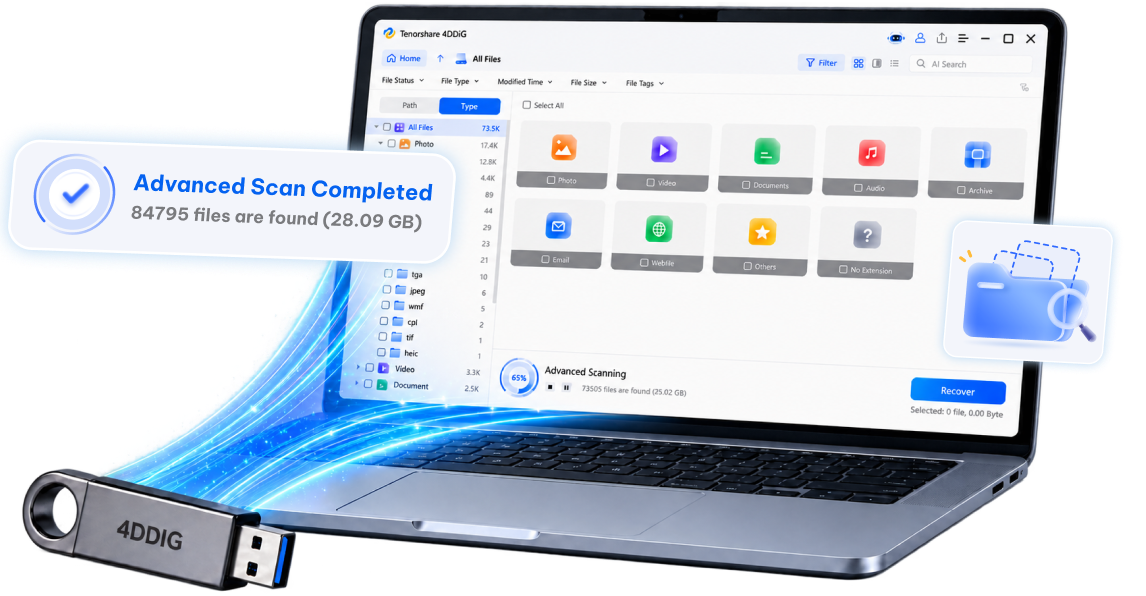
In such cases, a reliable recovery tool like 4DDiG Windows Data Recovery can help. It is designed to recover lost data from USB drives quickly and safely.

FREE DOWNLOAD

Secure Download

FREE DOWNLOAD

Secure Download

With support for USB flash drives, external drives, and other storage devices, the tool can recover deleted, lost, or hidden files including photos, videos, documents, and more. Follow to recover data from USB driver:

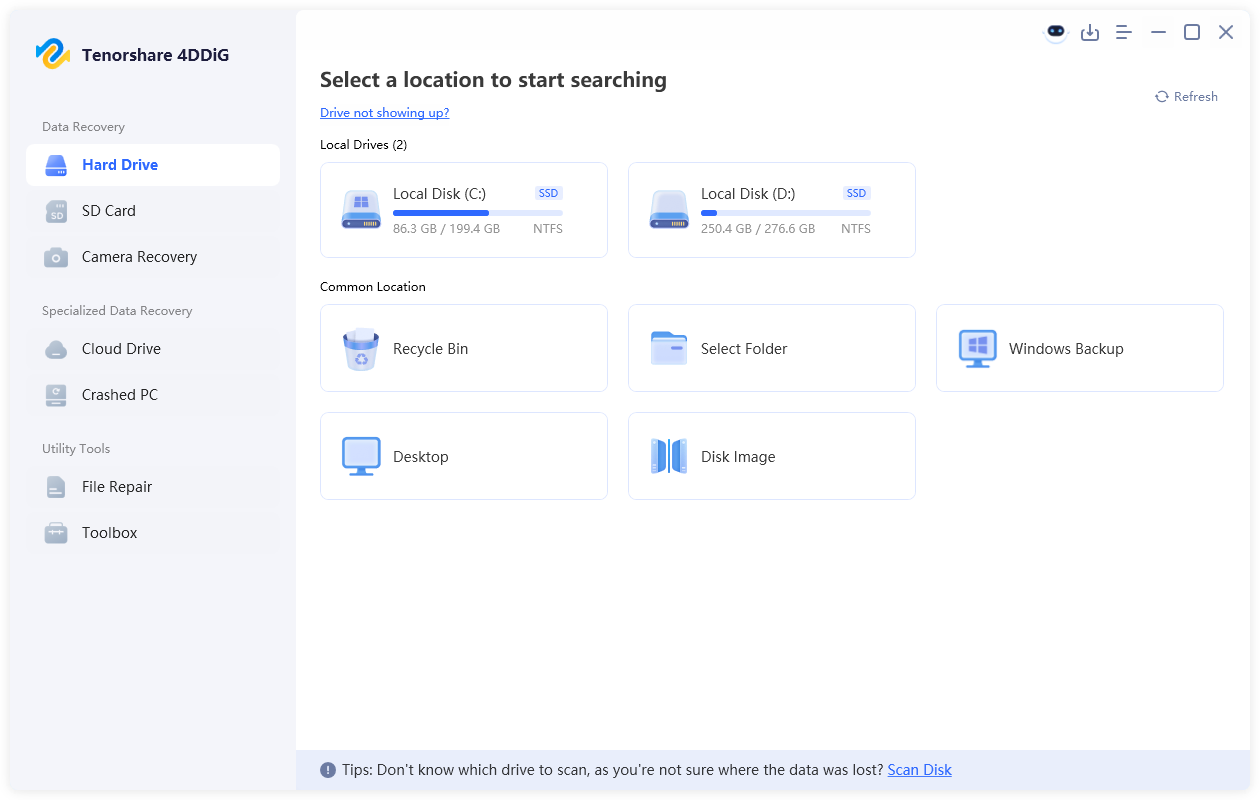
  • Install and open 4DDiG Windows Data Recovery. Connect your USB drive to the computer and select the USB drive from the list.

    launch 4ddig and enter interface
  • Select the “File Type” from the left panel to easily find the desired files, and 4DDiG will scan your drive while you do.

    click type to see all files 4ddig
  • Click on a file that you want to recover to see its preview first. If you are satisfied, click "Recover”.

    preview and recover the files
  • Now, select some location other than the driver and click "Save Now."

    save the recoverable files

Conclusion

Learning how to update USB drivers on Windows 11 is important for maintaining system performance and fixing device issues. Regular updates help improve compatibility and prevent common errors. If problems continue, reinstalling or troubleshooting can help. In case of data loss, tools like 4DDiG Data Recovery provide a reliable way to recover important files and keep your data safe.

FREE DOWNLOAD

Secure Download

FREE DOWNLOAD

Secure Download

William Bollson (senior editor)

William Bollson, the editor-in-chief of 4DDiG, devotes to providing the best solutions for Windows and Mac related issues, including data recovery, repair, error fixes.

(Click to rate this post)

You rated 4.5 ( participated)