How to Fix that GeForce Game Ready Driver Installation Can't Continue

5 mins read

Updated on 2026-04-08 17:08:14 to Windows Fix

Many NVIDIA users encounter the dreaded GeForce Game Ready driver installation can't continue error when trying to update or install their GPU drivers. Don’t worry, this guide walks you through exactly why this problem happens and, more importantly, how to fix it fast. By the end, you'll have a fully working NVIDIA driver and be ready to game without interruption.

geforce installation can't continue

1. Why GeForce Game Ready Driver Installation Can't Continue?

Before jumping into fixes, it helps to understand what's actually going wrong when you see the GeForce installation can't continue message. Here are the most common culprits:

  • Outdated / corrupted NVIDIA GeForce Launcher: If the launcher itself is out of date or its files have become corrupted, it may block the driver installation process entirely.
  • Insufficient administrator permissions: Windows may prevent the installer from making necessary system changes if it isn't running with elevated (admin) privileges, leading to an NVIDIA install cannot continue error.
  • Conflicting or leftover driver files: Remnants of a previous NVIDIA installation can clash with the new driver, causing the installer to fail. This is one of the top reasons users report NVIDIA driver stuck on preparing to install.
  • Corrupted NVIDIA a pp installation: If the NVIDIA App itself is damaged or improperly installed, the NVIDIA app not installing issue will cascade into driver failures.

Understanding the root cause helps you apply the right fix.The section below will address it step by step.

2. How to Fix "GeForce Installation Can't Continue" Issue?

Fix 1: Update the NVIDIA GeForce Launcher to the Latest Version

An outdated GeForce launcher is one of the most overlooked reasons for GeForce driver not installing. NVIDIA regularly pushes updates to its launcher that patch compatibility bugs and installation errors. Here's how to update it:

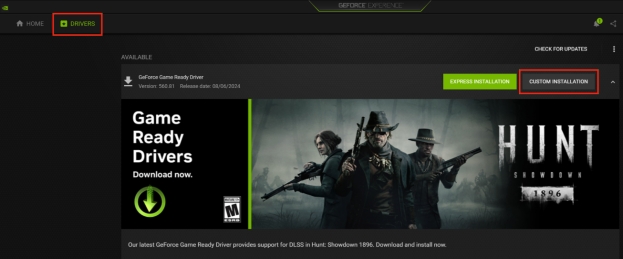
  • Open the NVIDIA App. It should automatically detect and prompt for updates (including the app itself and drivers).

  • If no prompt appears, look for a Check for updates button (often in the Home, Drivers, or About section).

    check for nvidia app updates
  • Download and install any available updates. Restart your PC if prompted.

    update avaliable drivers

Keeping the launcher current ensures it can properly communicate with NVIDIA's servers and process driver packages — a simple step that resolves NVIDIA driver update stuck problems for many users.

Fix 2: Run the NVIDIA App as Administrator

Windows User Account Control sometimes blocks the installer from writing to protected system directories. Running the NVIDIA App with administrator rights bypasses these restrictions and often resolves the NVIDIA installation cannot continue error instantly.

  • Close the NVIDIA App completely, including from the system tray.

  • Navigate to the NVIDIA App shortcut on your Desktop or find it in the Start Menu.

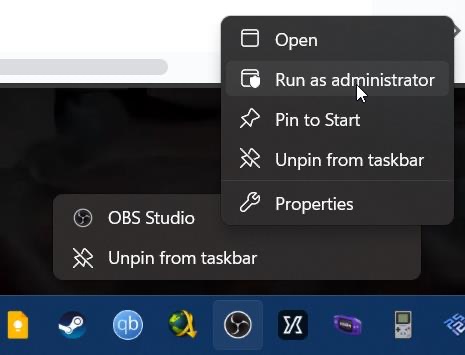
  • Right-click the shortcut and select Run as administrator.

    run nvidia app as admin
  • If prompted by UAC, click Yes to grant permissions.

  • Once the app opens, head to the Drivers tab and retry the installation.

If you want to make this permanent so you never have to manually elevate: right-click the shortcut > Properties > Compatibility tab > check "Run this program as an administrator" > click Apply.

Fix 3: Uninstall and Reinstall the NVIDIA App

If the above steps haven't resolved the GeForce driver an error occurred message, a full uninstall and clean reinstall of the NVIDIA App is usually the definitive fix. This clears out any corrupted files or broken settings that are blocking the installation.

Step 1:Uninstall the NVIDIA App


  • Open Settings > Apps > Installed Apps.

  • Search for " NVIDIA " and uninstall NVIDIA App, GeForce Experience, and any related NVIDIA software components.

  • Restart your PC after uninstalling.

Step 2:Clean Up Residual Files


  • Press Win + R, type %programdata%, and delete the NVIDIA Corporation folder if it exists.

Step 3:Reinstall the NVIDIA App


  • Visit the official NVIDIA website and download the latest NVIDIA App installer.

    download nvidia app
  • Run the installer as administrator. Follow the on-screen prompts and select Custom Installation, check "Perform a clean installation" if the option appears.

  • Once the app is installed, open it and navigate to the Drivers tab to install the latest Game Ready Driver.
    A clean reinstall resolves deep-seated corruption issues and is the go-to solution for persistent GeForce game ready driver installation can't continue errors that survive simpler fixes.

⚡ Bonus: Upgrade to Windows 11 Without Restrictions Using 4DDiG

If reinstalling the NVIDIA app doesn’t fully resolve the issue, it may be worth checking whether your system environment is up to date. In some cases, users choose to move to a newer Windows version for better compatibility and long-term stability. With 4DDiG Partition Manager, you can bypass Windows 11 upgrade requirements and complete the installation process without TPM or other limitations.

3 day free trial

  • Download and open 4DDiG Partition Manager. Go to the Windows Download & Upgrade section and select Windows 11 Upgrade.

    FREE DOWNLOAD

    Secure Download

    windows 11 upgrade
  • The tool will automatically scan your device and check its compatibility with Windows 11.

    After the scan, you’ll see whether your PC meets the upgrade requirements.

    pc conditions
  • If your device doesn’t meet them, follow the on-screen instructions to bypass the restrictions. You may need to create a bootable installation or convert your disk to GPT format.

    follow instructions to bypass
  • Next, select your preferred system language and Windows version, then click Start to begin the process. Confirm your selection by clicking Sure to continue.

    alt:click sure to continue

    bypass requirements
  • The software will take some time to bypass the Windows 11 requirements. Please wait patiently until the process is complete.

    Windows 11 Upgrade Bypassing Requirements

Once finished, you can proceed with upgrading to Windows 11 successfully.

More FAQs about GeForce Driver Not Installing

1. Why won't my GeForce driver update?

The most common causes include an outdated GeForce launcher that's incompatible with the new driver package, insufficient system permissions, interference from antivirus software that flags driver files as suspicious, or a corrupted download.

2. Why do my NVIDIA drivers keep failing to install?

Recurring driver installation failures are typically caused by one of three things: leftover files from a previous driver version conflicting with the new one, a system-level permission issue, or hardware incompatibility. First, use the clean reinstall method outlined in Fix 3 to eliminate file conflicts. Second, confirm your GPU model is actually supported by the driver version you're installing. Third, temporarily disable your antivirus and any third-party firewall during the installation.

Conclusion

Dealing with a GeForce Game Ready driver installation can't continue error is undeniably frustrating, but as this guide shows, it's a very solvable problem. While you're optimizing your system, consider using 4DDiG Partition Manager to keep your drives healthy and well-organized — a well-managed disk ensures driver installations have the space and file integrity they need to succeed. With your drivers back on track, you can get back to what matters: playing your games at peak performance.

FREE DOWNLOAD

Secure Download

William Bollson (senior editor)

William Bollson, the editor-in-chief of 4DDiG, devotes to providing the best solutions for Windows and Mac related issues, including data recovery, repair, error fixes.

(Click to rate this post)

You rated 4.5 ( participated)