Green Check Marks on Desktop Icons: Meaning and How to Remove Them

5 mins read

Updated on 2026-10-26 11:10:35 to Windows Fix

Green check marks on desktop icons meaning and removal with the 4DDiG logo

A green check mark on desktop icons usually means OneDrive has a local copy of those items on your Windows PC. It is a status badge, not a sign that your files need repairing. To change it safely, first decide whether you want more disk space or a Desktop that no longer syncs with OneDrive.

What the Green Check Marks Mean

When OneDrive backs up Desktop, Windows can show availability badges on its files, folders, and shortcuts. The two green checks mean different things:

Outlined green check for a locally available OneDrive fileSolid green circle for a file set to Always keep on this deviceBlue cloud for an online-only OneDrive file

An outlined green check means the file is downloaded and available offline. A solid green circle with a white check means it is set to Always keep on this device. A blue cloud means it is online-only and needs an internet connection to open.

These badges do not mean the installed applications themselves have been backed up. A synced shortcut is still only a shortcut. Also, synchronization can carry deletions to other devices; a green check is not a separate, permanent backup.

Before changing anything, right-click an affected item and look for OneDrive options such as Free up space. Check its folder location in File Explorer. A path containing OneDrive\Desktop suggests Desktop backup is involved. If another sync app owns the badge, use that app's settings instead.

How to Remove or Change Green Checks Safely

Choose the action that matches your goal. Deleting the marked file is not a way to hide its badge.

Make Selected Files Online Only

Use this when you want to reclaim local storage while keeping the files in OneDrive.

  • Confirm the file has finished syncing and opens from OneDrive on the web under the correct account.

  • Right-click the file or folder on Desktop or in File Explorer. Open the OneDrive submenu if needed, then select Free up space.

  • Check that its status changes to a blue cloud. The file remains online, but it will need to download before you can use it offline.

Opening it again can bring back a green check. If you need the file during travel or without internet, keep it downloaded rather than changing its status just for appearance.

Stop Backing Up Desktop to OneDrive

Choose this when you want Desktop outside OneDrive's backup scope while continuing to use OneDrive for other folders. First preserve important work in a separate location and check the cloud copies.

  • Select the OneDrive cloud near the taskbar clock, open the gear menu, and select Settings.

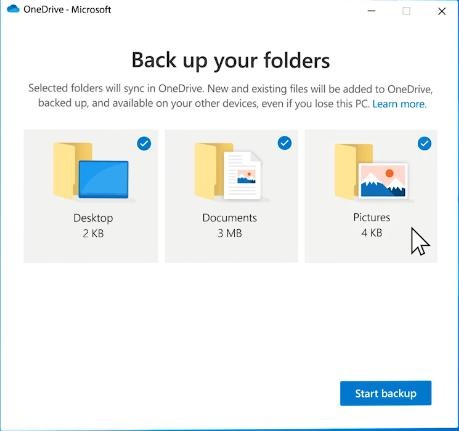
  • Go to Sync and backup > Manage backup.

    OneDrive folder backup selection with the Desktop control on Windows
  • Turn off Desktop. Read the next prompt carefully: current versions can offer to keep files only in OneDrive or only on your PC. Select the location you actually want, then confirm.

  • If OneDrive says some files could not be moved, download cloud-only items with Always keep on this device, let that finish, and retry. Verify where your files ended up before deleting any folder.

Afterward, new files saved to the local Desktop will no longer receive that folder's OneDrive backup protection. For the wider setup, see how to back up files to OneDrive.

Unlink the PC If You Want to Stop All OneDrive Syncing

Unlinking affects the whole account on this PC, so use it when you want more than a cleaner-looking Desktop.

  • Download any cloud-only files you need offline and preserve unsynced edits separately.

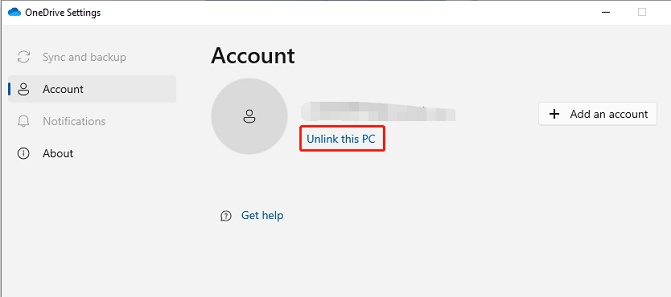
  • Open OneDrive Settings > Account > Unlink this PC.

    OneDrive Windows Account settings showing the Unlink this PC link
  • Select Unlink account. Check both your local folders and OneDrive online afterward; unlinking does not delete the cloud files.

See our guide to turning off OneDrive on Windows for the broader options. Pausing sync is temporary and is not a reliable way to remove existing badges.

What If the Checks Remain

Right-click an empty area of Desktop and select Refresh after the relevant setting has changed. Refresh redraws icons; it does not stop synchronization. If the items remain inside a synced Desktop, their status badges may still be expected. Recheck the account and folder location instead of deleting files or registry entries to force a visual change.

If the icons themselves have vanished, use the separate missing desktop icons guide.

Files Missing After Changing OneDrive Settings

A different Desktop location can look like data loss. Before scanning a drive, check these places:

  • Local and synced folders: enter %USERPROFILE%\Desktop in File Explorer, then inspect Desktop under the correct OneDrive account. Work and personal accounts may use different folders.
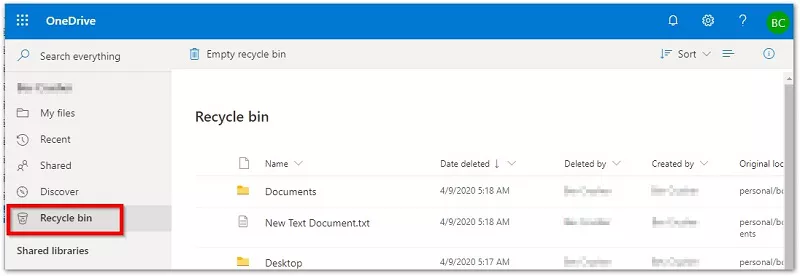
  • OneDrive online: search for the filename and check its web Recycle bin. Select deleted items and choose Restore if available.
  • Windows Recycle Bin: restore any locally deleted files found there. A file that was online-only may appear only in the cloud recycle bin.

Recover a Deleted Local Copy with 4DDiG

If the file was previously stored on the PC, was actually deleted, and cannot be restored from either recycle bin or a backup, 4DDiG Windows Data Recovery can scan the original drive for recoverable files. It offers file search, type filters, and previews for supported formats so you can inspect candidates before saving them.

FREE DOWNLOAD

Secure Download

FREE DOWNLOAD

Secure Download

Install it on a different drive where possible, and connect a separate destination for recovered files. Check the current plan's recovery allowance before purchase. The download does not guarantee recovery: overwritten data and SSD TRIM can prevent it. A local scan cannot reconstruct an online-only file that was never downloaded, and this workflow does not remove green checks or repair OneDrive syncing.

Step 1 Select the Original Location

Open 4DDiG and select the drive that held the deleted local file. For a redirected Desktop, use its actual original location rather than assuming every Desktop folder is the same. Start the scan.

4DDiG Windows location selection before a recovery scan

Step 2 Scan and Find the File

Use search and file-type filters to narrow the results. Preview supported files and check their contents; a familiar filename alone does not prove that the recovered copy is intact.

4DDiG Windows scan results with file type filters

Step 3 Recover to a Different Drive

Select the files, click Recover, and choose a different physical drive as the destination. Open the saved files there to check them before reorganizing your Desktop.

Windows dialog for choosing a different recovery destination

Keep the Files You Need Available

Green checks describe availability. Use Free up space for online-only storage, stop Desktop backup for a local Desktop, or unlink the account to stop syncing on this PC. If a previously downloaded file is genuinely deleted, consider 4DDiG for Windows data recovery after checking the folders and recycle bins first.

FREE DOWNLOAD

Secure Download

FREE DOWNLOAD

Secure Download

Ehtsham Ahmed (senior editor)

Ehtsham Ahmed, the content writer for 4DDiG, is dedicated to offering workarounds for Windows Data Recovery, Windows Troubleshooting, iDevices System Repair, etc.

(Click to rate this post)

You rated 4.5 ( participated)