OneDrive Sync Pending on Windows: Find the Stuck File and Fix It

5 mins read

Updated on 2026-10-27 12:11:34 to Windows Fix

OneDrive sync pending means a file or folder has changes waiting to sync. Start by opening the OneDrive activity panel and finding the affected item. A busy queue can clear by itself; a file that stays stuck needs a closer look. This Windows guide helps you identify that file, fix the matching cause, and check that the latest version reached the cloud.

OneDrive Sync Pending on Windows: Find the Stuck File and Fix It — 4DDiG editorial illustration
Find Out What Is Waiting to Sync

  • Click the OneDrive cloud icon beside the Windows clock. Check the account name and any error message. If the icon is hidden, expand the taskbar's hidden icons; if OneDrive is closed, open it from Start.

  • Read the activity list, then open the affected folder in File Explorer. Switch to Details view and look at the Status column to narrow down the pending item.

  • Check that same file in OneDrive on the web, using the same account. Compare its modified time and contents with your local copy.

The activity-window example below uses an older Windows layout. Processing changes can mean OneDrive is checking or transferring files; it is related to, but not identical to, a file's Sync pending status.

OneDrive activity window showing Processing changes while checking the sync queue

If filenames or transferred amounts keep changing, let the queue progress on a stable connection. If the same item remains, follow the matching case below. There is no single normal waiting time for every file size and connection.

ℹImportant:

Before changing a stuck file or resetting OneDrive, save open work and copy any important locally available files with unsynced edits to a folder outside OneDrive. Check the destination path: Desktop and Documents may already be backed up to OneDrive.

Fix the File or Folder That Is Stuck

A Folder Says Sync Pending but Looks Empty

Hidden files can keep a folder pending. In Windows 11, select View > Show > Hidden items in File Explorer. In Windows 10, select View > Hidden items; the screenshot shows that older ribbon.

Windows 10 File Explorer View ribbon with Hidden items selected

Inspect anything revealed before removing it. If there are no hidden files causing the issue, try Microsoft's folder workaround:

  • Create a new folder inside the same OneDrive account.

  • Copy the original folder's files into it. Open the copies and verify them online before removing the old folder.

  • Delete the old folder only after those checks. An empty replacement folder can itself display pending until it contains a file.

An Office Document or TMP File Is Stuck

Save the document and close the application using it, then watch the queue again. OneDrive does not sync temporary .tmp files. A file such as report.tmp can hold work that the application has not saved properly.

For a known leftover .tmp file that is no longer in use, preserve a copy outside OneDrive, then move the leftover out of the synced folder. If Windows says it is in use, close the owning application or restart after saving your work. Renaming or deleting temporary files can break an application's recovery process; identify them first.

Storage or a File Error Is Blocking Uploads

Follow the exact error shown in the activity panel. Check available OneDrive cloud storage and the local drive's free space separately. A full cloud account can block uploads even when the PC has plenty of room. Our OneDrive and SharePoint storage guide explains related capacity problems.

For an invalid-name error, select the file, press F2, remove the characters identified by OneDrive, and check its status again. For a path-length error, shorten the file or containing folder names. Ask the administrator about a work or school permission or file-type restriction.

Restart a Queue That Has Stopped Moving

After saving and closing affected documents:

  • Select the taskbar's OneDrive icon, open Help & Settings (the gear menu), and choose Pause syncing > 2 hours.

  • Open the paused activity panel and select Resume syncing, or the resume control shown in the notice below.

    OneDrive activity window showing the paused notice and resume button

Watch whether the stuck file starts moving. If the queue still stalls, use Quit OneDrive or Close OneDrive in the app's menu, then reopen OneDrive from Start. The wording varies by version. Sign in again if prompted, and check that the intended account is active.

Reset OneDrive If the Client Is Still Stuck

Resetting rebuilds the sync app's settings and triggers a full sync. Microsoft says the reset itself does not delete files; protect unsynced edits first and expect to review folder selections afterward.

  • Press Windows + R, paste the following command, and select OK:

    %localappdata%\Microsoft\OneDrive\onedrive.exe /reset
    Windows Run dialog containing the OneDrive sync app reset command

    If Windows cannot find that installation, try the first alternative below; use the second only if the first is also not found:

    "C:\Program Files\Microsoft OneDrive\onedrive.exe" /reset
    "C:\Program Files (x86)\Microsoft OneDrive\onedrive.exe" /reset
  • Open Start, search for OneDrive, and launch the desktop app. Allow the full sync to finish and reselect any folders you previously chose to sync.

If none of the paths exists, check whether the Windows OneDrive sync app is installed. The separate Microsoft Store app uses a different reset process.

If files are current online but only the taskbar remains pending, Office Document Cache can be involved. Save a separate copy of unfinished documents, then ask Microsoft support or your IT team for the cache-repair procedure matching your Office version.

Check That Sync Actually Finished

Reopen the affected file on the web and confirm that its latest changes are present. In File Explorer, its pending status should clear. A blue cloud can be a successfully synced online-only file; a green check indicates a local copy. Our OneDrive green-check guide explains the difference.

Recover a Local File Deleted During Troubleshooting

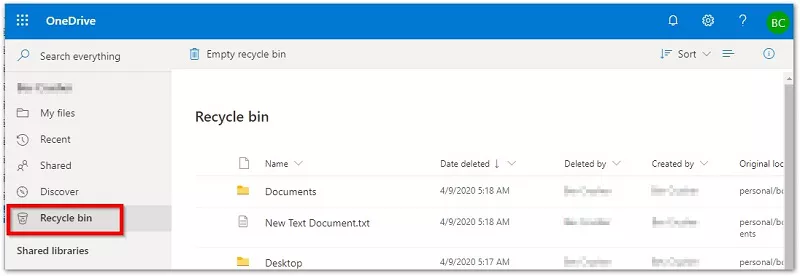
If troubleshooting also removed a document or photo, check the Windows Recycle Bin, OneDrive recycle bin, and available version history first. See our OneDrive file recovery guide for those options.

For a missing file that previously existed locally, 4DDiG Windows Data Recovery can scan the original drive and preview supported files before recovery. It cannot repair OneDrive syncing or recover cloud-only contents that were never downloaded. Check the current license's recovery allowance before saving files.

FREE DOWNLOAD

Secure Download

FREE DOWNLOAD

Secure Download

Use the download button above and install 4DDiG on another drive. Keep writes to the original storage low; overwriting and SSD TRIM can make deleted data unrecoverable.

Step 1 Select the Original Location

Choose the drive or folder that held the downloaded file, then start scanning. Check the real OneDrive folder location if you previously moved it.

4DDiG Windows location selection before a recovery scan

Step 2 Find and Preview the File

Search by filename, filter by file type, and preview supported results to identify the copy you need.

4DDiG Windows scan results with file type filters

Step 3 Save to Another Drive

Click Recover, choose a separate physical drive, and open the saved copy to check its contents.

Windows dialog for choosing a different recovery destination

Get the Right File Synced Again

Find the pending item first, address its specific error, and use pause/resume or reset when the client needs it. Verify the latest contents online before removing old copies. If a local file was also deleted, consider 4DDiG for Windows data recovery after checking the available backups.

FREE DOWNLOAD

Secure Download

FREE DOWNLOAD

Secure Download

Ehtsham Ahmed (senior editor)

Ehtsham Ahmed, the content writer for 4DDiG, is dedicated to offering workarounds for Windows Data Recovery, Windows Troubleshooting, iDevices System Repair, etc.

(Click to rate this post)

You rated 4.5 ( participated)