How to Run a Batch File in Command Prompt on Windows

5 mins read

Updated on 2026-10-22 18:31:28 to Windows Fix

You can run a BAT file in CMD in two ways: navigate to its folder or enter its full path. Both methods let you execute batch commands without changing the script itself. This guide walks you through each method, explains how to fix common CMD errors, and covers alternative ways to run a BAT file. You'll also learn how to recover a deleted or lost BAT file.

how to run a bat file in cmd
💡 Pro Tip:

Some BAT files require administrator privileges to change system settings or access protected resources. If you encounter a permission error, close CMD, search for Command Prompt in the Start menu, select "Run as administrator", and try again.

How to Run a BAT File in CMD

Choose a method based on whether you want to navigate to the file's folder or run the BAT file directly from its full path.

1 Run a BAT File from Its Directory

If you know where the BAT file is stored, follow steps below to run the batch file from CMD.

  • Press Win + R to open the Run dialog, type cmd, and press Enter.

  • Use the cd /d command to navigate to the folder containing your BAT file. For example, if the file is on your desktop, enter: cd /d "C:\Users\YourName\Desktop"

    run a bat file from its directory
  • the BAT file's name and press Enter. For example: test.bat

Replace YourName with your Windows account folder name and test.bat with your actual file name. CMD will execute the script.

The /d option lets cd switch both the drive and directory. Put the path in double quotes if it contains spaces. If CMD is already in the correct folder, skip the cd command and enter the file name directly.

2 Run a BAT File Using Its Full Path

You can execute a BAT file from any directory without changing CMD's current location. Use this method when you know the file's full path.

  • Open CMD.

  • Find the BAT file in File Explorer. On Windows 11, right-click the file and select "Copy as path". On Windows 10, open the file's Properties to check its location and combine it with the file name.

    check the file path of the bat file
  • Paste or enter the full path in CMD and press Enter. For example: "C:\Users\YourName\Desktop\test.bat"

    run the bat file using its full path

Replace the example with your actual path and file name. Keep the path inside double quotes, especially when folder names contain spaces.

This method saves you from navigating to the file's directory first. If the script needs elevated permissions, open CMD as an administrator before running it. Otherwise, a regular CMD window is sufficient.

How to Fix Common BAT File Errors in CMD

If you cannot execute a BAT file in CMD as expected, check the error message and try the relevant fix below.

The CMD Window Closes Immediately

To keep the window open and read the output, add pause near the end of the BAT file:

pause

This makes Windows wait for a key press. It helps you inspect the output but doesn't fix errors in the script.

The Command Syntax Is Incorrect

Check the command that triggered the error. Verify its spelling, parameters and quotation marks, then run the script again.

The Command Is Not Recognized

If CMD displays "xxx is not recognized as an internal or external command, operable program or batch file.", check whether the command is spelled correctly and any required program is installed. If the script calls an external program, verify its path and make sure its folder is included in the PATH environment variable when needed.

This error may refer to a command inside the script, not the BAT file itself.

The BAT File Runs but Shows No Output

Some scripts run silently. Check whether output is redirected or suppressed. To display commands and a test message, add:

@echo on
echo Starting the batch file...

If the script still shows no output, check whether the intended task completed before changing the file.

How to Run a BAT File Without CMD

You can also launch a BAT file directly from Windows without entering commands in Command Prompt.

1 Run a BAT File by Double-Clicking

  • Open File Explorer and locate the BAT file.

  • Double-click the file to execute it.

Windows launches the file using its default file association. The command window may close when the script finishes, so use CMD if you need to inspect output or troubleshoot errors.

2 Run a BAT File from the Run Dialog

  • Press Win + R to open Run.

  • Enter the BAT file's full path, or select "Browse" to locate it.

    execute a bat file from the run dialog
  • Click "OK" to launch the file.

This is a quick alternative when you know the file's location but don't want to open CMD and enter the path manually.

How to Recover Deleted or Lost BAT Files

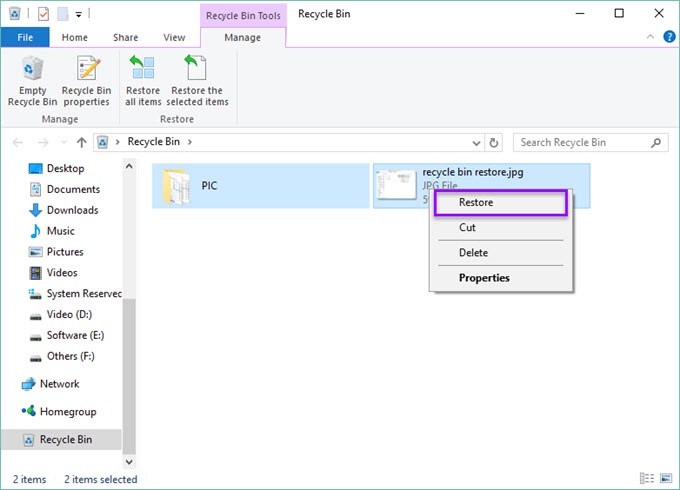
If you accidentally deleted a BAT file or lost it after formatting a drive, check the Recycle Bin and available backups first. If you can't find a copy, 4DDiG Data Recovery can scan your storage for recoverable BAT files.

Key features include:

  • Recover deleted or lost BAT files from HDDs, SSDs, USB drives, SD cards, and external storage devices.
  • Scan for files lost due to accidental deletion, drive formatting, partition loss, or system crashes.
  • Support over 2,000 file types, including BAT, CMD, TXT, INI, LOG, DOCX, XLSX, JPG, PNG, MP4, and ZIP files.
  • Preview supported files before recovery to help identify the files you need.
FREE DOWNLOAD

Secure Download

FREE DOWNLOAD

Secure Download

  • Install and launch 4DDiG. Select the drive or folder where the BAT script was saved before it was deleted or lost, such as the Desktop or a folder used to store batch files.

    launch 4DDiG
  • The scan starts automatically. Filter the results by file type or search for .bat to narrow down the results and find missing batch scripts among other recovered files.

    scan the selected location
  • Locate the missing BAT file in the scan results and select it for recovery. Check the file name to help identify the script you need, then click "Recover".

    recover the bat files with 4ddig
  • Save the recovered BAT file to a different drive or storage device, not the original location. Once recovery is complete, check that the script file is available before attempting to run it again.

    save the recovered bat files

Conclusion

To run a BAT file in CMD, navigate to its folder or enter its full path. If the script fails, check the error message, command syntax, and required permissions. For deleted or lost BAT files, check your backups first or use 4DDiG to scan for recoverable copies.

William Bollson (senior editor)

William Bollson, the editor-in-chief of 4DDiG, devotes to providing the best solutions for Windows and Mac related issues, including data recovery, repair, error fixes.

(Click to rate this post)

You rated 4.5 ( participated)