Failed to Update ReAgent.xml Error: Causes and Fixes

5 mins read

Updated on 2026-04-22 11:46:25 to Windows Fix

If you’ve tried converting your disk using MBR2GPT or repairing your system and suddenly encountered the "failed to update reagent.xml" error, you’re not alone. This issue often appears during system recovery configuration and can interrupt critical operations midway. And in this guide, we’ll clearly explain what causes this error and show you how to resolve it safely and effectively.

failed to update reagent.xml

1. What is ReAgent.xml?

ReAgent.xml is a configuration file used by Windows Recovery Environment (WinRE). It stores essential information about recovery settings, including the location of recovery tools and boot configuration details.

This file plays a key role when you try to reset your PC, troubleshoot startup issues, or perform advanced recovery tasks. When Windows needs to access recovery tools, it reads data from this file. If the file becomes corrupted, missing, or inaccessible, errors like reagentc.exe: unable to update boot configuration data can occur.

In simple terms, ReAgent.xml acts as a bridge between your system and its recovery environment. If that bridge breaks, Windows struggles to update or access recovery settings properly.

2. Why Has It Fail to Update ReAgent.xml?

The “failed to update reagent.xml mbr2gpt” error is commonly seen during disk conversion or system repair operations. Below are the most common reasons why this issue happens:

WinRE is Disabled or Misconfigured

If the Windows Recovery Environment is turned off or not properly configured, the system cannot update the ReAgent.xml file during operations. As a result, any process that depends on it may fail unexpectedly.

💡 Related Article: [Complete Fix Guide] Could Not Find the Recovery Environment Error

Corrupted Boot Configuration Data (BCD)

Errors like reagentc exe unable to update boot configuration data often indicate that your BCD is damaged or inconsistent. Without a proper boot configuration, updates fail.

Insufficient Disk Space

MBR2GPT conversion requires enough free space to create the necessary partitions. If space is limited, you may encounter mbr2gpt conversion failed along with reagent.xml errors.

Incorrect Partition Layout

Windows requires a specific disk structure for certain operations. If your disk layout is missing required partitions, or has too many primary partitions, the process will fail. This mismatch prevents the system from applying necessary updates. As a result, the ReAgent.xml file cannot be updated properly.

Permission or File Access Issues

If the system does not have sufficient permissions to modify or write to the directory where ReAgent.xml is stored, the update will fail. This can happen due to restricted user privileges or locked system files.

Antivirus or Security Restrictions

Certain antivirus programs or security tools may block system-level modifications to protect your device from potential threats. While this is helpful for security, it can interfere with legitimate system operations.

3. How to Fix Failed to Update ReAgent.xml?

Now let’s move on to the most effective fix. The most reliable method is to manually disable and re-enable Windows Recovery Environment (WinRE). This method directly addresses the failure to update reagent.xml.

  • Press “Windows + S” then type “cmd” and right-click “Command Prompt” then select “Run as administrator”.

  • Type the following command and press Enter: reagentc /disable. This command means temporarily turning off the recovery environment and resetting its configuration.

  • Now re-enable it with the command: reagentc /enable.

  • Finally, run the command “reagentc /info” to ensure that WinRE is enabled and the path is correctly set.

    disable and re-enable winre

Disabling and re-enabling WinRE forces Windows to regenerate the ReAgent.xml file and rebuild its configuration. This resolves most cases of failure to update reagent.xml errors.

⚡ Bonus: Convert MBR to GPT on Windows Safely and Seamlessly

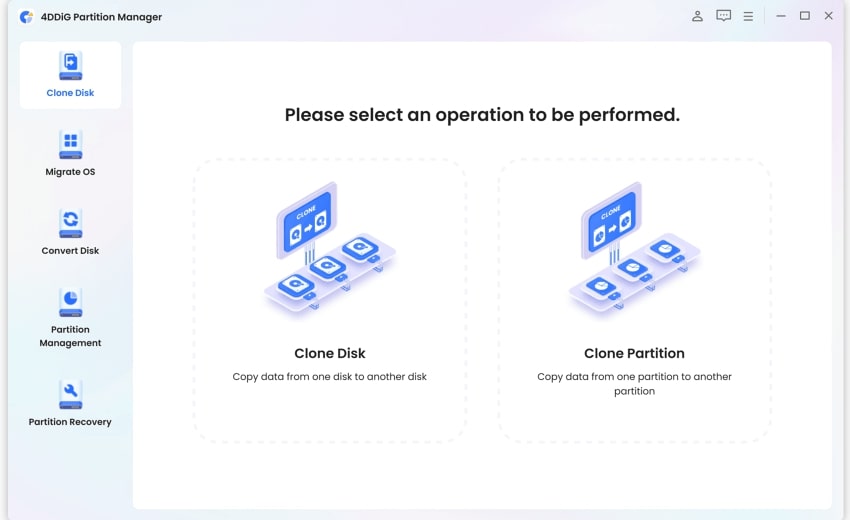
If you encountered this error while using MBR2GPT, it’s a good idea to switch to a safer and more user-friendly solution. A reliable option is 4DDiG Partition Manager, which simplifies disk conversion without triggering errors.

4DDiG Partition Manager can seamlessly convert MBR to GPT disks without any data loss, eliminating the need for risky and complex command-line operations. With its clean, beginner-friendly interface, anyone can use it with ease.

  • Install and launch 4DDiG Partition Manager on your PC. Select the “Convert Disk” feature from the left side and click “MBR to GPT”.

    FREE DOWNLOAD

    Secure Download

    click mbr to gpt
  • Select the disk you need to convert, then click the "Continue" button to get the execution interface. A pop-up will appear with some instructions, and after ensuring you meet all those instructions, click "Sure”.

    click sure to proceed
  • Now, you are in the PE environment. Click the “MBR to GPT” conversion button to proceed.

    mbr to gpt
    Note:

    If the disk you want to convert is an external disk, the program will convert it automatically without the need to restart and enter the PE environment.

  • Once again, select the disk that you want to convert and click “Continue”. Wait till the process is complete.

  • Once it is completed, follow the on-screen steps after the “Conversion Successful” screen appears.

    complete mbr to gpt
  • Finally, click “Reboot” to let the computer reboot properly and finish the process.

Unlike command-line tools, 4DDiG reduces the risk of system errors and avoids issues like reagentc.exe unable to update boot configuration data. It’s especially helpful for users who want a safer and faster solution.

People Also Asked

1Where is the ReAgent.xml file?

The ReAgent.xml file is typically located in the C:\Windows\System32\Recovery folder. In some systems, it may also exist within the recovery partition. This file is hidden by default, so you may need to enable hidden files to access it.

2How to manually enable WinRE?

Open Command Prompt as administrator and run reagentc /enable. Before enabling, ensure the recovery image path is correctly configured. You can verify it using reagentc /info and update the path if needed.

3Why is my MBR2GPT conversion failing?

MBR2GPT conversion may fail due to insufficient disk space, incorrect partition structure, or running the tool outside the Windows Preinstallation Environment.

Conclusion

The error “failed to update reagent.xml” can seem intimidating, especially when it interrupts critical tasks like disk conversion or system repair. By disabling and re-enabling WinRE, you can quickly resolve the problem and restore normal functionality.

If you want a more reliable and hassle-free solution, especially when dealing with disk conversions, tools like 4DDiG Partition Manager provide a safer alternative to avoid errors like mbr2gpt failed to update reagent.xml. With the right approach, you can fix this issue and keep your system running smoothly without risking your data.

FREE DOWNLOAD

Secure Download

William Bollson (senior editor)

William Bollson, the editor-in-chief of 4DDiG, devotes to providing the best solutions for Windows and Mac related issues, including data recovery, repair, error fixes.

(Click to rate this post)

You rated 4.5 ( participated)