Windows 11 KB5083769 Update: New Features, Bugs and Fixes

5 mins read

Updated on 2026-04-17 15:36:11 to Windows Update

On April 14, 2026, Microsoft rolled out the monthly security update KB5083769 to Windows 11 users. This update not only includes security fixes but also introduces a range of new features that are being gradually rolled out, such as the ability to turn off Smart App Control.

This article provides a comprehensive overview of KB5083769, including its basic information, new features, improvements, reported issues, and solutions when there is data loss during or after the update. If you're unsure whether to install this update or encounter errors while installing KB5083769, this guide will help you.

windows 11 kb5083769 update

What Is KB5083769?

Basic Information about KB5083769

KB5079473 is the April 2026 security update for Windows 11, version 24H2 and version 25H2. It includes important security improvements and updates the OS build. Microsoft recommends installing this update to help keep your device secure and up to date.

kb5083769 update

After installing this update, your OS build will be updated as follows:

  • OS Version
  • Build Number
  • Architecture
  • Size
  • Windows 11 25H2
  • 26200.8246
  • x64-based
  • 5116.0 MB
  • Windows 11 25H2
  • 26200.8246
  • arm64-based
  • 5116.0 MB
  • Windows 11 24H2
  • 26100.8246
  • x64-based
  • 4598.9 MB
  • Windows 11 24H2
  • 26100.8246
  • arm64-based
  • 4598.9 MB

How to Download KB5083769

KB5083769 can be downloaded and installed via the following three methods:

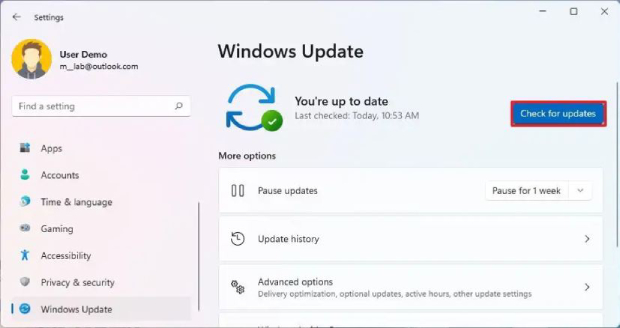
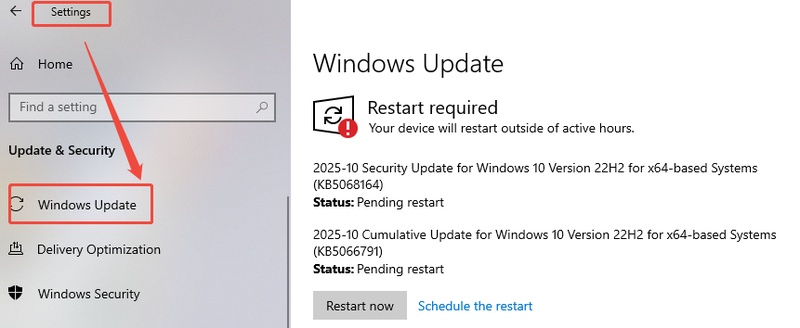
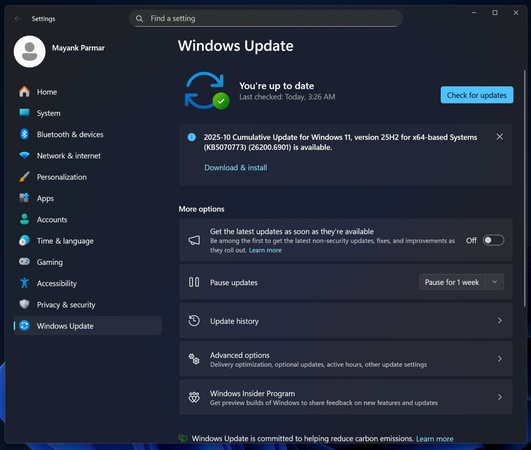
1️⃣Via Windows Update (recommended): Go to Settings → Windows Update → Check for updates. When you see "April 2026 Security Update (KB5083769)", select Download and install. You'll need to restart your device to complete the installation.

2️⃣Via the Microsoft Update Catalog: If you encounter issues with Windows Update, you can download the standalone installer (.msu file) directly from the Microsoft update catalog and install it manually.

3️⃣Using the Media Creation Tool: If you repeatedly run into installation errors with KB5083769, you can perform an in-place upgrade using the Media Creation Tool. This method can repair the operating system while keeping your personal files, apps, and settings intact.

Notes

Monthly updates installed via Windows Update are typically under 1GB. However, downloads from the Microsoft Update Catalog can exceed 4GB. If your computer is running with limited storage or slower connections, installation may take longer. It’s recommended to free up disk space before installing.

New Features and Improvements of KB5083769 Update

KB5083769 includes a range of new features and improvements that enhance everyday use, along with important security fixes. As these features are being rolled out gradually, you may notice differences in appearance even on devices running the same version.

① Smart App Control Improvements

windows smart app control

Smart App Control is a powerful security feature in Windows 11 that uses cloud-based protection to determine whether an app is safe to run or potentially malicious, rather than relying on traditional local checks. However, it can sometimes make it difficult to access certain apps, games, or anti-cheat software.

Before this update, the toggle for Smart App Control was often greyed out, and Windows typically recommended reinstalling the operating system to change the setting. With Windows 11 KB5083769, however, you can now enable or disable Smart App Control by going to "Settings > Windows Security > App & Browser Control > Smart App Control settings" without reinstalling Windows, making it much more convenient and helping reduce the risk of data loss.

② Narrator's New Image Description

copilot narrator

The Narrator feature now works with Copilot to provide AI-powered image descriptions across Windows 11 devices, expanding beyond Copilot+ PCs. With this update, image descriptions are no longer generated by the built-in system alone, but are handled through Copilot instead.

You can use Narrator key + Ctrl + D to describe a selected image, or Narrator key + Ctrl + S to describe the entire screen. Copilot will open the image and prepare it for processing, and you can also enter prompts to generate more customized descriptions. Images are only shared when you explicitly choose to describe them.Select 4 more words to run Humanizer.

③ Account Settings

Microsoft 365 Family Subscription

Users with a Microsoft 365 Family subscription may see an upgrade option on the Accounts page in the Settings app, allowing them to switch to a different Microsoft 365 plan. If you don't want this suggestion to appear, you can turn off suggested content in Settings.

Dialog Boxes Design

This update improves the dialog boxes under "Settings > Accounts > Other users", aligning them with the modern Windows design and adding support for dark mode. The availability of these dialog options depends on whether the device is connected to a work or school account in a domain environment.

④ File Explorer

This update improves the File Explorer experience. When renaming files in File Explorer, you can now use voice typing (Windows key + H). After the update, you can also more reliably unblock files downloaded from the internet, allowing them to be previewed in File Explorer.

⑤Display Specific Changes

This update introduces several display reliability improvements:
  • Monitors can now report refresh rates higher than 1000 Hz.
  • When using a native USB4 display connection, the USB controller can enter its lowest power state while the PC is in sleep mode, helping improve battery life.
  • Auto-rotation behavior is more reliable after waking from sleep.
  • HDR performance has been improved for displays with non-compliant DisplayID 2.0 data blocks.
  • Monitors using DisplayID now report more accurate physical size information through WMI monitor APIs.

KB5083769 Update Bugs and Fixes

Microsoft has not officially confirmed any known issues at this time. However, users on platforms such as Reddit have reported the following problems:

  • Windows failed to update: In some cases, temporary bugs may occur during a system update. First, check Device Manager, especially the TPM device, for any errors or abnormalities. Then verify that Secure Boot is enabled in the BIOS and ensure the BIOS is updated to version 2024 or later. Finally, go to Windows Update and perform a repair installation, which will run through Windows Update to fix system issues.
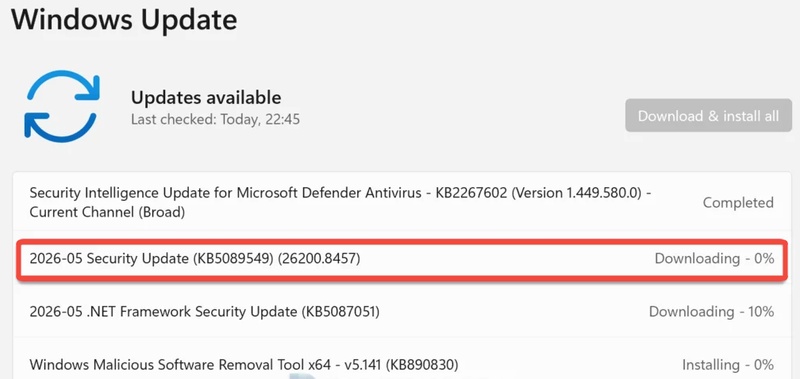
  • Windows update stuck at 0%: The update may be downloaded but it can get stuck during the process. In this case, you can try to restart your computer, check your network connection, free up disk space and temporarily disable some antivirus software. You can also download the update package via Microsoft Update Catalog.
  • OneDrive renaming documents: Users reported that OneDrive started renaming synced documents to invalid names since he updated the system. You can try rolling back the update by going to "Settings → Windows Update → Update history → Uninstall updates", then select the most recent update and remove it. After uninstalling, restart your PC to complete the rollback.

How to Fix Data Loss After KB5083769 Update?

If you encounter issues such as "file not found," "folder won't open," or missing desktop data after a Windows update, start with the following basic troubleshooting steps:

  • Check the Recycle Bin: Some files may have been moved there during the update. Open the Recycle Bin and see if your files are available.
  • Check your OneDrive backup: If the affected files were stored in a OneDrive-synced folder, you may be able to restore them from the OneDrive website or app, including previous versions.
  • Restore from File History: If File History was enabled, you can recover previous versions via "Settings → Update & Security → Backup."
  • Check previous versions: Right-click the file or folder and select "Restore previous versions." If system protection was enabled, you may be able to roll back to an earlier state.

If none of these methods work, or if you don't have a backup, consider using professional data recovery software. Tenorshare 4DDiG provides an effective solution to recover lost data after Windows updates. It supports most Windows system scenarios and can recover lost files and folders in just a few simple steps. Follow the steps to recovert files using 4DDiG:

FREE DOWNLOAD

Secure Download

FREE DOWNLOAD

Secure Download

  • Launch 4DDiG Data Recovery on your computer, select the drive where the lost files were stored, and start the scanning process. launch 4ddig and enter interface
  • Wait a few minutes for the files to appear. You can also use the tree view to quickly locate the files you need. click type to see all files 4ddig
  • Double-click any file to preview it, including photos, videos, or documents, to make sure it's the one you want to recover. Then click the "Recover" button. preview and recover the files
  • Select the files you want to restore, choose a save location, and click "Save Now." You can also save them to a cloud drive in case of data overwriting. save the recoverable files

Conclusion

This article provides an overview of the April 2026 Windows update KB5083769, including what it is, the new features and improvements it brings, and the issues reported by users so far. As this is a security patch update, it's recommended to wait for an official fix if you encounter any problems.

In addition, make sure to back up your important files before and after installing Windows updates. If you didn't create a backup and experience data loss or inaccessible files after the update, you can use 4DDiG Data Recovery, which can scan your system and recover lost files with a high success rate.

FREE DOWNLOAD

Secure Download

FREE DOWNLOAD

Secure Download

William Bollson (senior editor)

William Bollson, the editor-in-chief of 4DDiG, devotes to providing the best solutions for Windows and Mac related issues, including data recovery, repair, error fixes.

(Click to rate this post)

You rated 4.5 ( participated)