How to Reset Graphics Driver Step-by-step?

5 mins read

Updated on 2026-04-08 17:08:14 to Windows Fix

Knowing how to reset graphics driver on Windows can save you from an unnecessary reboot and prevent you from losing unsaved work. Whether you're dealing with visual glitches, a black screen, or stuttering video playback, a quick graphics driver reset is often all it takes. This guide walks you through three proven methods that work on Windows 10 and Windows 11.

1. What Does Resetting a Graphics Driver Do?

When you perform a graphics driver reset, Windows forces the display subsystem to unload and immediately reload the driver without shutting down your PC or closing your open applications.

Behind the scenes, the operating system momentarily suspends your GPU, clears its video memory (VRAM), resets active rendering tasks, and then brings everything back online within a second or two.

A reset display driver is a quick, non-destructive refresh — think of it as restarting just the display component of your system while everything else keeps running. Here's when it helps:

  • Screen freezing: the display is stuck but your mouse cursor still moves
  • Visual artifacts: strange lines, colors, or corrupted pixels on screen
  • Screen flickering: rapid flashing or intermittent blackouts
  • Video or game stuttering: FPS drops, rendering glitches, or black frames
  • Post-update display issues: problems introduced after a Windows or driver update

Importantly, a graphics driver reset does not delete your files, change your settings, or harm your hardware. It is a safe, built-in diagnostic tool that every Windows user should know how to use.

⚡ 2. How to Reset Graphics Driver?

Below are three reliable methods for resetting graphics driver on Windows 10 and Windows 11. Start with Method 1. If it doesn't resolve your issue, move on to the next.

Method 1: Shortcut to Reset Graphics Driver

The fastest way to perform a windows reset graphics driver is with a built-in keyboard shortcut.

  • Save any open work. Press Win + Ctrl + Shift + B simultaneously. You will hear a short beep and see your screen flash black for one to two seconds. This is completely normal.

  • The display returns to normal as the driver reloads. Your open windows and documents will remain intact.

Method 2: Uninstall and Reinstall Graphics Driver

This method is the right choice for corrupted drivers, persistent glitches after a Windows update, or when switching between GPU brands.

  • Opent Device Manager. Expand the Display adapters section to see your GPU.

  • Right-click your graphics adapter and select Uninstall device.

    uninstall graphics driver
  • In the confirmation dialog, check "Delete the driver software for this device" (if available) and click Uninstall.

  • Restart your PC. Windows will automatically install a basic generic display driver on reboot.

To restore full performance, you can visit your GPU manufacturer's website and download the latest driver. If offered, choose "Clean Installation" to remove any lingering driver remnants before installing fresh.

Method 3: Reset Display Driver via Task Manager

Task Manager offers another way to refresh graphics driver by forcibly terminating the GPU's background processes.

  • Press Ctrl + Shift + Esc to open Task Manager. Click on the Processes tab.

  • Under Background Processes, look for any process associated with your GPU brand — such as entries containing "NVIDIA", "AMD", or "Intel".

  • Right-click the GPU-related process and select End Task. Repeat for any additional GPU processes.

    end gpu related taksks
  • Your screen will flicker briefly as the driver processes terminate and reload. Restart your computer afterward to ensure all driver components are properly reloaded.

Note:

This method is more disruptive than the keyboard shortcut — GPU-intensive applications like games or video editors may crash when their rendering engine is suddenly terminated. Always save your work before using this approach.

💡 Extra Tip: Back Up Your Data with Disk Cloning Before Resetting

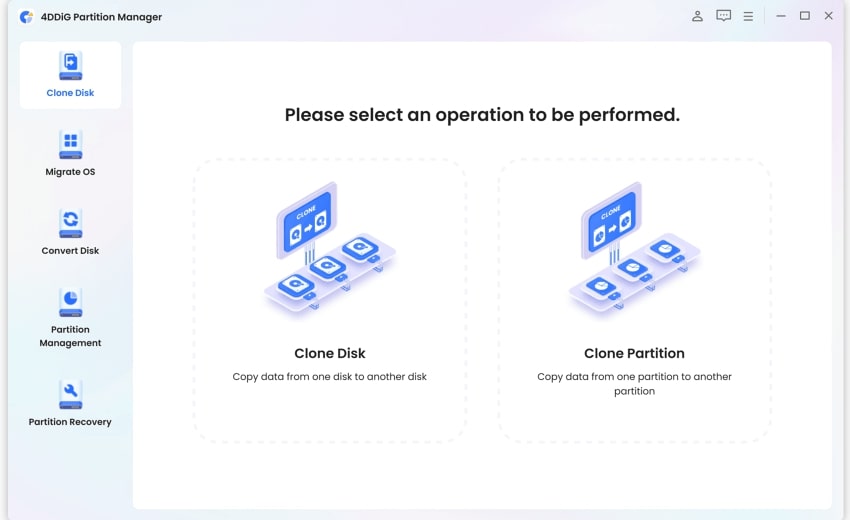
Before performing a full driver uninstall or making any significant system changes, it's always smart to have a backup. 4DDiG Partition Manager's Disk Clone function lets you create an exact, bootable copy of your entire system drive. If anything goes wrong, you can restore your PC to its previous state in minutes.

3 day free trial

  • After installing and launching 4DDiG Partition Manager, connect an external disk to your computer. Open the program and choose “Clone OS Disk.”

    FREE DOWNLOAD

    Secure Download

    clone os disk
  • Select the target disk where you want to copy the data from the source disk, then click Next.

    select target disk
  • By default, the partitions from the source disk will fill the entire target disk. You can adjust the partition size by dragging the edges if needed. Once everything looks correct, click Start to begin cloning.

    click start
  • Keep in mind that cloning will erase all data on the target disk. After confirming everything is correct, click Sure to proceed.

    click sure to clone
  • Avoid interrupting the process or performing other operations during this time. Once completed, your data will be successfully cloned from the source disk to the target disk.

    clone successfully

More FAQs about Resetting Graphics Driver

1. How to reset graphics driver without Windows key?

If your keyboard lacks a dedicated Windows key, you can still reset display driver using these alternatives: Device Manager method/ Task Manager method/ On-screen keyboard workaround.

2. How to reset graphics driver on Chromebook?

Chromebooks run Chrome OS, not Windows, so the Win + Ctrl + Shift + B shortcut does not apply. However, you can address display driver issues on a Chromebook with these steps:

  • Soft reset (fastest): Press Ctrl + Shift + Esc to open the Chromebook Task Manager, locate GPU-related processes, and click End Process.
  • Hardware reset: Turn off your Chromebook completely, then press and hold the Refresh key + Power button simultaneously. Release Refresh when the startup screen appears.

3. Is it good to reset the graphics driver?

Resetting graphics driver is completely safe. The only caveat is that active 3D applications may crash during the reset, so save your work beforehand. Avoid using the shortcut repeatedly in quick succession, as overuse can cause unnecessary system strain.

4. What does Ctrl Shift Windows B do?

This key combination tells Windows to force-restart the graphics driver by triggering the Timeout Detection and Recovery mechanism. It clears GPU memory allocations and resets the display pipeline without touching the rest of your system.

Conclusion

In most cases, knowing how to reset graphics driver on Windows is all you need to get back to a stable screen. And before making any major driver changes, protect your system with 4DDiG Partition Manager's Disk Clone to safeguard your data. With these tools in your troubleshooting arsenal, a frozen or flickering screen becomes a two-minute fix rather than a frustrating setback.

FREE DOWNLOAD

Secure Download

William Bollson (senior editor)

William Bollson, the editor-in-chief of 4DDiG, devotes to providing the best solutions for Windows and Mac related issues, including data recovery, repair, error fixes.

(Click to rate this post)

You rated 4.5 ( participated)