How to Recover Deleted PNG Files with 5 Simple Ways

5 mins read

Updated on 2026-06-22 11:30:17 to Wiki

PNG images are widely used for screenshots, graphics, logos, and transparent-background designs, so it can be challenging to know how to recover deleted PNG files after accidentally removing them.

Fortunately, several recovery methods can help restore deleted images before they are permanently overwritten. This guide explains the most effective solutions for both Windows and Mac users.

how to recover deleted png files

Is It Possible to Recover Deleted PNG Files?

Yes, in many situations, deleted PNG images can be recovered successfully. When a file is deleted, the operating system usually removes its reference from the file system instead of immediately erasing the actual data. Until that storage space is reused, recovery remains possible. Several common situations can lead to PNG file loss:

Accidental Deletion

Files may be deleted unintentionally while cleaning folders, organizing photos, or removing unwanted files. Many users only realize the mistake after emptying the Recycle Bin or Trash.

Storage Device Formatting

Formatting an SD card, USB flash drive, or external hard drive removes file references and can result in significant image loss.

System Crashes

Unexpected shutdowns, operating system errors, or software crashes may cause PNG files to disappear or become inaccessible.

Virus or Malware Attacks

Malicious software can delete, encrypt, hide, or corrupt image files without warning.

File Transfer Interruptions

Disconnecting a storage device during file transfers can lead to incomplete writes and missing PNG images.

Corrupted Storage Devices

Bad sectors, file system corruption, or hardware problems may prevent access to stored image files.

The most important step after discovering data loss is to stop saving new files to the affected device. This helps prevent overwritten data and increases the likelihood of a successful recovery.

⚡ Try All-in-One Data Recovery Software

If there is no previous backup, professional recovery software often provides the highest recovery success rate. Many users choose 4DDiG data recovery because it works on both Windows and Mac systems and supports image recovery from various storage devices.

4DDiG enables recovery of deleted image files, including PNG, JPG, GIF, RAW, and PSD formats, from a wide range of storage devices, making it suitable for different data loss scenarios.

With deep scan technology and preview functionality, it can restore images lost due to deletion, formatting, system crashes, or file corruption.

FREE DOWNLOAD

Secure Download

FREE DOWNLOAD

Secure Download

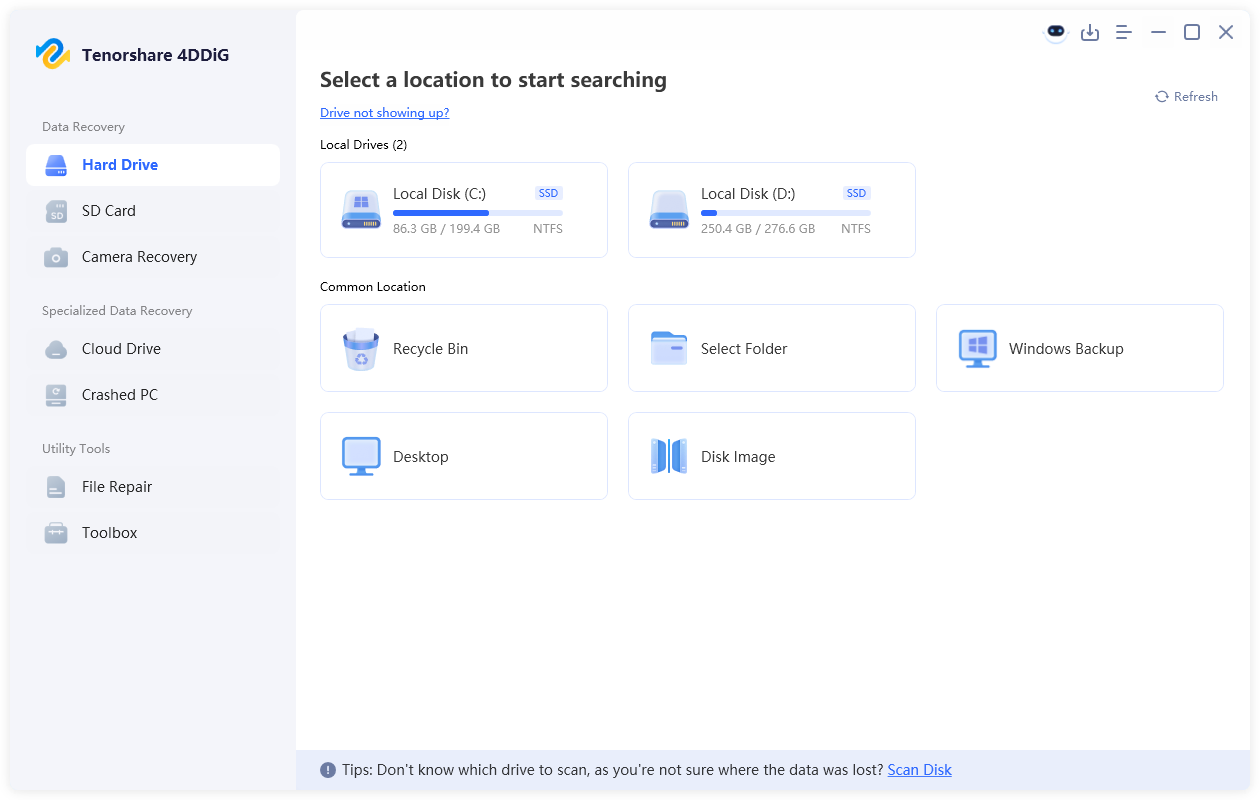
  • Download and install 4DDiG on your computer. Launch the software and select the drive, SD card, USB drive, or storage location where the PNG files were lost and let it begin searching for deleted and lost files.

    launch 4ddig and enter interface
  • Wait for the scan to complete. You can filter results by image type to quickly locate PNG files. Choose file type "Filters" from the left side or "Search" by PNG file name.

    click type to see all files 4ddig
  • Preview the discovered images to confirm they are the correct files by double-clicking them. Select the files you want to restore and click "Recover".

    preview and recover the files
  • Save the recovered files to a different storage location to avoid overwriting existing data by selecting the location and clicking "Save Now".

    save the recovered files

This method is often the fastest way to retrieve deleted PNG files when no backup exists, you can try it first if you want to get back the lost photos quickly.

Check the Recycle Bin or Trash

The Recycle Bin on Windows and Trash on macOS are the first places where deleted PNG files are temporarily stored. These system folders retain recently deleted files until they are manually emptied. If the images are still available, they can be quickly restored without using advanced recovery tools.

For Windows:

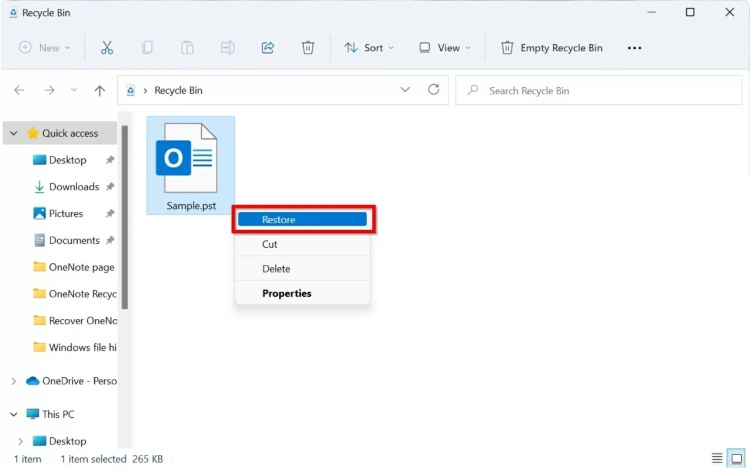
  • Double-click the "Recycle Bin" icon on the desktop and browse through the deleted items, or use the search box to locate the PNG file.

    recover png files from windows recycle bin
  • Right-click the desired image and select "Restore". Windows will return the file to its original location.

For Mac:

  • Open the "Trash" from the Dock to search for the deleted PNG image.

  • Right-click the PNG and choose "Put Back". The file will be restored to the folder from which it was deleted.

    put back files from mac trash

This solution only works if the Trash or Recycle Bin has not been emptied.

Recover from File History or Time Machine

Built-in backup tools like File History on Windows and Time Machine on Mac allow users to restore previous versions of files and folders. These systems automatically save backups when enabled, making it possible to recover deleted PNG images from earlier snapshots. This method is effective only if backups were already active before the files were lost.

For Windows:

Windows File History automatically saves versions of files and folders.

  • Go to “Control Panel > System and Security > File History”.

    open file history via control panel
  • Select the images you want to restore and click the "Restore" button located at the bottom.

    recover files from file history tool

For Mac:

Time Machine provides automated backups for macOS users and it is one of the most reliable methods to get back deleted PNG files if backups were enabled before the deletion occurred.

  • Connect the Time Machine backup drive if required and open the folder that originally contained the PNG file.

  • Launch "Time Machine" from the menu bar and navigate through available backup dates.

  • Select the deleted image and click “Restore”.

    recover deleted files via mac time machine tool

Restore from System or Cloud Backup

System backups and cloud storage services can help recover PNG files even when they are no longer available locally. Windows Backup and Restore and macOS iCloud services store copies of files that can be retrieved when needed. These options are useful when local recovery methods are not sufficient or available.

For Windows:

If Backup and Restore were previously configured:

  • Open "Control Panel" and select "Backup and Restore (Windows 7) " in the "System and Security" section.

    backup and restore feature under control panel
  • Click "Restore my files" then search for the missing PNG image.

    restore my files from windows backup and restore
  • Choose the file and restore it to a preferred location.

For Mac:

If iCloud Drive is being used:

  • Visit iCloud.com and sign in, then open "Photos" or "Drive" where your PNG files were located and go to "Recently Deleted".

  • Locate the deleted PNG file, then select it and click "Recover."

    recover erased files from icloud drive

Many users overlook cloud backups when searching for deleted files, but they can be an excellent recovery source.

Conclusion

Practicing to recover deleted PNG files can save valuable images from permanent loss. Start by checking the Recycle Bin, Trash, File History, Time Machine, or cloud backups. If those methods do not work, professional recovery software offers a more comprehensive solution.

Among the available options, 4DDiG provides a practical way to scan storage devices and restore lost PNG images, helping users recover important files after deletion, formatting, corruption, or unexpected system issues.

FREE DOWNLOAD

Secure Download

FREE DOWNLOAD

Secure Download

William Bollson (senior editor)

William Bollson, the editor-in-chief of 4DDiG, devotes to providing the best solutions for Windows and Mac related issues, including data recovery, repair, error fixes.

(Click to rate this post)

You rated 4.5 ( participated)