How to Recover a Temp File on Windows and Mac (5 Easy Methods)

5 mins read

Updated on 2026-06-22 11:30:16 to Wiki

Temporary files are often created automatically by applications to save your work while you edit. Although they are designed to be temporary, they can sometimes contain important unsaved data.

This guide explains what temp files are, why they get deleted, and how to recover a temp file on both Windows and Mac using several proven methods.

how to recover a temp file

What Is a Temp File?

A temporary file, often called a temp file or TMP file, is a file created by software or the operating system to store temporary data while a task is being performed.

Programs such as Microsoft Word, Excel, Photoshop, web browsers, and video editors frequently create temporary files to:

  • Save unsaved work automatically
  • Store intermediate processing data
  • Improve application performance
  • Prevent data loss during crashes
  • Support AutoRecover features

Normally, these files are automatically deleted when a program closes correctly. However, they may remain on the system after a crash, unexpected shutdown, or software error.

That’s because temporary files often contain recent work, recovering a TMP file can be extremely useful when important documents disappear unexpectedly.

Why Temp Files Get Lost or Deleted?

Temporary files can disappear for several reasons. Understanding the cause can help determine the best recovery method.

Accidental Deletion

Users may manually delete temporary files while cleaning storage space, not realizing they contain important data.

Application Crash

When a program crashes unexpectedly, associated temp files may become corrupted or inaccessible.

System Shutdown or Power Failure

A sudden shutdown can interrupt the normal save process and cause temporary files to be removed improperly.

Disk Cleanup Utilities

Windows Disk Cleanup and third-party optimization tools often delete temporary files automatically.

Software Updates

Application or operating system updates can remove temporary data during installation.

Storage Corruption

File system errors or bad sectors may damage temp files and make them inaccessible.

Malware or Virus Activity

Some malware infections can delete, hide, or corrupt temporary files stored on a computer.

Automatic Cleanup Processes

Modern operating systems regularly clear temporary storage locations to free up disk space.

When recovering deleted temp files, the sooner you begin recovery attempts, the better your chances of success.

⚡ How to Recover Temp Files on Windows & Mac?

There are several ways to restore temporary files, depending on how they were lost.

Method 1: Check the Recycle Bin or Trash

Deleted temp files are often moved to the Recycle Bin on Windows or the Trash on Mac before being permanently removed. If the file was recently deleted, it may still be available for immediate restoration without additional recovery tools.

For Windows:

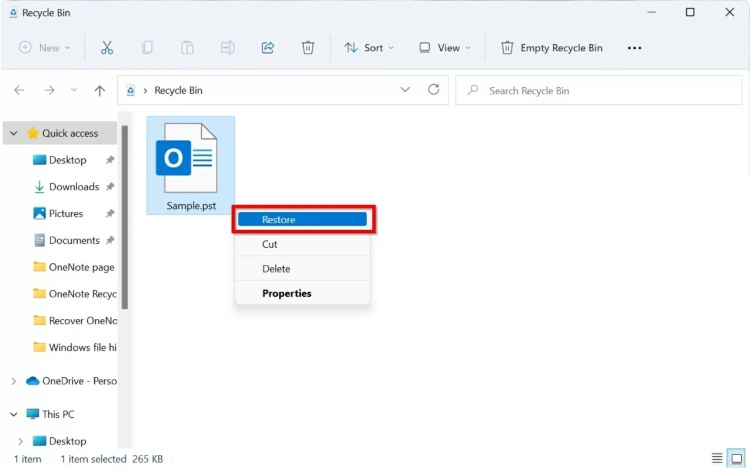
  • Double-click the "Recycle Bin" on the desktop and search for the missing temp file or related document.

  • Right-click the file and click "Restore," then the file will return to its original location.

    restore the deleted photos from windows recycle bin

For Mac:

  • Open the "Trash" or "Bin" from the Dock and find the TEMP file.

  • Right-click the file, then click "Put Back," and the file will be restored to its original location.

    put back files from mac trash
Tip:

Sort files by deletion date to locate recently removed temp files faster.

Method 2: Check the Temp Folder Directly

Temporary files are commonly stored in dedicated system folders while applications are running. Even if a file no longer appears in its original location, a copy may still exist in the Windows or macOS temporary storage directories.

For Windows:

  • Press "Windows + R" and type "C:\Windows\Temp," then press "Enter".

  • Browse the temporary files folder and use the search box to locate specific filenames.

    check the temp folder on windows
  • Copy any relevant files to another location before opening them.

For Mac:

  • Open Finder, then click "Go" in the menu bar and select "Go to Folder" to enter: "/private/var/folders."

    check temp folder on mac
  • Browse temporary storage folders and search for recently modified files.

  • Copy any important files to a safe location.

This method is especially useful when trying to recover TMP files that were not formally deleted.

Method 3: Use File History / Time Machine

File History and Time Machine are built-in backup features that can restore previous versions of files and folders. If backups were enabled before the data loss occurred, they may provide access to temp files that are no longer available on the system.

For Windows:

  • Go to “Control Panel > System and Security > File History”.

    open file history via control panel
  • Choose a version created before the file was lost and click "Restore".

For Mac:

  • Connect the Time Machine backup, then open the folder where the file was located.

  • Click the Time Machine icon from the "Menu Bar" and browse previous backups.

  • Select the desired file and click "Restore".

    recover deleted files via mac time machine tool
Note:

These methods only work if File History or Time Machine was configured before the data loss occurred.

Method 4: Try the AutoRecover Feature in Excel/Word

Microsoft Office applications automatically create recovery copies of documents during editing sessions. These AutoRecover files can help restore unsaved work after unexpected crashes, power failures, or accidental program closures.

  • Open Microsoft Word or Excel and click "File" then "Info".

  • Select "Manage Document" or "Manage Workbook," then click "Recover Unsaved Documents".

    use autorecover of excel to find the temp files
  • Browse the available recovery files and open the desired file, then save it immediately to a safe location.

Method 5: Use Professional Data Recovery Software

When temp files have been permanently deleted or become inaccessible, recovery software may offer the highest success rate.

Many users choose 4DDiG file recovery because it supports both Windows and Mac systems and can recover temporary files along with other document types and media from internal drives, SSDs, USB drives, memory cards, and external storage devices.

FREE DOWNLOAD

Secure Download

FREE DOWNLOAD

Secure Download

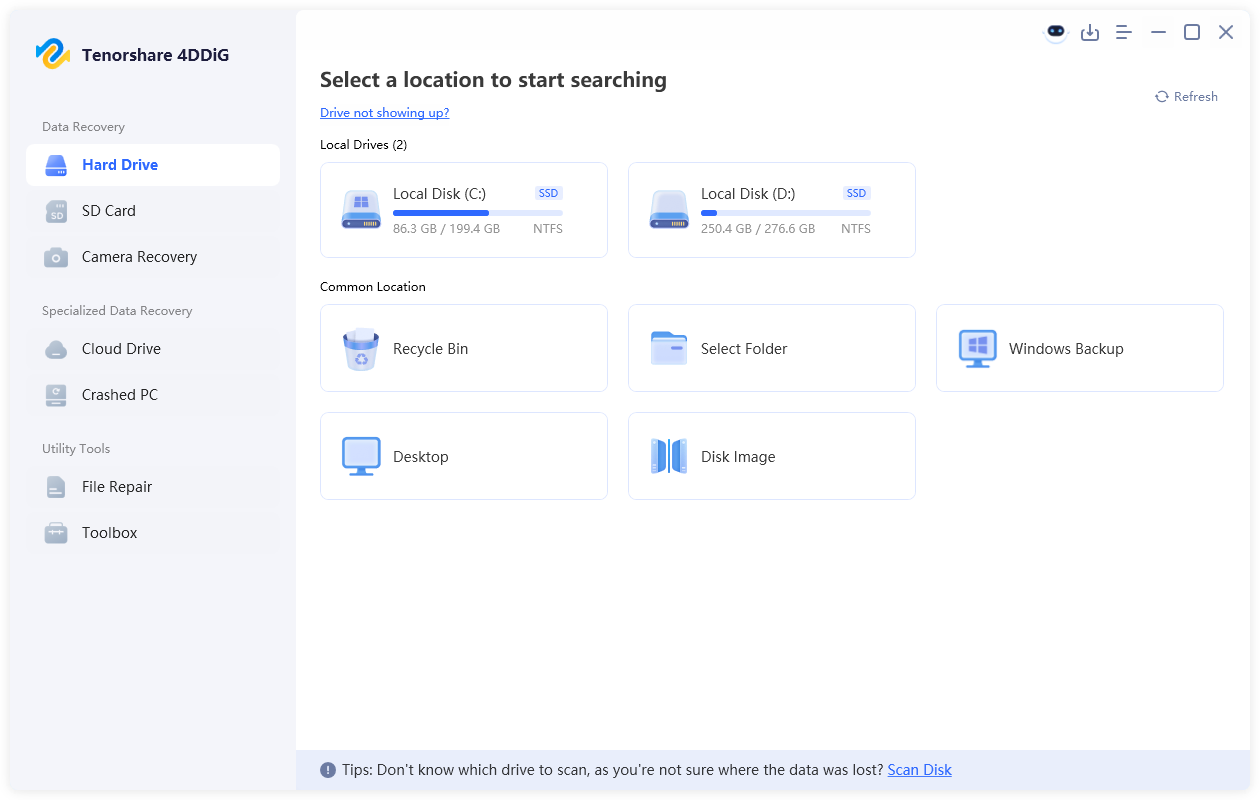
  • Download and install 4DDiG on your computer, then choose the storage location where the temp files were lost to scan it and search for deleted, hidden, and inaccessible temp files.

    launch 4ddig and enter interface
  • Use filters or the search feature to find TMP files or related documents.

    click type to see all files 4ddig
  • Preview files before restoring them to verify their contents by double-clicking them and clicking "Recover" on the temp file that you want to restore.

    preview and recover the files
  • Choose a different drive or folder to avoid overwriting recoverable data and click "Save Now".

    save the recoverable files

If you’re looking for how to recover a temp file after permanent deletion, this method often provides the best chance of success.

Tips for Preventing Temp File Loss

Although recovery is possible in many situations, prevention is always preferable.

  • Enable AutoSave and AutoRecover: Most modern productivity applications offer automatic saving features that can significantly reduce data loss.
  • Save Work Frequently: Develop the habit of manually saving important work at regular intervals.
  • Keep File History Enabled: Windows File History provides an additional layer of protection for important files.
  • Use Time Machine on Mac: Regular Time Machine backups allow quick restoration of lost documents and temporary files.
  • Avoid Aggressive Cleanup Tools: Some system cleaners may remove temporary files automatically. Always review settings before running cleanup operations.
  • Maintain Stable Power: Use a UPS or surge protector to prevent unexpected shutdowns during critical work.
  • Create Regular Backups: Store important projects on external drives or cloud storage services to ensure data safety.
  • Scan for Malware: Security threats can damage or delete files. Keep your antivirus software updated and perform regular scans.
  • Monitor Disk Health: Failing drives can corrupt temporary files and other data. Regular health checks help detect issues early.
  • Store Important Files Separately: Avoid relying solely on temporary storage locations for valuable work.

Conclusion

Learning how to recover a temp file can help you rescue unsaved work after crashes, accidental deletion, or system problems. Whether you use the Recycle Bin, Temp folders, File History, Time Machine, or AutoRecover, several built-in options may restore your files.

When those methods are unsuccessful, 4DDiG data recovery offers an easy solution for recovering temp files and other lost data from Windows and Mac storage devices before the information is permanently overwritten.

FREE DOWNLOAD

Secure Download

FREE DOWNLOAD

Secure Download

William Bollson (senior editor)

William Bollson, the editor-in-chief of 4DDiG, devotes to providing the best solutions for Windows and Mac related issues, including data recovery, repair, error fixes.

(Click to rate this post)

You rated 4.5 ( participated)