How to Recover Deleted Flint JSON Files? 5 Easy Methods in 2026

5 mins read

Updated on 2026-07-15 11:12:46 to Data Recovery

Flint is a visualization intermediate language that helps create structured chart specifications for tools like Vega-Lite, Apache ECharts, and Chart.js. These visualization settings and data descriptions can be saved as JSON files, which may be lost due to accidental deletion, formatting, or unexpected system issues.

If you have deleted/lost important Flint JSON files, you may still be able to recover them before they are overwritten. This guide will show you how to recover deleted Flint JSON files and restore your visualization projects.

how to recover deleted flint json files

What Are Flint JSON Files?

Flint JSON files are structured files used to store Flint chart specifications created with Flint, a visualization intermediate language developed for generating data visualizations. These files contain information about chart structures, data fields, semantic meanings, and visualization settings.

Unlike traditional chart configuration files that require manually written code, Flint uses a semantic approach to describe visualization intent and can convert these descriptions into formats supported by popular visualization libraries such as Vega-Lite, Apache ECharts, and Chart.js.

Since Flint JSON files may include important chart configurations and project data, losing them can interrupt your visualization workflow. If these files are accidentally deleted or missing, recovering them quickly can help restore your charts and related projects.

How to Recover Deleted/Lost Flint JSON Files?

Flint JSON files are often used with tools like VS Code, Git, MCP clients, and AI coding agents, so they may be frequently created, modified, or replaced. As a result, these files can be accidentally deleted during project cleanup, overwritten by automated tools, removed by Git operations, or lost due to sync errors and storage issues.

If your Flint JSON files are deleted, stop using the affected drive immediately. Saving new data may overwrite the deleted files and lower the chances of successful recovery.

1 Check Recycle Bin for Deleted Flint JSON Files

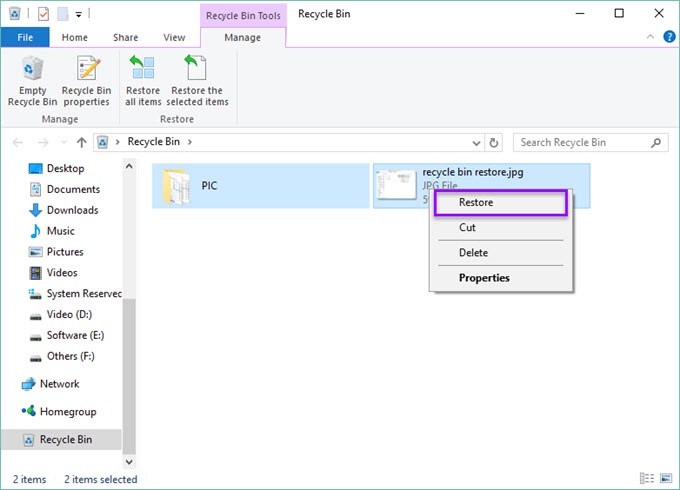
If you accidentally deleted your Flint JSON files, the first place to check is the Recycle Bin on Windows or Trash on Mac. When files are deleted normally, they are usually moved there instead of being permanently removed.

Simply locate the deleted .json files, right-click them, and choose the restore option to recover them to their original location.

2 Restore Flint JSON Files from Git History

If your Flint JSON files are managed with Git, you may be able to recover deleted or overwritten files from previous commits. Git keeps a record of changes, allowing you to restore earlier versions of your files without using third-party recovery tools.

recover json files from git history

  • Open your project folder in Terminal or Command Prompt.
  • Check the current status of your files to confirm whether the Flint JSON file has been deleted or modified.
    git status
  • View your Git commit history and find the version that contains the missing Flint JSON file.
    git log
  • Restore the deleted or previous version of the Flint JSON file from a specific commit.
    git restore --source=<commit_id> <filename>.json
  • Check your project folder to confirm that the Flint JSON file has been restored successfully.

3 Recover JSON Files of Flint from VS Code Timeline

If you create or edit Flint JSON files in VS Code, you may be able to recover the deleted files through the built-in Timeline feature. VS Code Timeline records changes made to files, including previous versions and local file history, allowing you to restore earlier content even after accidental edits or replacements.

recover json files from vs code timeline

  • Open your Flint project folder in Visual Studio Code.
  • Find the deleted or modified Flint JSON file in the Explorer panel.
  • Right-click the file and select "Open Timeline" to view previous file changes.
  • Browse the available file versions and select the version you want to restore.
  • Copy the recovered content or restore the previous version to your current Flint JSON file.
Notes

VS Code Timeline is mainly useful for recovering files that still exist but have been modified, replaced, or overwritten. If your Flint JSON file has been permanently deleted and no Timeline record is available, try restoring it from Git history, backups, or a data recovery tool.

4 Recover Flint JSON Files from Backup or Cloud Sync

If you have enabled backup or cloud synchronization for your project files, you may be able to restore deleted or overwritten Flint JSON files from previous versions. Check services such as OneDrive, Google Drive, Windows File History, or Time Machine to find an earlier copy of your files.

5 Use Data Recovery Software to Recover Deleted Flint JSON Files

If you cannot find your Flint JSON files through the above methods, data recovery software can be another option. When files are deleted, the data is often still stored on the drive until it is overwritten by new data.

A professional recovery tool like 4DDiG data recovery can scan your storage device and help recover deleted JSON files from computers, SSDs, external hard drives, USB drives, and other storage media.

It can help recover not only accidentally deleted Flint JSON files but also files lost due to formatting, partition issues, system crashes, or other unexpected situations. The sooner you perform the scan, the higher the chance of restoring your lost Flint JSON files.

FREE DOWNLOAD

Secure Download

FREE DOWNLOAD

Secure Download

  • Install and launch 4DDiG. Select the drive where your Flint JSON files were originally stored and start scanning for lost files.

    launch 4ddig and enter interface
  • Filter the scan results by file type or search for ".json" to quickly find your missing Flint JSON files.

    click type to see all files 4ddig
  • Preview the found JSON files to check their contents and confirm they are the files you want to recover. Select the files and click "Recover".

    preview and recover the files
  • Save the recovered Flint JSON files to a different storage location instead of the original drive to avoid overwriting existing data.

    save the recoverable files

How to Prevent Flint JSON File Loss?

Losing Flint JSON files can interrupt your visualization workflow and cause you to lose important chart configurations or project data. To avoid unexpected file loss, it is recommended to build reliable backup habits and use proper file management practices.

  • Enable automatic backups: Use cloud storage services or backup tools to keep copies of your Flint JSON files and restore previous versions when needed.
  • Use Git version control: Commit your Flint projects regularly to track changes and easily restore earlier versions of JSON files.
  • Avoid overwriting important files: Save different versions of your Flint JSON files instead of replacing existing files directly, especially when using AI coding tools or automated workflows.
  • Keep storage devices healthy: Regularly check your SSDs, external drives, and USB devices to reduce the risk of file loss caused by storage failures.
  • Be careful when cleaning project folders: Review files carefully before deleting unused project data to avoid removing important Flint JSON files by mistake.

Conclusion

Losing Flint JSON files can happen due to accidental deletion, storage issues, or unexpected system errors. Fortunately, you can try several methods to recover them, including checking the Recycle Bin, restoring files from Git history, using VS Code Timeline, or recovering from backups and cloud storage.

If none of these methods work, 4DDiG provides an additional way to recover deleted or lost JSON files from various storage devices. By scanning your drive and locating recoverable files, it can help you restore important Flint JSON files and get your visualization projects back on track.

William Bollson (senior editor)

William Bollson, the editor-in-chief of 4DDiG, devotes to providing the best solutions for Windows and Mac related issues, including data recovery, repair, error fixes.

(Click to rate this post)

You rated 4.5 ( participated)