How to Fix Discord Error 2012 Step-by-step?

5 mins read

Updated on 2026-01-19 16:46:12 to Windows Fix

Have you encountered the error message “Discord Error 2012 Stream Failed to Star?”. This situation is frustrating and common among Discord users. It can stop everything instantly, whether you’re streaming gameplay, sharing your screen, or watching someone else’s stream. The good news? It’s fixable. This article explores what Discord Error 2012 is, why it happens, and how to fix the Discord stream error 2012 using proven solutions.

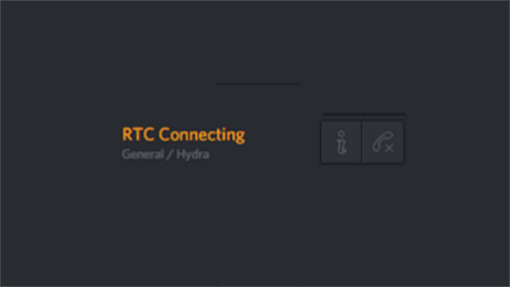
discord error 2012

1. What is Discord Error 2012?

Discord Error 2012 is a streaming-specific issue. This problem usually appears during screen sharing or game streaming and prevents the video from loading as expected. So, what does error 2012 mean on Discord?

It means the video connection failed to initialize within the allowed time. Discord attempts to establish a stable connection between the streamer and viewers, but when this process times out, the platform triggers Discord stream error 2012. As a result, users may see a message stating that the Discord stream failed to start, even though voice chat or stream audio may still function properly. In short, Discord Error 2012 is a video streaming timeout error that prevents streams from loading properly, resulting in a failed or unavailable stream experience.

Common Causes of Discord Error 2012

Several technical issues can trigger Discord stream error 2012. Understanding them helps you choose the right fix.

  • Server-side problems: Sometimes the issue exists entirely on Discord's end, meaning no local fix will work until their services stabilize
  • VPN interference: Active VPNs or proxies can disrupt the video connection process
  • Hardware acceleration conflicts: Improper hardware acceleration settings in Discord can prevent streams from establishing
  • DNS or routing issues: Unstable DNS configurations or ISP routing problems may block proper connection
  • Driver-related issues: Outdated or buggy graphics drivers often contribute to streaming failures
  • Corrupted app data: Accumulated Discord cache files may become corrupted over time
  • Full-screen application conflicts: Games or applications in full-screen mode can cause capture conflicts.
  • Security software interference: Firewall configurations or antivirus software may prevent network communication with Discord.

2. How to Fix Discord Error 2012?

Discord stream error 2012 is a frustrating issue, and a variety of useful troubleshooting techniques can fix the problem. Here are proven fixes, starting from basic to advanced. Follow them in order for best results.

Fix 1:Restart Discord Completely

Sometimes, Discord has background processes that do not shut down correctly. Such latent mechanisms might prevent streaming functionality and cause the Discord stream to fail to start. Restarting Discord to start anew fully reboots the application and usually fixes stream error 2012 in Discord immediately.

  • Close Discord completely, including any background processes. Press Ctrl+Alt+Delete, open “Task Manager.”

  • Find Discord under running processes. Click "End Task" for all Discord entries.

    end task for discord
  • Relaunch Discord and try streaming again.

This basic fix refreshes the application's connection to Discord servers and often fixes temporary glitches that cause stream failures.

Fix 2:Check Network Connection

Streaming on Discord needs a stable internet connection. If your network is slow or unstable, Discord may fail to start the stream and show Error 2012. Even short connection drops can trigger this problem.

  • Test your internet speed with a speed test. Where feasible, use a wired Ethernet connection, rather than Wi-Fi, which is more reliable.

    use ethernet network
  • Reboot your modem or router in case of connectivity problems.

  • Adjust your network settings by troubleshooting.

A stable connection is also important because streaming involves enough bandwidth to sustain the videos.

Fix 3:Enable Hardware Acceleration

Hardware acceleration allows Discord to use your GPU or video processing. When disabled or misconfigured, Discord might not start streams. This option is also useful to reduce CPU load and stream stability, particularly in more modern systems.

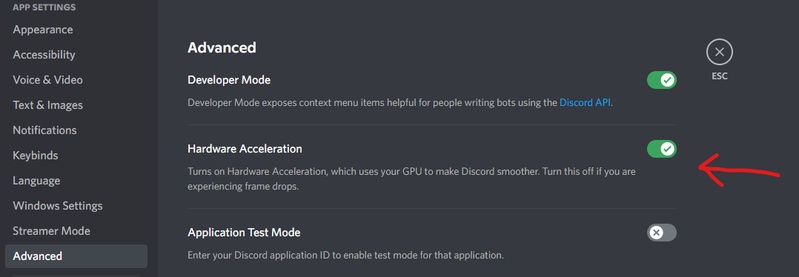
  • Open Discord Settings by clicking the gear icon in the lower left corner. Go to “Advanced.”

  • Scroll down to find "Hardware Acceleration" and toggle it on or off (try the opposite of your current setting).

    toggle off hardware acceleration
  • Lastly, restart Discord afterward to check if the error is fixed.

Users have reported success with hardware acceleration enabled, and some have noted that disabling it resolved their streaming issues.

Fix 4: Clear Discord Cache

Discord stores temporary cache files to speed up loading. These files may get corrupted over time and lead to streams failing to start errors. Deleting the Discord cache removes these corrupted files without affecting your account or chats.

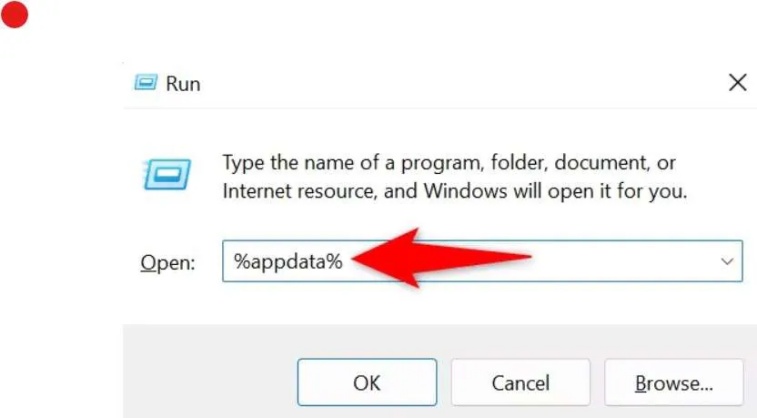
  • Close Discord completely. Press “Windows + R” to open the Run dialog.

  • Type "%appdata%" and press “Enter.” Find and open the “Discord folder.”

  • Then, delete the folders: Cache, Code Cache, and GPUCache.

    delete discord cache
  • After that, restart Discord and test your stream to verify whether the error 2012 is fixed.

⚡ Bonus: Remove Hidden Junk Files That Can Cause Discord Error 2012

Sometimes, Discord Error 2012 is not caused by Discord itself. Hidden junk files, leftover app data, or unused disk space on your system can also trigger problems like Discord stream failed to start or stream error 2012.

These hidden files can interfere with Discord’s background services and affect streaming performance. A reliable way to fix this is by using 4DDiG Partition Manager’s Disk Wipe (Data Erase) feature. 4DDiG Partition Manager is a safe and trusted disk cleanup tool, suitable for both beginners and advanced users.

Why Choose a 4DDiG Partition Manager?

  • Easy and beginner-friendly interface
  • Secure disk wipe data cannot be recovered after wiping
  • Removes hidden junk files that Windows cleanup tools miss
  • Prevents data conflicts that trigger Discord Error 2012
  • Safe process that avoids disk damage when used correctly

Using this tool helps create a clean environment so Discord can run and stream smoothly.

  • Download and install 4DDiG Partition Manager on your computer. If you want to clean an external drive, first connect it to your PC. Open the software, click “Toolkit” on the left side, then select “Data Erase.”

    FREE DOWNLOAD

    Secure Download

    click data erase
  • Choose the disk or partition where Discord is installed and click “Continue.”

    click continue to wipe disk
  • Check again to make sure you selected the correct disk or partition. When ready, click “Sure” to start wiping.

    click sure to wipe disk
  • Wait for the process to finish. Do not close the program or unplug the disk during this time. Once the process is complete, click "Finish."

    wipe disk successfully

Your hidden junk files will be removed, helping your system run better and reducing errors like Discord Error 2012.

Fix 5: Disable Your VPN

VPNs route your internet traffic through remote servers. This can disrupt Discord’s real-time streaming connection and cause stream error 2012. Disabling the VPN helps Discord connect directly to its servers.

  • Temporarily disconnect from any active VPN service. And restart Discord and attempt streaming again.

    switch to ethernet

If successful, you may need to adjust VPN settings or use Discord without VPN.

Fix 6: Check Discord Server Status

Sometimes the issue is not on your device. Discord’s streaming services may be temporarily down or under maintenance. Checking server status saves time and prevents unnecessary troubleshooting.

  • Visit Discord’s official server status page. Check Voice, Media, and Streaming services

  • If there is an outage, wait until services are restored

If all these fixes fail to resolve the error, consider updating your graphics drivers or trying Discord's Public Test Beta (PTB) version, which often includes fixes before they reach the stable release.

More FAQs about Discord Error 2012

1. Was Discord around in 2012?

No. Discord did not exist in 2012. The platform was launched later, and the error code has nothing to do with the year.

2. Why is my Discord not letting me join a server?

This can happen for several reasons. The invite link may have expired, or you may have reached the server limit. You could also be banned from the server, blocked by your IP address, or prevented from accessing the server by phone number verification or moderation bots.

3. How to fix the Discord update failed error?

First, restart Discord and your computer. Make sure your internet connection is working properly. Try often bypasses permission issues. Moreover, deleting update files from %localappdata%\Discord forces Discord to download fresh ones.

4. Why do I keep getting kicked from Discord servers?

You may be banned or removed by moderation bots. This often happens due to rule violations. Contact the server administrators to find out the reason.

Conclusion

Discord Error 2012 can be annoying, especially when your stream won’t start. This problem typically occurs due to a weak internet connection, corrupted cache files, VPN issues, or excessive junk files that slow down your system. You can fix the Discord stream failed to start error by restarting Discord, adjusting hardware acceleration, disabling VPNs, or checking Discord’s server status.

4DDiG Partition Manager is a great option for deep cleanup and long-term performance. Removing hidden junk files helps prevent Discord Error 2012 from coming back and ensures smoother streaming.

FREE DOWNLOAD

Secure Download

William Bollson (senior editor)

William Bollson, the editor-in-chief of 4DDiG, devotes to providing the best solutions for Windows and Mac related issues, including data recovery, repair, error fixes.

(Click to rate this post)

You rated 4.5 ( participated)