Discord Loading Chunk Failed: Causes and Fixes

5 mins read

Updated on 2026-01-19 16:46:13 to Windows Fix

Discord is designed to load instantly, so when it gets stuck, you may see the message “Discord Loading Chunk Failed”, and it can feel confusing and frustrating. In this guide, we will understand what this error means, then break down why it happens, and finally walk through step-by-step fixes that work. If you want Discord back online quickly and prevent future issues, this guide has you covered.

1. What Does “Discord Loading Chunk Failed” Mean?

The Discord loading chunk failed error means that Discord cannot load specific data “chunks” required to display content properly. These chunks usually include UI components, images, messages, or cached resources fetched from Discord’s servers.

When this process fails, Discord may display a blank screen, or repeatedly show error messages like discord loading chunk failed 48083. In short, Discord is asking its local cache or online servers for data, but not getting a valid response.

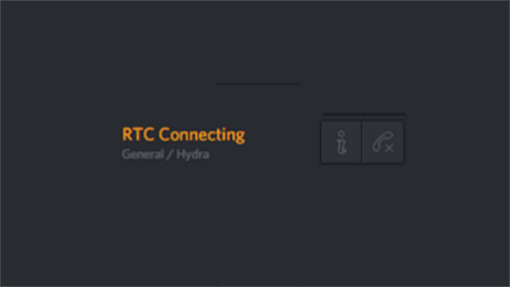
loading chunk failed

Before diving into the solutions, we should know why Discord says loading chunk failed. Now, let's take a closer look at the common causes of this error:

Common Causes of Discord Loading Chunk Failed

  • Corrupted cache or temporary files: Discord relies heavily on cached data. If cache files become damaged, Discord may fail to load the required chunks.
  • Incomplete or interrupted updates: A network drop during an update can leave Discord files mismatched or missing.
  • Background Discord processes stuck in memory: Hidden processes may keep using old data even after you reopen the app.
  • Permission issues on Windows: Without administrator access, Discord may be blocked from reading or writing essential files.
  • Network instability or DNS issues: Poor connectivity can prevent Discord from downloading required resources.

2. How to Fix Discord Loading Chunk Failed?

Before diving into advanced solutions, start with the simplest fixes. Each method on how to resolve loading chunk error below includes a different approach, starting from simpler ones to the more powerful solutions, so you know when to move on.

Fix 1: Refresh Discord (Ctrl+R)

Refreshing Discord forces the app to reload its interface and re-request missing chunks without closing the program. It’s the fastest and safest fix to try first before making system-level changes.

  • Open the Discord desktop app and press “Ctrl + R” on your keyboard.

  • Then, wait for Discord to reload fully.

If Discord loads normally after a refresh, the issue was likely temporary. If the error returns, continue with the next fix.

Fix 2: End Discord Processes and Relaunch the App

Ending all Discord-related processes ensures the app restarts with a clean memory state. This is especially effective when Discord freezes on startup or repeatedly fails to load chunks.

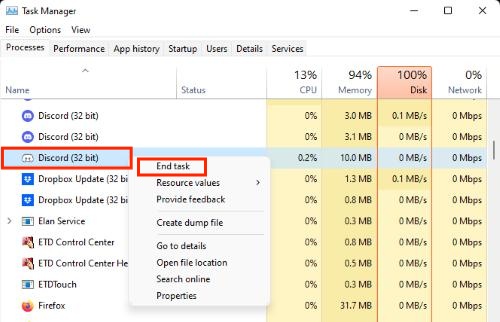
  • Press “Ctrl + Shift + Esc” to open Task Manager and find "Discord” under Processes

    end discord process
  • Right-click each Discord process and select “End task," then close Task Manager and relaunch Discord.

This method clears stuck processes that basic refreshing can’t fix. If the error persists, cached data may be the real culprit.

Fix 3: Run Discord as Administrator

Discord sometimes lacks permission to access system files or update its cache. Running Discord as an administrator ensures it has full read/write access to the required directories.

  • First, close Discord completely with Task Manager.

  • Next, right-click the Discord shortcut and select “Run as administrator." Confirm the User Account Control prompt if asked.

    Fix Discord Stuck on Checking for Updates

If permissions were blocking Discord, this fix should resolve the issue immediately. If not, a reinstall may be required. What's more, this way can also be used to fix Discord stucking on checking for updates.

⚡ Bonus: Create a Backup Before Clearing Discord Cache to Keep Your Data Safe

Clearing app data rarely causes problems, but if something goes wrong, a backup ensures your files are safe. This is especially important if Discord is installed on the same drive as important documents or project files.

Why Choose 4DDiG Windows Backup?

Choosing a reliable backup solution is essential before making system changes, clearing app data, or troubleshooting software issues, and 4DDiG Windows Backup offers fast and flexible data protection for Windows users by allowing you to back up individual partitions, specific disks, even your entire system based on your needs.

Additionally, the one-click restore feature makes recovery simple and efficient if anything goes wrong. Below are the steps for using this tool:

  • Download and install 4DDiG Windows Backup software on your computer. Now, connect an external hard drive to your PC and launch the software. Click “Create a backup task” to begin.

    FREE DOWNLOAD

    Secure Download

    select create a backup task
  • Choose the partitions that you need to back up and click the "File" icon button to choose the target for your backup storage. Click "Start Backup" and then "Confir m" to start the process.

    click confirm to start backup
  • Wait as 4DDiG automatically backs up your data, and when it is complete, you can close the program with your data secure.

    backup successfully

Fix 4: Clear Discord Cache & Temporary Files

Corrupted cache files are the most common cause of the Discord loading chunk failed error. When these files break, Discord can’t load required chunks properly, triggering repeated errors.

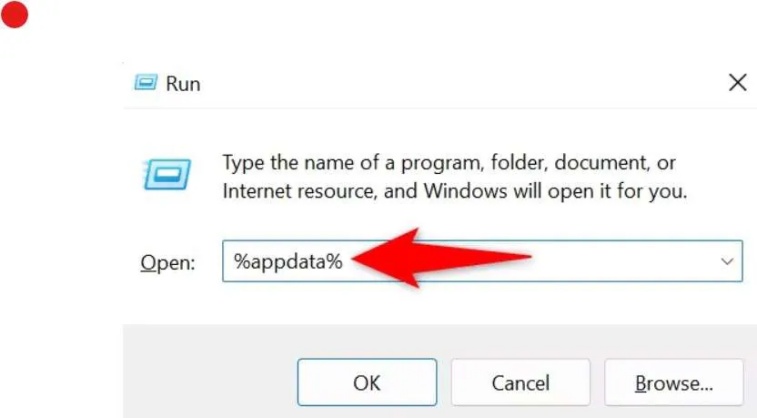
  • Press “Win + R” then type “%temp% ”, and press “Enter”. Locate the Discord folder and delete the following folders: Cache /Code Cache /GPUCache.

    delete discord cache
  • Repeat with “%appdata%” and then restart your computer and launch Discord again.

Clearing the cache resolves most chunk-loading issues permanently. If Discord still fails, permissions or installation files may be involved.

Fix 5: Reinstall Discord

When core Discord files are damaged, reinstalling is the most reliable solution. However, simply uninstalling is not enough; you must also remove leftover cache files to prevent the same error from returning.

  • Open Settings and go to "Apps," then open "Installed Apps" and uninstall Discord.

  • Press “Win + R”, type “%appdata%”, delete the Discord folder, and repeat with "%localappdata%”.

  • Download the latest Discord installer from the official website, then install and launch Discord.

    download discord

A clean reinstall fixes deep file corruption and update issues. This should resolve almost all loading chunk errors.

More FAQs about Discord Loading Chunk Failed

1. Why does my Discord keep saying failed to load?

Discord images load from cached and CDN-based sources. If cache files are damaged or DNS resolution fails, images won’t display correctly. Clearing cache, restarting Discord, or switching networks often resolves image loading issues.

2. Why is Discord failing to load images?

Discord images load from cached and CDN-based sources. If cache files are damaged or DNS resolution fails, images won’t display correctly. Clearing cache, restarting Discord, or switching networks often resolves image loading issues.

3. How to fix the failed-to-load image on Discord?

To fix image loading failures, refresh Discord first, then clear cache folders if needed. Running Discord as an administrator and ensuring your firewall isn’t blocking Discord connections can also help restore image loading.

Conclusion

The Discord loading chunk failed error is usually caused by corrupted cache files, stuck background processes, or incomplete updates, not serious system damage. By following the fixes in this guide, you can resolve the issue step by step without unnecessary guesswork.

For added safety, backing up your system with 4DDiG Windows Backup before making changes ensures your data stays protected. With the right approach, Discord can return to smooth, uninterrupted performance quickly.

FREE DOWNLOAD

Secure Download

William Bollson (senior editor)

William Bollson, the editor-in-chief of 4DDiG, devotes to providing the best solutions for Windows and Mac related issues, including data recovery, repair, error fixes.

(Click to rate this post)

You rated 4.5 ( participated)