How to Fix Discord Stream Error 2015 Step-by-step?

5 mins read

Updated on 2026-01-19 16:46:13 to Windows Fix

Are you trying to start a stream on Discord but keep running into Discord stream error 2015 and receiving a stream failed to start error 2015 Discord message? This issue can be annoying, especially when you just want to share your screen or go live with friends.

The good thing is that this error is easy to fix. In this article, you’ll learn what the error means, why it happens, and step-by-step solutions to help you fix it and start streaming again without stress. Let’s get started.

1. What Does Discord Stream Error 2015 Mean?

Discord Stream Error 2015 means Discord cannot properly connect your stream to its servers. This error usually appears when Discord fails to start your screen or game stream. You may click the Go Live or Screen Share button, but instead of streaming, Discord shows a “stream failed to start” message.

discord stream error 2015

The error 2015 Discord stream issue is not a ban or a serious account problem. In most cases, it points to a temporary conflict between Discord, your system settings, or your network. When you see the stream failed to start error 2015 Discord, the app is blocking the stream to prevent poor performance or connection issues.

2. What Causes Discord Stream Error 2015?

The Discord stream error 2015 usually happens because something is blocking Discord from starting the stream properly. Below are the most common reasons behind this issue:

  • Unstable or slow internet connection: If your network drops or lags, Discord may fail to send stream data, causing the error.
  • Hardware acceleration conflicts: Sometimes this setting doesn’t work well with certain GPUs or systems, leading to the error 2015 Discord stream.
  • Problematic video codec settings: Incorrect or unsupported video encoding options can stop the stream from starting.
  • Corrupted Discord cache files: Old or damaged cache files can interfere with normal streaming features.
  • IPv6 network conflicts: In some networks, IPv6 can clash with Discord’s streaming service.
  • Temporary app or system glitches: Bugs after a Discord update, outdated drivers, or minor system issues can also trigger the problem.

The good news is that all these causes are manageable, and the next section will walk you through simple fixes step by step.

3. How to Resolve Discord Stream Error 2015?

Here are the most effective ways to fix this discord stream error and get your streaming back on track. Each step is simple to follow and doesn’t require advanced technical skills.

Fix 1: Enable Hardware Acceleration

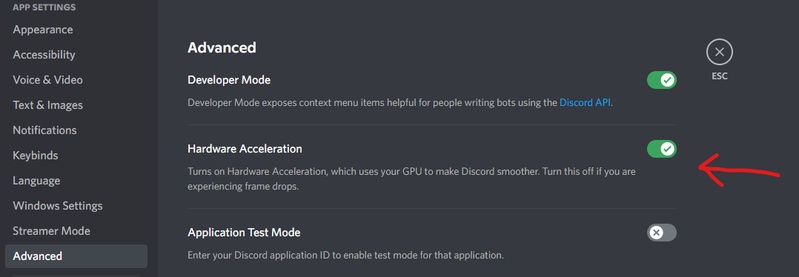
Discord can use your GPU to help process video streams. Turning on hardware acceleration can improve performance and often stops the “stream failed to start” issue. To enable hardware acceleration:

  • Open Discord and click the gear icon (User Settings). Go to Advanced.

  • Turn on Hardware Acceleration. Then, restart Discord and try streaming again.

    turn on hardware acceleration

If this was already on, try turning it off and then back on, this can reset how Discord handles video tasks.

Fix 2: Check Your Network Connection

A good internet connection is crucial for streaming. If your connection is unstable, slow, or dropping packets, Discord may fail to start a stream. Try these tips:

  • Restart your Wi-Fi router. Switch to a wired connection if possible.

  • Temporarily disable VPN or proxy services (they can interfere with Discord’s streaming servers).

    disable proxy

Once your connection is stable, open Discord again and try streaming.

Fix 3: Restart Your Device and Discord

This step resets temporary glitches that might be blocking the stream.

  • Close Discord completely (not just minimize). Next, restart your computer or phone.

  • Open Discord and try streaming again.

A fresh start often clears small bugs that cause the Discord Stream Error 2015.

⚡ Pro Tip: Safely Clear Discord Cache Without Worries by Using 4DDiG Windows Backup

Before you clear Discord cache to fix the discord stream error 2015, it’s a smart idea to back up your system. Clearing cache removes temporary files, and while it rarely causes issues, having a full backup gives you peace of mind in case anything goes wrong.

4DDiG Windows Backup is a simple tool that helps you back up your important files, system settings, or even the entire Windows system easily. It’s designed for users of all skill levels, so you don’t need to be a tech expert to protect your data first. Here’s how to create a backup before you clear your Discord cache:

  • After installing 4DDiG Windows Backup, connect an external hard drive to your PC. Open the program and click “Create a backup task” to begin.

    FREE DOWNLOAD

    Secure Download

    choose create a backup task
  • Select the partitions you want to back up. Then click the file icon at the bottom to pick a location for saving the backup, such as an external drive or another safe folder.

    select partitions to backup
  • Click “Start backup” and confirm when prompted. This will start copying your selected files and system data to the chosen location.

    confirm start backup
  • Let the backup complete. The duration depends on how much data you are backing up and your disk speed. You can also enable the option to shut down your computer automatically after backup if you like.

    backup successfully

Once the backup is complete, you can proceed to clear the Discord cache to free up storage space and resolve performance issues.

Fix 4: Clear Discord Cache

Old or corrupted cache files can stop Discord from working properly. Clearing cache forces Discord to rebuild fresh data, which often fixes streaming errors.

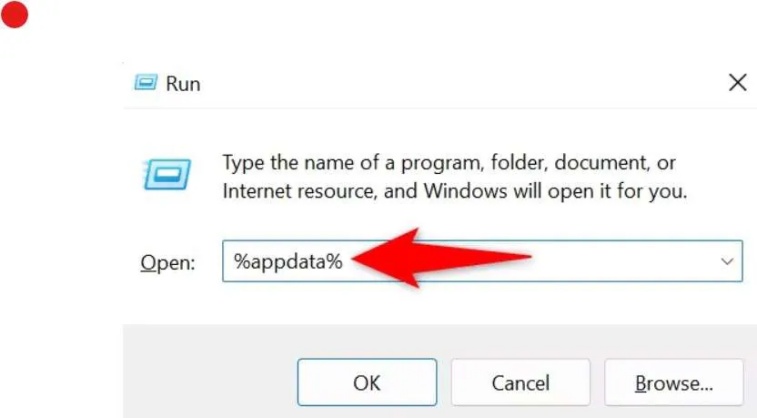
  • Also, close Discord first. Next, press Windows + R to open the Run box.

  • Type %APPDATA%/Discord and press Enter.

  • Open the folders named Cache, Code Cache, and GPUCache and delete their contents. Relaunch Discord and try streaming.

    clear discord cache

Fix 5: Turn off IPv6

Sometimes your internet protocol settings can conflict with Discord’s streaming setup. Turning off IPv6 forces your system to use the more common IPv4, which improves connections.

  • Press Windows + R and type “ncpa.cpl ” to open Network Connections.

  • Right-click your active connection and select Properties.

  • Find Internet Protocol Version 6 (TCP/IPv6) and uncheck it.

    turn off ipv6
  • Click OK to save your change and restart your computer. Once IPv6 is off, try streaming on Discord again.

Fix 6: Turn Off Video Codec Settings

Video codecs like OpenH264 or H.264 help with video encoding, but they can sometimes cause conflicts with streaming. Turning them off can force Discord to use simpler settings, which often fixes timeout issues like error 2015.

  • Open Discord and click the gear icon. Navigate to Voice & Video under App Settings.

  • Scroll down and toggle off OpenH264 Video Codec (and related options if present).

    turn off discord video codec settings
  • Restart Discord and test the stream again.

These steps cover most causes of the discord stream error 2015. If the problem continues after trying them, you should check for Discord app updates or reinstall the app to make sure all files are working properly.

More FAQs about Discord Stream Error 2015

1. Why is Discord not letting me join the voice channel?

If you can’t join a voice channel, it may be due to network issues, muted permissions, or a temporary Discord bug. Make sure your internet connection is stable, check that you have permission to join the channel, and try restarting Discord. Updating the app can also fix glitches that block access.

2. How to fix Discord update error?

To fix this, you can run it as an administrator, and check your internet connection. Clearing Discord’s cache or reinstalling the app can also help resolve persistent update problems. Here is a complete guide: Discord Stuck on Checking for Updates? 7 Quick Fixes!

3. How do I know if I got banned on Discord?

If you’re banned from a server, you won’t be able to access it and will see a notification if you try to join. For account-wide bans (rare), you may be unable to log in at all. In either case, contacting the server admin or Discord support is the proper way to confirm and understand the reason for the ban.

Conclusion

The discord stream error 2015 can be annoying, but it usually happens because of simple problems like network issues, app settings, or old cache files. In this guide, we showed easy ways to fix it, including enabling hardware acceleration, checking your internet, restarting Discord, clearing cache, turning off IPv6, and adjusting video codec settings.

Before clearing cache, it’s smart to use 4DDiG Windows Backup to keep your files safe. This way, you can fix the error without worrying about losing anything important and get back to streaming smoothly.

FREE DOWNLOAD

Secure Download

William Bollson (senior editor)

William Bollson, the editor-in-chief of 4DDiG, devotes to providing the best solutions for Windows and Mac related issues, including data recovery, repair, error fixes.

(Click to rate this post)

You rated 4.5 ( participated)