How to Fix Bad Gateway Error Code 502?

5 mins read

Updated on 2025-12-12 14:23:44 to Windows Fix

Seeing the bad gateway error code 502 pop up when you’re trying to load a website is incredibly frustrating – the page just spins, then shows “502 Bad Gateway” and nothing works. Whether it happens on Chrome, Firefox, your phone, or even an app, the message is always the same. The good news is that most 502 errors are temporary and easy to fix. This article breaks down the causes and provides step by step solutions. So, what is a 502 bad gateway error exactly? Let’s dive in right away!

Fix bad gateway error 502

Part 1: What is a 502 bad gateway error?

The 502 bad gateway error, a HTTP status code, occurs when a server acting as a gateway or proxy receives an invalid response from an upstream server. When users access websites, their requests often pass through multiple servers before reaching the destination. Therefore, when one server in this chain fails to receive a valid response from another server it's communicating with, the 502 error appears.

ChatGPT users occasionally face a “Bad Gateway Error 502" during peak usage times or server maintenance. Similarly, websites using Cloudflare's services might display same error when Cloudflare's edge servers cannot establish proper communication with the origin server.

Part 2:What Causes a 502 Bad Gateway Error?

Users often ask: "Why am I getting a 502 bad gateway error?" Several technical factors can trigger this error. Understanding them helps choose the right fix. The 502 bad gateway error code typically appears due to:

  • Server overload: When the origin server becomes overwhelmed with too many requests, it fails to respond properly to the gateway server. This often happens during traffic spikes or DDoS attacks.
  • Network connectivity issues: Faulty network connections between servers can interrupt data transmission, causing incomplete responses.
  • Firewall blocks: Overly restrictive firewall settings may block legitimate server communication, resulting in failed responses.
  • DNS issues: Incorrect DNS configurations or propagation delays can prevent servers from properly resolving addresses.
  • Software bugs: Programming errors in web applications may prevent proper responses to gateway requests.
  • Timeout problems: If the origin server takes too long to respond, the gateway server may terminate the connection prematurely.
  • Proxy configuration errors: Incorrect setup of reverse proxies or load balancers can lead to communication failures.

The biggest takeaway: 502 is almost always a server-to-server issue, not something malicious or personal against you.

Part 3: How to Fix Bad Gateway Error Code 502?

When troubleshooting a bad gateway error code 502, several effective methods can quickly resolve the issue. Each solution addresses different potential causes, from simple connectivity problems to more complex server configurations.

Method 1: Just Refresh or Wait 30–60 Seconds

A 502 Bad Gateway often happens when a server is temporarily overloaded, restarting, or failing to respond in time. In many cases, nothing is actually broken on your side. A quick refresh or waiting half a minute lets the server recover and reload the page normally.

  • Stay on the page showing the 502 error. Press Ctrl + R (Windows) to refresh.

    press ctrl and r
  • If it returns, wait 30–60 seconds. Then refresh again.

  • Try opening the page once more after a minute.

Method 2: Open in Incognito / Different Browser

Sometimes a 502 error is caused by corrupted cache, cookies, or browser extensions interfering with requests. Incognito/private mode disables most extensions and uses a clean session. Using a different browser also helps confirm whether the issue is specific to your current browser.

  • Copy the page URL. And open a new incognito/private window (Ctrl+Shift+N in Chrome)

    open a new incognito window
  • Paste the URL and load it. If it works, your normal browser cache/extensions likely caused it.

  • Alternatively, open a completely different browser (Firefox, Edge, Safari) and try accessing the site.

Method 3: Check Error Logs

If you manage the website, 502 errors often appear when upstream services (PHP-FPM, Node, database, proxy) crash or time out. Server logs reveal the exact cause, like memory limits, gateway timeouts, or misconfigurations, so you can fix the real problem instead of guessing.

  • Log in to your cPanel account. Open “File Manager” from the "Files" section.

    locate file manager
  • Go to public_html (your website root folder). Find the "error_log" file and open it using "View" or "Edit."

    locate error log
  • If the file is 2 MB or larger, download it and open it in Notepad or Notepad++.

    Note:

    If you cannot find error_log in public_html, use the Search bar and look for "error_log files' in sub-directories.

  • Review the latest entries for terms such as PHP Fatal Error, timeout, memory exhausted, or plugin/theme conflict.

  • For server-level issues, navigate to "Metrics," then open "Errors" and review the recent Web Server Errors and suEXEC logs.

    locate file manager

These error logs usually point directly to why the 502 Bad Gateway error code 502 happened.

Method 4: Clear DNS Cache

DNS cache stores recent website address lookups. If the stored DNS record is outdated or incorrect (such as pointing to a down server), you may see a 502 error. Flushing DNS forces your system to fetch a fresh IP address and reconnect properly.

  • Press Windows + R, type cmd, and press “Enter.” In Command Prompt, type: ipconfig /flushdns.

    type ipconfig flushdns
  • Press Enter, then wait until you see the message “Successfully flushed the DNS Resolver Cache.” After that, reopen the site.

    successfully flushed the dns resolver cache
  • People Also Read:

    How to Clear Cache on Computer?

Method 5: Disable the Plugins

Plugins (especially on WordPress) can overload the server, trigger fatal PHP errors, or conflict with themes, leading to 502 responses. Disabling them helps isolate the culprit. Once the site is working again, re-enable each plugin one by one to determine which one caused the gateway issue.

  • Log in to your WordPress dashboard, go to "Plugins," then "Installed Plugins."

    click installed plugins
  • You will see all plugins and their status. For any active plugin, click Deactivate to deactivate it.

    click deactivate in plugins
  • Then, reload your site. Reactivate plugins one at a time, refreshing each time.

Method 6: Change the Website's PHP Version

A mismatch between your site code/plugins and the PHP version can cause backend crashes, producing 502 errors. For example, older plugins may fail on PHP 8.x, while newer sites may break on PHP 7.x. Switching PHP versions is a fast compatibility test.

  • Sign in to your hPanel account, then click “Hosting” at the top of the homepage. Locate your domain name, then click the “Manage” button next to it.

    click manage in hosting
  • In the left sidebar, navigate to "Advanced," then select "PHP Configuration."

    select configuration
  • Choose the PHP version you want to use. By default, only supported PHP versions appear, but you can enable "Show no longer supported PHP versions" if needed.

  • Click "Update" to apply and save the new version. After updating, refresh your site to check if the 502 error is resolved.

Extra Tip: Optimize Your Disk to Improve Overall System Stability

Optimizing your local system can help prevent recurring 502 bad gateway errors beyond server-side solutions. Fragmented or corrupted disks often contribute to overall system instability, which subsequently affects network connections and browsing performance.

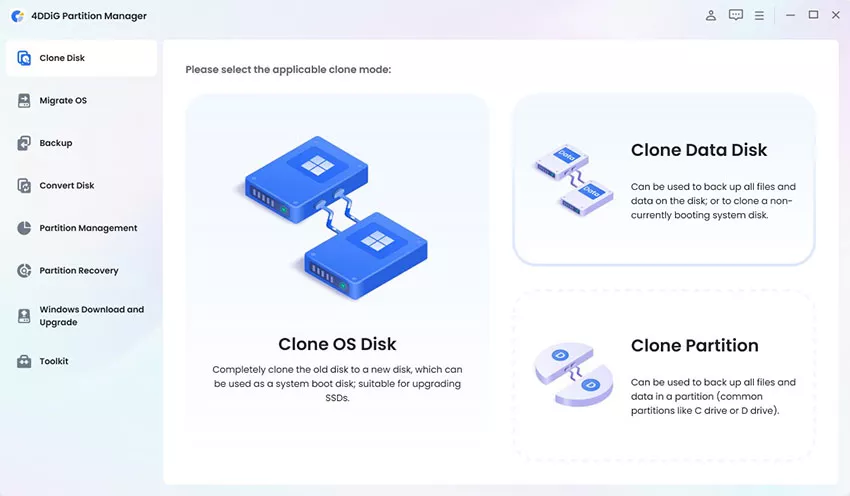
4DDiG Partition Manager offers a powerful disk wiping function that thoroughly cleanses your storage drives. It removes leftover junk, corrupted system fragments, and unnecessary files that may interfere with DNS, browsers, and system responsiveness. This optimization tool not only helps prevent general system errors but also ensures smoother connections to web services prone to 502 errors.

Why Choose 4DDiG Partition Manager?

  • Easy and beginner-friendly interface
  • Safely wipes and optimizes hard disks
  • Helps stabilize system performance
  • Works on all types of drives (SSD, HDD, removable drives)
  • Supports partition resizing, cloning, and OS migration
  • Boosts disk efficiency without risking data
  • Install and launch 4DDiG Partition Manager. If you want to wipe an external drive, plug it in first. On the left side, click “Toolkit,” then choose “Data Erase.”

    FREE DOWNLOAD

    Secure Download

    wipe disk
  • Select the disk/partition you want to wipe, then click "Continue." Check again to make sure the correct disk is selected. Click "Sure" to start.

    click sure to start wipe
  • Wait while the tool wipes the disk. Don’t close the program or unplug the drive during the process. When the wipe is complete, click "Finish." Your disk is now cleaned and optimized.

    wipe successfully

Cleaning your disk regularly helps keep your system stable, reduces errors, and improves the way your computer communicates with websites. Using 4DDiG Partition Manager makes this process quick, safe, and easy, especially if you want fewer interruptions and smoother browsing.

More FAQs about 502 Bad Gateway Error

1. How to fix 502 bad gateway on Chrome?

Try opening the site in an Incognito window. If it works, a browser extension is causing the issue. To check this, go to the three-dot menu, open More Tools, then Extensions. Turn off extensions one by one and test the site each time. Clearing Chrome’s cache and checking network settings can also fix persistent 502 errors.

2. Does 502 Bad Gateway mean I'm blocked?

No. A 502 error is not a “blocked” message. It’s a technical communication failure between servers. If you were blocked, you’d usually see a 403 Forbidden or 401 Unauthorized error instead.

3. How do I bypass error 502?

Try switching networks, such as moving from WiFi to mobile data. Use a site status checker to determine if the website is down for everyone. If the issue continues, wait a bit or contact the website’s support, as many 502 errors resolve on their own.

Conclusion

A Bad Gateway error code 502 is frustrating, but it’s usually temporary and solvable. Most cases come from overloaded servers, timeouts, DNS hiccups, or plugin/backend conflicts. And if your system feels unstable or slow, tools like 4DDiG Partition Manager can optimize your disk for smoother overall performance, reducing the chance that local issues add to browsing failures. Keep this guide handy. 502 errors are common, but they don’t have to stop you long.

FREE DOWNLOAD

Secure Download

William Bollson (senior editor)

William Bollson, the editor-in-chief of 4DDiG, devotes to providing the best solutions for Windows and Mac related issues, including data recovery, repair, error fixes.

(Click to rate this post)

You rated 4.5 ( participated)