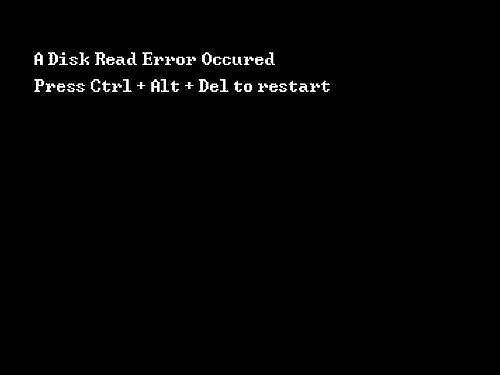
How to Fix Microsoft Visual C++ Runtime Error?

Few Windows errors are as frustrating as the Microsoft Visual C++ runtime error. Whether you’re trying to launch a game, open a work application, or start a popular game, you may face this error, without warning, and it shuts games/programs down instantly.
Many users experience repeated crashes, pop-ups, and performance problems, especially on Windows 10 and Windows 11. This guide explains what Visual C++ is, why runtime errors occur, and provides a complete set of troubleshooting steps, from essential system repairs to deep-level fixes. If missing or corrupted DLLs are the cause, we’ll also show you the safest automatic repair method available.
1. What is Microsoft Visual C++ Runtime Error?
Before you can fix the problem, it is good to understand what Microsoft Visual C++ does in your system.
What is Microsoft Visual C++?
Microsoft Visual C++ is a core development environment used to build Windows applications. Many programs, including games, productivity software, and multimedia tools, depend on Visual C++ “redistributable packages” to run properly. These packages contain libraries, runtime components, and instructions required by third-party applications.
What is the Microsoft Visual C++ Runtime Error?
A runtime error occurs when a Visual C++ component fails to execute properly, causing programs to terminate unexpectedly. Users often see messages like:
- Microsoft Visual C++ runtime error this application has requested the runtime to terminate
- Microsoft Visual C runtime library error
- Microsoft C++ runtime library assertion failed
These errors signal missing files, corrupted libraries, incompatible software, or outdated system components.
2. Common Causes of Microsoft Visual C++ Runtime Error
Several conditions can trigger runtime failures. The most frequent include:
- Corrupted or missing Visual C++ redistributable files
- Outdated GPU drivers or Windows system components
- Conflicts caused by background services or startup programs
- Damaged application files or incorrect installation
- Faulty DLL dependencies or invalid registry entries
- Malware infections or sudden system shutdowns
- Overlays or injectors from third-party apps (e.g., Discord, Steam overlays)
Understanding the cause makes choosing the correct fix much easier.
3. How to Fix Microsoft Visual C++ Runtime Error?
Here are the top 5 most effective solutions that you can try to fix the Microsoft Visual C++ Runtime Error on your computer.
Fix 1: Update Windows & GPU Drivers
Updating your operating system is one of the most reliable ways to eliminate security vulnerabilities and runtime issues. Outdated GPU drivers can also conflict with game engines or rendering libraries, especially when launching modern games.
By updating both Windows and your graphics drivers (NVIDIA, AMD, Intel), you ensure compatibility with the latest runtime libraries.
-
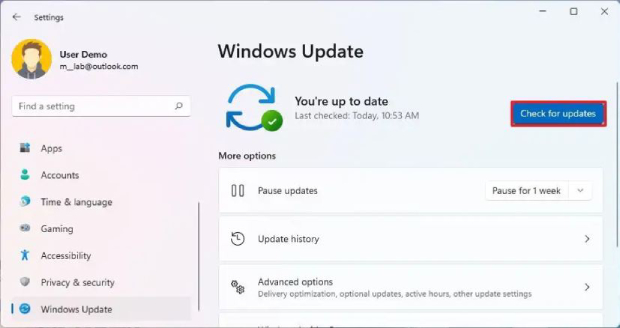
Open "Settings" on your computer and go to "Windows Update," then click "Check for Updates."
-
If any updates are available, you need to click “Download and Install” and wait till the computer restarts or asks to restart.
-
Once Windows OS is updated, press "Win + X" and go to "Device Manager," then expand "Display Adapters."
-
Right-click the GPU and choose "Update Driver" and choose "Search Automatically."
Updating Windows and GPU drivers resolves runtime errors rooted in outdated system files. This often prevents repeated crashes and ensures newer programs run smoothly.
Fix 2: Clean Boot + Compatibility Mode
A clean boot helps identify whether third-party services are conflicting with Visual C++ components. Some background software can interfere with runtime libraries. Running in clean boot mode reduces Windows to essential services only, making conflict diagnosis simpler.
-
Type “msconfig” in the search bar and open “System Configuration”. Go to “Services”, check “Hide all Microsoft services”, then click “Disable all” and click “Apply”.
-
Go to the “Startup” tab and open “Task Manager” and disable all startup items, then reboot your PC.
-
Right-click the problematic app and go to “Properties” and open the "Compatibility” tab. Check “Run this program in compatibility mode" and choose a Windows version, then click "Apply" and "OK”.
This method helps identify conflicting services that cause runtime failures. If the program launches correctly afterward, you’ve confirmed it was a software-conflict issue.
Fix 3: Run Windows System File Checker (SFC)
Visual C++ runtime libraries rely heavily on stable system files to function. If a system dependency is damaged, SFC can restore it quickly. This method is simple, fast, and effective for many users experiencing unexplained runtime crashes.
-
Search "CMD" in the Windows Search bar and right-click "Command Prompt" then select "Run as Administrator."
-
Run the command “sfc /scannow” in the Command Prompt window, and when it completes, you just need to restart your computer.
SFC repairs essential components that Visual C++ depends on. It is a reliable fix for corrupted or missing system files.
Fix 4: Reinstall the Affected Program
Some runtime errors occur because the program itself contains missing or corrupt files. Reinstalling ensures you overwrite damaged components with new, valid ones. This is especially helpful for Steam games, offline apps, or tools that rely on their own VC++ libraries. Reinstallation also removes outdated cache and settings that may be conflicting with runtime components.
-
Open “Settings” with “Win + I” keyboard shortcut and go to "Apps", then choose "Installed Apps”.
-
Locate the problematic app and click the "Options/3-dots" button against it and select "Uninstall," then restart your PC.
-
Now, go to the official source of that app, which can be the Microsoft Store or Steam library, for example, and install the latest official version.
Reinstalling ensures that the program has clean, correct runtime files. This resolves cases where only one specific app triggers the error.
Fix 5: Reinstall Microsoft Visual C++ Redistributable Packages
Most runtime errors directly involve corrupted or incomplete Visual C++ redistributable packages. Reinstalling them restores all required runtime components used by modern software and games. Since different programs require different redistributable versions, reinstalling ensures full compatibility across your system.
-
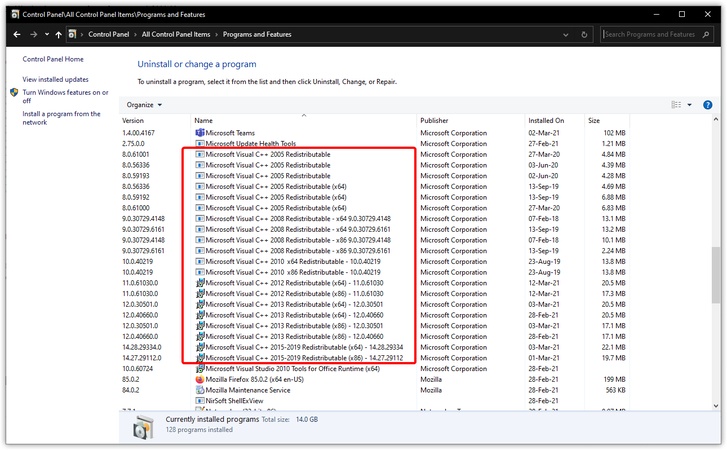
Press “Win + R” on your keyboard and type “appwiz.cpl” then hit the “Enter” key.
-
Locate all the Microsoft Visual C++ Redistributables and right-click them, then choose "Uninstall" for each of them.
-
Now, go to the Microsoft Official Download Center to get the latest X86 and X64 Microsoft C++ runtime download package versions.
-
Install all packages after downloading them and restart the computer before you launch the problematic app/game again.
Reinstalling redistributables restores all runtime libraries at once. Microsoft Visual C++ runtime library download eliminates runtime failures caused by missing or corrupted dependencies.
Bonus: Fix Visual C++ Runtime Errors Caused by Missing or Corrupted DLL Files
Sometimes, runtime errors occur because essential DLL files are missing, misconfigured, or corrupted. Instead of manually hunting for DLLs online, which is unsafe, you can repair everything automatically using 4DDiG DLL Fixer.
This tool Fixer offers automatic detection and repair of corrupted runtime libraries, missing DLLs, and dependency conflicts. It scans deeply, replaces broken components, and ensures all required runtime files are restored safely. This eliminates the guesswork of manual troubleshooting and prevents errors caused by incorrect DLL downloads.
-
Download and install the 4DDiG DLL Fixer software on your computer, then launch it. Click the "Runtime Library Repair" option from the left side and click the “Full Scan” button.
FREE DOWNLOADSecure Download
-
4DDiG will automatically scan your computer for the missing files, and once the scan is complete, it will show you a complete list of those files. Simply, click the "Repair" button at the top to start the fixing process.
-
Once again, 4DDiG will automatically download and replace the corrupted or missing files for you and show the status for each file. You simply need to restart the computer and check if the error is gone now.
More FAQs about Microsoft Visual C++ Runtime Error
1. Do I need Microsoft Visual C++
Yes. Many Windows applications and games rely on multiple Visual C++ packages to function correctly.
2. How to solve runtime errors in C++?
Use the fixes like updating Windows, repairing system files, and reinstalling Visual C++ redistributables.
3. How do I repair Microsoft Visual C++?
The safest method is reinstalling redistributables from official website or using a DLL repair tool like 4DDiG.
Conclusion
A Microsoft Visual C++ runtime error can interrupt games, apps, and essential software across Windows 10 and 11. Fortunately, most issues can be solved by updating Windows, repairing corrupted system files, reinstalling redistributables, or resolving software conflicts.
When the problem is caused by missing or corrupted DLLs, 4DDiG DLL Fixer provides the fastest and safest automated repair method available. By following the steps in this guide, you can eliminate crashes, restore program stability, and prevent runtime errors from returning in the future.
Secure Download
ChatGPT
Perplexity
Grok