How to Fix Roblox Error Code 429 (Step-by-Step)

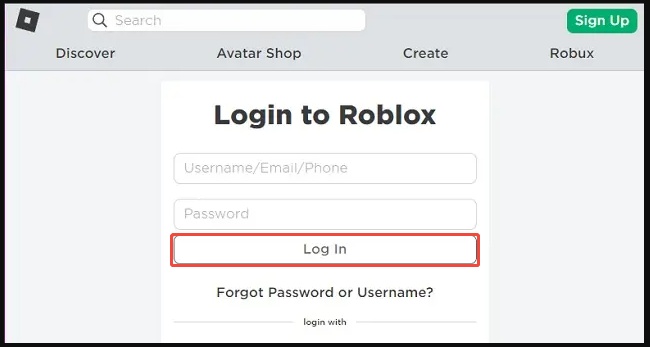
If you’re suddenly blocked from logging in or launching games, roblox error code 429 is one of the most frustrating issues you can encounter. This error is often accompanied by the message “An error has occurred during Roblox authentication.”
Whether the error appears on PC, mobile, or console, it can prevent you from accessing your account entirely. In this guide, we’ll break down what error code 429 really means, why it happens, and how to fix it quickly and safely.
Part 1: What is Roblox Error Code 429?
Roblox error code 429 is an authentication issue that usually appears when you try to log in. This error happens when Roblox detects too many login attempts and flags it as possible spam activity. As a security precaution, Roblox temporarily blocks access to protect your account from unauthorized logins.
✔ Common Causes of Roblox Error Code 429
Roblox error code 429 authentication failed has become a common problem. Players need to understand why the issue occurs. Here is what error 429 on Roblox is:
- Unlimited Requests: Sending too many authentication requests at once generates an error code. It slows down the server, and Roblox considers it spam.
- Busy Roblox Servers: Events, updates, or peak hours often slow down authentication. Wait a few minutes or hours for the issue to resolve.
- Weak Connection: An unstable internet connection is another cause for the error code 429. When Roblox reconnects many times, the issue occurs.
- Damaged or Old Cache Files: Corrupted files or unlimited data may cause Roblox to repeatedly attempt to log in. This outdated information may result in repeated authentication requests. It affects the stable connection.
- Browser or App Bugs: An outdated app or browser bugs may keep retrying requests. That's because Roblox requires a safe and secure connection.
Part 2: How to Fix Roblox Error Code 429?
Roblox Error Code 429 occurs when Roblox servers detect too many requests from your device. This "Too Many Requests" error can block you from joining games on PC, console, or mobile. Don't worry, the fixes below are simple and effective to get you back in the game quickly.
Fix 1: Wait 15-30 Minutes Before Reconnecting
Sending requests continuously doesn't work anymore. You've to wait a few minutes. Busy servers get blocked temporarily.
-
First, you should close Roblox completely and wait 15 to 30 minutes.
After thirty minutes, open Roblox. Try logging in again.
Roblox resets the limit automatically. Thus, providing access to the game app within a few minutes.
Fix 2: Restart the Internet Router & Device
Connection issues may occur due to excessive authentication requests. If you restart the network router, the problem can be resolved instantly.
-
Turn off your device. Shut down the computer or power off the mobile. And unplug your internet router.
-
Wait for 30 seconds. Plug the router in and turn your device on. Then, reconnect to your network.
-
Try logging in to Roblox again to verify if the error is fixed.
Fix 3: Clear Roblox Cache
Cached data can cause problems when corrupted files aren't fully cleared. A loaded cache slows performance and causes the Roblox authentication error 429 to appear.
For Browser:
-
Open your browser settings. Go to "Privacy and Security" or "Clear Browsing Data."
-
Select "Cached images and files" and then choose the "All time" option.
-
Click "Clear data" and restart your browser.
For Mobile:
-
Go to your device Settings and find "Apps". Search Roblox in the app list and tap it.
-
Clear the cache from the storage, next restart your device and relaunch Roblox
Boost Roblox Performance: Use 4DDiG Partition Manager for Efficient Cache and Disk Cleanup
In addition to clearing the Roblox cache, optimizing your disk space is essential for improving Roblox's performance and resolving Roblox error code 429. As you play, your system collects temporary files that can slow down not only the game but your computer as a whole.
With 4DDiG Partition Manager’s disk c leanup feature, you can efficiently clear unnecessary files, optimize your hard drive, and free up valuable space. This ensures smoother game performance and a faster, more responsive Roblox experience, reducing the risk of errors like 429 and improving your overall gameplay.
-
Launch 4DDiG Partition Manager on your computer. If you need to erase a partition on an external hard drive, connect it to your system. In the left sidebar, select "Toolkit," then choose "Data Erase" to begin.
-
Pick the disk or partition you want to wipe and click the "Continue" button to proceed.
-
Double-check to ensure you've selected the correct disk or partition to erase, then click the "Sure" button to confirm and continue.
-
The wiping process will take a little while. Please remain patient, and avoid disconnecting the disk or closing the program to prevent potential damage. Once the disk is successfully wiped, click "Finish" to complete the process.
Fix 4: Check Roblox Server Status
Most of the time, Roblox error code 429: authentication failed occurs due to spam detection on Roblox's servers. The problem isn't on your end. Follow this:
-
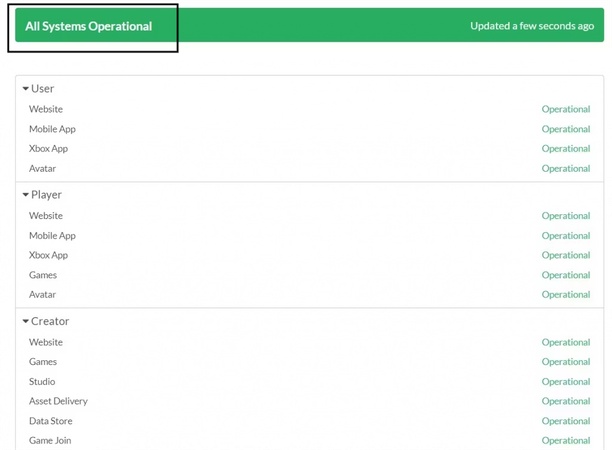
Go to Roblox's official server status page. Look for notifications about authentication services or login issues.
-
If servers are down, just wait. Roblox solves the problems in a few hours.
Fix 5: Log in via the Official App or a Different Browser
Third-party browsers or unofficial apps can cause authentication issues. A secure connection is required to access the official app.
-
Use a Different Browser: Instead of Chrome, use Firefox, Microsoft Edge, or Safari. Open roblox.com in the new browser (or its Incognito/Private mode) and log in. This bypasses cache or extension issues that may trigger Error 429.
-
Log In via the Official Roblox App: Download or open the Roblox app from the Microsoft Store (Windows), App Store (iOS), Google Play (Android), or console store (PS5/Xbox). Sign in and join the game to test if the error persists.
This resets your session and usually clears the rate-limit error fast. Test for a few minutes—if it’s still there, move to the next fix.
Fix 6: Disable VPN or Proxy Services
Roblox may block shared routers if many players use the same IP. That's when Roblox flags it as spam.
-
Check if your device is working on a VPN or proxy. Disable proxy from browser settings.
-
Restart your device to disconnect from the VPN and proxy completely.
Then Log in to Roblox again. It is a common fix for players who see Roblox error code 429 authentication failed while using VPNs.
Here are some other roblox errors fix guide:
FAQs about Roblox Error
1. Is Error Code 529 Harmful?
No, it's just another temporary Roblox error. It usually shows up when servers are having issues. It isn't bad for your account or device. Error code 529 means Roblox is maintaining the server. Simply wait for the status page to resume.
2. Why Can't I Play Roblox Even if I Have Wifi?
WiFi doesn't always provide a stable connection. When you use many devices on a single internet connection, it becomes slow and unstable. Firewall settings might block the wi-fi. However, if the issue persists, Roblox might be facing high traffic.
3. How to Fix Server 429?
When encountering a 429 error on Roblox, follow these simple steps. Here's what you have to do: reduce authentication requests or clear cache files and so on.
Conclusion
Facing Roblox Error Code 429 can be frustrating. But this is temporary, and you can fix it easily. By resetting the device, clearing the cache, or restarting the router, you can get back online.
If you're gaming on a PC, upgrading to Windows 11 can be a great way to improve performance. With tools like 4DDiG Partition Manager, tasks such as wiping disk, converting an MBR disk to GPT become easy, safe, and stress-free. A few wise choices can strengthen your system, improve your game performance, and make your overall setup more reliable.
Secure Download
ChatGPT
Perplexity
Grok