What Is the FAT32 Partition Size Limit? A Complete Guide

5 mins read

Updated on 2026-07-02 12:06:26 to Windows Fix

Many users assume their drive has a problem when they are running into a limitation of FAT32 or Windows itself. What makes the situation even more confusing is that the actual FAT32 partition size limit is different from the limit imposed by Windows formatting tools. As a result, you may find conflicting information online about the FAT32 max partition size and the maximum size of FAT32 partition.

In this guide, we'll clear up the confusion, explain how FAT32 works, compare its limits with NTFS, and show you the easiest ways to overcome common FAT32 restrictions. Let's get started.

1. Does FAT32 Have a Partition Size Limit?

Yes, FAT32 does have a partition size limit. From a technical standpoint, the maximum size of FAT32 partition can be as large as 2TB under standard sector sizes. This means the largest FAT32 partition size is much larger than many people think.

However, this is where things become confusing.

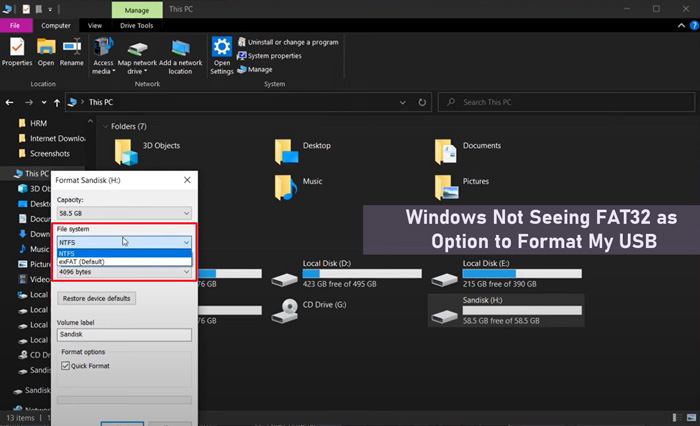
Windows places its own restriction on formatting FAT32 drives. In Windows File Explorer and Disk Management, you cannot create a FAT32 partition larger than 32GB. If your drive exceeds that size, Windows will typically offer only NTFS or exFAT as formatting options.

This Windows-imposed restriction is one of the most commonly misunderstood FAT32 limitations.

2. FAT32 Partition Size Limit vs FAT32 File Size Limit

Many users confuse partition size limits with file size limits, but they are completely different things.

  • FAT32 Partition Limit
  • FAT32 File Limit
  • Meaning
  • Total size of the partition
  • Maximum size of a single file
  • Windows limitation
  • 32GB formatting limit
  • No Windows restriction
  • Technical maximum
  • Around 2TB
  • 4GB minus 1 byte
  • Affects
  • Entire drive capacity
  • Individual files

FAT32 Partition Size Limit

The FAT32 partition size limit refers to how large a FAT32 volume can be. Technically, the max size of FAT32 partition is around 2TB, although Windows only allows formatting up to 32GB using built-in tools.

FAT32 File Size Limit

The file size limit refers to the largest individual file that can be stored on a FAT32 drive.

FAT32 cannot store a single file larger than 4GB.

⚡ 3. Avoid FAT32 Partition Size Limit by Converting FAT32 to NTFS

If you’re frequently running into FAT32 restrictions, converting the drive to NTFS is often the best solution. The NTFS max partition size is dramatically larger, making it a better choice for today’s high-capacity SSDs and hard drives.

Method 1: Break FAT32 Limitations via 4DDiG Partition Manager

If you want to format your drive automatically and without losing data, 4DDiG Partition Manager can help you. This is an easy-to-use disk management tool designed to help users manage partitions.

It provides simple solutions for tasks that can be difficult to perform using built-in Windows tools, making it suitable for both beginners and advanced users. Whether you need to convert FAT32 to NTFS, clone a disk, or organize your storage space, 4DDiG Partition Manager offers a straightforward way to complete these tasks with minimal effort.

Here’s how you can convert FAT32 to NTFS:

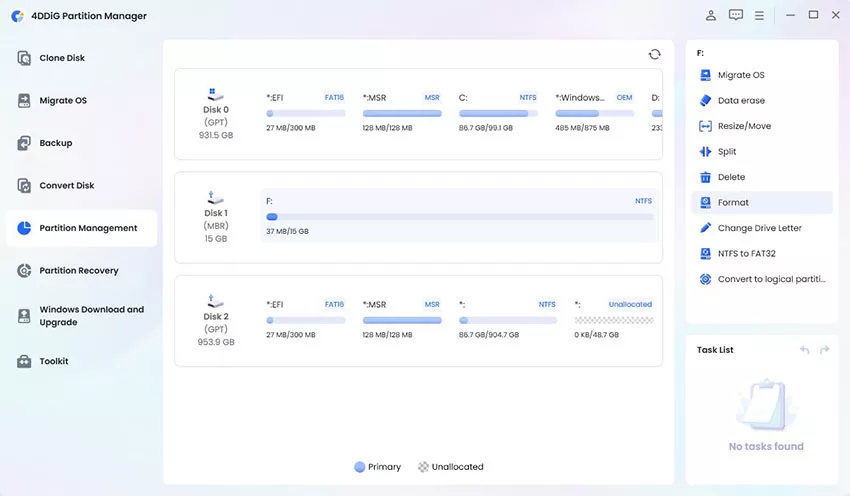
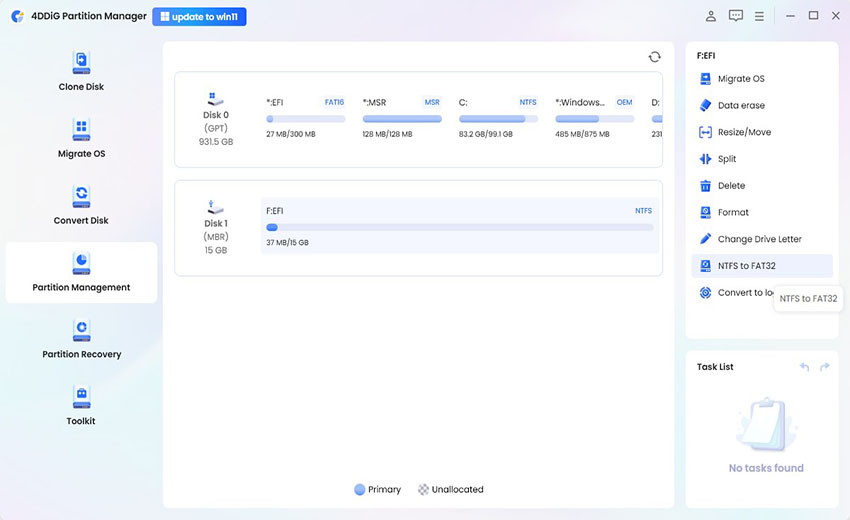
  • Open 4DDiG Partition Manager and click Partition Management from the left menu. Find the FAT32 partition you want to convert, select it, and then choose FAT32 to NTFS from the available options.

    FREE DOWNLOAD

    Secure Download

    choose fat32 to ntfs
  • A confirmation window will appear showing the conversion details. Check that you have selected the correct partition, then click Sure to continue.

    confirm to convert
  • The conversion will begin automatically. Wait for the process to finish, which may take a few minutes depending on the size of the partition. Once completed, click Finish to close the window.

    finish converting

Method 2: Unlock FAT32 Limits via Command Prompt

Windows includes a built-in Command Prompt tool that can convert a FAT32 partition to NTFS. This method requires entering commands manually.

Before you begin, make sure to back up any important files to avoid potential data loss if something unexpected happens during the conversion process.

  • Press Windows + S and search for Command Prompt.

  • Right-click Command Prompt and choose Run as administrator.

  • Enter the following command: convert E: /fs:NTFS

    covert fat32 to ntfs
  • Replace E with the drive letter of your FAT32 partition and press Enter.

  • Wait for the conversion process to finish.

Once completed, your drive will use NTFS and no longer be restricted by many FAT32 limitations.

More FAQs About FAT32

1. Did Microsoft Increase FAT32 to 2TB?

No. Microsoft has not recently increased FAT32 to 2TB. FAT32 has long been capable of supporting very large volumes. The confusion comes from Windows limiting FAT32 formatting to 32GB through its built-in formatting tools. The underlying FAT32 file system can still support much larger partitions under appropriate conditions.

2. Can FAT Be Used on SSD Drives?

Yes. FAT32 can be used on SSDs, external SSDs, USB flash drives, memory cards, and traditional hard drives. However, NTFS or exFAT is usually a better choice for modern SSDs because they support larger files, larger partitions, and fewer restrictions than FAT32.

3. How Can I Check Whether My Drive is FAT32 or NTFS?

Open File Explorer, right-click the drive, and select Properties. In the General tab, you'll see the file system listed as FAT32, NTFS, exFAT, or another format.

Conclusion

Although the maximum size of FAT32 partition can technically reach around 2TB, Windows limits FAT32 formatting to 32GB through its built-in tools. FAT32 also includes a 4GB file size restriction, which can create problems when storing large files. If these limitations are affecting your workflow, converting the drive to NTFS is often the best solution.

4DDiG Partition Manager provides a simple way to convert FAT32 to NTFS without formatting, helping you overcome common FAT32 restrictions while keeping your existing data intact.

FREE DOWNLOAD

Secure Download

William Bollson (senior editor)

William Bollson, the editor-in-chief of 4DDiG, devotes to providing the best solutions for Windows and Mac related issues, including data recovery, repair, error fixes.

(Click to rate this post)

You rated 4.5 ( participated)