Suspend BitLocker: How to Temporarily Disable BitLocker Safely?

5 mins read

Updated on 2026-03-09 12:05:44 to Windows Fix

Need to suspend BitLocker on your Windows 11 device? This guide covers everything you need to know, from what does BitLocker mean, why you should suspend it, and step-by-step instructions on how to suspend BitLocker in Windows 11 using the Control Panel and PowerShell before making system-level changes.

how to suspend bitlocker

Part 1: What Suspending BitLocker Means?

BitLocker is a built-in Windows encryption tool that protects the data on your drive by converting it into unreadable code. It encrypts the entire drive, and nobody can read over the data without proper authentication.

Suspending BitLocker means temporarily pausing its encryption protection without fully disabling or removing it. During this time, your drive remains encrypted, but BitLocker stops actively enforcing security checks on startup. Once you're done with your system changes, BitLocker can be resumed with a single click, picking up right where it left off.

Part 2: Why Would You Suspend BitLocker?

Some changes to the system can cause BitLocker to respond to a security change. Before actually performing those changes, you should know when and why to suspend BitLocker.

BIOS or UEFI Updates

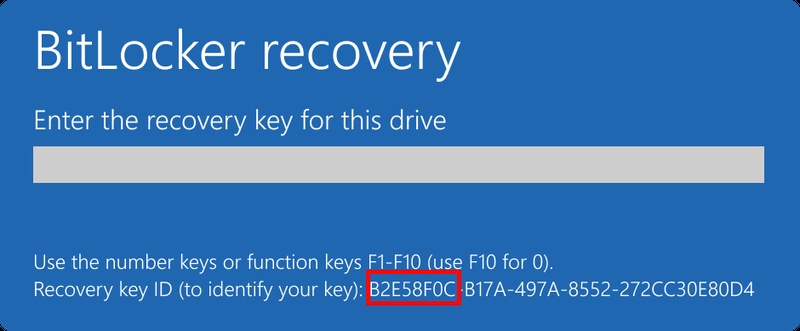
Updating your BIOS or UEFI is low-level firmware. The TPM sees this change on boot, and it may require that you provide your recovery key. Suspending BitLocker before the update avoids that interruption.

Firmware and Any Major Windows Updates

There are certain firmware upgrades and big Windows feature updates where the boot components change. Without being able to suspend BitLocker, the system may assume that these updates are a potential threat and lock the drive.

CPU or Motherboard Replacement

Installing new core components has a dramatic effect on the security profile of the device. BitLocker reacts accordingly; it demands recovery authentication unless you prep the system beforehand.

Modifying Startup Settings

Any changes to boot order, Secure Boot, or other UEFI/BIOS settings will be flagged as a potential security threat. This causes BitLocker to demand your recovery key before Windows can load. Suspending BitLocker before making these changes prevents this from happening.

Part 3: How to Suspend BitLocker on Windows 10/11?

Whether you are looking for how to suspend BitLocker on Windows 11 or Windows 10, Microsoft offers you built-in tools to suspend protection safely without decrypting the drive.

Method 1: Suspend BitLocker Using Control Panel

This is a graphical approach that is usable for most users and requires no commands. It disables protection for a period of time.

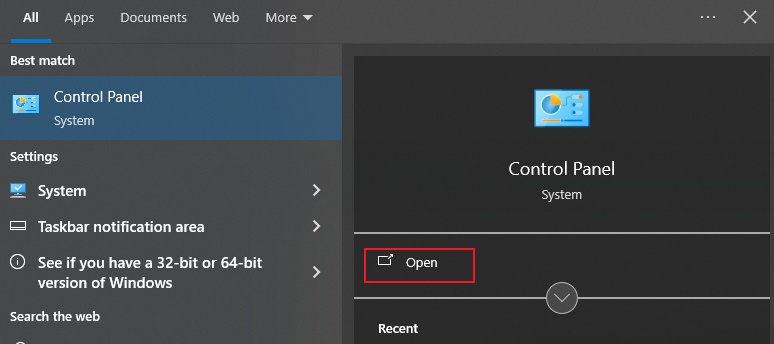
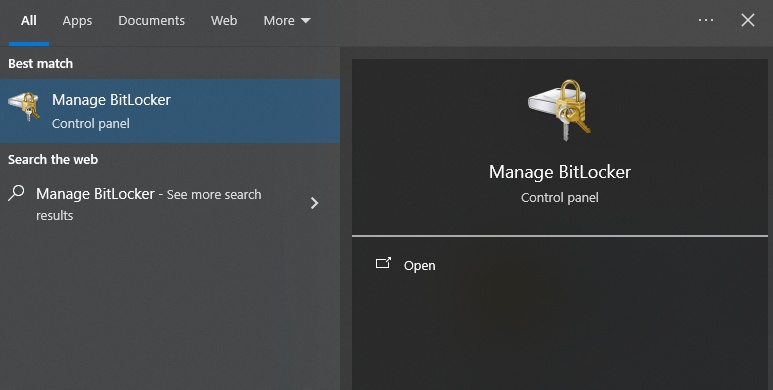
  • Open the Control Panel and go to System and Security. Click BitLocker Drive Encryption.

    bitlocker drive encryption
  • Locate the encrypted drive (this is usually C:). Click suspend protection adjacent to the drive.

    suspend bitlocker protection
  • Confirm this by checking Yes when asked.

After it has been confirmed, the status should be BitLocker suspended. By default, protection will automatically resume after the next reboot unless you decide to resume protection sooner. Suspending BitLocker does not decrypt your files, but only temporarily suspends integrity checks.

Method 2: Suspend BitLocker via PowerShell

Advanced users and IT administrators prefer to use PowerShell. For a number of devices, it is faster, well.

  • Right-click on Start and select Windows PowerShell (Admin). Run the command:

    Suspend-BitLocker -MountPoint "C:" -RebootCount 0

    suspend bitlocker via powershell
    Note:

    The Reboot Count parameter determines how many times it can be rebooted before it is allowed to be protected and automatically restarted.

    To resume immediately, you can run command: Resume-BitLocker -MountPoint "C:"

  • If it fails, you should use the suspend BitLocker command line tool:

    m anage-bde -protectors -Disable C: -RebootCount 0

    suspend bitlocker by command line tool
  • After that, you can verify status with command: Get-BitLockerVolume.

⚡ Bonus: How to Safely Remove BitLocker in One Click?

Suspending BitLocker is a good choice for temporary maintenance tasks such as updating the firmware for the system's motherboard or using new hardware. However, there are cases in which suspension is not sufficient.

Instead of using the Command Line tools or following complicated procedures in Windows settings, you can use 4DDiG Partition Manager to remove BitLocker in a relatively simple manner.

Key Features of 4DDiG Partition Manager

  • One-click Windows OS migration to a new SSD/HDD
  • Convert MBR to GPT without data loss
  • Full disk or partition cloning
  • One-click bypass of Windows 11 requirements
  • Convert file systems (NTFS ↔ FAT32)
  • Download and open 4DDiG Partition Manager. From the main interface, go under Toolkit and click on Remove BitLocker.

    FREE DOWNLOAD

    Secure Download

    click remove bitlocker
  • Select the protected disk or partition on which BitLocker is used. Then, click Unlock button..

    click unlock button to remove bitlocker
  • Click Sure to confirm and let the software decrypt the partition.

    confirm removing bitlocker
  • The time involved in the process may be long, depending on the size of the drive.

    decrypt bitlocker

Once this is done, BitLocker authentication during startup will no longer be necessary for the drive. You can then manage or resize the partition as you please with the same tool.

More FAQs About Suspending BitLocker

1. What happens if you suspend BitLocker?

When you suspend BitLocker, Windows disables protection checks for a moment without decrypting the drive. Your data is and remains completely encrypted, but no recovery key will be required during the next restart. This helps you to safely perform firmware updates or hardware changes. After the reboot, protection is typically resumed automatically unless it is configured otherwise.

2. How do I disable BitLocker temporarily?

Go to the Control Panel > BitLocker Drive Encryption, and then click on Suspend protection of the drive you wish to disable. Advanced users can also use PowerShell or the manage-bde command line tool to suspend BitLocker from an elevated terminal. Both of these methods suspend protection without decrypting the encryption.

3. Should I disable BitLocker to update the BIOS?

Yes. You should disable BitLocker before you update your BIOS/UEFI. firmware. Firmware modifications may create a recovery key request when the device is booting. Temporarily disabling protection keeps your data safe, but, at the same time, avoids unnecessary lockouts.

Conclusion

Knowing when to suspend BitLocker can help save you from unexpected recovery key prompts and startup locks. This guide covers easy steps that will ensure that your data is always encrypted while you avoid unnecessary interruptions if you are making modifications to your system.

If you are no longer in need of encryption or seeking a simpler means of handling encrypted drives, 4DDiG Partition Manager provides a simple means of removing encrypted drives without complicated commands. Whether it is hardware that allows you to upgrade or maintain the system, correctly handling BitLocker creates both security and smooth functionality.

FREE DOWNLOAD

Secure Download

William Bollson (senior editor)

William Bollson, the editor-in-chief of 4DDiG, devotes to providing the best solutions for Windows and Mac related issues, including data recovery, repair, error fixes.

(Click to rate this post)

You rated 4.5 ( participated)