How to Fix PoE 2 Stuttering on PC: Loading and Gameplay Fixes

5 mins read

Updated on 2026-10-14 18:13:51 to game

Path of Exile 2 freezing or constant poe2 stuttering on PC can often be resolved by changing a few key settings and system options. This guide covers the most effective fixes: switching the renderer to Vulkan, moving to less crowded global and trade chat channels, rebuilding the shader cache, limiting CPU affinity, and disabling NVIDIA Reflex plus the NVIDIA Overlay.

1. Why Does Path of Exile 2 Keep Freezing?

Path of Exile 2 can freeze because of rendering problems, shader compilation, CPU-related loading issues, or network interruptions. The timing and severity of the freeze help distinguish these causes:

  • Shader compilation and cache rebuilding: Loading new areas or displaying unfamiliar effects can create processing spikes, causing brief pauses or stuttering.
  • Graphics renderer or driver problems: Freezes followed by a black screen, loading gears, or shader reloads can involve the graphics rendering pipeline.
  • Loading-screen and multithreading issues: PoE2 has a documented history of freezing entire PCs during startup or area transitions.
  • Background software conflicts: Overlays, cloud syncing, and hardware-control utilities can contribute to recurring micro-stutters. Reports include OneDrive syncing and monitoring software interfering with otherwise playable sessions.

Matching the fix to the symptom is more reliable than assuming every freeze comes from outdated drivers or insufficient hardware.

2.How to Troubleshoot PoE 2 Freezing and Stuttering on Windows?

For PoE 2 freezing on PC, test one change at a time and compare the same areas afterward. Press F1 to inspect the performance graphs where available.

If latency spikes while frame times stay normal, investigate the connection or gateway rather than immediately adjusting CPU affinity.

Fix1: Switch the Renderer to Vulkan for PoE 2 Freezing

Start here when the game freezes during combat but the desktop still works, especially if Client.txt contains D3D12 Device Removed messages around the event.

  • Open Options and select Graphics.

  • Find Renderer and record the current selection.

  • Select Vulkan if available, apply the change, and restart the game.

    switch the renderer to vulkan
  • Replay areas that usually freeze before changing other options.

If PoE 2 randomly freezing continues, or Vulkan performs poorly, restore the original renderer.

Fix 2: Switch to Less Crowded Global and Trade Chat Channels

This is a simple community test for recurring microstutters, particularly when they become worse over a session. Multiple Reddit discussions describe improvement after clearing chat and moving to quieter channels, while some replies report little benefit.

  • Open chat and enter each command separately. The numbers are examples of channel identifiers, not special optimization codes:

    /global 18473

    /trade 22641

    /clear

  • Choose another valid channel if one is busy. If the game restricts channel access on your account, follow the displayed requirement rather than trying to bypass it.

  • Retest the same map and watch frame-time spikes.

Fix 3: Rebuild the Shader Cache

Shaders may need recompilation after a game update, driver change, or renderer switch. GGG specifically warns that loading can take longer while the cache rebuilds, with performance settling afterward. First allow that normal process to complete and compare later visits to the same area.

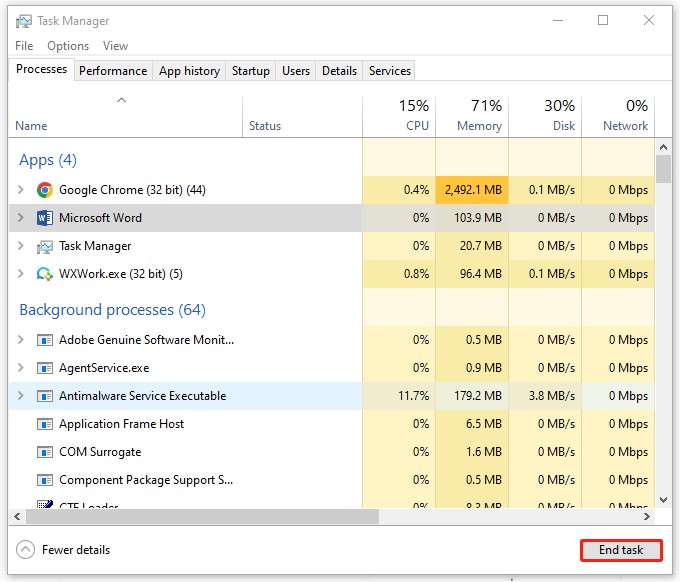
  • Fully close Path of Exile 2 (check Task Manager to make sure it’s gone).

  • Press Win + R, type %appdata%, and open the Path of Exile 2 folder.

  • Delete every folder named ShaderCache, ShaderCacheD3D12, or ShaderCacheVulkan.

  • Right-click the Path of Exile 2 folder in AppData > Properties > uncheck Read-only > Apply to all subfolders.

  • NVIDIA users: Open NVIDIA Control Panel > Manage 3D Settings > set Shader Cache Size to 10 GB > Apply.

Launch the game. The first few loads will be slower while shaders rebuild. After that, freezes related to the cache should stop.

Fix 4: Limit CPU Affinity for Full-PC Loading Freezes

CPU affinity is an advanced, temporary workaround for a narrow symptom: PoE 2 freezing on loading screen and making Windows unresponsive.

  • Launch the game and open Task Manager before entering another area.

  • Open Details and identify the running Path of Exile 2 process.

  • Right-click it, select Set affinity, and record the original selection.

  • On a processor with sufficient logical processors, temporarily deselect CPU0 and CPU1, then test area transitions.

    deselect cpu0 and cpu1

These entries represent logical processors, not necessarily two physical cores. Results and performance costs depend on the CPU. Restore the original selection if the game becomes slower or the test does not help.

Fix 5: Disable NVIDIA Reflex and the NVIDIA Overlay

For NVIDIA users, temporarily testing Reflex and the overlay is another reversible option. Reddit replies report reduced stuttering or better FPS with Reflex off, alongside reports that it made no difference.

Disable NVIDIA Reflex (in-game)

  • Launch Path of Exile 2 and open Options. Go to the Graphics tab.

  • Scroll down to Advanced settings and look for NVIDIA Reflex.

  • Set NVIDIA Reflex to Off. Save and restart the game.

    disable nvidia reflex

Disable the NVIDIA Overlay

  • Open the NVIDIA App (or GeForce Experience if you still use it).

  • Go to Settings > General. Turn In-Game Overlay Off.

    turn off nvidia overlay
  • Close the NVIDIA App and restart your PC.

After both changes, test the areas or activities that previously caused freezing. Many players see a clear reduction in freezes once Reflex and the overlay are disabled.

⚡ Bonus Tip for PoE 2 Players Running Low on Disk Space

Low free space is worth addressing when a drive is nearly full, but it is not proof of the cause of a freeze. 4DDiG Partition Manager provides Windows Clean for scanning and reviewing unnecessary files. Its role here is storage maintenance, not repairing rendering faults or CPU scheduling.

  • Save your work, close PoE 2, and launch the application.

    FREE DOWNLOAD

    Secure Download

  • Choose Windows Clean and select the file categories you want scanned. Click “Start Scan.”

    start scan before cleaning
  • Inspect the results. Files safe for deletion are selected by default.

    check scanning results
  • Use Clean for the items you no longer need, then check the drive's remaining space.

    clean successfully

Avoid deleting game assets, useful downloads, or files you cannot identify. Windows Storage settings are an alternative for basic cleanup.

Conclusion

To investigate PoE 2 freezing, match the method to the symptom: renderer testing for graphics-related hangs, quieter chat channels for recurring hitching, and CPU affinity only for loading-related Windows lockups. Give rebuilt shaders time to settle, and evaluate Reflex and overlays separately.

If poe2 stuttering persists, collect the game version, driver, renderer, performance graphs, and relevant log entries to submit through the official support channels. Where a drive is nearly full, 4DDiG Partition Manager can help review unnecessary files through Windows Clean. Treat it as useful storage maintenance alongside troubleshooting, without promising that cleanup fixes the underlying freeze or replaces a needed game patch.

FREE DOWNLOAD

Secure Download

William Bollson (senior editor)

William Bollson, the editor-in-chief of 4DDiG, devotes to providing the best solutions for Windows and Mac related issues, including data recovery, repair, error fixes.

(Click to rate this post)

You rated 4.5 ( participated)