How to Solve VALORANT Stuttering?
5 mins read

Updated on 2026-06-18 18:44:27 to Windows Fix

Many players experience Valorant stuttering, random FPS drops, input delay, or sudden lag spikes even on powerful gaming PCs. Sometimes the problem appears after a game update, while other times it happens unexpectedly.

Fortunately, this issue can be fixed with a few tweaks. This guide explains the common causes of VALORANT stuttering and walks you through proven solutions to make your gameplay smoother and more responsive. Let’s get started.

1. Why is VALORANT Stuttering?

Many users asking why is my Valorant so laggy, the answer often depends on whether the issue is related to your hardware, software, or network connection. Some of the most common causes include:

  • Outdated graphics drivers or incorrect graphics settings
  • Corrupted game files
  • Riot Vanguard problems
  • Background applications consuming resources
  • Network instability
  • High latency and Valorant lag spikes
  • Insufficient free storage space

Many players also report Valorant stuttering after update installations. This can happen when a new patch introduces compatibility issues or changes graphics settings automatically.

In some cases, the issue isn’t actually stuttering. Problems such as Valorant FPS lag, frame lag, or input lag can feel very similar but have different causes.

You may also encounter situations where Valorant is lagging even though your internet or ping is fine. In these cases, the problem is usually related to system performance rather than your network connection.

⚡ 2. How to Fix VALORANT Stuttering Step-by-Step?

Fix 1: Update Your Graphics Driver

Graphics drivers help your GPU communicate with Windows and VALORANT. If your driver is outdated, the game may suffer from poor performance, crashes, or stutters during gameplay.

  • Open NVIDIA App, GeForce Experience, AMD Adrenalin, or Intel Graphics Software. Look for available driver updates.

    check for updates
  • Download the latest driver version. Install the update.

  • Then, restart your computer. And, launch VALORANT to test the game again.

Many players notice immediate improvements after updating their drivers.

Fix 2: Clean Up System Junk to Improve VALORANT Performance

Over time, Windows collects temporary files, cache data, update leftovers, logs, and other junk files. These files can consume valuable storage space and sometimes affect overall system responsiveness.

If your PC feels slower than usual or VALORANT performance has become inconsistent, cleaning unnecessary files may help. A simple way to do this is by using the Windows Clean feature in 4DDiG Partition Manager.

  • First, install and launch 4DDiG Partition Manager. Select Windows Clean from the left-side menu. Choose the types of files you want to clean and start the scan.

    FREE DOWNLOAD

    Secure Download

    windows clean
  • Once the scan finishes, you’ll see a list of files that can be removed. Check the categories and review the files before continuing.

    select items to clean
  • Click Clean and confirm the action. The software will begin removing unnecessary files and freeing up storage space.

    confirm to clean
  • After the cleanup is complete, restart your computer. A cleaner system can help improve performance and reduce issues that contribute to Valorant stuttering.

    clean completing

Fix 3: Enable Vertical Synchronization (V-Sync)

Screen tearing and unstable frame pacing can sometimes make the game feel choppy even when FPS is relatively high. Enabling Vertical Synchronization (V-Sync) can help synchronize the frame rate with your monitor’s refresh rate.

  • Open VALORANT and go to Settings.

  • Select the Video tab and then open the Graphics Quality section.

  • Find the V-Sync option and turn it on.

    enable vsync
  • After that, apply the changes and restart the game.

If you’re experiencing minor stutters or visual tearing, this may help.

Fix 4: Disable Hardware-Accelerated GPU Scheduling (HAGS)

Hardware-Accelerated GPU Scheduling is a Windows feature designed to improve performance by allowing the GPU to manage memory tasks more directly. While it works well for some systems, it can cause performance issues on others, including Valorant stuttering and inconsistent frame times.

  • Open Windows Settings and go to System > Display.

  • Click Graphics Settings and find Hardware-Accelerated GPU Scheduling. Turn the feature off and restart your computer.

    disable hardware accelerating

After restarting, launch VALORANT and check whether performance has improved.

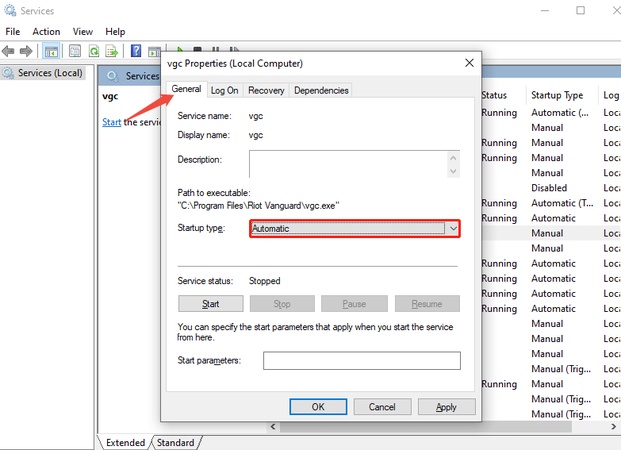
Fix 5: Reinstall Riot Vanguard

Riot Vanguard is VALORANT’s anti-cheat system. If Vanguard becomes corrupted or fails to function properly, the game may experience performance issues, crashes, or lagging.

  • Close VALORANT completely. Press Win + I, go to Apps > Installed apps or Apps & features.

  • Search for Riot Vanguard and click Uninstall.

    uninstall vanguard
  • Restart your computer. Launch VALORANT again. Vanguard will reinstall automatically.

This fix is particularly helpful if Valorant stuttering after update started recently. If you want learn how to download Riot Vanguard, this guide can help you.

Fix 6: Check for Windows Updates

Windows updates often contain performance improvements, bug fixes, and compatibility updates that can affect gaming performance. Keeping Windows up to date is a good choice.

  • Open Windows Settings and click Windows Update. Select Check for Updates.

    check for updates
  • Download and install any available updates. After taht, restart your computer.

  • Launch VALORANT again.

More FAQs about VALORANT Lagging

1. Why is my FPS so high but stuttering?

High FPS does not always guarantee smooth gameplay. The issue may be related to frame pacing, CPU bottlenecks, driver problems, background applications, or storage performance.

2. Is Stuttering a GPU or CPU Issue?

The answer is: it can be either.

A GPU bottleneck often causes low FPS and visual stutters, while a CPU bottleneck may result in inconsistent frame times and random freezes. If your GPU usage is constantly above 95%, the graphics card may be struggling. If your CPU usage stays near 100%, the processor could be the problem.

3.Does Windowed Fullscreen Cause Input Lag VALORANT?

Yes, in some cases it can. Many competitive players prefer Fullscreen mode because it usually provides the lowest input delay.

Conclusion

Dealing with Valorant stuttering can be frustrating, especially during competitive matches where every frame matters. Fortunately, most performance issues are caused by outdated drivers, Windows settings, Vanguard problems, or unnecessary files slowing down your system. By following the fixes above, you can significantly reduce stutters, improve responsiveness, and enjoy smoother gameplay.

To keep your PC performing at its best, it’s also a good idea to regularly remove junk files and unnecessary system clutter. Tools like 4DDiG Partition Manager make this process simple and can help prevent future Valorant stuttering and performance-related issues.

FREE DOWNLOAD

Secure Download

William Bollson (senior editor)

William Bollson, the editor-in-chief of 4DDiG, devotes to providing the best solutions for Windows and Mac related issues, including data recovery, repair, error fixes.

(Click to rate this post)

You rated 4.5 ( participated)