How to Fix Steam Download Speed Slow?
5 mins read

Updated on 2026-10-22 16:57:22 to game

A Steam download speed slow problem does not always mean your internet connection is failing. Steam can spend as much time unpacking and writing game files as downloading them, so a falling network graph needs context. First, compare matching speed units and check whether Steam says Downloading, Patching, or Installing. Then apply five focused solutions below, and understand why some updates still take longer than their download size suggests.

1. Confirm Whether Steam Download Speed Slow Reflects a Real Problem

There is no universal average Steam download speed that every PC should reach. Compare your result with your own tested connection and storage performance, using a large download rather than a tiny update.

  • Test Your Internet Connection
    Internet plans use Mbps, Steam usually shows MB/s. Divide Mbps by 8:

100 Mbps ≈ 12.5 MB/sA speed around 10 MB/s on a 100 Mbps line is normal.

  • Test another device on the same network
    Other devices also slow: problem is router, Wi-Fi, or ISP

Only this PC is slow: continue checking Steam settings or the drive

💡 How to Fix 'Could Not Connect to Steam Network' Error?

⚡ 2. How to Speed up Steam Downloads?

Work through these methods in order, testing the same download after each change. Observe several minutes of active downloading; a brief peak or a patching pause is not a reliable comparison. Close running games first so their download policies do not distort the test.

Method 1: Change the Download Region

Steam chooses a content region automatically, but server load and routing can make another nearby location faster. This is useful when other internet activity works normally and only Steam transfers lag.

  • Open Steam and select Steam > Settings > Downloads.

  • Find Download region and note the current location.

  • Select another nearby city or region, then restart Steam if prompted.

    change steam download region
  • Resume the same download and compare sustained network speed.

For the Steam best download region, start close to your actual location and test one neighboring region. Keep the region that performs consistently on your connection, and switch back if the change makes things worse.

Method 2: Remove the Download Speed Limit

An intentional bandwidth cap can make a fast connection appear slow. Check this before assuming the server is overloaded, especially on a shared computer where another user may have changed the setting.

  • Go to Steam > Settings > Downloads.

  • Locate Limit download speed or the bandwidth limit control shown in your client.

  • Disable the limit, or raise it to an appropriate value for your connection.

    disable limit download speed
  • Resume downloading and check whether the previous ceiling disappears.

Remember the selected unit when entering a cap. Confusing kilobits with kilobytes can produce a much lower limit than intended. Removing a cap can increase Steam download speed only if that cap was restricting the transfer; it cannot increase your internet plan’s capacity.

Method 3: Free Up Disk Space

A download needs somewhere to go, and an update may require temporary working space beyond its compressed download size. When the game drive is nearly full, resolving storage pressure can help Steam complete allocation, unpacking, and patching.

If temporary Windows files are consuming useful capacity, 4DDiG Partition Manager includes a Windows Clean feature that scans selected junk categories and lets you review them before removal.

  • Install 4DDiG Partition Manager. Launch it and click Windows Clean. Choose the junk categories you want examined, then select Start Scan.

    FREE DOWNLOAD

    Secure Download

    windows clean
  • Expand the results and review the listed items. Deselect anything you want to keep.

    select items to clean
  • Select Clean, confirm your choices, and wait for the cleanup to finish.

    confirm to clean
  • After cleaning, recheck available space and resume the Steam download to compare its behavior.

    complete cleaning

Avoid manually deleting Steam library folders or unfinished download files. If needed, move or uninstall an unused game through Steam’s storage controls.

This method can improve Steam download speed when storage is the constraint. It will not fix a weak Wi-Fi signal or a congested content server.

🎵 Steam Not Enough Disk Space: How to Fix It?

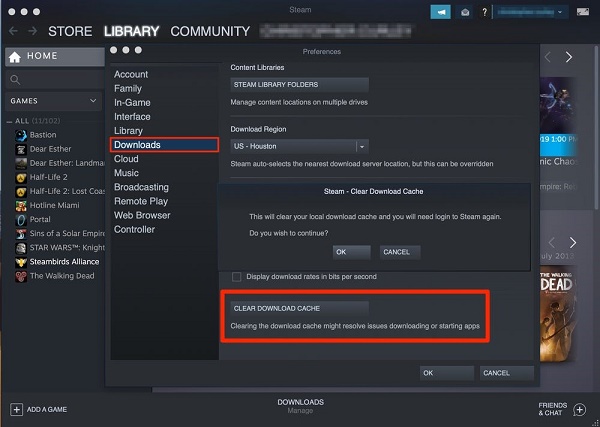
Method 4: Clear the Steam Download Cache

Try a cache reset when the download repeatedly stalls or behaves inconsistently after a connection interruption. It resets download-related client data rather than increasing available bandwidth.

  • Make sure you know your Steam sign-in details and can complete account verification.

  • Open Steam > Settings > Downloads.

  • Find Clear Download Cache and select its clearing button.

    clear steam download cache
  • Confirm the reset, sign back in if requested, and resume the download.

Do not repeatedly clear the cache while an update is making progress: each interruption can add unnecessary checking time. If the same update returns to disk-heavy patching, investigate storage rather than treating that phase as a failed reset.

Method 5: Turn Off Download Throttling

The bandwidth cap in Method 2 sets a numerical ceiling. Streaming-related throttling is a separate policy that reduces download activity to protect an ongoing stream. Check it when downloads slow specifically during streaming sessions.

  • Open Steam > Settings > Downloads.

  • If your client shows Throttle downloads while streaming, turn it off for a controlled test.

    disable steam download throttling
  • Stop Remote Play or other streaming activity and restart the download.

  • If you download while playing, review Allow downloads during gameplay separately, or simply close the game while testing.

These controls can boost steam download speed when a policy is suppressing downloads, but allowing simultaneous downloads may increase latency or disrupt play.

3. Why is Steam Download So Slow?

Several different bottlenecks can produce the same low number. The timing of the slowdown is often more useful than the number itself.

  • Network sharing: cloud backups, video streams, and other devices consume bandwidth. If everything slows together, reduce competing traffic first.
  • Wireless instability: interference or weak signal lowers sustained throughput even when the internet plan is fast. Compare a wired connection.
  • Server routing or congestion: one region may perform poorly while another works normally. Test nearby regions under similar conditions.
  • Storage and CPU workload: decompression, verification, and patching can interrupt network activity while local processing catches up.
  • Client settings: a download cap, streaming policy, or interrupted cache state can restrict an otherwise healthy setup.

A Steam download very slow complaint during Patching therefore needs a different response from a transfer stuck at an exact bandwidth ceiling. Identify the pattern before choosing the fix.

More FAQs About Steam Download Speed

1. What is the Closest Steam Download Region to Me?

Check Steam > Settings > Downloads > Download region and select a listed location near your city or country. Steam does not guarantee that geographical proximity produces the best routing. Compare your nearest region with a nearby alternative, keeping the same download and connection conditions.

2. Why Does Patching Take So Long on Steam?

Patching can require Steam to read large game archives, apply changes, and write rebuilt files. A small download can therefore trigger much larger disk activity. If disk activity continues and progress changes, let it finish. Persistent inactivity, errors, or insufficient space deserve further investigation.

Conclusion

When you encounter Steam download speed slow, establish whether the bottleneck is the network or local installation work before changing settings. Compare Mbps with MB/s correctly, test your connection, and watch Steam’s disk activity. Then try a nearby region, remove unnecessary limits, clear a problematic cache, and check streaming controls.

If storage is nearly full, 4DDiG Partition Manager’s Windows Clean feature offers a practical way to review and remove unwanted files. Use it where cleanup addresses the actual capacity problem, then test again. A healthy download depends on the server, connection, and destination drive working together.

FREE DOWNLOAD

Secure Download

William Bollson (senior editor)

William Bollson, the editor-in-chief of 4DDiG, devotes to providing the best solutions for Windows and Mac related issues, including data recovery, repair, error fixes.

(Click to rate this post)

You rated 4.5 ( participated)