Phantom Blade Zero Storage Requirements: Free Up Disk Space & Upgrade Your SSD

5 mins read

Updated on 2026-11-05 18:25:12 to game

Many players are surprised by Phantom Blade Zero storage requirements. The game itself takes about 145GB once installed, yet Phantom Blade Zero requires 300GB of free SSD space during the pre-load process because temporary files and the full game must sit side by side until unlock. An SSD is mandatory.

The good news is that you may not need a new drive. This guide explains the storage requirements, shows you how to check your SSD, and covers three practical ways to make room.

phantom blade zero storage requirements
Key Takeaways
  • Phantom Blade Zero installs at approximately 145 GB on PC (about 135 GB on PS5).
  • Pre-loading temporarily requires at least 300 GB of free SSD space because download and installation files coexist until the process finishes.
  • An SSD is mandatory; HDDs are not supported.
  • Install on a non-system drive when possible for better performance.
  • Free up space by cleaning temporary files and unused apps, resizing partitions with Partition Manager, or moving other games to a secondary drive.
  • Minimum PC specs target 1080p/30 FPS and include Windows 10/11, an Intel Core i7-8700K or AMD Ryzen 5 3600, 16 GB RAM, and a GTX 1660 / RX 5500 XT (or better) plus an SSD.

Part 1. Phantom Blade Zero Official PC & Storage Requirements: What You Need to Know

Before clearing your drive, it's worth understanding how much space the game actually needs. The difference between installation size and temporary download space is especially important.

1. How Much Storage Does Phantom Blade Zero Need?

According to the official Steam listing, the final installed size sits at roughly 145GB of SSD storage. That is the Phantom Blade Zero download size you will keep after everything finishes. However, developer S-Game recommends keeping at least 300GB of free disk space available during the pre-load process.

An SSD is required at both the minimum and recommended levels. Hard drives are not supported. The studio also suggests installing the game on a drive other than your system (C:) drive when possible, so everyday Windows activity does not affect frame rates.

Here's a quick breakdown of the Phantom Blade Zero space requirements:

Storage Requirements Space Needed
Final installation size Approximately 145GB
Pre-load process At least 300GB free
Required drive type SSD
HDD support Not officially supported for installtion

The 300GB requirement doesn't mean Phantom Blade Zero permanently takes up 300GB. Pre-loading can temporarily require space for both downloaded game files and installation or unpacking files. Once the installation process is complete, that extra space is no longer needed.

2. Can You Install Phantom Blade Zero on an External SSD?

Yes, you can install it on an external SSD. As long as Windows sees the drive as a normal storage volume and the connection is stable (USB 3.0 or better is recommended), Steam or the Epic launcher will treat it like any other SSD. Performance stays solid on a fast external drive. Just make sure the external SSD shows at least 300GB free before you start the pre-load.

Part 2. How to Check Your SSD Type and Available Storage on Windows

Before you free up space or start the download, confirm two things: that the drive is an SSD and that it has enough free room. These quick steps work on Windows 10 and 11.

Steps to Check Whether Your Drive Is an SSD:

  • To confirm it is an SSD, press Ctrl+Shift+Esc to open Task Manager.

  • Select the Performance tab and click Disk 0 (or another disk you want to check).

  • Look for the drive type. If it says SSD, your drive meets the game's storage-type requirement. If it says HDD, choose another drive for installation.

    check disk ssd type

Steps to Check Available Space of Your SSD:

  • Open File Explorer and click "This PC" on the left side.

  • Under Devices and drives, find the SSD where you want to install the game.

  • Check the available space shown beneath the drive. You can also right-click the drive and select Properties for more details.

    check ssd available storage

Part 3. 3 Ways to Free Up or Expand Disk Space for Phantom Blade Zero without Buying New SSD

Once you know how much free space you have, the next step is making room for the large pre-load. You do not always need a brand-new drive. Here are three practical ways to free up or expand space on your current SSD so you can meet the Phantom Blade Zero space requirements.

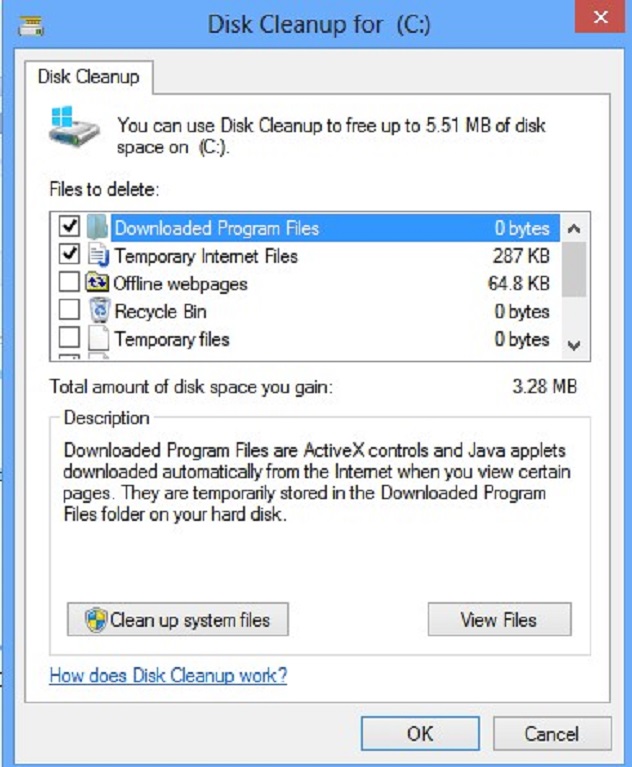
Method 1. Free Up Disk Space by Removing Unnecessary Files/Apps

The easiest first step is clearing out junk that has built up over time. Old downloads, temporary files, and unused games can take up more space than you might expect. Many people regain 20–50 GB or more just by deleting old downloads, temporary files, and unused programs.

  • Press Windows + I to open Settings.

  • Go to System > Storage. Scroll down to the Storage management tab and click on Cleanup recommendations.

    windows system storage cleanup recommendations
  • Review temporary files, large or unused files, and apps you rarely use.

    clean storage to prepare free space for pbz
  • Select the items you no longer need and click Clean up.

  • Return to Storage to check how much space you've recovered.

book icon Notes

For a faster and more thorough clean, try 4DDiG Partition Manager. It includes a built-in Windows Clean feature that scans and removes junk from Downloads & Recycle Bin, system temporary files, app caches, and browsing data in one click. This saves time and often frees more space than the basic Windows tool alone.

4ddig partition manager windows cleanup

After cleaning, check your free space again. If you still fall short of 300 GB, move to the next method.

Method 2. Extend Your SSD Partition without Losing Data or Reinstalling Windows 👍

Sometimes, your SSD has plenty of free space overall, but the partition where you want to install Phantom Blade Zero is almost full. For example, your C: drive might have only 80GB available, while the D: partition on the same SSD has 250GB of unused space. In this situation, resizing your partitions may be more useful than deleting files.

4DDiG Partition Manager makes this process easier by letting you resize and move partitions through a visual interface, without losing data or reinstalling Windows. In detail, this powerful tool lets you shrink one partition, create unallocated space, and then extend the target partition in several easy click easily

FREE DOWNLOAD

Secure Download

Main Related Features of 4DDiG Partition Manager

  • Resize and move partitions: Shrink partitions to create unallocated space and adjust their positions.
  • Extend partitions: Merge adjacent unallocated space into a partition that needs more room.
  • Manage disk partitions: Create, split, merge, or delete partitions to organize your SSD.
  • Clone disks: Copy your current disk when upgrading to a larger SSD later.
  • Clear visual layout of your drives
  • Support for both MBR and GPT disks and have built-in disk cleanup tools

Steps to resize and extend SSD partition using 4DDiG Partition Manager

  • Download and launch 4DDiG Partition Manager. Select Partition Management, choose the partition (such as the C drive) with available space, and click Resize/Move.

    select partition to resize or move
  • Drag the partition border to the left (or enter a smaller size) to create unallocated space.

    tips icon Tip

    If necessary, move the partition so that the unallocated space sits next to the partition you want to extend.

    resize c drive partition to get unallocated space
  • Later, switch to the destination partition (such as the D drive) and drag the border to the left to add the adjacent unallocated space for Phantom Blade Zero pre-loading. Preview the new layout before clicking OK.

    add unallocated space to d drive for pbz preload
  • Confirm the operation and follow the on-screen instructions until it finishes. Then check the updated free space in File Explorer.

    resized partitions successfully

You can find detailed visual instructions on the official guide page. After the resize, you should have enough continuous free space for the pre-load.

Method 3. Move Existing Games or Large Files to Another Drive

If your SSD is packed with games you still play and you have a second drive (internal or external), you don't have to uninstall them just to make room for Phantom Blade Zero. Instead, moving large games or folders is another quick way to free space on your main SSD.

  • Open Steam > Settings > Storage.

    steam storage move games
  • Click the drive selector and add another drive as a Steam Library location if you haven't already.

  • Select the drive containing the games you want to move.

  • Check the boxes next to those games and click Move.

  • Choose the destination drive and confirm the transfer.

    move existing games to another drive
tips icon Tip

Keep Phantom Blade Zero on your fastest available SSD for a smoother gaming experience. Moving older games to a secondary drive can help free up the space you need without deleting your game library.

Optional Method: Upgrade to a Larger SSD

If none of the above gives you the needed space and you plan to keep many large games, upgrading to a bigger SSD remains a solid long-term choice. Modern NVMe drives are faster and more affordable than before.

Also, You don't necessarily have to reinstall Windows or set up everything from scratch. With the disk cloning feature in 4DDiG Partition Manager, you can transfer your existing disk contents to a larger SSD, including Windows, installed applications, and personal files.

4ddig partition manager clone data to larger ssd

Once the upgrade is complete, you'll have more room for Phantom Blade Zero and other storage-heavy games

FAQs about Phantom Blade Zero

Q1: What is the Phantom Blade Zero release date?

Phantom Blade Zero released on October 29, 2026 (October 28 at 7 PM PDT in the US) for PS5, Steam, and the Epic Games Store.

Q2: Why does Phantom Blade Zero need so much storage?

The game features a detailed, high-fidelity world built in Unreal Engine 5 with dense environments, high-resolution textures, and complex animations. On PC the pre-load also needs temporary files to sit alongside the full game until unlock, which is why the free-space request is higher than the final install size.

Q3: What are the Phantom Blade Zero space requirements for PS5

The PS5 version needs about 134.86 GB of storage space.

Q4: How many GB is Phantom Blade Zero?

On PC the installed game is approximately 145 GB. On PS5 it is roughly 135 GB.

Q5: What are the minimum PC requirements to run Phantom Blade Zero?

You need Windows 10/11 64-bit, an Intel Core i7-8700K or AMD Ryzen 5 3600, 16 GB RAM, a GTX 1660 6 GB or RX 5500 XT 8 GB, DirectX 12, and an SSD. This targets 1080p at 30 FPS with upscaling enabled.

Q6: Is Phantom Blade Zero a hard game?

It is a challenging action RPG with precise parry-based combat, but it offers multiple difficulty options. Wayfarer is the most accessible for story-focused players, Pathbreaker is the standard experience, Hellwalker raises the challenge, and 66 Days adds a strict death limit for veterans. Most players find it fair once they learn the systems, and you can change difficulty at any time.

Conclusion

Meeting the Phantom Blade Zero system requirements starts with having enough SSD space. While the game requires approximately 145GB after installation, pre-loading requires at least 300GB of available space.

If you're running low, try cleaning up unnecessary files, extending an existing partition with 4DDiG Partition Manager, or moving other games to another drive. With the right preparation, you can make room for Phantom Blade Zero without immediately buying a new SSD.

FREE DOWNLOAD

Secure Download

Ehtsham Ahmed (senior editor)

Ehtsham Ahmed, the content writer for 4DDiG, is dedicated to offering workarounds for Windows Data Recovery, Windows Troubleshooting, iDevices System Repair, etc.

(Click to rate this post)

You rated 4.5 ( participated)