Fix Fortnite Matchmaking Error: 5 Fixes to Try

5 mins read

Updated on 2026-10-20 17:40:25 to game

A Fortnite matchmaking error means your attempt to join a match did not complete. Before changing your PC settings, check whether Epic has reported an outage: a server problem requires waiting, while a connection or installation problem may need local troubleshooting.

The number on the message helps, but its full wording and the affected mode matter too. This guide explains the common codes, walks through five practical fixes, and shows how to clear space when a Fortnite update cannot finish. Start with the two quick checks below so you can avoid troubleshooting a problem outside your device.

💡 Quick Fix:

Check Epic Games Public Status: Visit https://status.epicgames.com/ and expand Fortnite. Look for incidents affecting Matchmaking, Login, or Game Services. Read the incident details before making changes.

Fully close and restart Fortnite: Quit the game completely. Reopen Fortnite and test the same mode once.

What is the Fortnite Matchmaking Error?

Matchmaking connects your queue request to a playable session. A failure at this stage does not automatically mean your account is banned or your game files are damaged. Read the whole message rather than treating every numbered error as the same problem.

Matchmaking error #1: A general connection failure can appear under this number. However, a tournament-specific variant indicates that the event's Battle Bus has already departed. The suffix and accompanying text change its meaning.

Fortnite matchmaking error #3: Epic's message describes full Battle Buses and asks players to retry after a few minutes. Check service status if the problem continues.

fortnite matchmaking error

Fortnite matchmaking error #7: Epic groups this with #5 in its troubleshooting article and recommends checking outages, restarting, and investigating connectivity. It does not provide a separate, definitive cause for #7 there.

If you notice Fortnite matchmaking taking too long, check whether the queue eventually completes, whether another mode works, and whether the service page reports disruption before repeatedly cancelling.

How to Fix Fortnite Matchmaking Error?

The Windows commands and launcher steps below apply to PC. Console players can still check service status, adjust the in-game region, and install updates through their platform. Change one thing at a time, then retry the same mode so the result remains useful.

Fix 1: Flush DNS on Windows

Windows caches the results of internet address lookups. Removing stale entries lets it request fresh information, which can help when a cached lookup is causing connection trouble. Epic includes DNS flushing in its network troubleshooting guidance.

  • Close Fortnite and the launcher.

  • Search for Command Prompt in Windows, right-click it, and select Run as administrator.

  • Enter the following command and press Enter:

    $ ipconfig /flushdns
  • Wait for the confirmation that the DNS resolver cache was flushed.

  • Reopen the launcher, start Fortnite, and test matchmaking.

This clears the local cache; it does not repair an Epic outage or guarantee lower ping. If the error remains, move on instead of repeatedly running the command.

Fix 2: Disable Your VPN or Proxy Temporarily

A VPN changes the route your traffic takes. Temporarily disconnect it to compare matchmaking over your ordinary connection. Epic also notes that proxy servers can interfere with access to its services.

  • Open your VPN application and disconnect it, including any gaming tunnel you enabled.

  • In Windows Settings, open Network & internet, then Proxy.

  • If you configured a manual proxy yourself, turn off Use a proxy server.

    disable proxy
  • Restart the launcher and retry the same Fortnite mode.

Keep a record of your original settings so you can restore them. For a school or workplace network, ask the administrator before changing a required proxy.

Fix 3: Change the Matchmaking Region

Use region selection as a controlled connection test. Epic recommends Auto because it selects the region with the best ping. A distant region can increase latency, so switching randomly is unlikely to provide a lasting improvement.

  • In Fortnite, select your player icon to open the social panel.

  • Open Settings and select the Game tab.

  • Under Language and Region, locate Matchmaking Region.

    change fortnite matchmaking region
  • Change to a specific region. If necessary, test one nearby alternative with a reasonable displayed ping, then compare the result.

If only one playlist fails, test a standard Battle Royale mode before concluding that the whole region is unavailable. Tournament restrictions and event availability may still apply regardless of your selected region.

Fix 4: Verify the Game Files

Verification checks your local installation and repairs files that differ from the expected versions. It is worth trying when errors began after an interrupted patch or when Fortnite also has loading problems. Epic states that verification does not affect saved data.

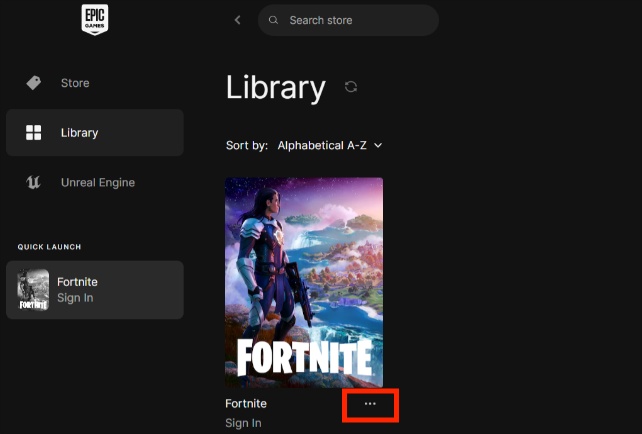
  • Close Fortnite and open the Epic Games Launcher.

  • Select Library and locate Fortnite.

  • Open the three-dot menu beside the game and select Manage.

  • Click Verify and let validation finish.

    verify fornite game files
  • Allow any resulting downloads to complete before launching the game again.

Verification can take time because the launcher must inspect the installation. Avoid moving or deleting files while it runs.

Fix 5: Update Fortnite

  • On PC, open the Epic Games Launcher and launch Fortnite; an available update should start automatically. Wait until downloading and installation have both finished.

    To enable future automatic updates, open Library, select Fortnite's three-dot menu, choose Manage, and turn on Auto Update.

  • On PlayStation, highlight Fortnite and use Options, then Check for Update.

  • On Xbox, check Fortnite under My games & apps for an available update.

  • On Nintendo Switch, highlight the game, press the plus button, and choose Software Update, then Via the Internet.

Ask party members to finish their updates too. If installation stops with a storage warning, address that warning before continuing to troubleshoot matchmaking.

⚡ Bonus Tip: Free Up Disk Space for Fortnite Updates

If your Windows drive is nearly full, an update may be unable to finish. In this situation, 4DDiG Partition Manager's Windows Clean feature offers a way to review unnecessary files and reclaim storage. This supports the update process.

  • Close Fortnite and save any open work. In File Explorer, check the free space on the drive identified by the update warning.

  • Install and open 4DDiG Partition Manager. Select Windows Clean from the sidebar.

    FREE DOWNLOAD

    Secure Download

  • Choose the available cleanup categories appropriate for your PC and start the scan.

    select file types to clean
  • Expand the results and review the listed files. Keep anything you need and deselect entries you do not recognize.

    check the scanning results
  • Select Clean, confirm the selected removal, and wait for the completion result.

    confirm to clean
  • Check free space again, then return to the launcher and retry the update.

The amount recovered depends on your system. Do not manually delete the Fortnite installation folder as a shortcut to making space.

Why Does Fortnite Keep Saying Matchmaking Error?

  • Epic Games server issues: Temporary outages, maintenance, or high traffic (especially after updates or during big events) can prevent matchmaking from working.
  • Unstable internet connection: Packet loss, high latency, or a weak Wi-Fi signal often triggers errors.

  • Strict or Moderate NAT type: A restrictive NAT can block the connection between your device and other players.

  • Party-related problems: One player in the party having connection issues, different regions, or mismatched ready status can stop the whole group from queuing.

  • Outdated game files or client: Corrupted or incomplete game files after an update may interfere with matchmaking.

  • VPN, proxy, or firewall interference: These can disrupt the connection to Epic's servers.

  • Region or cross-play setting: Incorrect matchmaking region or disabled cross-platform play sometimes leads to failed queues.

Conclusion

A Fortnite matchmaking error is easiest to investigate when you separate service problems from local ones. Check Epic's status page and restart first, then test DNS, VPN or proxy settings, region selection, file integrity, and updates as appropriate. Keep the full error text because different messages can require different responses.

If low storage prevents an update, consider Windows Clean in 4DDiG Partition Manager to review unnecessary files and reclaim space. Treat cleanup as update preparation rather than a network repair. After each change, retry the same mode and record what happens so further troubleshooting has a clear starting point.

FREE DOWNLOAD

Secure Download

William Bollson (senior editor)

William Bollson, the editor-in-chief of 4DDiG, devotes to providing the best solutions for Windows and Mac related issues, including data recovery, repair, error fixes.

(Click to rate this post)

You rated 4.5 ( participated)