BEDaisy.sys Crash and How to Fix the BattlEye Blue Screen

5 mins read

Updated on 2026-10-15 17:54:56 to game

A BEDaisy.sys crash is a Windows blue screen that names BattlEye’s anti-cheat driver in the failure details. It can happen when a protected game starts or while you play, but the filename alone does not prove that BattlEye is the underlying cause. A conflicting driver, damaged installation, or diagnostic setting may be involved.

Start by recording the stop code and checking whether Windows still boots. You can then choose a targeted fix instead of reinstalling everything. Below, you will find the likely causes, a recovery option for an unbootable PC, and five practical troubleshooting methods to follow.

1. Why Does BattlEye Crash My PC?

BEDaisy.sys operates at the Windows kernel level, where driver problems can stop the entire operating system. A crash that names it identifies an important troubleshooting lead, not a complete diagnosis.

Possible contributors include these conditions:

  • Driver Verifier is active. BattlEye explicitly identifies this Windows diagnostic tool as a source of blue-screen problems with its software.
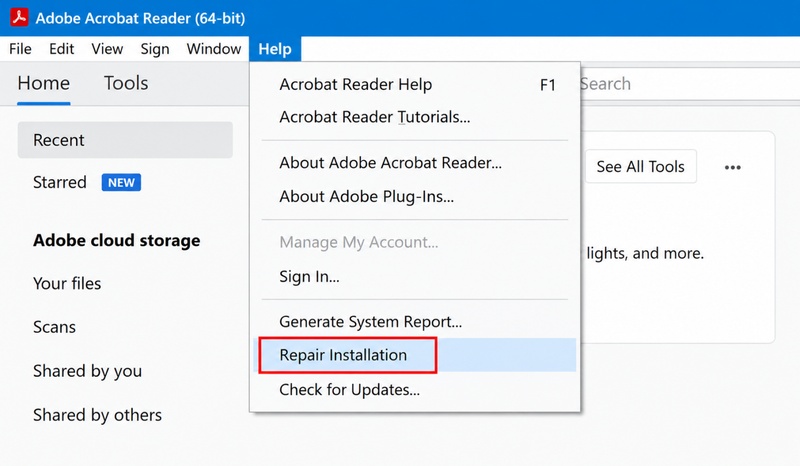
  • BattlEye or game components are outdated or damaged. Repairing the installation is appropriate when only one protected game fails.
  • Another low-level component conflicts with the game environment. Monitoring utilities, older hardware drivers, and security software deserve attention when recently changed.
  • Windows system files need repair, or a driver is incompatible with a security feature. These possibilities require testing rather than assumptions.

Before changing settings, photograph the stop code, note the game version, and preserve files in C:\Windows\Minidump if available. Close unnecessary monitoring or tuning utilities and test again. If other applications also crash, investigate broader system stability rather than treating every failure as a BattlEye fault.

⚡ What If a BEDaisy.sys Crash Prevents Windows From Booting?

When Safe Mode and automatic repair fail, the most reliable way forward is to boot from a WinPE environment and remove or repair the problematic BattlEye driver from outside the damaged system.

You can create this bootable WinPE USB quickly using 4DDiG Partition Manager’s built-in “Create WinPE” function.

  • On a working Windows PC, install 4DDiG Partition Manager and connect a spare USB drive. Back up the USB’s contents because creating the media formats it.

    FREE DOWNLOAD

    Secure Download

  • Open Toolkit > Create WinPE. Select the USB as the destination, start creation, and confirm the formatting prompt after checking the correct device.

    create winpe
  • Select an ISO file according to your needs to create the WinPE bootable media, then click Start.

    select iso to burn
  • Select your connected USB drive as the target disk and click Continue. A warning will appear stating that the USB will be formatted. Make sure you have backed up any important data on the drive, then click Sure to proceed.

    confirm to proceed
  • The creation process will begin. When it finishes, click Finish.

    burning iso successfully
  • When creation finishes, insert the USB into the affected PC. Open its manufacturer-specific boot menu and select the USB’s UEFI entry where appropriate.

In the WinPE environment, you can choose right tool to fix the problem.

✔ How to Repair Windows 10/11 with USB (Startup Repair & More)

2. How to Fix a BEDaisy.sys Crash?

If Windows boots normally or in Safe Mode, work through the relevant fixes below. Make one change at a time and retest the same game. If Driver Verifier was enabled recently, jump to Fix 5 first.

Fix 1: Repair System Files With DISM and SFC

Use this method when Windows behaves abnormally outside the game or reports damaged components. DISM repairs the Windows image; SFC then checks protected system files. Neither command replaces BattlEye’s own installation files.

  • Open Start, type Command Prompt, and select Run as administrator.

  • Run this command and wait for it to finish:

    $DISM.exe /Online /Cleanup-Image /RestoreHealth
  • After DISM completes successfully, run:

    $sfc /scannow
  • Read the final message, restart Windows, and test the game again.

Record any repair errors before proceeding. These commands target the running Windows installation; do not copy the /Online command into WinPE expecting it to repair the offline system.

Fix 2: Update Windows and the Graphics Driver

Use supported updates to address compatibility problems, especially if several games fail. A driver that caused the problem immediately after installation may instead need rollback.

  • On Windows 11, open Settings > Windows Update. Click “Check for updates” and install available updates appropriate to your supported configuration and restart.

    check for updates
  • Get the graphics driver from your facturer or NVIDIA, AMD, or Intel. Match the package to your hardware and Windows version, install it, and restart again.

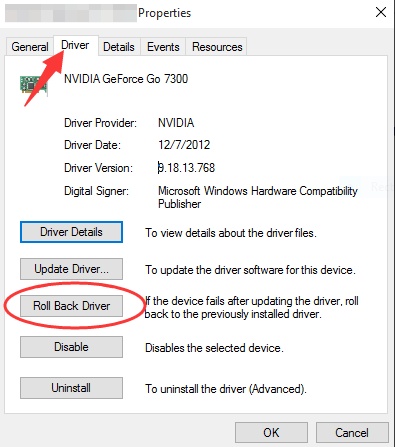
  • If the crash started with a graphics-driver update, open Device Manager > Display adapters, right-click the adapter, and select Properties > Driver > Roll Back Driver when available.

    roll back driver

For firmware, use the PC or motherboard manufacturer’s exact model instructions. Do not flash an unrelated BIOS or use third-party driver download sites.

Fix 3: Temporarily Disable Windows Memory Integrity

Consider this only when Windows reports a driver-loading incompatibility or the crash began after enabling Memory Integrity. Updating the affected driver is preferable. Turning this protection off reduces security, so treat it as a controlled compatibility test.

  • Open Windows Security > Device security > Core isolation details.

  • Record the current Memory integrity setting. If it is already off, skip this test.

  • Switch Memory integrity off, approve the change, and restart.

    disable memory integrity
  • Launch the affected game once. Record the result, then restore protection and restart after testing or installing a compatible driver.

Fix 4: Reinstall BattlEye and Verify Game Files

Choose this method when a single BattlEye-protected game fails or its anti-cheat installation appears incomplete. Use the game’s supplied files rather than downloading an individual .sys file.

  • Exit the game and its launcher. Open the game’s installation directory and locate its BattlEye folder.

  • If Uninstall_BattlEye.bat is present, run it and approve any administrator prompt. Restart the PC.

  • In Steam, right-click the game in Library, open Properties > Installed Files, and select Verify integrity of game files. Other launchers provide their own repair option.

    verify integrity of game files
  • After verification, open the game again and accept the BattlEye installation prompt. If supplied, Install_BattlEye.bat can also reinstall the service.

  • Allow the launcher to finish its updates before testing. If scripts are absent, follow the publisher’s instructions.

💡 Full Guide for BattlEye Download: Installation & Fixes for Popular Games

Fix 5: Check Driver Verifier

Driver Verifier stresses drivers to expose faults and can deliberately trigger crashes. Microsoft positions it as a testing tool, and BattlEye advises disabling it for its blue-screen issue.

  • Open Command Prompt as administrator and inspect the current configuration:

    verifier /querysettings

  • If verification is configured, clear its settings:

    verifier /reset

  • Restart Windows so the change takes effect, then retest the game.

    If normal startup fails, try Safe Mode and run the reset command there. Do not enable additional verification checks as a routine gaming fix. If crashes continue, send BattlEye or the game publisher the stop code, system details, and available crash dumps.

FAQs about BEDaisy.Sys Crash

1. What Failed BEDaisy.Sys?

The “What failed: BEDaisy.sys” line means Windows associated the crash with BattlEye’s driver. It does not independently distinguish a driver defect from interference or another component’s memory corruption. A recurring BEDaisy.sys BSOD needs the stop code and crash-dump analysis for a firmer diagnosis.

2. What Does BEDaisy.Sys Mean?

BEDaisy.sys is the Windows kernel driver used by BattlEye anti-cheat. It is part of the protection required by participating games. Removing it manually can prevent those games from launching; repair it through the game or BattlEye installation process instead.

Conclusion

A BEDaisy.sys crash is easier to troubleshoot when you separate the blue-screen evidence from assumptions about its cause. Record the stop code, check Driver Verifier, and repair or update the components that fit your situation. Test one change at a time, and restore any security protection you temporarily disable.

If Windows will not start, prioritize access and data protection before attempting disruptive repairs. 4DDiG Partition Manager’s Create WinPE feature can provide a separate boot environment for supported disk operations, including cloning, while you prepare the next recovery step. Persistent crashes deserve investigation using the actual dump files.

FREE DOWNLOAD

Secure Download

William Bollson (senior editor)

William Bollson, the editor-in-chief of 4DDiG, devotes to providing the best solutions for Windows and Mac related issues, including data recovery, repair, error fixes.

(Click to rate this post)

You rated 4.5 ( participated)