How to Stop Game Stuttering: 7 Quick Fixes for Smooth Gameplay

5 mins read

Updated on 2026-06-15 18:09:44 to Windows Fix

Game stuttering on PC can be frustrating even if you still have high FPS. You may have a powerful GPU. You may not have a problem with your internet. However, the game still experiences brief freezes. A lot of players are wondering why their games keep stuttering.

In fact, stuttering games on PC is often not a single problem. Once they are sorted out one by one, the game will run smoothly again. Don't worry, we will help you figure out the reasons and provide step-by-step solutions, bring back your smooth gaming experience.

1. Why is My Game Constantly Stuttering?

If you ask why your game is stuttering, you're likely to get just one response. But in real life, it’s more layered.

Hardware pressure (CPU, GPU, RAM limits)

If the CPU or RAM is approaching full capacity, the system won't be able to cope with the speed of game updates. This will result in micro-freezes even though FPS is satisfactory.

Storage issues (HDD or full SSD)

Low disk space are a major cause of PC stuttering in games. When your game takes time to load textures, you'll experience random freezes. This is particularly a problem with HDDs.

Background apps eating performance

You may not even realize that browsers, Discord overlays, recording tools and even Windows updates are consuming your CPU power. This means that even in normal game situations, the game stutters.

Bad optimization or game settings

Sometimes, the game itself may not be optimized for your hardware. Some combinations, including Ultra settings, FPS without caps or a laggy refresh rate sync may lead to frame pacing problems.

Driver or Windows problems

Even on a high-end PC, games can stutter sometimes, as a result of outdated graphics card drivers or problematic Windows updates.

⚡ 2. How to Fix Game Stuttering Step-by-Step

In most cases, the problems are easy and do not require a technical genius. Just follow the steps one by one.

Fix 1: Check for Overheating First

The performance will be reduced considerably by overheating of components. The desired temperature is for the CPU and GPU not to exceed 80 °C under load.

  • If the temperature reaches 85°C or higher, power off the computer. Using compressed air, blow out the dust from the side panel. If you feel comfortable doing so, change the old thermal paste on the cooler.

Fix 2: Disable Unnecessary Background Applications

Background software consumes a lot of CPU cycles and RAM. This can be particularly true for apps that rely on equipment acceleration, or that display in-game overlays.

  • Press Ctrl + Shift + Esc to open the Task Manager. You can see the resource usage by clicking on the Memory or CPU column.

  • Right click on any heavy non-essential applications (such as third party browsers, recording software, heavy chat programs etc.) and End Task.

    end heavy app in task manager
  • If you are having trouble with stuttering while playing video games on your PC, make sure to disable any app "overlays" such as Discord, Steam, or GeForce Experience.

Fix 3: Enlarge Disk Size

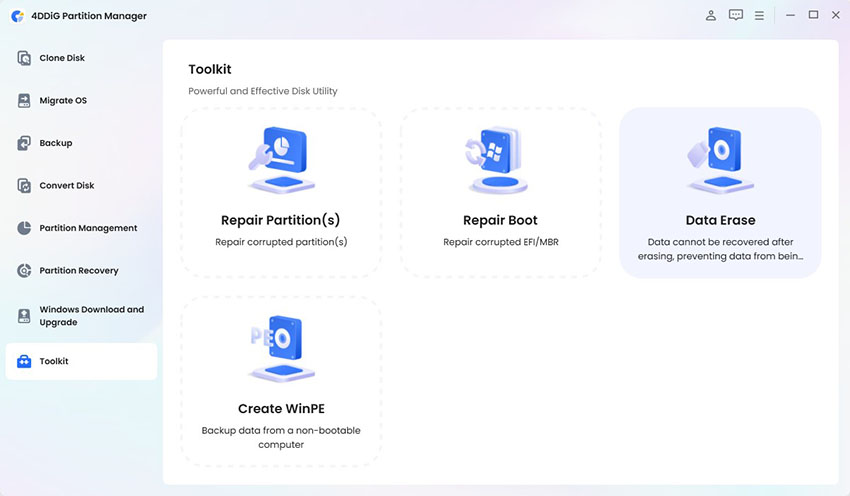
A nearly full storage drive cannot manage temporary cache files effectively. When you have a full game drive, you must move things around to get extra room, but if you don't want to lose the data, you can redistribute your game drive space with ease using 4DDiG Partition Manager, a safe and reliable partition tool.

  • Download and launch the 4DDiG Partition Manager tool on your computer. In the main dashboard, right-click the drive partition which is running low space and choose the option that says Adjust or Resize Volume.

    FREE DOWNLOAD

    Secure Download

    select resize feature
  • Drag the borders to the unallocated space, or select another partition that has extra space and reduce its size, which will move the free space to your gaming drive.

    resize partition
  • Click the OK to make sure that the new layout is correct, then click OK to resize partition safely.

    start resizing

Fix 4: Free up Storage Space

When standard driver updates and closing background apps fail to stop game stuttering, the issue often stems from residual system clutter on your OS drive. Using the Windows Clean tool within 4DDiG Partition Manager allows you to safely clear out these performance-draining files. Here is how to do it:

  • Launch 4DDiG Partition Manager. Go to the Windows Clean section. Choose the types of junk files you will clean and click Start Scan button to begin scanning.

    FREE DOWNLOAD

    Secure Download

    windows clean
  • Then, the 4DDiG will display temporary files, system caches, and other junk that can be removed. You can select the file categories to delete and click Clean to proceed.

    select items to clean
  • Once the process is complete, the tool will display the total amount of space freed. You can now launch your game to enjoy a smooth, stutter-free experience.

    clean successfully

Fix 5: Optimize In-Game Settings

Graphics configurations are great, but optimization is crucial to avoid stuttering during games.

A. Lower Resource-Heavy Graphics

High graphics settings can bottleneck your GPU, leading to sudden frame drops.

  • Shadows & Reflections: Set these to Medium or Low, as they heavily tax your graphics card.
  • Texture Quality: Lower this if your GPU's VRAM (video memory) is maxed out.
B. Match Frame Delivery

If your game displays a high frame rate but still feels choppy or stutters, your graphics card and monitor are likely out of sync.

  • For VRR Monitors: Enable G-Sync (NVIDIA) or FreeSync (AMD) in your GPU control panel to dynamically sync your refresh rate.
  • For Standard Monitors: If your display doesn’t support variable refresh rates, turn on V-Sync in the game settings or cap your FPS to match your monitor’s native refresh rate (e.g., 60Hz, 144Hz).

Alternative: If V-Sync introduces input lag, disable it completely and use an in-game frame limiter to lock your FPS right at your monitor's refresh rate.

Fix 6: Update Graphics Driver

Graphics cards require the most up-to-date software optimization profiles to play games without problems. If the display software is not the latest version, it may cause an audio stuttering in games Windows 10 loop along with video freezing.

  • Navigate to the NVIDIA Driver Downloads page or the AMD page. Select your graphics card model and download the latest stable desktop graphics card drivers package.

    download latest graphics driver
  • When installing, choose Custom Installation and put a tick in the Clean Installation box to remove old, possibly corrupted files.

  • When the installation is complete, restart the computer.

Fix 7: Upgrade to a Larger SSD

If you're still playing modern games on a mechanical hard drive, asset streaming will always be the culprit behind jerky gameplay. With a solid-state drive (SSD), textures and levels are loaded into your system immediately. Here is a guide.

3.How to Prevent Game Stuttering in the Future

Regularly Clean Temporary and Junk Files

Over time, temporary files accumulate and cause lag in your computer. Keeping them clean ensures storage is free and games run smoother.

Keep Graphics Drivers Updated

Old drivers typically trigger game stuttering. Updates enhance performance and resolve bugs, such as when the game stutters even at high FPS settings.

Keep Windows and Game Clients Updated

Performance fixes are included in windows and game updates. Skipping this may lead to games stuttering on PC over time. You should keep them up-to-date so gameplay can flow more smoothly.

More FAQs about Game Stuttering

1. Is there the possibility of stuttering with games due to RAM?

Yes. Freezing can occur due to low RAM or when the memory is full, particularly in modern AAA games.

2. Do games stutter due to old HDD?

Yes. Driving larger open world games is a problem for older drives. If your drive has slow read speeds or bad sectors, the game engine freezes for a split second waiting for data to load, causing a stutter.

3. Will Windows Game Mode affect gaming performance?

Yes, Windows Game Mode generally has a positive impact on gaming performance, though a small percentage of users may still encounter compatibility issues.

Conclusion

Don't think you have a weak system if you're having trouble with games stuttering on PC. Most of the time, it's just small pieces adding up: heat, background apps, storage problems, or old drivers. Fixing even two or three of these can make your gameplay feel completely different.

Using tools such as 4DDiG Partition Manager can also help to better manage disk space, which can further minimize hidden causes of lag. With a clean and balanced system, game stuttering on PC drops and gameplay bounces back.

FREE DOWNLOAD

Secure Download

William Bollson (senior editor)

William Bollson, the editor-in-chief of 4DDiG, devotes to providing the best solutions for Windows and Mac related issues, including data recovery, repair, error fixes.

(Click to rate this post)

You rated 4.5 ( participated)