Gears of War: E-Day Keeps Crashing on PC and What to Try

5 mins read

Updated on 2026-10-14 18:26:09 to game

If Gears of War: E-Day keeps crashing, start by noting whether it closes during startup, a cutscene, the benchmark, or normal gameplay. That distinction matters more than trying every fix at once. Recent launch-period Reddit reports describe crashes on capable PCs, so a return to the desktop does not automatically mean your hardware is inadequate. Some players report improvement after changing graphics settings or closing monitoring tools, while others still need a game update. This guide explains how to check your setup, test the most relevant workarounds, and manage low disk space without mistaking cleanup for a confirmed crash fix.

1. Check Updates and PC Requirements before Changing Settings

A useful test needs a consistent starting point. Record your graphics preset, upscaler, driver version, and the scene that usually crashes.

Install Available Game Updates and Restart Your Launcher

  • Close E-Day completely before checking for updates.

  • On Steam, check the game's Downloads entry and finish any pending update.

  • For the Xbox app, check the game's available updates and let the installation complete before reopening it.

Restart the launcher and then launch the game again. Keep track of whether the problem began before or after a patch; that information is useful if you eventually report it.

Compare Your Hardware With the Launch PC Specifications

Compare your CPU, GPU, RAM, Windows version, and storage with the current specifications linked. Also match the target resolution and graphics preset: requirements for one performance level do not promise the same result at a higher level.

gears of e-day pc requirements

4. How to Troubleshoot When Gears of War: E-Day Keeps Crashing?

The following methods address different triggers behind Gears of War: E-Day crashing error. Work through the ones that fit your symptoms, recording the result before making another change.

Fix 1: Update Your GPU Driver

A mismatched or outdated graphics driver is a frequent trigger for crashes.

  • Identify your exact GPU model (NVIDIA, AMD, or Intel).

  • Download the latest driver from the manufacturer’s official website or app.

  • Close all games, install the driver, and restart Windows.

  • If the game shows a specific driver requirement, follow the current official guidance rather than an outdated version number.

  • Replay the same checkpoint or benchmark that previously crashed.

book icon Note

A driver that works in other games can still fail with E-Day’s rendering path. If crashes started right after a driver update, check the manufacturer’s release notes for known issues or supported rollback options.

Fix 2: Switch the Upscaler from TSR/FSR to Intel XeSS

If the game crashes during cutscenes, test a different upscaler.

  • Open Graphics settings and note the current scaling method (TSR, FSR, etc.).

  • Select Intel XeSS if the option is available on your system.

  • Apply the change and restart the game when prompted.

  • Keep resolution and other settings unchanged for the first test.

  • If image quality, frame rate, or stability worsens, switch back to the previous upscaler.

One launch-period report found fewer crashes after switching to XeSS, but occasional crashes still occurred. Treat this as a comparison test, not a complete fix.

Fix 3: Lower Lighting and Shadow Settings

High lighting and shadow quality can push the GPU past a stable point.

  • Record your current Lighting and Shadows values so you can restore them later.

  • Start with a Medium overall quality preset if the game crashes under high settings.

  • Further lower Lighting and Shadows settings (use the labels available in your build).

  • Replay the same scene several times to confirm stability.

  • If the crash stops, raise one setting at a time to find the highest stable combination.

  • If the game still crashes at the exact same point, stop lowering graphics and try another method.

A Reddit report with an RTX 3080 Ti found improved stability around the prologue and benchmark after using Medium quality with reduced lighting and shadows. Results vary by system.

Fix 4: Close Background Overlays

Monitoring and recording overlays can conflict with the game.

  • Temporarily disable other overlays and recording tools you use (Discord, NVIDIA/AMD overlay, etc.).

    disable overlays
  • Confirm each application has fully closed and is not still running in the background.

  • Launch E-Day and test the previously failing section.

  • If the game becomes stable, re-enable applications one by one to identify the conflicting program.

Fix 5: Verify the Integrity of Game Files

For Gears of War: E-Day crashing on Steam, use the platform's built-in verification before reinstalling the entire game:

  • Open your Steam Library and right-click E-Day.

  • Select Properties, then Installed Files.

  • Choose Verify integrity of game files and wait for completion.

    verify integrity of game files
  • Let Steam finish any downloads, then relaunch and retest.

⚡ Bonus Tip: E-Day Still Crashing? Try Freeing Up Disk Space

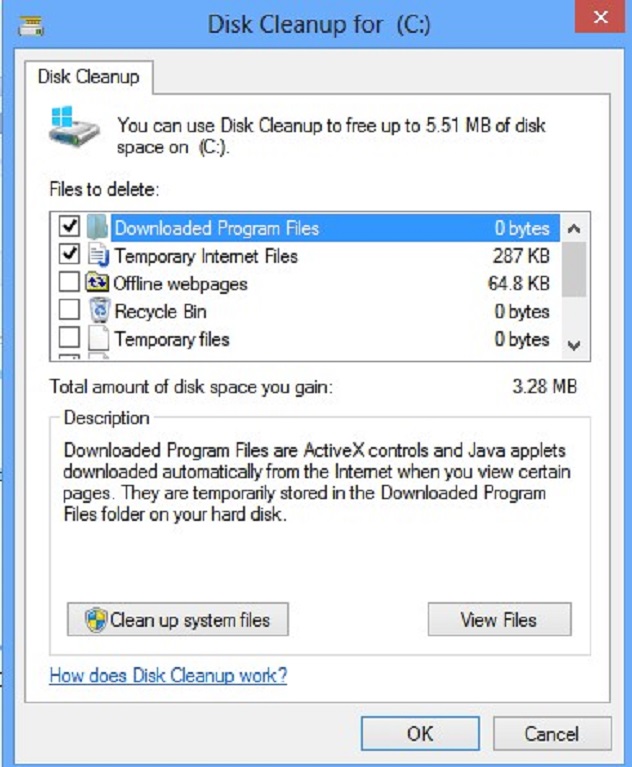
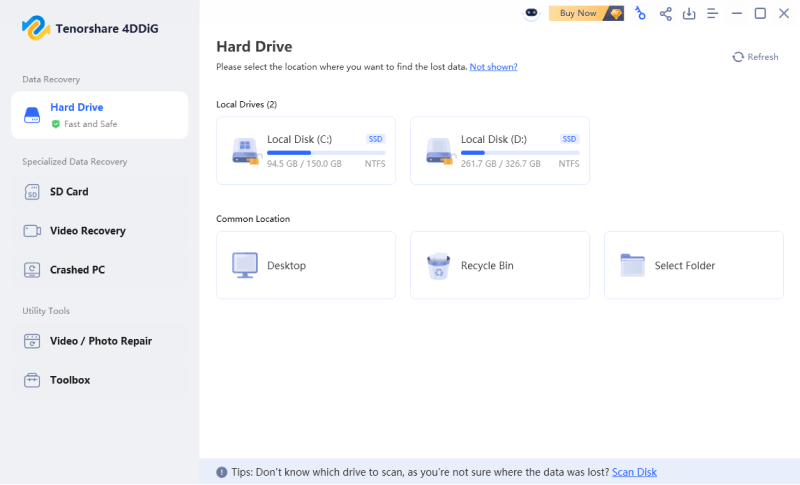
If your drive is nearly full, 4DDiG Partition Manager offers a Windows Clean feature for reviewing and removing unnecessary files. Use it to address an actual storage shortage, not as a substitute for the graphics and installation checks above. There is not sufficient evidence that disk cleanup resolves E-Day's current random crashes.

  • Close the game and save your other work, then open the 4DDiG Partition Manager.

    FREE DOWNLOAD

    Secure Download

  • Select Windows Clean and choose the file categories you want examined.Start the scan.

    start scan
  • Review the results, expanding categories and deciding what to remove.

    check the results
  • Keep anything you still need, run Clean for the selected items, and confirm the available space afterward.

    complete cleaning

You can also use Windows Storage settings if you prefer a built-in option. Do not delete game folders, saves, or rollback files simply because they occupy space.

3. Why Gears of War: E-Day Keeps Crashing on PC?

Gears of War: E-Day keeps crashing on PC for several common reasons, most of which are well-documented by The Coalition and players since the beta and launch.

Outdated or incompatible GPU drivers: Older NVIDIA drivers can prevent the game from launching at all. AMD and Intel also have minimum required versions. A driver that works fine in other games can still conflict with E-Day’s Unreal Engine 5 rendering path.

Background overlays and recording software: Programs such as MSI Afterburner + RivaTuner, Discord overlay, NVIDIA/AMD overlays, Xbox Game Bar, or older versions of OBS (before 29.0.0) frequently cause freezes or crashes, especially during shader compilation or anti-cheat initialization.

Hardware that doesn’t fully meet the requirements: The game requires a hardware ray-tracing-capable GPU, at least 12 GB of RAM, and a relatively modern Windows version. Systems that barely meet the minimum requirements often become unstable under heavy lighting, shadow, or cutscene loads.

Other Frequent Contributors:

Corrupted or incomplete game files; system clock not synced with internet time (causes certain login errors that can cascade into crashes).

High graphics settings (especially Lighting and Shadows) pushing VRAM or the GPU past a stable limit.

Conflicts with certain upscalers (TSR/FSR vs. XeSS) during cutscenes.

High graphics settings (especially Lighting and Shadows) pushing VRAM or the GPU past a stable limit

Conflicts with certain upscalers (TSR/FSR vs XeSS) during cutscenes

Conclusion

When Gears of War: E-Day keeps crashing, prioritize available updates, suitable drivers, and repeatable tests. XeSS, lower lighting and shadows, and closing overlays are community-informed options whose effectiveness varies by setup. Verify installation files before committing to another full download.

If low disk space is also present, consider 4DDiG Partition Manager for reviewing unnecessary files through Windows Clean, while keeping that maintenance separate from crash diagnosis. When the same failure survives these checks, report the exact scene and system details instead of stacking more unverified tweaks. A clear record gives support a better starting point.

FREE DOWNLOAD

Secure Download

William Bollson (senior editor)

William Bollson, the editor-in-chief of 4DDiG, devotes to providing the best solutions for Windows and Mac related issues, including data recovery, repair, error fixes.

(Click to rate this post)

You rated 4.5 ( participated)