How to Fix the MW4 Beta ms-xbl-6422d247 Error on Xbox App for PC

5 mins read

Updated on 2026-09-04 10:10:40 to game

he MW4 Beta ms-xbl-6422d247 error can prevent players from launching the game or accessing the Beta properly, making it one of the common issues to fix before playing. This error is usually related to Xbox account authentication, Microsoft services, network settings, or corrupted game-related files rather than the game itself.

In this guide, we will explain the meaning of this error code and cover the most effective fixes for the ms-xbl-6422d247 error, including updating Xbox services, repairing game files, and installing the standalone beta. Follow the steps below to identify the cause and restore access to the MW4 Beta.

1. What Does the ms-xbl-6422d247 Error Mean?

For error message “Get an app to open this ms-xbl-6422d247 link,” the ms-xbl prefix identifies an Xbox-related Windows protocol link. When you click an Xbox Store or Xbox App action, Windows should pass that request to the appropriate Xbox application or service. The ms-xbl-6422d247 message appears when Windows cannot complete that hand-off.

This does not necessarily mean that the Beta is unavailable or that your PC cannot run it. The link may be pointing to an incorrect listing, the Xbox App may not be registered correctly, or Gaming Services may be missing or damaged.

2. Why Does the Error Happen with the MW4 Beta?

  • Missing or incorrectly installed MW4 Beta package: The Beta needs to be installed as a separate game package. If the required Beta files are missing, incomplete, or not detected correctly by the Xbox app, the game may fail to launch.
  • Xbox app or Gaming Services issues: The Xbox app, Microsoft Store, and Gaming Services work together to launch Xbox PC games. Outdated, corrupted, or malfunctioning services can prevent the Beta from opening correctly.
  • Account access or entitlement problems: If your Microsoft account is not linked correctly, does not have Beta access, or is different from the account used for purchase or code redemption, the game may fail the access check.
  • Microsoft Store cache or app connection errors: A damaged Store cache or broken Xbox protocol link can stop Windows from correctly handling the MW4 Beta launch request, leading to errors such as ms-xbl-6422d247.
  • Missing PC security requirements: On PC, features such as TPM 2.0 and Secure Boot are required for online access in the MW4 Beta. If these settings are disabled, the game may fail security verification.

3. How to Solve the COD MW4 Beta ms-xbl-6422d247 Error?

Fix 1: Install the Standalone Beta Manually

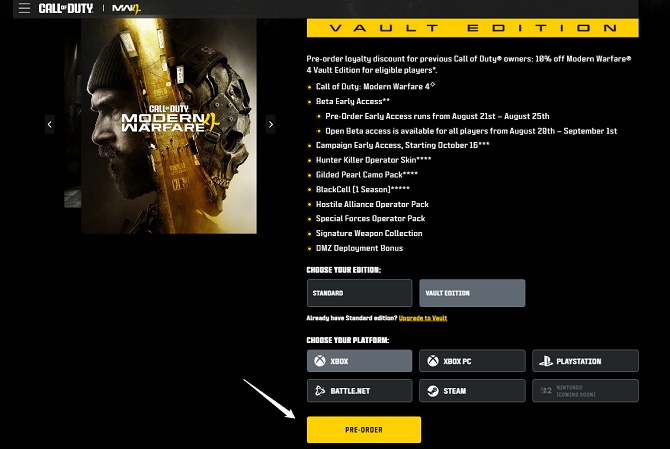
  • Open the official Xbox Store page for the Modern Warfare 4 Beta. Sign in with the Microsoft Account used by your Xbox App.

    install mw4 beta in xbox website
  • Select Install and allow the browser to open the Xbox App.

  • Confirm that the dedicated Modern Warfare 4 Beta package is being installed.

  • Wait for the download and any required packs to finish, then restart the Xbox App.

Activision also advises Xbox PC users to clear the Installed filter in the library if the Beta is not visible.

Fix 2: Check Xbox and Microsoft Account Sign-In

A valid installation link will not provide access if the entitlement is attached to a different account. Check that the Microsoft Account used in the Xbox App and Microsoft Store is the one that redeemed the Beta code or owns the eligible purchase.

  • Sign out of the Xbox App and Microsoft Store. Restart Windows.

  • Sign in to Microsoft Store first, then sign in to Xbox App with the same Microsoft Account.

  • Check that the correct Xbox, Steam, or Battle.net account is linked to the intended Activision Account.

  • Search for the Beta again and check whether the Install button is available.

Do not repeatedly unlink and relink accounts while testing. If the code was redeemed on the wrong account or platform, contact Activision Support with the purchase or redemption details.

Fix 3: Repair Xbox App and Gaming Services

If the standalone Beta is visible but the link still fails, repair the Windows components that handle Xbox installations.

Repair Xbox App

  • Open Settings > Apps > Installed apps.

  • Find Xbox, open Advanced options, and select Repair.

  • Reopen Xbox App and try the standalone Beta installation.

If Repair does not help, use Reset. Resetting can remove local app data, so you may need to sign in again.

Repair Gaming Services

  • Go to Settings > Apps > Installed apps.

  • Find Gaming Services and open Advanced options.

  • Select Repair, restart Windows, and test the installation again.

Xbox troubleshooting guidance recommends checking Xbox service status and using the available repair tools when Windows Xbox games cannot install or launch.

Fix 4: Update Microsoft Store Components

Outdated Store components can prevent Xbox protocol links from opening correctly. Update the related apps before attempting a more advanced repair.

  • Open Microsoft Store and select Library. Choose Get updates.

    get updates in microsoft store
  • Update Xbox, Gaming Services, Microsoft Store, and Xbox Game Bar if updates are available.

  • Restart Windows and open Xbox App again.

Also install pending Windows updates. A restart is important because Xbox services and Store components may not reload fully until Windows starts again.

Fix 5: Clear the Microsoft Store Cache

Use this step when the Store page is blank, the Install button does nothing, or the Xbox App keeps returning to the same protocol error.

  • Press Windows + R. Type wsreset.exe and press Enter.

  • Wait for the cache-reset window to finish and Microsoft Store to open.

  • Restart Windows, then revisit the official Beta page and select Install.

This resets the Microsoft Store cache; it does not remove your installed games. If the error remains, return to the Gaming Services repair step rather than repeatedly running the cache reset.

Fix 6: Check TPM 2.0 and Secure Boot Status

TPM 2.0 and Secure Boot are required for PC players to access online Modern Warfare 4 modes, but they are not normally the direct cause of an ms-xbl-6422d247 protocol-link error. Check them if the Beta launches but shows a separate security warning.

  • Press Windows + R, type tpm.msc, and confirm that TPM is ready for use and reports specification version 2.0.

    tpm status
  • Press Windows + R, type msinfo32, and confirm BIOS Mode is UEFI and Secure Boot State is On.

    secure boot status
  • If required, enable AMD fTPM or Intel PTT and Secure Boot in BIOS/UEFI.

  • Use the official Call of Duty Secure Attestation Wizard to verify the result.

Activision’s requirements specify UEFI rather than Legacy mode, a GPT system disk rather than MBR, and Secure Boot enabled. Other PC requirements for Call of Duty MW4, please check this guide.

⚡ Tip: Secure Boot Not Working? Convert MBR to GPT First

If Secure Boot cannot be enabled because the Windows system disk uses MBR or the computer is configured for Legacy boot, the disk may need to support GPT and the firmware may need to use UEFI. Back up important files before changing disk or boot configuration.

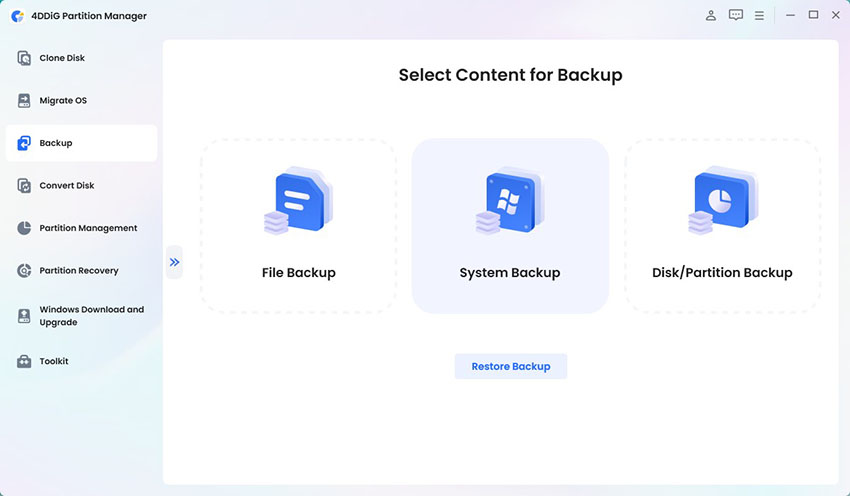
For users who need a guided disk-management tool, 4DDiG Partition Manager provides an easy way to convert MBR to GPT without reinstalling Windows, helping your PC meet the security requirements required by the MW4 Beta.

  • Download and install 4DDiG Partition Manager on your PC. Open the program, then select Convert Disk from the left-side menu and choose Convert MBR to GPT to start the process.

    FREE DOWNLOAD

    Secure Download

    mbr to gpt
  • Choose the disk you want to convert and click Continue to enter the conversion interface.

    choose disk to convert
  • If the selected disk is your system disk, the program will automatically download the required PE components. Once the download is complete, a confirmation window will appear. Make sure all important files are saved and that your computer has a stable power supply. Click Sure to restart your computer and boot into the PE environment.

    click sure
  • After your computer starts in the PE environment, open 4DDiG Partition Manager again and select Convert MBR to GPT.

    select mbr to gpt again
  • Select the target disk and click Continue to begin the conversion process.

    select target disk again
  • Once the conversion is complete, you will see a success message. Follow the on-screen instructions to restart and configure your computer boot settings. Incorrect boot settings may prevent your system from starting properly.

    follow guide to boot pc

Conclusion

The Call of Duty MW4 Beta ms-xbl-6422d247 error usually indicates that Windows cannot open the Xbox link used by the Xbox App. The most effective first step is to bypass the failed link and install the standalone Modern Warfare 4 Beta from the official Xbox Store page. If disk configuration prevents Secure Boot, 4DDiG Partition Manager’s help you convert MBR disk to GPT. Back up data before modifying partitions and contact support if the error continues.

FREE DOWNLOAD

Secure Download

William Bollson (senior editor)

William Bollson, the editor-in-chief of 4DDiG, devotes to providing the best solutions for Windows and Mac related issues, including data recovery, repair, error fixes.

(Click to rate this post)

You rated 4.5 ( participated)