How to Fix Steam Error Code E20 in 2026

5 mins read

Updated on 2026-10-13 18:22:25 to game

Steam error code E20 can block sign-in even when your password is correct and other websites load normally. It generally indicates a problem communicating with Steam during login, rather than proving that your account is banned or your games are damaged.

This guide explains the likely causes, walks through cache and network fixes, and separates login troubleshooting from storage problems that may also affect Steam. Begin by checking what still connects before changing your PC.

1. What Does Steam Error Code E20 Mean?

Wh Steam Error Code E20 is a communication error that appears when the Steam client fails to connect to Steam’s servers. Users typically see messages such as:

“There was a problem communicating with Steam. Please try again later.”

steam error code e20

This error does not indicate that your account is banned, that your password is incorrect, or that there is an issue with your account itself. It simply means the client cannot establish a proper connection with Steam’s servers.

Common Causes of Steam Error Code E20

Several conditions can interrupt the login connection. Use the pattern of failure to narrow them down:

  • Steam service disruption or maintenance: multiple devices fail around the same time, including through a separate internet connection.
  • Router or ISP connectivity problems: the desktop client works through a phone hotspot but fails on your usual network.
  • VPN or proxy interference: the error begins after changing a connection route or disappears when that route is disabled.
  • Firewall or security software rules: Steam stops connecting after a client update, while general browsing remains available. Valve notes that firewall authorization can need attention after updates.
  • Local client or Windows networking problems: the same PC fails across different connections while another device works.

Before choosing a fix, exit Steam fully, restart the PC, and try signing in again. Then test the Steam website and, if available, briefly connect the PC to a phone hotspot.

2. How to Fix Steam Error E20 on Windows?

Apply one change at a time and retest. This makes it easier to identify the setting that helped and restore changes that made no difference.

Fix 1: Clear the Download Cache

Clearing the download cache is a reasonable client maintenance step when download or startup issues accompany the login failure. The option also requires access to Steam’s Settings, so skip it if the login screen prevents you from reaching the menu.

  • Open Steam and select Steam > Settings.

  • Choose Downloads and find Clear Download Cache.

    clear download cache in steam
  • Confirm the action and allow the client to restart.

  • Sign in again, completing Steam Guard if prompted.

  • Retest the connection before resuming queued downloads.

If E20 returns immediately, move to the connection checks instead of repeatedly clearing the same cache.

Fix 2: Disable Your VPN or Proxy Temporarily

A VPN or proxy can interfere with Steam’s connection by changing how your traffic reaches the servers. Temporarily turning it off is a quick way to test whether it’s the cause of Error E20.

  • Close Steam completely, including its notification-area icon.

  • Disconnect your VPN using its app. If it has a kill switch, follow the app’s controls to permit ordinary internet access during the test.

  • Open Windows Settings > Network & internet > Proxy.

  • If you personally configured a manual proxy or setup script, temporarily disable it. Leave organization-managed settings to your administrator.

    disable proxy
  • Reopen Steam and try signing in through your normal connection.

If login works after disabling the VPN/proxy, the issue is likely related to that connection. Review your VPN or proxy settings before turning it back on.

Fix 3: Run Steam as Administrator

Use an administrator launch as a limited permissions test when the problem is confined to the desktop client, particularly if it also struggles to update or write local files.

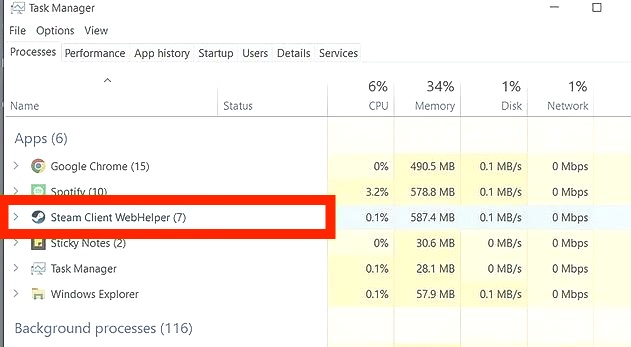
  • Exit Steam and open Task Manager with Ctrl + Shift + Esc.

  • End remaining Steam processes after confirming that downloads are stopped.

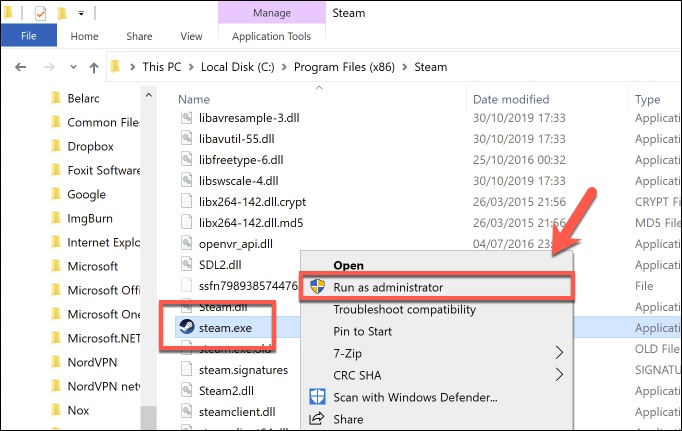
  • Find Steam in Start. Right-click it, choose Run as administrator, and approve the Windows prompt.

    run steam as administrator
  • Test sign-in, then close Steam and try a normal launch again.

Fix 4: Flush DNS and Reset Windows Networking

DNS caching and Windows networking components can affect connectivity. Start with the smaller change, flushing DNS, before resetting Winsock or TCP/IP.

  • Close Steam and any active downloads.

  • Search for Command Prompt, right-click it, and select Run as administrator.

  • Enter the following command and press Enter:

    ipconfig /flushdns

    flush dns
  • Try Steam again. If the same connection problem remains, reopen the elevated prompt and run these commands individually:

    netsh winsock reset

    netsh int ip reset

    reset network
  • Restart Windows, reconnect to the internet, and retry Steam.

If E20 persists, review whether your firewall allows the current Steam executable. Add or correct the application rule rather than disabling the firewall entirely.

⚡ Low Disk Space Causing Steam Issues Try Partition Resizing

When your drive is running low on space, Steam can fail to download, update, or install games. Simply deleting unnecessary files may not free up enough storage.

In many cases, resizing the partition is a more effective way to reclaim space and permanently resolve these issues. Tools like 4DDiG Partition Manager make the process simple and safe.

  • Open 4DDiG Partition Manager. In the left sidebar, choose Partition Management. Select the partition you wish to resize or move, then click Resize/Move at the bottom.

    FREE DOWNLOAD

    Secure Download

    resize partitions
  • In the window that appears, adjust the partition size by dragging its borders, or manually enter the desired size in GB. You can preview the changes before confirming. When you’re happy with the new size, click OK.

    set partition size
  • Review the details carefully. If everything looks correct, click OK to begin.

    click ok
  • The resizing process will start right away. Once the partition has been successfully adjusted, click Finish.

    complete resizing partition

Conclusion

Steam Error E20 is almost always a communication problem between the client and Steam’s servers. Start by checking whether the issue is limited to the desktop client or also appears on other devices and networks. Clearing the cache, disabling VPN/proxy, flushing DNS, and testing with administrator privileges will resolve the majority of cases.

If low disk space is contributing to download or update failures, 4DDiG Partition Manager provides a straightforward way to clean up storage and resize partitions, giving Steam the room it needs to function properly. Address connection issues first, then free up space when necessary — this combination keeps troubleshooting focused and effective.on itself.

FREE DOWNLOAD

Secure Download

William Bollson (senior editor)

William Bollson, the editor-in-chief of 4DDiG, devotes to providing the best solutions for Windows and Mac related issues, including data recovery, repair, error fixes.

(Click to rate this post)

You rated 4.5 ( participated)