How to Fix Modern Warfare 4 Update Not Enough Space on PC

5 mins read

Updated on 2026-10-13 18:22:28 to game

A Modern Warfare 4 update not enough space warning can appear even when the patch download seems smaller than your available storage. Updating may require room to unpack files and rebuild existing game data, so download size alone is not a reliable target.

Check free space on the actual installation drive and leave working room on C: too. If cleanup is insufficient, enlarge the game partition or move the installation to a roomier SSD. This guide explains how to choose the right fix and troubleshoot a warning that persists after freeing space.

⚡ 1. How to Fix Modern Warfare 4 Update Not Enough Space?

Fix 1: Free Up Temporary Files and Windows Junk

Start with disposable Windows data if C: is nearly full. Clearing C: will not increase D: capacity, but it can help when a launcher uses the system drive for temporary files.

  • Open Settings > System > Storage > Temporary files.

  • Review the categories and select temporary files, thumbnails, or other unwanted cached data. Leave Downloads unchecked unless you have reviewed its contents.

    select temporary files to clean
  • Click Remove files, then empty the Recycle Bin after checking for files you still need.

  • Reopen This PC and confirm how much space was recovered before retrying.

Avoid deleting files manually from Windows or the game folder. Removing unfamiliar installation files can turn a storage problem into a repair download.

Fix 2: Remove Unused Games and Apps

If the game drive itself is full, removing one large unused title is often more effective than clearing small caches. Uninstall from the same drive as MW4; deleting a game on another disk will not help its update space.

  • Open Settings > Apps > Installed apps and sort by size.

  • Identify applications stored on the affected drive. Check their installation location when necessary.

  • Uninstall unused software. For games, use the owning launcher’s uninstall option and back up local saves first.

    uninstall unused app
  • Check the remaining free space and resume the update.

Fix 3: Extend the MW4 Installation Partition

Use partition resizing when your SSD has spare capacity outside the game volume. For example, D: may be full while another partition on the same physical SSD has room to spare. Enlarging D: gives the installation more capacity without requiring a complete reinstall.

4DDiG Partition Manager provides Resize/Move controls for adjusting partition boundaries. Back up important data and close games before changing the layout. Keep the PC connected to power during the operation.

  • Launch 4DDiG Partition Manager and open Partition Management. Locate the physical disk containing the MW4 volume. Click Resize/Remove.

    FREE DOWNLOAD

    Secure Download

    Resize
  • In the pop-up window, adjust its size. You can preview the layout before applying the changes; if it looks correct, click OK to continue.

    set the partition size
  • Review the pending changes. If everything is correct, click OK to start.

    click ok to confirm
  • The partition resizing process will begin immediately. Wait until the partition reaches the expected size, then click Finish.

    extend partition successfully

Fix 4: Move MW4 to Another Drive With More Free Space

Moving is the better choice when another SSD has enough capacity for the installation and future updates. Prefer the launcher’s supported move function over dragging the folder in File Explorer.

  • Open Steam > Steam menu > Settings > Storage (or Downloads > Steam Library Folders in older versions).

  • Add a new library folder on the target drive if one doesn’t exist.

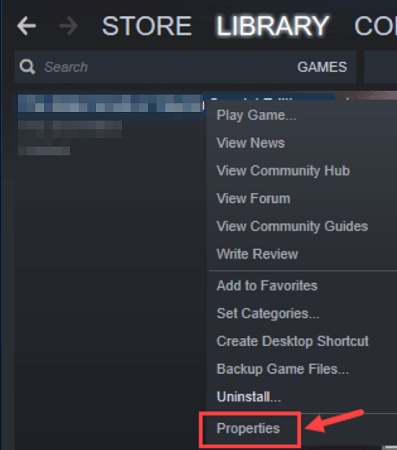
  • In your Library, right-click the game > Properties > Installed Files > Move install folder.

    move installer folder
  • Choose the new library on the other drive and confirm. Steam handles the move.

2. Modern Warfare 4 Update Not Enough Space but There Is Free Storage

If the warning remains, separate usable space from space elsewhere on the computer. A PC with 200 GB free on E: can still reject a patch for a game installed on a nearly full D:. Likewise, enough room for the compressed download may still be insufficient for installation.

Recheck the Installation Path and Restart the Launcher

Open the game’s installation settings and record its full folder path. Inspect that drive in File Explorer, plus C: if Windows is low on space. Disconnecting or reconnecting an external drive can also affect whether the launcher sees its library.

Pause the update, exit the launcher completely, and restart Windows. Open the launcher again, confirm the library is available, and retry.

This lets it reassess storage after cleanup or relocation. If Windows cannot save a small test file to the destination, investigate that drive’s permissions or write protection before downloading again.

Use the Launcher’s Download or Repair Tools

For Steam:

  • Right-click the game in Library > Properties > Installed Files > Verify integrity of game files.

    verify integrity of game files
  • If the download remains stuck, use Settings > Downloads > Clear Download Cache, then sign in again when prompted.

For Battle.net:

  • Select the game and open the menu beside Play.

  • Then choose Scan and Repair when available. Menu labels can change with launcher versions.

Repair checks can replace missing files. If the warning repeats, save the exact error, installation path, and free-space figures for launcher support.

FAQs About COD Modern Warfare 4

1. When is Modern Warfare 4 coming out?

Activision’s official announcement lists October 23, 2026 as the launch date.

2. What are the minimum PC requirements for Modern Warfare 4 in 2026

The official product page specifies TPM 2.0 and Secure Boot for PC. And for more specific information, please check: Call of Duty Modern Warfare 4 PC Requirements: Can Your PC Run MW4?

Conclusion

Resolve a storage warning by checking the installation drive first, then removing files from the volume that actually needs room. If another partition on the same SSD has spare capacity, 4DDiG Partition Manager can help resize the game volume; Windows Clean can also remove unwanted system junk after review.

When the physical disk is full, moving MW4 to a larger SSD is the more practical option. If the warning continues despite sufficient usable space, recheck the path, restart the launcher, and use its repair tools. Keep extra room available so the next update does not immediately recreate the problem.

FREE DOWNLOAD

Secure Download

Ehtsham Ahmed (senior editor)

Ehtsham Ahmed, the content writer for 4DDiG, is dedicated to offering workarounds for Windows Data Recovery, Windows Troubleshooting, iDevices System Repair, etc.

(Click to rate this post)

You rated 4.5 ( participated)