How to Install macOS 27 Beta: Step-by-Step Guide

5 mins read

Updated on 2026-08-17 18:59:59 to Mac Update

Installing macOS 27 Beta allows you to try new features before the official release, but Beta versions may also bring bugs, app compatibility issues, or unexpected system problems.

Before installing, check whether your Mac supports macOS 27 Beta, choose the right Beta channel, and create a backup of your important files. This guide walks you through how to install macOS 27 Beta through Software Update and what to do if files are missing after the installation.

how to install macos 27

What to Do Before Installing macOS 27 Beta?

Prepare your Mac before installing macOS 27 Beta. Check compatibility and back up your important files. You also need enough storage, stable internet, and reliable power. Here are a few things to check.

Check If Your Mac Supports macOS 27 Beta

Before downloading macOS 27 Beta, confirm that your Mac is supported. An unsupported Mac may not receive macOS 27 Beta updates through Software Update.

To check your Mac model, open "Apple menu > About This Mac" and note your device information. Then compare it with Apple's official macOS 27 Beta compatibility requirements.

Apple may change hardware requirements between macOS versions. If you are using an older Mac, especially an Intel-based model, check the latest compatibility information before installing macOS 27 Beta.

Back Up Your Mac Before Installing macOS 27 Beta

Create a backup before installing macOS 27 Beta. The installation process should not normally remove your personal files, but Beta software may cause unexpected system issues that make some data unavailable.

Time Machine is the built-in backup tool in macOS:

  • Connect an external storage drive to your Mac.

  • Open "System Settings > General > Time Machine".

  • Click "Add Backup Disk" and select your drive.

  • Choose "Back Up Now" and wait for the backup to complete.

📝 Note:

A backup protects your files before making system changes. If files become missing or inaccessible after an unexpected Beta installation issue, 4DDiG data recovery software may help scan the drive and recover lost data.

Check Storage Space and Internet Connection

Make sure your Mac has enough free storage before downloading and installing macOS 27 Beta. Open "System Settings > General > Storage" to check available space. If storage is low, remove unnecessary files or move large items to another drive.

How to Install macOS 27 Beta via Software Update?

The standard way to install macOS 27 Beta is through Software Update. Before downloading the Beta version, you need to enable either the Developer Beta or Public Beta channel. After that, Software Update can find, download, and install the macOS 27 Beta.

Step 1: Choose and Enable Developer Beta or Public Beta Updates

Apple provides two Beta channels: Developer Beta and Public Beta. Follow to choose the option that matches your purpose.

Enable macOS 27 Developer Beta Updates

The Developer Beta is designed for developers who want early access to test apps and upcoming macOS features. Make sure your Apple Account has the required developer access before enabling Developer Beta updates.

Follow these steps:

  • Sign in to the Apple Developer website with the Apple Account that has developer access.

    sign in to apple developer website
  • Open "System Settings", then go to "General > Software Update".

  • Click the information button next to "Beta Updates", then select "macOS 27 Developer Beta".

  • Click "Done" to enable Developer Beta updates.

Apple confirms that supported Macs running macOS Ventura 13.4 or later can select the Developer Beta directly in Software Update.

Enable macOS 27 Public Beta Updates

The Public Beta is intended for users who want to test macOS 27 before its official release. You must first enroll in the Apple Beta Software Program.

Follow these steps:

  • Visit the Apple Beta Software Program and sign in with your Apple Account.

    apple beta software program
  • Accept the program agreement and enroll your Mac in the Beta Software Program.

  • Open "System Settings" on your Mac and go to "General > Software Update".

  • Click the information button next to "Beta Updates" and select "macOS 27 Public Beta".

  • Click "Done" to enable Public Beta updates on your Mac.

💡 Tip:

Use the same Apple Account for program enrollment and your Mac. Otherwise, the Public Beta option may not appear.

Step 2: Download macOS 27 Beta from Software Update

After enabling a Beta channel, return to Software Update. Your Mac will check Apple's servers for the latest eligible macOS 27 Beta release.

  • Open "Software Update" and make sure the correct Beta Updates channel is enabled.

  • Wait while your Mac checks for available updates.

  • Find "macOS 27 Beta" in the available updates.

    find the macos 27 golden gate package
  • Click the download or installation option to start downloading macOS 27 Beta.

If macOS 27 Beta does not appear, restart your Mac and check again. Also confirm your internet connection, Apple Account, Beta enrollment, and Mac compatibility. Beta availability may vary by release schedule and region.

There is no reliable fixed download time. The result depends on your connection speed, the installer size, and current demand on Apple's servers.

Step 3: Install macOS 27 Beta on Your Mac

Once the download finishes, the installer will prepare your Mac for macOS 27 Beta. Save your work before allowing the installation to start.

  • Click "Install", "Restart", or the option shown by Software Update.

  • Enter the administrator password if macOS requests it.

  • Follow the onscreen instructions and allow your Mac to restart.

  • Wait while the installation process completes. Your Mac may restart several times.

  • Sign in when the Mac reaches the login screen.

The Mac may restart several times. You may also see more than one progress bar. This is normal during a major macOS installation.

Warning:

Do not force the Mac to shut down while the installation is in progress. On a MacBook, keep the power adapter connected until the update finishes.

How to Install macOS 27 Beta Using a Bootable Installer?

A bootable installer is an alternative way to install macOS 27 Beta from an external USB drive instead of downloading the update directly through Software Update.

This method is mainly useful for advanced users who need to install macOS 27 Beta on multiple compatible Macs, create an offline installer, or perform a clean installation. For most users, installing through Software Update is the recommended option.

What Is a macOS Bootable Installer?

A bootable installer is a USB drive or external volume that contains the complete macOS 27 Beta installation files. After creating the installer, you can start a compatible Mac from this external drive and install macOS without downloading the full installer again on each device.

To create a bootable installer, you need the full macOS 27 Beta installer from an official Apple source and a suitable external drive.

How to Create and Use a macOS 27 Beta Bootable Installer?

  • Download the full macOS 27 Beta installer from an official Apple source and keep the installer app in the Applications folder.

  • Connect a USB drive or external volume, then open Terminal and run Apple's createinstallmedia command:

    sudo /Applications/Install\ macOS\ 27\ Beta.app/Contents/Resources/createinstallmedia --volume /Volumes/MyVolume

    Replace "/Volumes/MyVolume" with the name of your external drive.

    run command to downgrade macos 27
  • Wait for the process to complete and use the USB drive as a bootable macOS 27 Beta installer.

  • Connect the installer to the target Mac, start the Mac from the external drive, and follow the onscreen instructions to install macOS 27 Beta.

Warning:

Creating a bootable installer erases the selected external drive. Back up any important files on that drive before continuing.

How to Recover Missing Files After Installing macOS 27 Beta?

Installing macOS 27 Beta should not normally remove your personal files. However, Beta software may sometimes cause unexpected system issues, file access problems, or missing data after installation.

If important files become unavailable after installing macOS 27 Beta, 4DDiG Mac Data Recovery can scan your Mac drive and help recover lost or inaccessible files.

With 4DDiG, you can:

  • Recover more than 2,000 file types, including photos, videos, and documents from SSDs, HDDS, SD cards and other storage devices.
  • Scan Mac internal drives and external storage devices for missing files.
  • Preview recoverable files before starting the recovery process.
  • Recover files lost due to accidental deletion, system issues, or unexpected update problems.
FREE DOWNLOAD

Secure Download

FREE DOWNLOAD

Secure Download

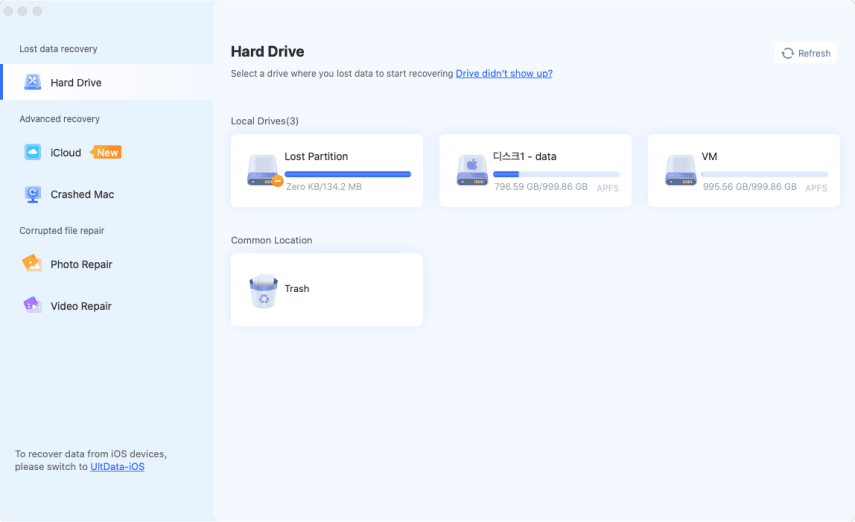
  • Download and open 4DDiG. Select the Mac drive where your files were stored before the macOS 27 Beta installation issue, then start scanning.

    4ddig mac main interface
  • 4DDiG scans your drive for recoverable files after the macOS 27 Beta issue. Use filters or search to quickly find missing photos, videos, documents, and other files.

    preview all recoverable files on mac 4ddig
  • Preview the found files to check whether they are recoverable. Select the files you need and click the "Recover" button.

    click to recover files on mac 4ddig
  • Save the recovered files to a different location. Avoid saving them back to the original drive to reduce the risk of overwriting other recoverable data.

    save recovered files on mac 4ddig

FAQs About Installing macOS 27 Beta

Is macOS 27 Beta free?

Yes, the macOS 27 Public Beta is generally free through the Apple Beta Software Program. You need a valid Apple Account and must accept the program agreement. The Developer Beta requires Apple developer access and an Apple Account associated with the Apple Developer website.

Is macOS 27 Beta safe to install?

No, macOS 27 Beta should not be treated as risk-free, even though Apple provides it. Beta software may contain bugs, inaccurate behavior, and compatibility problems. Back up your Mac before installation. Use a secondary Mac when possible.

Should I install macOS 27 Beta on my main Mac?

No, you should generally avoid installing macOS 27 Beta on a Mac used for critical work. A secondary Mac is safer for testing. If you must use your main Mac, create a complete backup and check that your essential apps support the Beta.

How do I remove macOS 27 Beta?

Turn off Beta Updates if you only want to stop receiving future Beta releases. Returning immediately to a stable macOS version may require erasing the Beta system and reinstalling the public version. You can also downgrade macos 27 to 26 if you want.

Conclusion

For users learning how to install macOS 27 Beta, the safest route is to check compatibility and create a backup first. Enable the correct Beta channel, then download and install the update through Software Update.

If an unexpected system issue leaves personal files missing or inaccessible, 4DDiG can scan the affected drive and help recover data that is still recoverable.

FREE DOWNLOAD

Secure Download

FREE DOWNLOAD

Secure Download

William Bollson (senior editor)

William Bollson, the editor-in-chief of 4DDiG, devotes to providing the best solutions for Windows and Mac related issues, including data recovery, repair, error fixes.

(Click to rate this post)

You rated 4.5 ( participated)