Windows 11 24H2/ 25H2 to 26H2 Upgrade: Step-by-Step Guide

5 mins read

Updated on 2026-09-04 10:10:40 to Windows Update

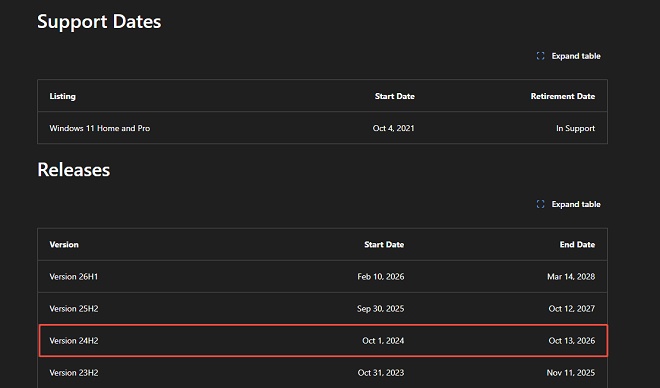
You can upgrade Windows 11 24H2/25H2 to 26H2 without reinstalling your apps or personal files. Microsoft has confirmed that versions 24H2, 25H2, and 26H2 share the same servicing branch, so the normal route is a lightweight enablement package followed by one restart. This guide explains the official-ready upgrade paths, how to prepare your PC, and what to do when 26H2 does not appear in Windows Update.

1. Can Windows 11 24H2 and 25H2 Upgrade Directly to 26H2?

Yes. Microsoft states that Windows 11 24H2, 25H2, and 26H2 use a shared servicing branch. On an up-to-date, eligible PC, the Windows 11 26H2 enablement package acts like a switch: the monthly cumulative updates have already delivered much of the shared code, and the package activates the new version designation and applicable features. That is why you do not need to install 25H2 first when moving from 24H2 to 26H2.

upgrade windows 11 24h2 and 25h2 to 26h2

This direct path does not mean every PC receives the offer on the same day. Microsoft can phase the rollout or apply a compatibility hold when a driver, application, or hardware configuration has a known issue. A managed work PC may also be held on its current release by Windows Update for Business, WSUS, or an IT policy.

2. Check Requirements and Prepare for the 26H2 Upgrade

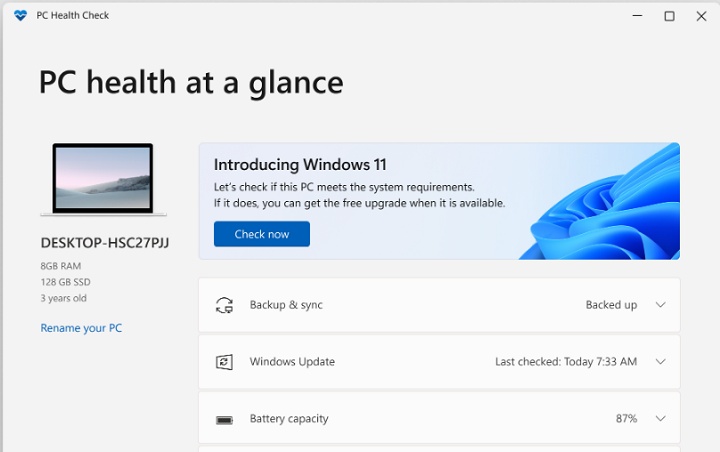
The Windows 11 26H2 system requirements remain tied to the Windows 11 25H2 hardware baseline. Before starting, install the latest cumulative update for 24H2 or 25H2, update important drivers, connect a laptop to power, and back up your impootant data. Save your BitLocker recovery key if device encryption is enabled.

Requirement
Processor 1 GHz or faster, two or more cores, compatible 64-bit CPU or SoC.
Memory 4 GB minimum; 8 GB or more is more practical.
Storage 64 GB or larger device, plus free space for setup and rollback files.
Firmware UEFI firmware with Secure Boot capability.
Security TPM 2.0 and Secure Boot capability.
Graphics DirectX 12-compatible GPU with a WDDM 2.0 driver.

Setup needs working room for the download, temporary installation files, and the rollback copy. If the system partition is nearly full while another partition has unused capacity, extend C: drive first to prevent the installation from failing.

3. How to Upgrade Windows 11 24H2/25H2 to 26H2?

Use the methods below in order. For a production PC, wait until Microsoft releases 26H2 to the general public; Release Preview is intended for validation and may not be appropriate for your main machine.

Method 1: Upgrade via Windows Update

  • Open Settings > Windows Update. Turn on “Get the latest updates as soon as they’re available” if you want to join the earlier phase of the rollout.

  • Select Check for updates. When “Windows 11, version 26H2” appears, choose Download and install.

    check for updates
  • Save your work and restart when prompted. After sign-in, press Windows + R, enter winver, and confirm version 26H2.

If 26H2 still does not appear, the rollout may not have reached the PC or Microsoft may have placed a safeguard hold. In that case, wait or use another official method only after confirming compatibility.

Method 2: Manually Install the 26H2 Enablement Package

If Windows Update hasn’t offered the 26H2 upgrade yet, or you prefer a faster, more controlled approach, you can manually install the enablement package.

  • Install the latest cumulative update for Windows 11 24H2 or 25H2 and restart.

  • Obtain Windows 11 26H2 through an official Microsoft servicing channel, such as the Microsoft Update Catalog.

    install win11 26h2 enablement package
  • Install the package, restart once, and verify the version with winver.

The final KB number and production prerequisites must be checked on Microsoft’s support page before publication or installation.

Method 3: Use Windows 11 Installation Assistant

The Windows 11 Installation Assistant is useful when Windows Update does not offer the release but Microsoft has made 26H2 the current public download. The tool is designed for the PC you are using and supports x64 systems, not Arm-based PCs.

  • Download and run Installation Assistant as an administrator.

    download installation assistant
  • Allow the compatibility check, accept the license terms, and choose Accept and install.

  • The tool will automatically download and install the latest Windows 11. When prompted, click Restart now. The PC will restart several times. do not force shut it down.

After restarting, go to Settings > System > About to confirm the Windows version.

Method 4: Perform an In-Place Upgrade Using a Windows 11 26H2 ISO

A Windows 11 26H2 ISO in-place upgrade can retain personal files and installed applications while refreshing the operating system.

  • Download the 26H2 ISO that matches the PC architecture and display language.

    download 26h2 iso file
  • In File Explorer, right-click the ISO and select Mount, then open the mounted drive and run setup.exe.

    mount win11 26h2 iso
  • Choose whether Setup should download updates, accept the license terms, and confirm that “Keep personal files and apps” is selected.

  • Select Install. The PC will restart several times; do not interrupt power.

If the option to keep files and apps is unavailable, stop. The ISO may use a different language, edition, architecture, or an unsupported upgrade path. Correct the mismatch rather than continuing with a clean install by accident.

⚡ A Simpler Alternative to Upgrading Windows 11 24H2/25H2 to Version 26H2

If the official methods feel complicated, or your PC doesn’t fully meet Microsoft’s requirements—there’s a more straightforward option. 4DDiG Partition Manager includes a dedicated Windows 11 upgrade feature that automatically checks your PC’s compatibility and can help you upgrade to version 26H2 even on devices that would normally be blocked.

  • Download, install, and launch 4DDiG Partition Manager. Select Windows Download and Upgrade from the left-hand menu, and then choose Windows 11 Upgrade.

    FREE DOWNLOAD

    Secure Download

    upgrade to win11
  • Wait while the program checks your processor, TPM status, Secure Boot configuration, boot mode, and disk layout. Review the compatibility report carefully to see which items pass and which ones require attention.

    check compatibility
  • If the PC does not meet requirements, click Next and follow the recommended option. Depending on the detected problem, the program may guide you to prepare for Windows 11 installation.

    bypass win11 requirements
  • Then, select the required Windows version, edition, and system language.

    select language and version
  • After the preparation process finishes, follow the on-screen instructions to complete the Windows upgrade.

    win11 setup

The program can also convert an MBR disk to GPT or expand the system partition before setup, helping ensure a smoother and more successful upgrade process.

Conclusion

For most users, the safest way to upgrade Windows 11 24H2/25H2 to 26H2 is to install current cumulative updates and wait for the 26H2 offer in Windows Update. The shared servicing branch should make the transition fast, but availability can still depend on rollout timing and compatibility holds.

Installation Assistant and an official ISO are useful fallbacks after 26H2 becomes the current public release. If limited C: drive space, MBR partitioning, or installation-media preparation blocks setup, 4DDiG Partition Manager can help resolve the disk-side issue before you restart the upgrade.

FREE DOWNLOAD

Secure Download

Sawart Mashab (senior editor)

Sawart Mashab, the content writer for 4DDiG, is adept at creating informative and practical solutions related to Windows and macOS issues, data recovery, file repair, and RAID storage.

(Click to rate this post)

You rated 4.5 ( participated)