How to Downgrade from Windows 11 26H2 to 25H2

5 mins read

Updated on 2026-09-20 18:29:25 to Windows Fix

If Windows 11 26H2 caused compatibility problems, unstable drivers, or application errors, you can often return to Windows 11 25H2 without a clean installation. The available method depends mainly on how recently you upgraded and whether Windows still has the rollback files required to restore the earlier build.

You may be able to remove the enablement package, use Go back in Recovery settings, or reinstall 25H2 from an ISO when the built-in rollback is no longer available. This guide explains what to check first, how to downgrade Windows 11 26H2 to 25H2, and what to do when the process fails.

⚡ 1. Before You Roll Back to Windows 11 25H2

A downgrade changes core operating-system files, so preparation matters more than simply selecting a rollback button. Confirm that your system can perform a built-in rollback and create a recovery option before you begin.

Check How Long Since You Upgraded to 26H2

Windows usually keeps the files needed for an in-place rollback for a limited period, commonly about 10 days after a feature upgrade. To check whether the option is still available, open Settings > System > Recovery and look for Go back.

Confirm Windows.old and Recovery Files Exist

The Windows.old folder often contains the previous installation and is used by the built-in rollback process. Open File Explorer and check the system drive for “C:\Windows.old”. Do not delete it while you are deciding whether to return to 25H2.

The folder may be hidden by default, and its removal normally eliminates the easiest downgrade path.

Back Up Important Files and the System

Although the Go back option is designed to preserve personal files, it can remove some drivers, apps, and settings. Back up Desktop, Documents, Downloads, photos, project files, game saves, browser data, and application settings to a separate drive.

For broader protection, use 4DDiG Windows Backup to create a file, partition, disk, or system backup before changing Windows. Store the backup somewhere other than the system partition.

  • Downloading and installing 4DDiG Windows Backup, and connect an external hard drive to your computer. Open the program and choose “Create a backup task.”

    FREE DOWNLOAD

    Secure Download

    create a backup task
  • Select the backup method you need. Next, choose where the backup will be saved. Optionally enter a backup name, and click “Start backup”.

    backup settings
  • Wait for the backup to finish. You can also toggle the option to automatically shut down the computer once the backup is complete.

    waiting for backup

2. How to Downgrade from Windows 11 26H2 to 25H2?

Use the least destructive option that matches your installation history. Check the Windows version again with winver after every method, and do not erase the old drive or delete backup files until 25H2 has started normally.

Option 1: Uninstall 26H2 via Windows Update

  • Press Windows + I to open Settings. Go to Windows Update > Update history.

    update history
  • Select Uninstall updates under Related settings.

    uninstall updates
  • Look for the 26H2 feature enablement package or the update installed immediately before the problem began.

  • Select Uninstall, confirm the action, and restart the computer.

  • Run winver after the restart to check whether the system is back on 25H2.

If 26H2 is not listed, do not remove an unrelated security update at random. The update may not support standalone removal, or the upgrade may require the Recovery settings method.

Option 2: Use Go Back in Recovery Settings

When the upgrade was recent and Windows.old is intact, Recovery settings are usually the clearest way to go back to Windows 11 25H2 from 26H2.

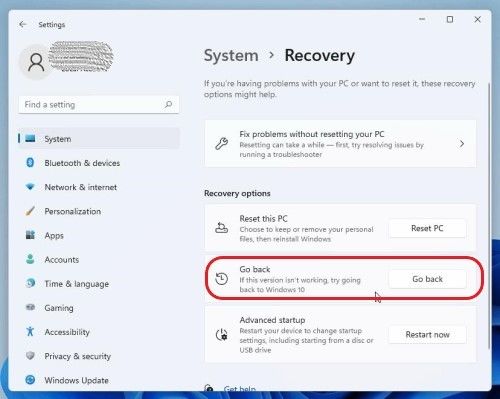
  • Open Settings > System > Recovery. Select Go back under Recovery options.

    go back
  • Choose a reason, then select Next.

  • When Windows asks whether you want to check for updates, choose No, thanks if you want to continue.

  • Review the warnings about applications, drivers, and passwords, then select Next.

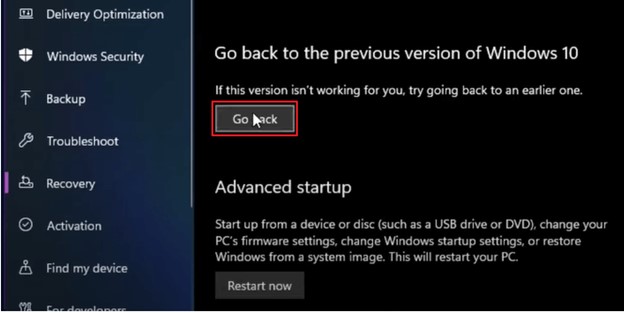
  • Choose Go back to the earlier build and allow Windows to restart until the rollback finishes.

Do not interrupt the process during its restarts. After you reach the desktop, run winver, test your key applications, and confirm that important files are available. If Go back is unavailable, use Option 3.

Option 3: Reinstall Windows 11 25H2 from an ISO

When the rollback period has expired or the recovery files are gone, reinstalling 25H2 is the practical alternative. Download the correct Windows 11 25H2 ISO from Microsoft, create installation media if needed, and back up your data first.

Note:

An in-place setup may offerKeep personal files and apps, but this choice depends on the ISO, edition, language, and current installation. If Setup does not offer that option, stop and verify the media before proceeding.

  • Mount the 25H2 ISO in Windows and run setup.exe, or boot from a prepared USB installer.

    mount iso
  • Confirm the edition and language match your current license where applicable.

  • Choose the option that preserves files and apps when it is available and suitable.

  • Complete setup, install drivers and updates, and restore your files from the backup.

3. Why You Cannot Downgrade from 26H2 to 25H2?

When Windows refuses to roll back, the cause is usually one of four conditions rather than a missing button. Identify the condition before choosing a more destructive solution.

More Than About 10 Days Have Passed

After the rollback window, Windows may remove the previous installation files automatically. In that case, Go back disappears or displays a message that it is no longer available. Reinstalling 25H2 from compatible media is normally required.

Windows.old or Recovery Files Were Deleted

Disk Cleanup, Storage Sense, or manual deletion can remove Windows.old. Without those files, Windows cannot reconstruct the earlier build through Recovery settings.

System Files are Corrupted

An interrupted upgrade, disk error, or forced shutdown can damage component files. After backing up your data, open an elevated Command Prompt and run “sfc /scannow”, followed by “DISM /Online /Cleanup-Image /RestoreHealt”`. Restart and retry the appropriate rollback method. If Windows cannot boot, use the repair tools in WinRE instead.

Not Enough Free Space on the C: Drive

Rollback and reinstall operations need working space for temporary files. Extend your system drive first if the space is not enough, but do not delete Windows.old if you still need it.

Conclusion

To downgrade Windows 11 26H2 to 25H2, try uninstalling the enablement package; if the upgrade is recent, use Settings > System > Recovery > Go back. When the built-in options are unavailable, reinstall 25H2 from compatible ISO media, choosing to keep files and apps only when Setup explicitly offers it.

Because every rollback path changes system files, create a backup with 4DDiG Windows Backup before you begin. A separate system or disk backup gives you a safer way to recover if the downgrade fails.

FREE DOWNLOAD

Secure Download

William Bollson (senior editor)

William Bollson, the editor-in-chief of 4DDiG, devotes to providing the best solutions for Windows and Mac related issues, including data recovery, repair, error fixes.

(Click to rate this post)

You rated 4.5 ( participated)