Windows 11 26H2 Uninstall Guide: 3 Ways

5 mins read

Updated on 2026-09-20 18:29:26 to Windows Fix

If Windows 11 26H2 caused driver conflicts, app crashes, or boot problems, you can usually remove the update and return to the previous Windows version. This guide covers the practical methods to uninstall Windows 11 26H2, including the available options in Settings, important time limits, and key precautions to follow so the process goes smoothly. Let’s walk through how to do it.

⚡ 1. Before You Uninstall Windows 11 Version 26H2

Check Your BitLocker or Device Encryption Recovery Key

If BitLocker or Device Encryption is enabled, Windows may request a recovery key when you enter WinRE or change system files. Find BitLocker Recovery key before starting. You may be able to access it through your Microsoft account, your organization’s device-management portal, or a saved printout/USB copy.

Back up Important Files

Before you uninstall Windows 11 26H2, protecting your important files is essential. Unexpected issues during the process could put documents, photos, or other critical data at risk. A reliable way to do this is with 4DDiG Windows Backup, a straightforward tool that lets you create full system, partition, or selective file backups in just a few clicks.

  • After downloading and installing 4DDiG Windows Backup, connect an external hard drive to your computer. Open the program and choose “Create a backup task.”

    FREE DOWNLOAD

    Secure Download

    create a backup task
  • At the top, select the backup method you need. Then choose where the backup will be saved. Optionally enter a backup name, and click Start backup.

    backup settings
  • Wait for the backup to finish. You can also toggle the option to automatically shut down the computer once the backup is complete.

    waiting for backup

Once finished, your disk has been successfully backed up.

2. How to Uninstall Windows 11 26 3 Methods

Choose a method according to your situation. If Windows loads and you installed a specific update recently, start with Method 1. If you upgraded from an earlier Windows version and still have rollback files, Method 2 is usually the most direct.

Method 1: Uninstall Windows 11 26H2 via Windows Update

Use this method when 26H2 appears in your update history or when a specific cumulative update caused the problem. It removes the selected update rather than restoring every previous system change.

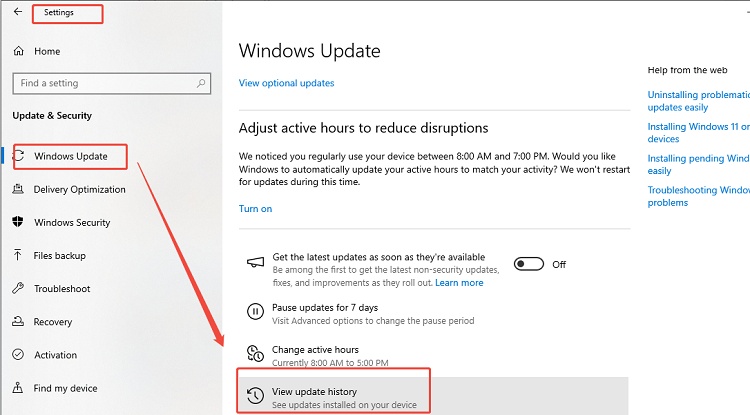
  • Press Windows + I to open Settings. Select Windows Update, then choose Update history.

  • Scroll down and click Uninstall updates.

    uninstall updates
  • Find the Windows 11 26H2 feature update or the recent KB update linked to the problem.

  • Click Uninstall, confirm the prompt, and restart the computer.

  • After Windows starts, type winver in Search and confirm the installed version and build.

If the update is not listed, the package may not support standalone removal, or the problem may be related to the broader feature upgrade. In that case, try Recovery settings instead.

Method 2: Roll Back Windows 11 26H2 via Recovery Settings

Use the Go back option when you recently upgraded from an earlier Windows version and Windows still retains the required rollback files, often in Windows.old. The option is time-limited and may disappear after the rollback files are removed.

  • Open Settings and go to System > Recovery.

  • Under Recovery options, select Go back.

    go back
  • Choose a reason for returning to the previous version, then click Next.

  • When prompted to check for updates, select No, thanks if you want to continue with the rollback.

  • Click Go back to the earlier build and let Windows restart until the process finishes.

Do not manually delete Windows.old before deciding whether you need this option. If Go back is missing or disabled, Windows may be outside the rollback period, or the recovery files may have been removed.

Method 3: Uninstall 26H2 from Windows Recovery Environment (WinRE)

Use WinRE when Windows 11 26H2 will not load normally or Settings cannot open. You can enter WinRE from the sign-in screen by holding Shift while selecting Restart. If that is not possible, interrupt startup several times until Windows displays Automatic Repair.

  • Select Troubleshoot > Advanced options > Uninstall Updates.

    uninstall updates
  • Choose Uninstall latest feature update if you want to remove the 26H2 upgrade.

    uninstall latest feature update
  • Select an administrator account and enter the password or BitLocker recovery key if requested.

  • Confirm the removal and restart the PC.

After Windows starts, verify the version with winver. If the PC still fails to boot, return to Advanced options and try Startup Repair or System Restore.

3.What to Do If You Cannot Uninstall Windows 11 26H2?

An uninstall may fail because recovery files are missing, Windows components are corrupted, or another process interrupts the rollback. A long restart can be normal, but repeated failure, an error code, or a return to the same version indicates that the rollback did not complete.

Reasons and Resolutions

  • Go back is unavailable: Windows.old or other recovery files may have been deleted. You may need to reinstall the previous Windows version from official installation media.
  • The update is not listed: It may be an enablement package or a package that cannot be removed separately. Use Recovery settings or WinRE.
  • The process is stuck: Keep the PC connected to power, disconnect unnecessary USB devices, and avoid forcing a shutdown during the first restart. If it repeatedly fails, boot into WinRE and run Startup Repair.
  • System files are damaged: After backing up your data, run sfc /scannow and DISM /Online /Cleanup-Image /RestoreHealth from an elevated Command Prompt, then retry the appropriate recovery method.
  • There is not enough space: Free space on the system drive before trying again. Do not delete Windows.old if you still plan to use Go back.

If none of these options works, install the previous Windows version’s ISO or USB installer.

Conclusion

You can usually uninstall Windows 11 26H2 through Windows Update, or remove the latest feature or quality update from WinRE. Use Windows Update when a specific package caused the issue, Recovery settings when you want to return to the previous build, and WinRE when Windows cannot start normally.

If the uninstall fails, check for missing recovery files, corrupted system components, and insufficient storage before moving to installation media. To reduce the risk of data loss, create a backup with 4DDiG Windows Backup before making system changes. A separate system or disk backup gives you a safer recovery path if Windows cannot complete the rollback.

FREE DOWNLOAD

Secure Download

Ehtsham Ahmed (senior editor)

Ehtsham Ahmed, the content writer for 4DDiG, is dedicated to offering workarounds for Windows Data Recovery, Windows Troubleshooting, iDevices System Repair, etc.

(Click to rate this post)

You rated 4.5 ( participated)